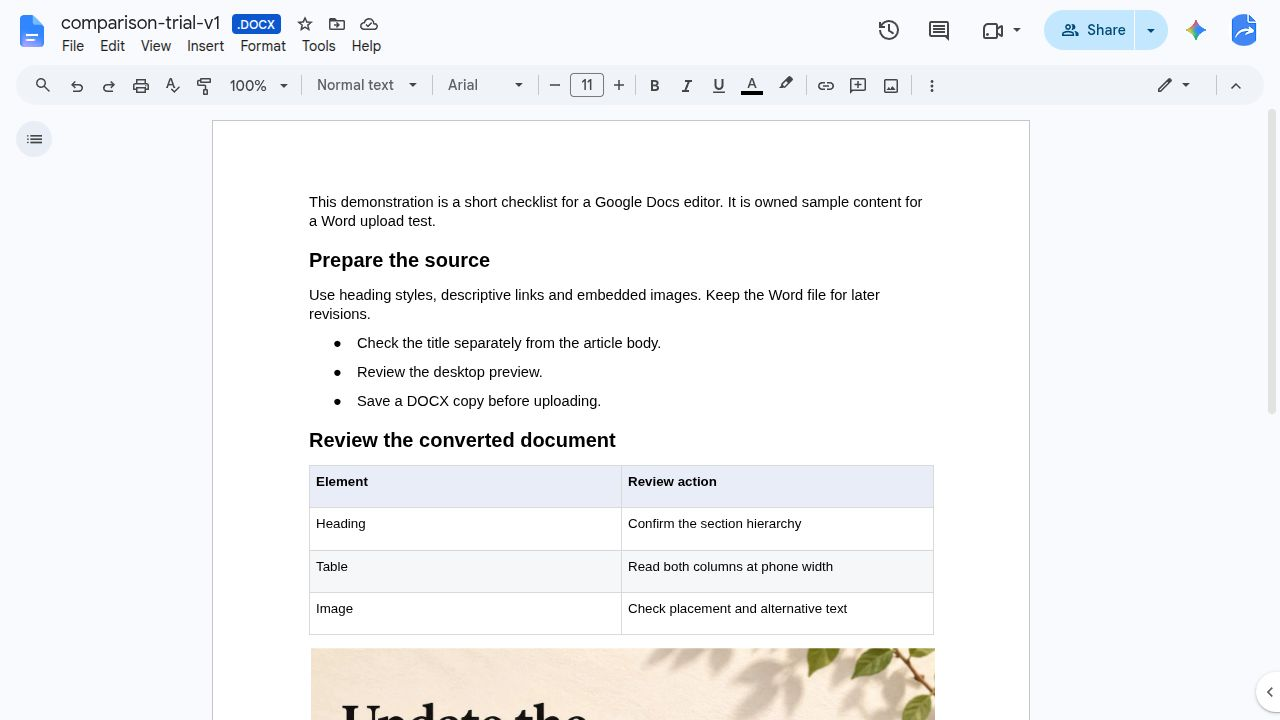
Yes. Google Docs can open and edit a Word DOCX file without Microsoft Word installed. Upload the file to Google Drive, open it in Google Docs, and check its format before you start editing.
Opening the file is not the same as converting it. You can continue working on the Word-format file or create a separate Google Docs document. The right choice depends on which copy you and your recipient intend to use.
Can Google Docs open a Word file? The short answer
Google Docs can open a DOCX in its editor while the file remains in Word format. You can also choose to save a separate Google Docs-format version. Neither choice guarantees that every Word feature or layout detail will look identical, so check important content against the original.
This guide uses DOCX as its example. Other Word file types and individual document features may behave differently.
Open a Word file from your computer or Google Drive
You need a Google account, access to Google Drive, and a DOCX file. If someone shared the file with you, you also need editing permission to make changes.
- On a computer, open Google Drive in your browser and sign in.
- Go to the folder where you want to keep the file. Choose New → File upload, select the DOCX from your computer, and wait for the upload to finish.
- Find the uploaded file and double-click it. If Drive shows a preview, use Open with and choose Google Docs.
- Confirm that the expected document is open in the editor. Check the filename and look for a .DOCX indicator beside the name. Try placing the cursor in the text; if you cannot edit, check whether you have editing access.
If the file is already in Drive, start at step 3. There is no need to upload another copy just to open it.
The following owned sample shows a Word file open in Docs with its DOCX indicator visible:
For more detail, see Google’s
and its guidance on
working with Office files in Docs
. There is also a separate
.
Check headings, lists, links, images, and tables
Before making substantial edits, compare the opened document with the received original. You do not need every item below if your article does not contain it. For the elements it does contain, check both the content and its role:
- Headings: Compare a section heading and check that it is still a heading, not just bold body text. Confirm the heading level if the structure matters for publishing.
- Lists: Compare a list with nested points. Check that no item is missing and that the indentation and order still make sense.
- Links: Select a linked phrase and inspect its destination. Check that the text and URL match the original.
- Images and captions: Find an image and its caption. Confirm that both are present and associated with the right part of the article.
- Tables: Compare the number of rows and columns and read a few cells, especially where text wraps or cells are merged.
A changed page break may be cosmetic; a missing row or a link to the wrong destination is a content problem. If something material differs, pause before sharing. Locate the affected section in the original, correct the working file where you can, or ask the sender which version is right. Repeat the same checks after conversion if you create a Google Docs copy.
For a closer review before sending the document onward, see how to check an imported DOCX before handoff.
Keep Word format or create a Google Docs copy?
Opening a DOCX lets you inspect it before deciding whether to convert it. Choose the format needed for the next stage rather than making an extra copy by default.
| Choice | File being edited | Separate Google document? | Next action |
|---|---|---|---|
| Keep Word format | The uploaded DOCX | No | Continue in the DOCX when the recipient expects a Word file. Identify it as the working file. |
| Create a Google Docs copy | A Google Docs-format document | Yes; the uploaded DOCX remains separate | Use the new document when the recipient expects a Google Doc. Check it and share that copy. |
To create the separate document, open the DOCX in Google Docs and choose File → Save as Google Docs. Check the name and format of the resulting document, then compare its important elements with the source. Keep the received Word file until you have checked the new copy.
Choose the working copy: a two-path article example
Suppose an editor sends you garden-article.docx. This is an illustrative example, not a completed file test. After uploading it, choose one of these paths:
| Path and file | Format | Role | Next action |
|---|---|---|---|
Word path: garden-article.docx in Drive | DOCX | Working file | Edit this file in Docs. Share it or return a checked Word download if the editor needs a local file. |
Word path: received garden-article.docx on your computer | DOCX | Separate received source | Keep it for comparison; it is not the file being edited in Drive. |
Docs path: garden-article.docx in Drive | DOCX | Uploaded source | Keep it for comparison, but stop making new edits there. |
Docs path: garden-article — Docs edits | Google Docs | Working file | Edit and share this document. If a recipient later needs DOCX, download a Word copy from it. |
Give the working file a distinct name and tell collaborators which one to edit. For example: “Please edit garden-article — Docs edits; the DOCX is the received source.” If you instead choose the Word path, point them to the DOCX in Drive. Avoid continuing edits in both files: changes made to one separate copy should not be assumed to appear in the other.
Download a Word copy when the recipient needs DOCX
If your working file is a Google Docs document and the recipient needs a Word file, open the working document and choose File → Download → Microsoft Word (.docx). Save the downloaded file with a distinct name, such as garden-article-return.docx, so it is not confused with the received original.
Open or preview the download and recheck a representative heading, list, link, image, and table where present. If something differs, compare it with the online working document and resolve the difference before sending it. A download is a separate file; do not assume later edits to the online document will synchronize with it.
If you kept the uploaded file in Word format, you can share that identified file or download a copy for a recipient who needs a local DOCX. Check the copy you actually send.
Fix opening problems and confusing duplicate files
| Symptom | What to check |
|---|---|
| The file opens, but you cannot edit | Make sure you are in the Docs editor rather than only a Drive preview. If editing is still unavailable, check your access and ask the owner for permission if needed. |
| You are unsure whether the file is Word or Google Docs format | Check the filename and displayed file-type indicator. A DOCX badge identifies the Word-format file; do not infer conversion just from the Docs editor interface. |
| Two files have similar names | Identify each file’s format and contents before editing. Decide which is the working copy and name it distinctly. Do not repeat the upload or conversion until you know which file you already have. |
| Layout or content looks different | Compare the affected section with the original. Correct material differences before sharing, and check the chosen file again rather than assuming another conversion will fix it. |
| The file will not open | Check the file type and your access. If possible, check whether the original opens in its intended application; ask the sender for a usable copy if it appears damaged. Renaming an extension does not convert a file. |
If the next step is a WordPress draft
Opening a file in Docs and checking a saved WordPress draft are separate tasks. Tenwrite supports publishing from a local DOCX or a Google Doc, so conversion is not required solely to use the Word file for that purpose. The
direct Word to WordPress walkthrough
covers the direct DOCX route; the
same-post Google Docs update guide
covers updates from a Google Doc.
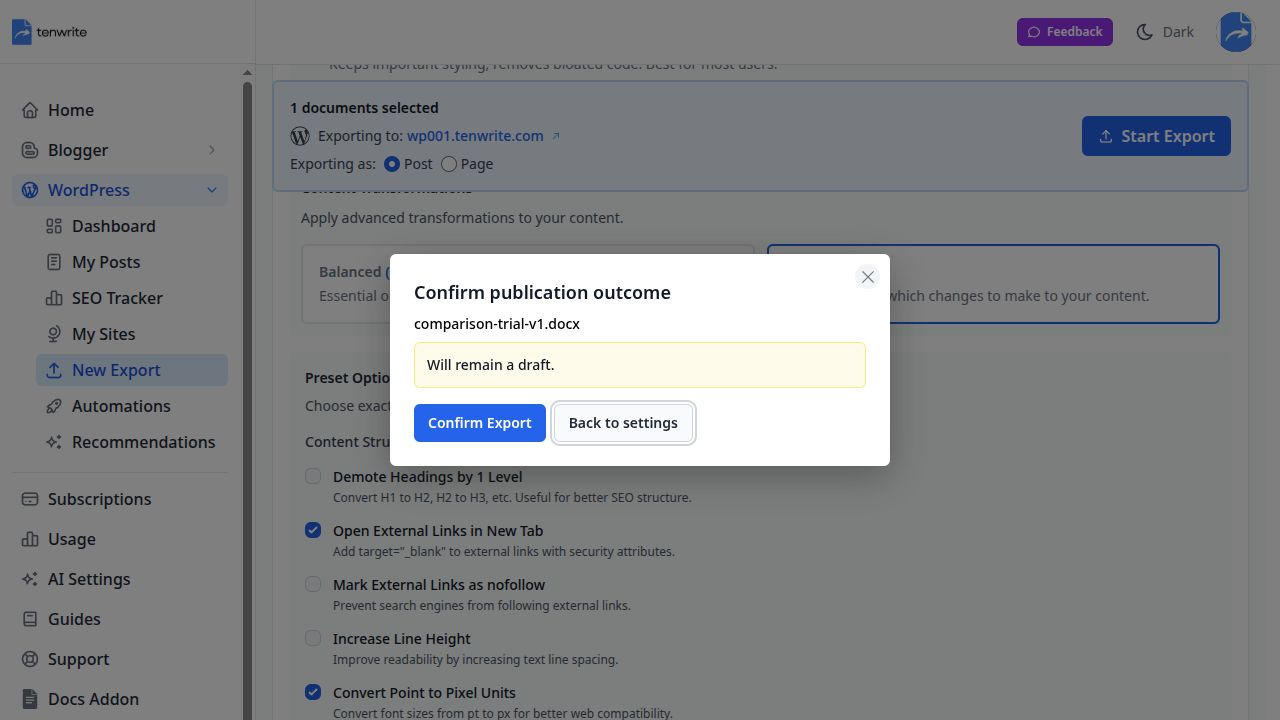
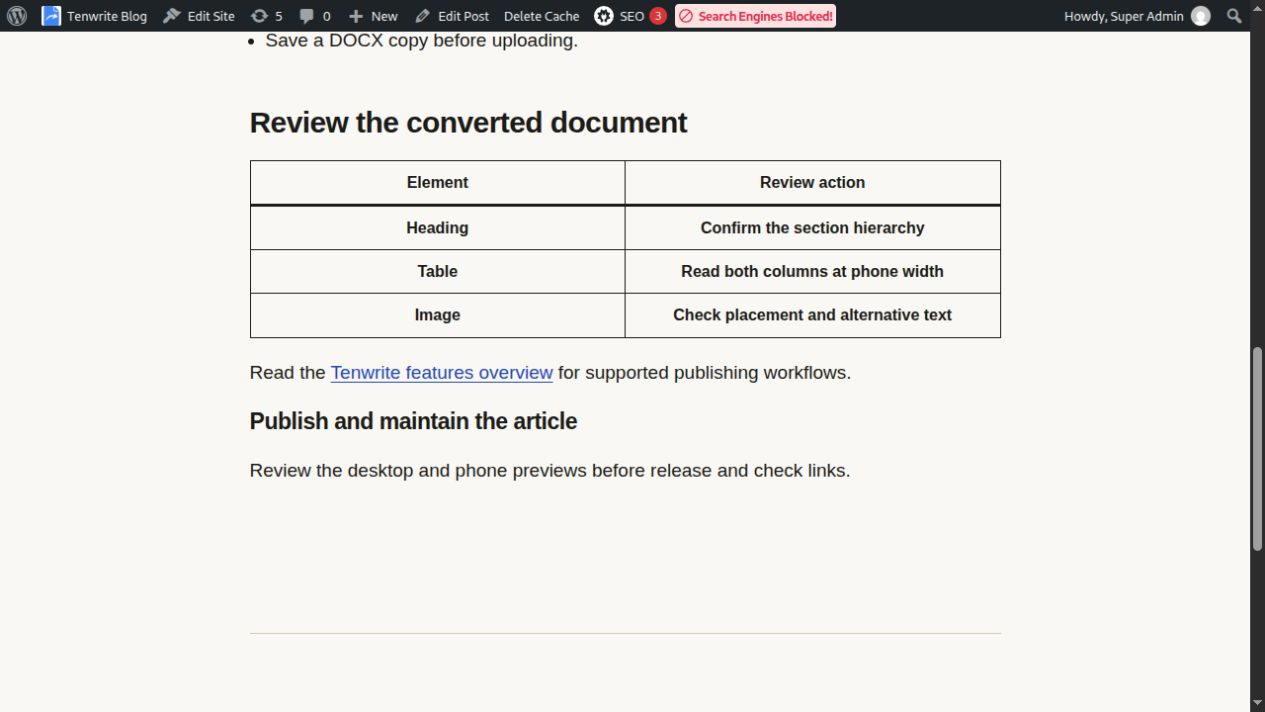
The previous version of this article recorded a separate test with an owned sample: a direct DOCX upload created an unpublished WordPress draft, and a revised file was used to update that draft. The publication confirmation and saved result are retained here as examples of those distinct stages, not as proof that every document will transfer identically.
If an image is missing in a WordPress result, first compare the original, the opened document, and the file used for the draft. The
missing Google Docs images guide
covers that separate publishing issue. To try the publishing step, you can
try one checked document in Tenwrite
, then inspect the saved draft before publishing.
For the opening task itself, start with a noncritical sample DOCX. Identify whether you are editing the Word file or a Google Docs copy, then compare one heading, link, and image with the original before moving on to your real article.