To update an existing WordPress post from Google Docs with Tenwrite, open WordPress > Posts, find the original post, and choose Options > Sync Post. Review the publication outcome, then click Confirm Sync. Tenwrite reads the linked Google Doc and updates that destination post instead of creating another one.
The important prerequisite is the link between the document and the WordPress post. Starting another export is a different operation. If you already have the right post, work from its existing row so the revision reaches the right destination.
This guide walks through a real draft update, explains how to link a document to an existing post, and shows what to check before changing published content. In our test, WordPress draft 1605 received the revised sentence and kept the same post ID and preview URL. The demonstration stayed unpublished throughout.
Choose the right update operation
There are three common starting points. You might have published a Google Doc through Tenwrite, inherited a WordPress article that has no linked document, or imported a local file. Each needs a slightly different next step.
| Your starting point | What to do in Tenwrite |
|---|---|
| Existing post already linked to a Google Doc | Revise that Doc, then use Options > Sync Post on the existing row |
| Existing WordPress post without a linked Doc | Open Full Edit, link the intended document, review settings and update that post |
| Post created from a local DOCX or Markdown file | Open Full Edit, upload the revised file and use Update Post |
| WordPress content changed and Tenwrite shows old site details | Use Sync Site Content to refresh the index |
Only the first route is the direct linked-document sync demonstrated below. A local upload is a snapshot of a file; it does not become a continuing Google Docs connection. Likewise, refreshing the site index does not push your document changes into WordPress.
If you have not created the initial article yet, follow the Google Docs to WordPress publishing guide first. Create a draft, review it, and keep its existing row for later revisions. That gives you a safer place to learn the update workflow before touching a public article.
Prepare the document and destination
Start by identifying the exact destination. Select the correct WordPress site in Tenwrite and locate the article under Posts. A similar title is not sufficient evidence: two drafts can have nearly identical names. Check the destination link, post ID and current status before opening an update action.
Record the post ID somewhere convenient for the review. In our example it was 1605. You can also record the current preview or public URL. These give you concrete checks after the operation instead of relying on a success message alone.
Next, open the Google Doc linked from that row. Confirm that it contains the current approved article. A source link can be technically valid while pointing to an older copy, especially when several people have duplicated documents during editing. Update the document that belongs to this destination, rather than whichever copy happens to be open in another tab.
The account running the sync needs access to the source Doc and the WordPress destination. If Tenwrite asks you to connect or reconnect Google files, complete that connection before continuing. A colleague’s access to the Doc does not automatically give your account access, and an automation account’s permissions do not replace your own manual publishing permissions.
Decide which version is authoritative before editing. If someone recently corrected a link directly in WordPress, bring that correction back into the Google Doc first. Syncing an older source can replace newer destination content. This workflow sends the document to the post; it is not an automatic merge of two independently edited articles.
For a first test, choose a draft with an obvious sentence you can change. Avoid combining a large rewrite, a new slug, several image changes and a publication-status change in one trial. One clear revision makes it much easier to tell whether the source, destination and operation are correct.
Create the initial linked draft
When beginning with a Google Doc, open Tenwrite’s WordPress export screen, select the connected site, and choose the document through Google Docs. Review the title and other settings, then keep the initial publication outcome as a draft.
In our demonstration we used an owned private test document called Tenwrite same-post update demonstration. Its content was deliberately short: a publication review checklist and three supporting paragraphs. This makes the before-and-after comparison visible without pretending a tiny sample is a complete production article.
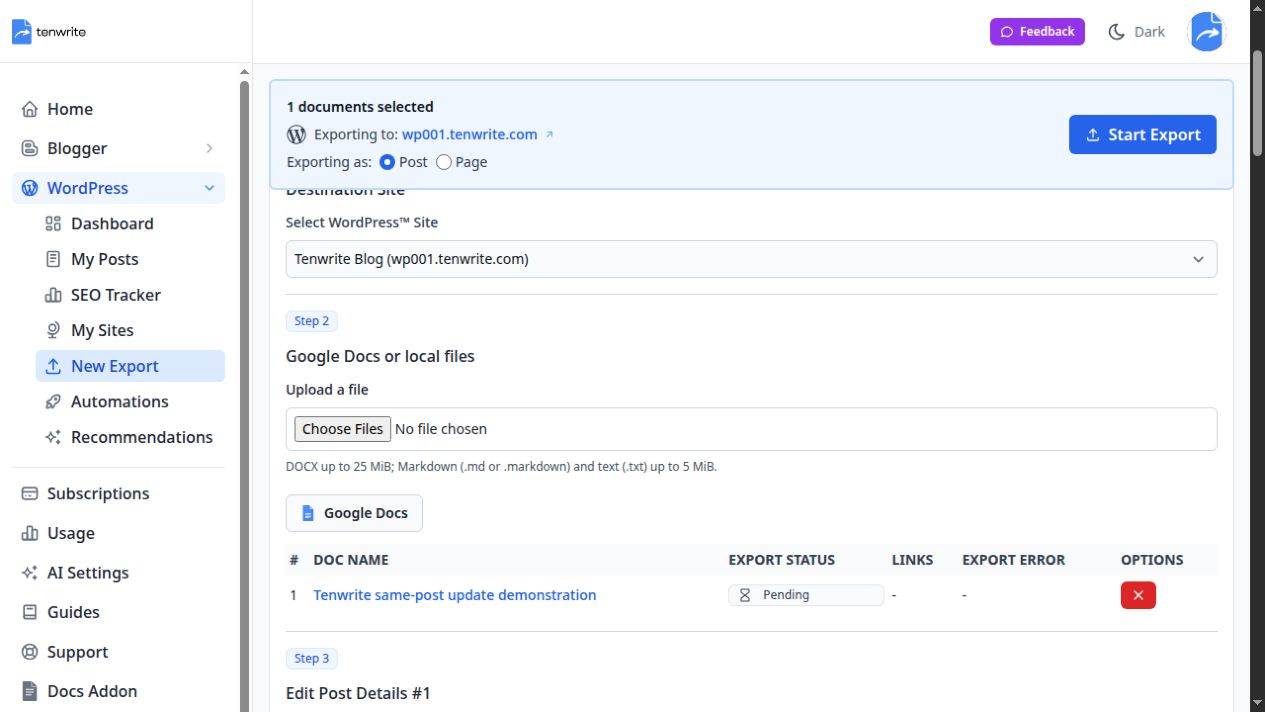
After preparing the export, review the effective outcome before confirming. We confirmed that this first export would remain a draft. Tenwrite completed the export and provided WordPress edit and preview links for post 1605.
Open the destination preview immediately. This establishes a baseline: the document has reached WordPress, the expected text is present, and the draft is the correct destination for the next update. If the first export is wrong, fix that problem before attempting a second operation.
Our original review sentence read: “Review note: check the desktop preview before publishing.” We recorded that sentence, the draft status, and the preview URL containing the same post ID. We also checked that the surrounding paragraphs were present. A baseline gives you a way to separate an update failure from a problem that already existed in the initial draft.
Revise the linked Google Doc
Open the linked source and make the actual editorial change. For the test, we changed one sentence to “Review note: check the desktop and phone previews before publishing.” The surrounding content stayed the same.
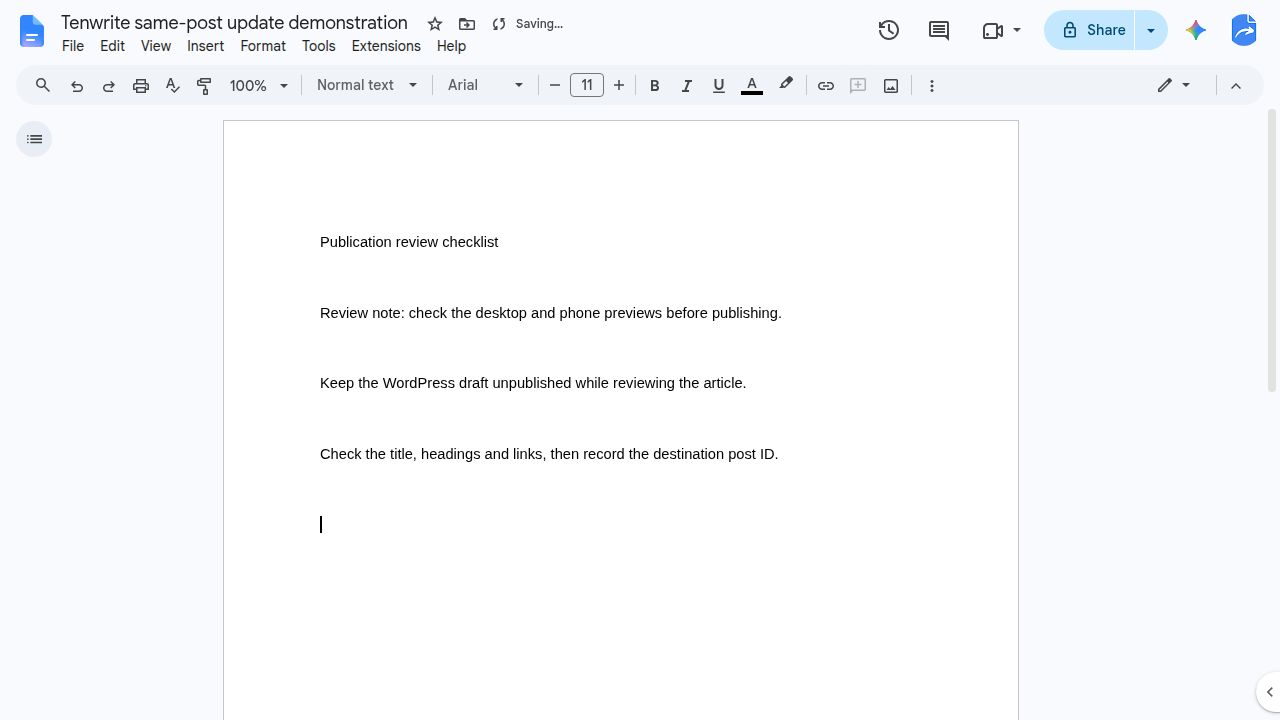
Wait for Google Docs to save the revision before starting the sync. Otherwise, you may be looking at a browser change that is not yet the version Tenwrite can read. If you collaborate with an editor, agree on a short pause while the update runs so the document is not changing during review.
Use normal document structure for a larger refresh. Apply heading styles to section headings, keep link text descriptive, and inspect images near the paragraphs that explain them. A sync can deliver a revision, but it cannot decide whether an outdated screenshot still illustrates the instructions correctly.
If your Google Doc uses multiple tabs, keep the intended publishing content in the first tab. Do not assume that clicking a later tab in your own browser changes which content is exported. Check the actual destination preview whenever the document structure changes.
Keep a brief revision note for substantial updates. For example, record that you replaced an outdated setup step, corrected a product limit, and added a new troubleshooting section. This gives the destination review a concrete scope. You do not need to compare every sentence manually when you know exactly which sections should have changed.
Run Sync Post on the existing row
Return to WordPress > Posts in Tenwrite. Select the same site and find the original destination row. Check its post ID again, then open Options > Sync Post.
The action appears for rows linked to a Google Doc. If you cannot see it, first investigate the source link instead of creating another export. The missing action often means you are looking at an unlinked post or a post sourced from an uploaded file.
Tenwrite opens a confirmation that explains it will re-export the linked document into this existing post. Give the publication check time to resolve. Review the status, date and account timezone shown in the outcome before clicking Confirm Sync.
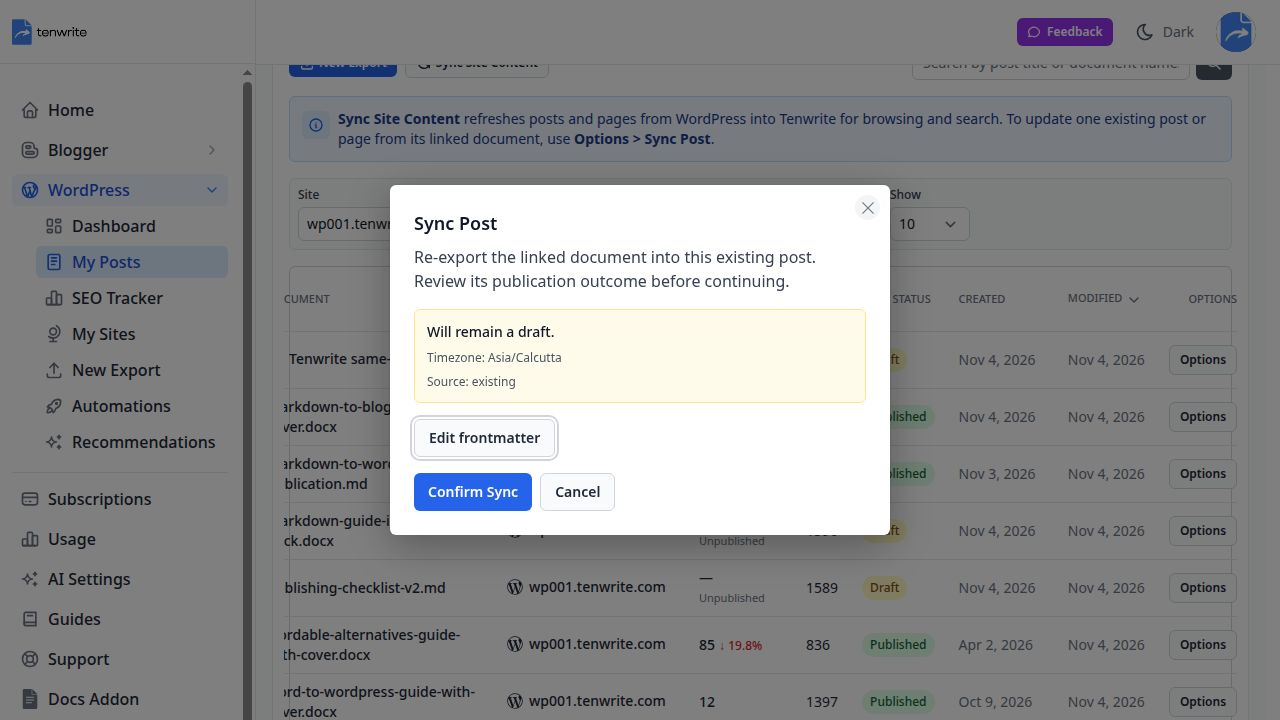
Our confirmation said Will remain a draft. That matched the purpose of the demonstration, so we confirmed the sync. Tenwrite showed a syncing state and then Sync successful. The row still identified post 1605 as a draft.
For a published article, the status check matters even more because the change can reach readers. Resolve any unexpected publication outcome before confirming. Do not use the button as a way to discover whether the article will publish, remain live, or change its schedule.
The confirmation also offers Edit frontmatter when document settings need attention. Filled frontmatter values override matching settings. Empty fields leave existing site values unchanged. If a title or publication setting looks wrong, inspect those document values before trying to force the form into a conflicting state.
Verify the revision in WordPress
Reopen or reload the original WordPress preview. In our test, the preview URL still referenced 1605, and the sentence now included “desktop and phone previews.” The other three paragraphs remained present. We checked the destination content after the sync rather than treating the notification as the entire verification.
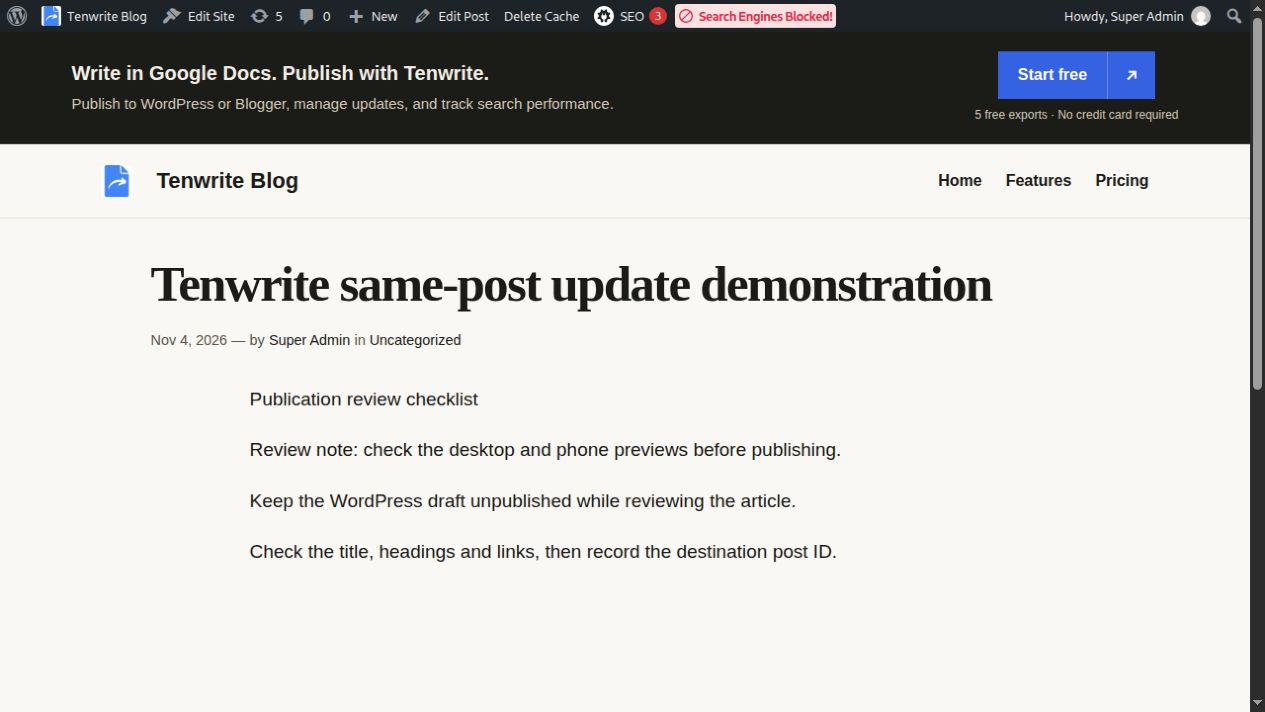
For your own article, compare these specific items:
- The destination post ID matches the one recorded before the update.
- The expected revision appears in the WordPress preview or public page.
- The status matches the intended draft, published or scheduled outcome.
- Headings, important links and images still work in the destination layout.
- The permalink remains the intended URL if you did not plan a URL change.
The same post ID is the strongest check that you updated the destination item you intended. A title can change, and several posts can share similar titles. A preserved ID makes the relationship much easier to establish.
Our demonstration proves a draft-to-draft update at the same ID and preview URL. We did not publish the sample to test a public permalink. In your production workflow, preserve the existing slug unless changing the URL is intentional, then inspect the resulting public URL. Updating the same post does not prevent an explicit slug setting from changing its address.
Review the public article separately from the editor when you update a live post. A theme can display headings, tables and images differently from the document. If the editor contains the revision but the public page still shows old text, inspect your normal site caching process before running another export. First establish whether the content update or its public delivery is the issue.
Link a Google Doc to an existing WordPress post
You can also begin with a WordPress post that was created before you adopted a document workflow. Locate that post in Tenwrite, open Options > Full Edit, and use Link document to choose the intended Google Doc. A row with a source already attached offers the corresponding change-document control.
Prepare that source carefully before updating. Linking an empty document or an outdated outline does not copy the existing WordPress article into it. Make sure the Google Doc contains the content you want the destination to receive, including recent corrections made directly in WordPress.
Review the title, publication settings and other applicable fields, then use Update Post and confirm the effective outcome. Afterward, check the original destination ID and the body. Once the post has the correct linked source, subsequent document revisions can use Sync Post from that row.
This linking route is supported by Tenwrite’s editing workflow; the hands-on example in this article used a draft originally exported from its linked Doc. That distinction matters if you are migrating an established publishing process: try the linking route on one suitable draft before applying it across a large inventory.
If the existing article is missing from Tenwrite’s list, use the site-content refresh to bring the destination inventory up to date, then locate the original post. Do not create a replacement article merely to make it visible in the app. The Tenwrite features overview explains the difference between updating a post and synchronizing the site index.
Preserve publication settings and SEO details
Treat body revisions and publication decisions as separate review items. Blank publication frontmatter does not turn an already published post into a draft. If you intend to cancel a schedule, explicitly choose Keep as draft, save, and review the resolved outcome again.
Schedules need particular care when a planned date has passed or the destination’s publication date differs from the document’s date. Correct an expired schedule or a reported mismatch before continuing. Read the account timezone in the confirmation rather than assuming it matches the clock on your computer.
For a routine refresh, retain the established slug and check the title, description and relevant SEO fields. Frontmatter can control matching settings, so a value left in the document may explain why the result differs from your expectation. The Google Docs and WordPress SEO guide covers the document-to-metadata relationship in more detail.
Inspect the rendered page after an important SEO revision. A saved SEO field and the title or description actually emitted by a site’s plugin or theme are related checks, not interchangeable proof. Confirm that the public page expresses the intended title and that its canonical URL still points to the article you are maintaining.
Keeping one destination avoids creating a second article solely for a correction. It does not guarantee a ranking improvement or an immediate Google recrawl. Search Console inspection and subsequent performance data are separate from the publishing operation. Judge the sync by the changed content and destination identity first, then measure search outcomes over time.
Troubleshoot a revision that does not appear
Sync Post is missing
Check whether the row has a linked Google Doc. A post imported from DOCX or Markdown will need a revised file upload unless you deliberately switch it to a Google Docs source. Confirm that you selected the right site and the correct post before changing its source.
Tenwrite cannot read the document
Open the linked Doc using the account performing the manual sync. Check whether it was moved to trash, whether its sharing changed, or whether your Google files connection needs attention. Resolve the access problem and retry from the existing row. Recreating the WordPress article will not repair source permissions.
The old sentence is still visible
First check the linked Doc itself and confirm the revision saved. Then verify the destination ID and reload its preview. If the source contains the new sentence but the wrong post was selected, stop and correct the source-to-post relationship before performing another update. If only the public page is stale, investigate caching after confirming the editor’s content.
A direct WordPress correction disappeared
Compare the Google Doc with the previous destination version. A source-driven update can replace edits that existed only in WordPress. Recover the needed correction through your normal editorial or WordPress revision process, add it to the Doc, and establish one authoritative source for the next sync.
Images or formatting need repair
Inspect the destination, not just the document. Check the image source, placement and alternative text, and test the actual links. For a detailed image investigation, use the Google Docs images not showing in WordPress guide. Avoid repeating exports without identifying what failed.
Make the next update predictable
Keep the Google Doc link and WordPress post ID together in your editorial record. After each refresh, record what changed and whether you reviewed the destination. This is enough to prevent many accidental replacement exports without introducing a complicated approval system.
Agree with collaborators that substantive WordPress edits must also return to the source Doc. If the team prefers WordPress as the writing environment for a particular article, respect that choice before running a source-driven replacement. The tool needs a clear source of truth to produce a predictable result.
Allow for publishing usage when planning repeated refreshes. Tenwrite’s free plan includes five exports; those are included exports, not a monthly replenishment. Review the current plans and publishing allowances for the volume you need. An occasional correction and a large recurring content operation have different usage needs.
Start with one existing draft: record its ID, revise one sentence in its linked Google Doc, use Options > Sync Post, and verify the same destination afterward. When that works, apply the same checks to a meaningful article refresh. Open Tenwrite and try the workflow with a document you already maintain, so the next revision has a clear path back to the same post.