
Yes. Google Docs can open Word documents, including .docx files and older .doc files. You can open a Word file and edit it without assuming it has been converted to Google Docs format. Conversion is a separate choice, so check the file you are editing before you make changes or share it.
Yes—Google Docs can open Word files
Google Docs can open a Word document so you can work with it in the Docs editor. Opening the file and converting it to Google Docs format are not the same action. The file may remain a Word-format document, or you may choose to create a Google Docs version for continued work.
For a typical .docx file on a computer, upload it to Google Drive and open it with Google Docs. Older .doc files can also be opened, but the result and formatting may vary. Compatibility with Word does not guarantee that every feature or page layout will look exactly the same.
Open a Word file from your computer or Google Drive
For a file stored on your computer, upload it to the Drive folder where you want to keep it:
- Open Google Drive in the account you want to use.
- Choose New, then File upload.
- Select the
.docxor.docfile and wait for the upload to finish. - Find the uploaded file and open it. If it appears in a preview rather than the editor, use the available Open with Google Docs option.
- Confirm that the document opens in the Google Docs editor before you start editing.
The expected result is an editable document in the editor, not just a preview. If the file is already in Drive, locate it there and open it with Google Docs; you do not need to upload it again. You can also start from Google Docs’ file-opening flow and select a file to open or upload.
Before making substantial changes, note the filename and Drive location. If there are similarly named files, compare the name with the one you received so you do not accidentally work on an older copy.
Choose whether to keep Word format or convert to Google Docs
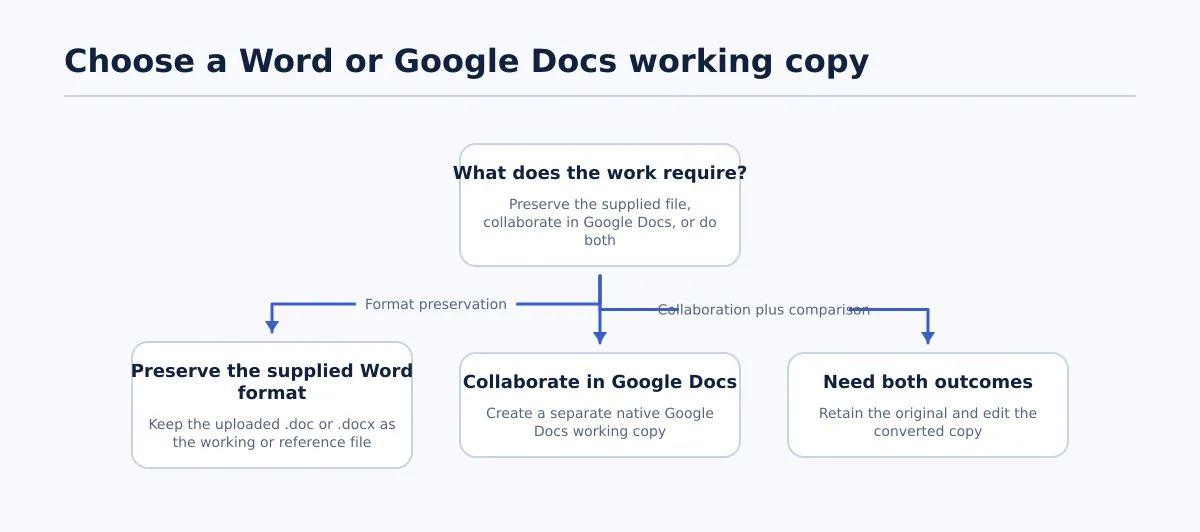
Choose based on the format you need to keep working in or send back. Opening the file does not, by itself, tell you which output you should use.
| Choice | Use it when | What to check afterward |
|---|---|---|
| Keep editing the Word-format file | The sender expects a Word document back, or the Word file needs to remain the working format. | Confirm the file is still identified as a Word document and that this is the version you intend to share. |
| Convert to Google Docs format | You want to continue in a Google Docs document. | Confirm that the Google Docs version is the file you are editing, and keep the original Word file if you may need it. |
To convert, use Google Docs’ option to save the Word file as a Google Docs document. The converted document is a distinct file from the uploaded Word original. Check its name and format after conversion, and avoid treating the two files as interchangeable just because their contents began the same.
Check the edited file and its formatting
A document opening successfully does not prove that the right copy is open or that its layout is unchanged. Check the filename, format, and Drive location, then compare important elements with the original Word file.
For example, imagine you received an article with headings, a link, an image, a numbered list, and a table. After opening or converting it, compare those elements with the Word original:
- Headings: Check that the heading text and levels still distinguish sections from subsections.
- Link: Open the link or inspect its destination to confirm it still points to the intended page.
- Image: Confirm it is present, in the right part of the article, and not visibly cropped or displaced.
- List: Check that the numbering or bullets and their order are intact.
- Table: Compare the rows, columns, and cell contents, and look for text that has become difficult to read.
If one of these elements has shifted, correct it in the working file or continue in Word if preserving the original layout is essential. Keep the supplied file until you have confirmed that the edited version is the one you intend to use.
For a more detailed look at checking Word document formatting after upload, see the related guide.
If the Word file will not open or looks wrong
Try the next step that matches what you see. Menu names can vary, so use the available file actions rather than assuming the same screen will appear for every account or file.
| What you see | What to try next |
|---|---|
| A preview appears instead of the editor | From the file’s available actions, choose Open with Google Docs. Confirm that the editor opens before editing. |
| You can open the file but cannot edit it | Check whether you have editing access. Ask the file owner for permission rather than trying to work around the restriction. |
| The file asks for a password or is protected | Ask the sender for an accessible copy or instructions. Do not try to bypass its protection. |
| Headings, images, lists, tables, or page layout look different | Compare the affected parts with the original. Keep the original, and use Word for layout-sensitive work if the Docs version does not preserve what you need. |
If the file still does not open, confirm that you selected the intended file and that the upload finished. Avoid replacing or deleting the original while you are troubleshooting.
Share the right version or download a Word copy
Share the Google Docs document if that is the version you edited and the recipient should continue in Google Docs. If the recipient needs a Word file, download the edited document as a Microsoft Word .docx file using the download option in Google Docs. Reopen the downloaded copy and check its key layout before sending it, especially if it contains images or tables.
Before sharing, make one last check: does the filename identify the intended version, is its format right for the recipient, and are the important headings, links, images, lists, and tables still in place? If the next step is publishing, the guide to publishing Google Docs to WordPress covers that separate task.
DOC to HTML Converter: How to Get Web-Ready HTML From a Word Document