
A Word document can be the source for a WordPress article without being the finished WordPress article. The practical goal is not merely to get text out of a .docx file. It is to create a draft that editors can revise, compare with the approved document, and confidently send forward.
That changes the question from “How do we import Microsoft Word into WordPress?” to “Which transfer route gives us an editable draft we can check?” The route can be simple, but the draft still needs to earn approval.
Decide what WordPress needs to receive
First, decide whether WordPress needs post content or a document file. These are different deliverables, with different checks.
| If the next person needs to… | Choose | Result to check |
|---|---|---|
| Revise copy, change headings, update links, or manage the article in WordPress | An editable post or page draft | The document content appears as editable WordPress content |
| Give visitors the original document to read or download | A retained file | The correct file is available and is the intended version |
Choose an editable post when WordPress is where the article will be maintained. A blog post, landing page, or client article usually needs this route because the publishing team may need to adjust the body, add page-specific fields, or make later edits in WordPress.
Retain the file when the document itself is the deliverable, such as a report, form, or resource visitors must receive in its original form. Uploading or linking to a document does not make its contents editable as a WordPress post.
If the request is ambiguous, pause and ask: “Should the next editor work on this in WordPress, or should the reader receive the original file?” For a broader DOCX handoff procedure, see this guide to moving a DOCX into a WordPress draft.
Pick a transfer route based on the cleanup you can accept
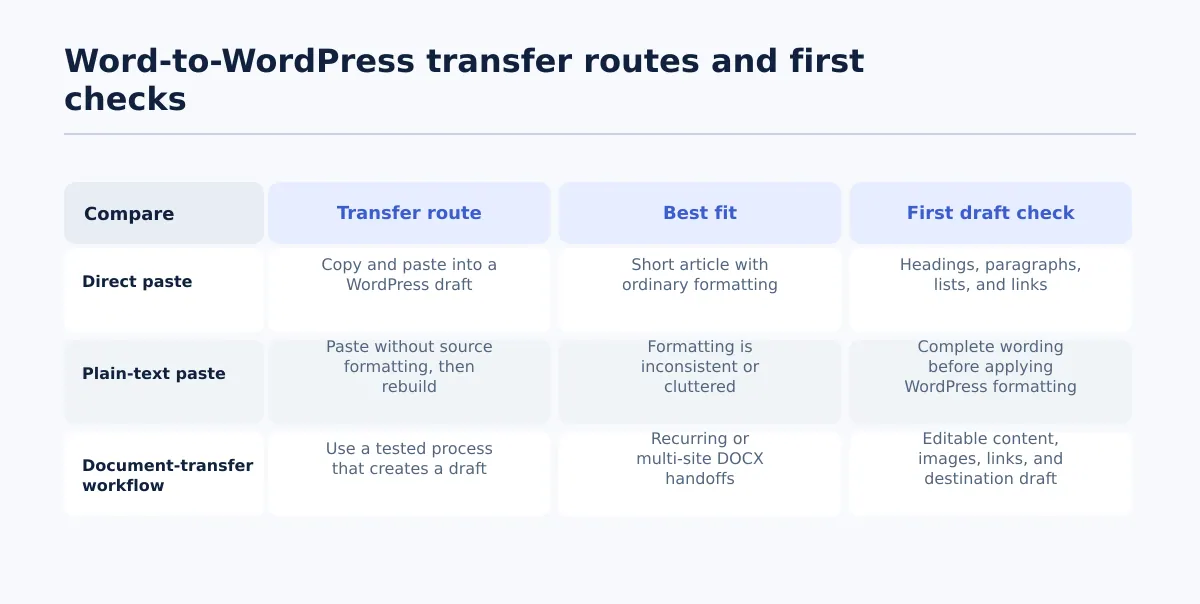 Choose the transfer route based on the source document and the cleanup your team can verify.
There is no universal Word-to-WordPress route that preserves every source element. Word documents are designed for document formatting, while WordPress editors create web content. Treat the first resulting draft as something to inspect, not as proof that the transfer is complete.
Use the route that matches the document’s complexity and the time available for cleanup.
| Source document condition | Transfer route | Check immediately in WordPress | Switch routes when |
|---|---|---|---|
| Short article with ordinary paragraphs, headings, and a few links | Copy and paste from Word to WordPress | Heading levels, paragraph breaks, list structure, and the first few links | The pasted content creates more cleanup than rebuilding the affected section manually |
| Text is useful but pasted formatting is visibly inconsistent or cluttered | Paste as plain text, then rebuild web formatting in WordPress | That all source wording is present before applying headings, lists, links, and emphasis | The document has too many structured elements to rebuild safely or efficiently |
| Repeated DOCX handoffs, several sites, or a team-approved document-transfer process | Use the team’s tested document-transfer workflow to create a draft | The correct destination draft, editable body content, images, and important links | A representative test produces critical differences that the team cannot verify or repair |
When ordinary paste is enough
Copying and pasting from Word to WordPress can be a sensible route for a straightforward article. Start with a new draft, paste only the article body, save it, and inspect the result before adding more publishing details.
This is most useful when the source has a clear heading structure, modest formatting, and few embedded elements. Do not assume that a heading stays a heading, a list keeps its nesting, or a link keeps the intended destination. Confirm those items in the WordPress editor and preview.
When plain-text paste is the safer reset
Use plain-text paste when the copied result carries distracting styling, irregular spacing, or formatting that is harder to repair than to rebuild. Plain text removes the source presentation, so it is not a shortcut to a finished post. It is a reset: first establish clean paragraphs, then apply the required WordPress headings, lists, links, and emphasis deliberately.
Before choosing this route, assess the rebuilding work. It may be appropriate for a short article with light formatting. It is less attractive when the source includes a substantial table, many links, or carefully placed images that must be reconstructed one by one.
When to use a document-transfer workflow
For recurring DOCX to WordPress work, test a document-transfer workflow using one representative article before relying on it for a wider batch. The test should include the kinds of elements your team actually publishes: several heading levels, a list, meaningful links, and an in-body image.
Tenwrite can fit this route when DOCX files stored in Google Drive need to move toward WordPress or Blogger. Its content index is intended to help users view and manage content across multiple sites. The useful result is still an editable WordPress draft, followed by the same draft check described below—not an automatic approval decision.
Prepare the Word file for a cleaner handoff
A little source preparation reduces avoidable repair work. It does not guarantee a perfect conversion, especially where the file uses complex document-specific formatting.
Before transfer, ask the writer or source owner to complete this short sequence:
- Settle the article hierarchy. Mark the article sections with a consistent heading structure. Use headings to identify sections rather than making paragraph text larger or bold to imitate a heading. The WordPress editor still needs a check, but a clear hierarchy makes the intended structure visible.
- Mark image positions. Place each image near its intended location or add a clear placement note such as
[Image: after the pricing paragraph]. Include the final asset or a known asset reference where the team’s process requires one. Do not leave an editor to infer which of several images belongs in a section. - Review links that must survive. Confirm the linked words and the destination URLs for important internal, external, and campaign links. A visible URL in a document is not the same as a working link in the draft.
- Flag complex elements. Call out tables, text boxes, multi-column layouts, tracked changes, comments, special characters, and document-generated items such as tables of contents. These may need manual rebuilding or a source-owner decision rather than a blind transfer.
Keep editorial comments and transfer instructions outside the reader-facing body where possible. That makes it easier to spot accidental notes after the content enters WordPress.
Run a source-to-draft check before asking for approval
After the transfer, compare the saved WordPress draft with the intended source. Read enough of the article in the editor to spot omissions, then use a preview to check what readers will encounter. Editor view alone may not reveal spacing, layout, or image-placement problems.
Use the following pass/fail checks for the items that most often affect an editable post.
| Item | Pass condition | Fail condition | Repair or handoff decision |
|---|---|---|---|
| Headings and paragraphs | Each section has the intended heading level, and paragraph breaks create readable body copy | A heading is ordinary text, levels are wrong, or paragraphs have merged or split unexpectedly | Correct the WordPress blocks when the intended hierarchy is clear; return it to the source owner when the source does not make the hierarchy clear |
| Images | Each required image appears in the intended location and does not replace or interrupt unrelated copy | An image is missing, appears in the wrong section, or an unresolved placeholder remains | Reposition or add the correct approved asset; hold the draft if the right image or placement decision is unavailable |
| Links | Important linked text points to the intended destination when opened from the draft or preview | A link is missing, points elsewhere, or its anchor text no longer matches the approved wording | Reinsert or correct a known link; return the item when the intended destination is uncertain |
| Lists and emphasis | Lists remain readable and intentional emphasis still has its editorial meaning | List nesting is broken, numbering is misleading, or emphasis has been applied to unintended text | Rebuild the affected blocks and recheck the section in preview |
Work through failures instead of silently accepting them
Suppose a Word document has an H2 section titled “Set the review deadline,” but the pasted draft shows the words as a bold paragraph. This fails the heading check because WordPress cannot reliably treat that paragraph as a section heading.
If the source hierarchy is clear, change the block to the intended heading level in WordPress and preview the surrounding section. If the source uses bold text inconsistently and the editor cannot tell whether it is a heading or emphasis, do not guess. Record the question and return it to the writer or editor who owns the source decision.
The same distinction applies to links and images. A publisher can repair a broken known URL or move an asset to a clearly marked location. They should not decide which destination link was intended or select a substitute image without approval.
Use an approval gate, not a publish button
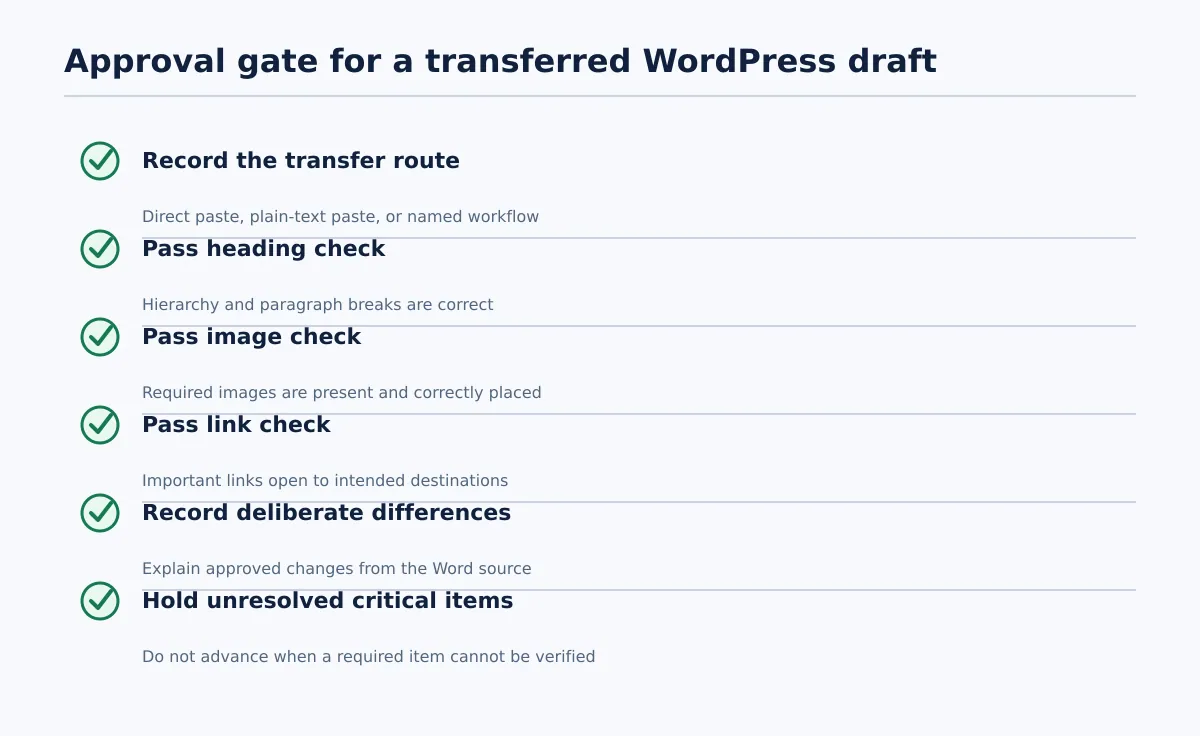 A draft advances only after the transfer route, required checks, and any exceptions are recorded.
A transfer is ready for review when the team can describe what happened and show that the essential comparison checks passed. It is not ready simply because a WordPress draft exists.
Use this proposed approval gate before the item moves to its next reviewer:
- Record the route used: direct paste, plain-text paste, or the named document-transfer workflow.
- Confirm that headings, required images, and important links have passed their checks.
- Note any deliberate difference from the Word file, such as a rebuilt table or a web-specific image treatment.
- Keep the item in draft status while a critical check remains unverified.
- Route source questions to the person who can approve a wording, link, image, or structural decision.
A critical failure is one that changes required meaning, navigation, or expected reader content—for example, a missing section heading, an absent required image, or an important link with an unknown destination. Hold those drafts rather than treating a partial transfer as ready for approval.
On the next Word-to-WordPress handoff, record the method, compare the source with the saved draft, and use the gate before anyone schedules or publishes it. That small routine turns copy and paste from an uncertain handoff into a reviewable editorial step.