Yes. Google Docs can open a Word DOCX file: upload it to Google Drive, then open the uploaded file with Google Docs. You can inspect and edit the Word-format file, or choose to create a separate Google Docs document.
Opening the file is not the same as converting it. Before you continue editing, identify which version you have and compare its important content with the original.
Quick answer: open a Word file in Google Docs
On a computer, sign in to Google Drive, choose New > File upload, and select your Word document. Once the upload appears in Drive, open it with Google Docs. If you see a preview first, use Open with and select Google Docs.
That gets the article into the editor. If you want a separate Google Docs-format copy, take the additional conversion step described below.
Choose the format you want to edit
You do not have to create a Google Docs copy just because you use the Google Docs editor. Choose based on what you need next:
| Your need | What to use | What to identify afterward |
|---|---|---|
| Continue with a Word-format file | Open the uploaded DOCX in Google Docs and keep editing that file. | The Word file in Drive, including its filename and format. |
| Work in a Google Docs document | Open the DOCX, then create a Google Docs copy. | The new Google Docs document and the original Word file; they are separate files. |
For example, a writer returning an article as a Word file may prefer to keep the uploaded DOCX as the working file. An editor who wants a Google Docs working document can create a copy instead. Either way, check the result before making extensive edits.
This guide uses .docx, a common Word format. Older .doc files are also Word documents, but their behavior and formatting can differ. Do not assume every Word feature will look or work identically in Google Docs.
Upload and open a Word document on desktop
Start with a Google account and the Word file on your computer. Keep the received original on your computer so you have a reference if you edit the uploaded file or create another copy.
For this example, imagine you received an article named newsletter-original.docx.
- Sign in to Google Drive and open the folder where you want to store the upload.
- Select New > File upload. Choose
newsletter-original.docxon your computer. - Wait for the upload to finish and find the file in the Drive folder.
- Open the uploaded file. If it appears in a preview, choose Open with > Google Docs. If it opens directly in the editor, you can skip the preview step.
- Check the filename and read the opening paragraph. Make sure this is the article you intended to open, not a similarly named draft.
The immediate result should be an editor view where you can inspect the article. A .DOCX indicator beside the name identifies an opened Word-format file; it is not evidence of a separate Google Docs copy.
If you need more help with the upload itself, see the
Word upload to Google Docs guide
.
Create a Google Docs copy and identify both files
If you want a Google Docs-format working document, open the uploaded Word file in the editor and choose File > Save as Google Docs. This creates a separate document; it does not replace your preserved original.
Give the new document a distinct name, such as Newsletter — editing copy. Then return to Drive and identify both items:
newsletter-original.docx: the uploaded Word-format file.Newsletter — editing copy: the Google Docs document you created.
Check the file type as well as the name. A name alone can be changed and is not proof of format. Open the intended editing copy and confirm that it contains the expected article before sharing it or adding revisions.
If someone later needs a Word file, open the Google Docs working copy and choose File > Download > Microsoft Word (.docx). The download is another file, so give it a recognizable name and check it before sending. Continue to treat the chosen working document—not every export—as the source for future edits.
Check the article against the original
A file opening successfully does not prove that every part of the article is ready to use. Compare the original with the opened Word file or the new Google Docs copy, depending on which one you plan to edit. Keep both available and work through the article in order.
An illustrative five-element check
Suppose newsletter-original.docx contains a section heading, a three-step numbered list, a sentence linking to a source, an image with a caption, and a two-column table. The example is illustrative; it does not represent a tested import or a claim that any element was lost.
| Element in the original | Check in the opened or converted version | Action if it differs |
|---|---|---|
| Heading: “Preparing the newsletter” | Find the same text and check that it is still a heading, not ordinary paragraph text. | Restore the missing text or apply the intended heading style. |
| Numbered list with three steps | Count the items and check their order and numbering. | Restore missing text or correct the list structure. |
| A linked sentence | Select the linked text and inspect its destination; confirm it matches the original. | Add or correct the link, then check the destination again. |
| Image and caption | Find the image and confirm that its caption is present and associated with the right image. | Restore the image or caption from the original and check their placement. |
| Two-column table | Compare the row and column structure and read the cell contents. | Repair the table or restore missing content from the original. |
For each row, mark it complete only after the content is present and usable. For example, seeing blue text is not enough to confirm a link: inspect where it goes. Similarly, a visible table needs the right information in the right cells.
The goal is a usable article, not a pixel-identical page. A line break or page break may differ without changing the meaning. If a layout difference makes the article difficult to read or changes how an image, caption, or table is understood, fix it in the chosen working copy and compare again.
If the original contains comments or tracked changes, inspect those too. Do not assume they carried over or remain usable just because the body text is visible. If a review note or change is important and you cannot verify it, consult the original or ask the sender before proceeding.
Optional: use a count as a second check
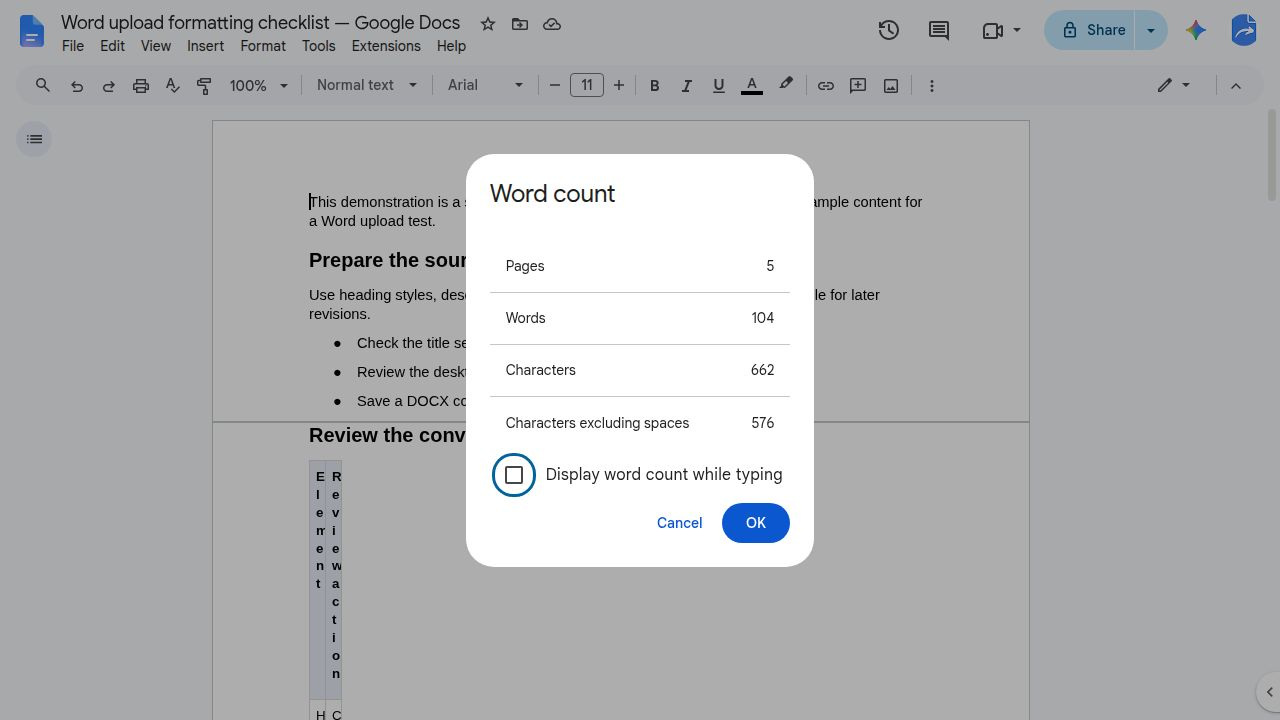
A word count can help flag a large difference, but it cannot tell you whether a link works or a table is complete. If you compare counts, make sure both versions include the same material, such as editorial notes and captions. On desktop, Tools > Word count opens the Google Docs count; the
provide more detail.
The image below is an example of a Google Docs count dialog from a separate publishing check, not a result from the illustrative newsletter.
Open the file on a phone or tablet
You can also access a Word file using the Google Docs mobile app. Sign in to the Google account that has the file, find the Word document in Drive or the Docs app, and open it in Google Docs. If you have not uploaded it yet, add it to Drive first.
Confirm the account, filename, and opening paragraph before editing. Mobile controls can differ between Android and iOS, so do not rely on the desktop conversion menu being in the same place. If you need to create and identify a separate Google Docs copy, the desktop route above gives you a clear way to check both files.
Use the same five-element comparison on mobile, especially for links, images, and tables. If the screen makes a table or layout difficult to inspect, complete that part of the check on a larger screen.
If you also need a count, Google’s
describe the Android app. The original post notes that the count command is not available for documents opened in Microsoft Office Compatibility Mode; if it is missing, check the file format rather than assuming the file is damaged.
Fix common opening problems and choose your editing source
| Symptom | Next check | Result to look for |
|---|---|---|
| The file opens in preview instead of an editor. | Look for Open with and select Google Docs. | The article opens in the Google Docs editor for inspection. |
| The article or filename is unfamiliar. | Check the signed-in account, Drive folder, filename, and first paragraph against the received file. | The intended article is open before you edit or convert it. |
| A heading, image, list, link, or table looks different. | Compare the affected element with the preserved original and repair the working copy where needed. | The intended content is present, readable, and usable. |
| There are several similarly named files. | Check their file types and names. Identify the uploaded Word file and any Google Docs copy. | You can point to one specific file for future edits. |
| The file still shows a DOCX indicator. | Decide whether you intended to keep Word format or create a Google Docs document. | Keep editing the Word file if that is the goal; otherwise use File > Save as Google Docs and identify the new copy. |
Once the comparison is complete, make the source choice explicit:
- Name the working file so its role is clear, such as
Newsletter — editing copyorNewsletter — working.docx. - Record its location in Drive, or keep its link with the assignment, so you and other editors can find the same file again.
- Keep the received original as a reference. Do not overwrite it while resolving differences.
- Direct future edits to the chosen source. If you create a Word download for a recipient, identify it as an export rather than quietly switching the working file.
Try this with one sample article: open it, check all five elements against the original, and designate the file you will edit next.
If the checked article is going to WordPress
When the article is ready for its next step, the
Google Docs to WordPress publishing guide
explains publishing from Google Docs. If you are revising an existing post rather than creating a new one, see the
same-post Google Docs update guide
.
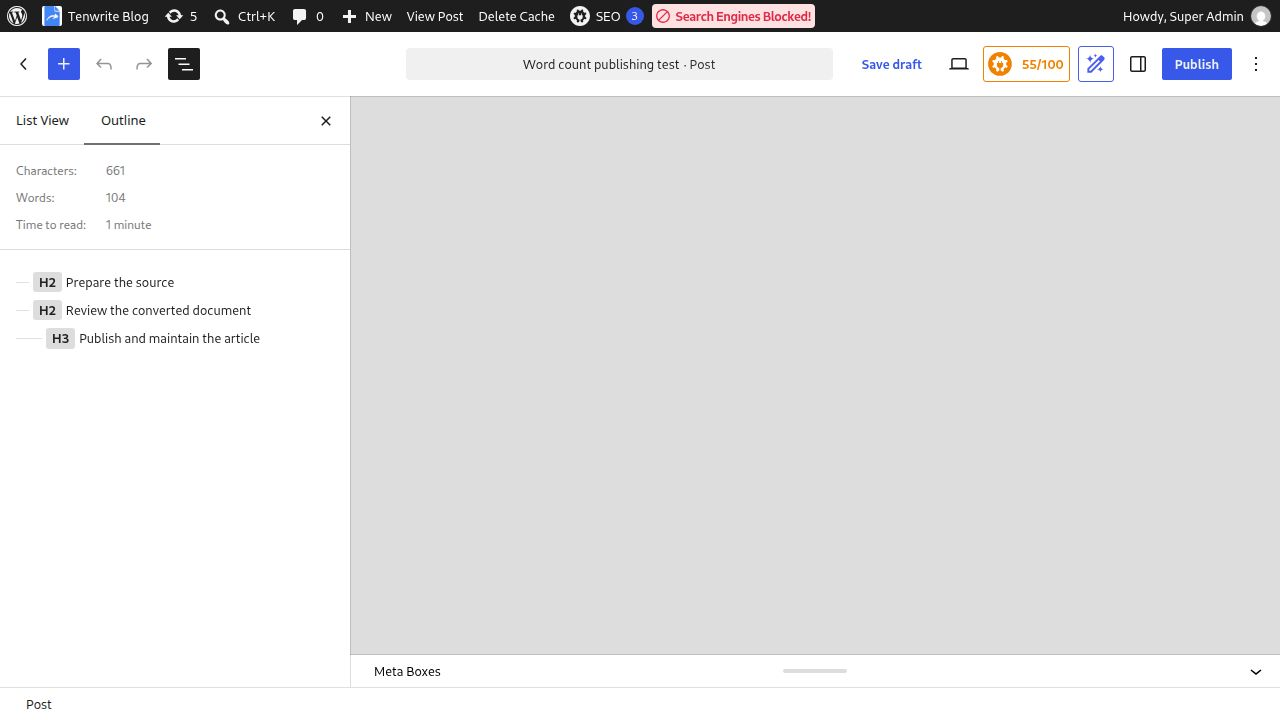
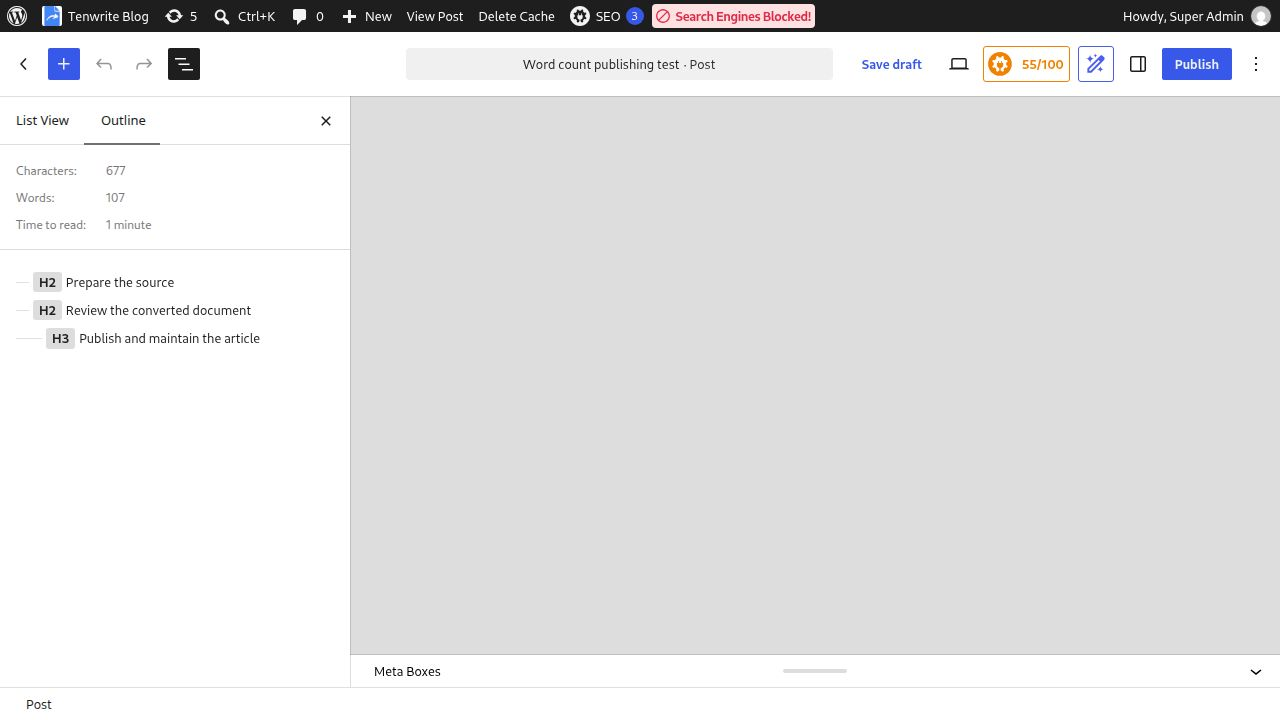
After publishing, inspect the WordPress draft itself. A count is one extra signal, not a substitute for checking the article. WordPress’s
explains its Outline panel. The image below shows an Outline panel from a separate count example.
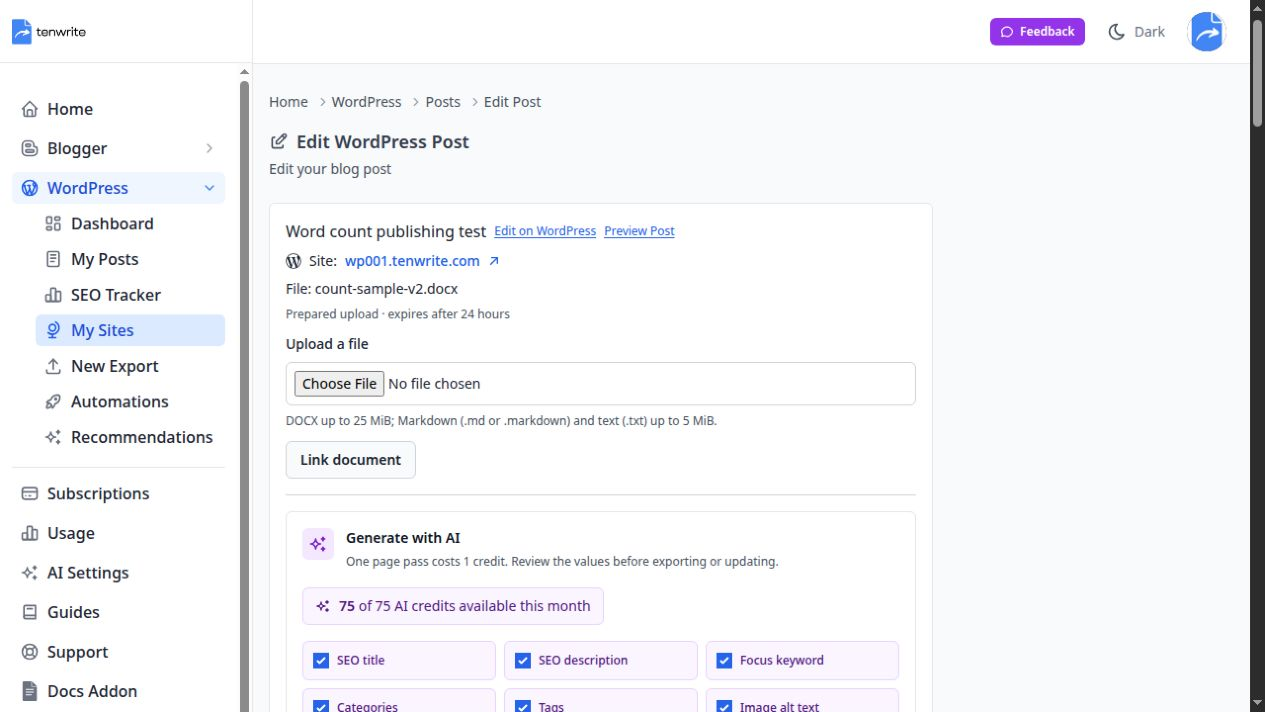
The following two images are from the original post’s separate same-post update example: an edit screen with a revised DOCX, followed by the WordPress Outline after the update. They are not results from the illustrative newsletter above.
For the article itself, prioritize useful information over reaching a particular length; Google’s
offers broader advice. If publishing is your next task, you can also
try one reviewed article in Tenwrite
and inspect the resulting draft.