Google Drive to WordPress can mean displaying a file on a page or turning a Google Doc into an editable article. For article publishing, Tenwrite can watch a Drive folder, create WordPress drafts from eligible Google Docs and update their existing posts when the source changes. Start with one document and check the saved result before using the workflow for a publishing calendar.
This guide follows a real November 6, 2026 test: we created a dedicated folder, supplied a native Google Doc, ran a disabled automation manually and inspected WordPress draft 1702. We changed one sentence in the Doc and ran the automation again. The second run updated that same draft, preserving the remaining saved body HTML. The test article remains unpublished.
Choose article publishing or file display first
If readers should download a PDF, view a presentation or interact with a spreadsheet, you need a file-display workflow. A link, embed or appropriate media integration may meet that need. Check sharing access from the visitor’s perspective: seeing a file while signed into its owner’s Google account does not establish that a visitor can open it.
If readers should see an article with a WordPress title, body, categories, featured image and permalink, you need document publishing. The content should become a native WordPress item that an editor can preview and maintain. Embedding a document does not create that editable article, and importing article text does not automatically provide the visitor experience of an embedded spreadsheet.
Keep this choice in the brief. “Publish the report” is ambiguous when one person expects a downloadable file and another expects a blog post. State the destination site, intended post or page, source document and publication state. For the rest of this walkthrough, the intended result is an editable WordPress draft whose writing source remains a Google Doc.
Understand manual exports and folder automation
A manual export starts when you select documents or upload supported files and submit the export. It is useful for a one-off article or an irregular batch. Tenwrite’s folder automation handles a recurring source location: it checks a connected Drive folder for eligible documents and changes. The maintained WordPress Drive automation documentation describes hourly checks and updates to existing posts.
That timing matters. Putting a Doc in the folder does not promise an immediate public article. The selected publication settings determine the outcome, and processing happens when the automation runs. In our test, we kept the schedule disabled and used the supported Run Now control twice. This tested the automation’s publishing and update behavior without leaving a recurring test schedule active.
Folder automation also differs from uploading a local Word file. A DOCX on your computer is not a watched source. For manual Word transfer, follow the Word to WordPress upload guide. For a linked Google Doc updated manually through an existing post, use the same-post Google Docs update guide. Choose the route that matches how your team actually delivers revisions.
Prepare one eligible Google Doc
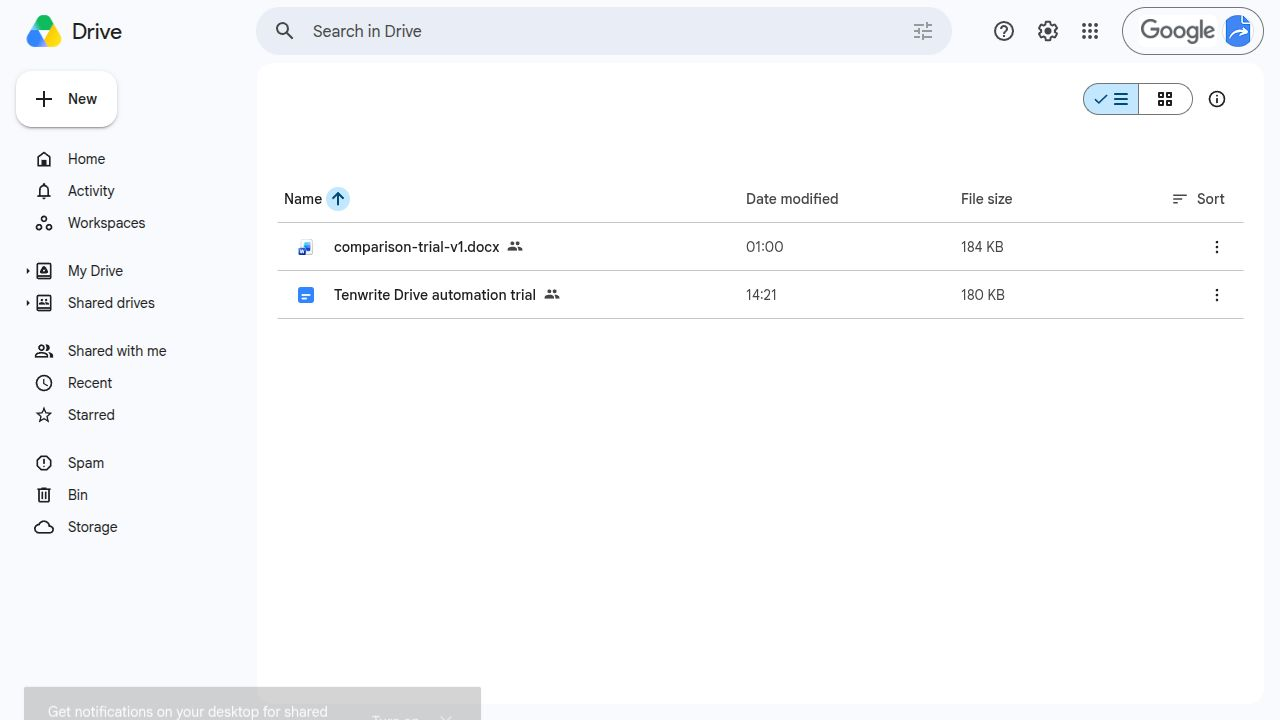
Use a dedicated folder for the pilot. Its contents should be documents you intend the automation to consider, rather than an entire working library containing unfinished drafts and unrelated files. Give the folder a recognizable name and confirm the Google account that owns it. Our folder was named “Tenwrite Drive publishing trial — 6 Nov 2026” and contained only owned sample material.
The watched article must be a native Google Doc in the folder root. The documentation excludes subfolders and other file types from this Drive workflow. Opening a DOCX in the Google Docs editor does not by itself make it a native Doc. If you receive Word files, deliberately save the intended article in Google Docs format and confirm which copy you will revise afterward.
For this test, we uploaded our representative Word sample to the dedicated folder, opened it in Google Docs and used Save as Google Docs. We renamed the converted document “Tenwrite Drive automation trial.” The original DOCX remained alongside it as a reference; the automation reported one eligible file. We edited the native Google Doc for the second run, not the Word reference.
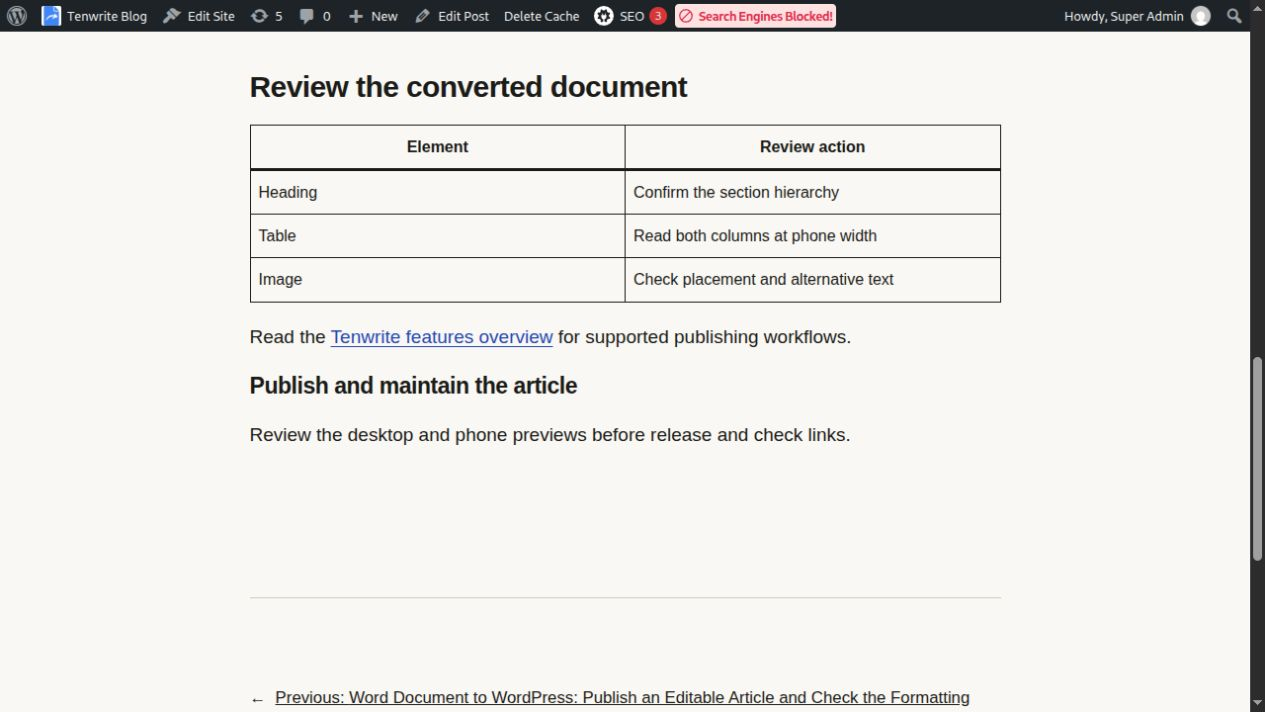
Use a sample that exercises meaningful structure. Ours included two H2 headings, an H3, three bullets, a two-column table, a descriptive link and an illustration. The body still identified itself as owned Word-upload sample content because it came from that earlier fixture. This was a controlled publishing test, not a real client article or an example of automatically granted editorial approval.
Give Tenwrite access to the intended folder
The current setup asks for a Google Drive folder URL and explains which account needs access. The maintained instructions name [email protected]. In our test, we shared only the dedicated sample folder with that service account as Viewer. We kept general access restricted and did not send a notification email.
Follow the account and permission shown in your current Tenwrite setup and documentation. A similarly named personal account or a different Google project is not a substitute. Viewer access is sufficient for this read-source workflow; giving the service account editing rights would expand its access beyond what the documented setup requires. Check the recipient carefully before saving the share.
An organization may show an external-sharing confirmation. For our owned sample folder, we reviewed the named recipient and completed the share. Your organization’s administrator may enforce different sharing rules. Resolve those rules through the supported account process rather than assuming that a visible folder link makes its contents accessible to Tenwrite.
Copy the folder URL after confirming the share. Opening it successfully in your own browser only establishes your access. If a run later reports an access problem, check the actual folder’s sharing settings and the document’s location. Repeating the export without changing the underlying access condition is unlikely to produce a different result.
Create the automation for the correct WordPress site
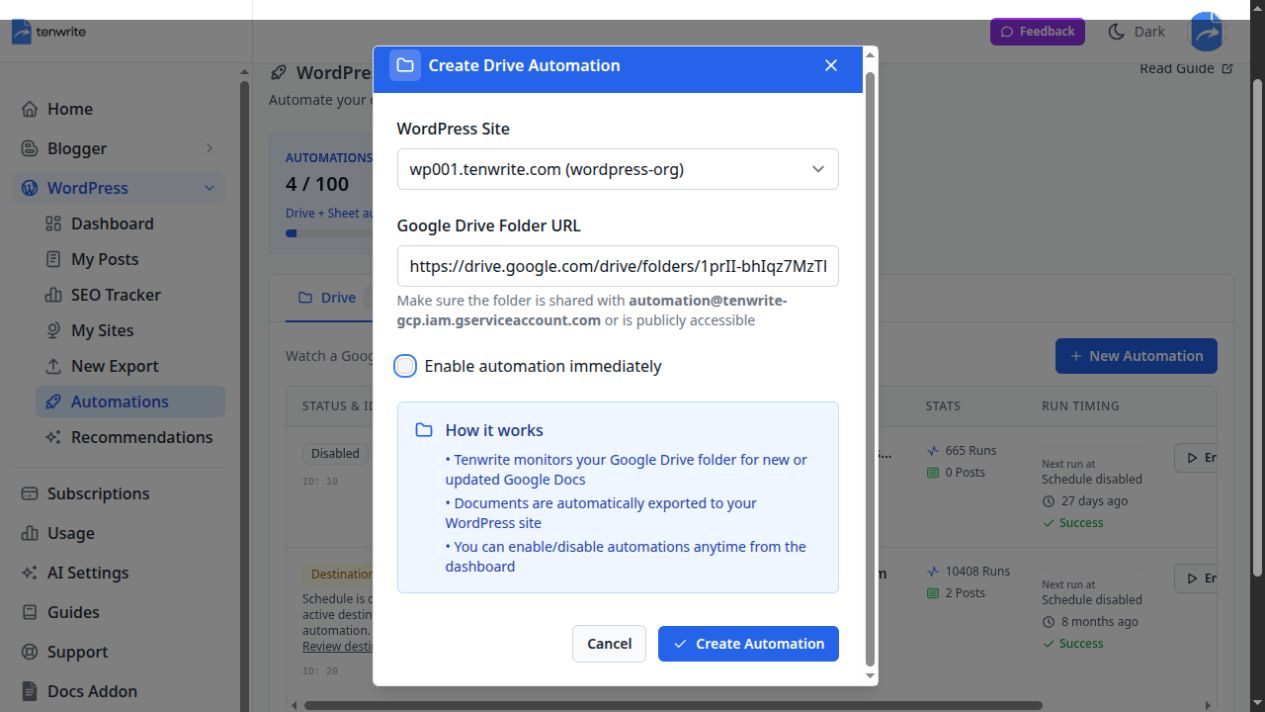
In Tenwrite, open WordPress → Automations and select the Drive tab. The interface separates Drive and Sheets workflows; choose Drive for a folder of Docs. Click New Automation, select the intended WordPress site and supply the folder URL. Verify the hostname, especially if your account contains several client sites or inactive destinations with similar names.
Our form selected the owned wp001.tenwrite.com site and the dedicated trial folder. We cleared Enable automation immediately before creating the automation. The resulting entry was automation 26, marked Disabled, with a schedule-disabled message and a Run Now action. Existing automations in the account were left unchanged.
Disabled scheduling and manual execution are separate controls. Run Now is described in the current interface as running once without changing the schedule. This makes it useful for an initial destination check. Do not enable an ongoing schedule simply to obtain a screenshot or to discover whether the source is readable. Start with the smallest controlled test that can demonstrate the actual result.
Review the document’s publishing instructions before the first run. The documentation states that new posts default to Draft and that supported document frontmatter can set a different status. A Doc containing a publish instruction deserves a different review from a Doc without one. For our sample, the observed saved outcome was Draft; it was not inferred solely from the automation’s disabled schedule.
Run the first test and locate its saved result
Use Run Now on the exact trial automation. Watch for the run to finish and inspect its result before clicking again. Our first execution reported Success, one run and one post created. The list also reported one eligible file in the folder. Those counters helped identify the completed run, but they did not replace opening the WordPress result.
We opened Tenwrite’s WordPress post list for the selected site and located “Tenwrite Drive automation trial.” The item was draft 1702 and linked to the native Google Doc used by the automation. Recording both identities connects the writing source to a specific destination. A title alone is less useful because several drafts can share similar wording.
Open the authenticated WordPress preview when the item is unpublished. Tenwrite and WordPress may require separate signed-in sessions. If a preview returns a page-not-found screen, check the destination login and the post’s saved status before concluding that the automation lost the article. Do not make an unfinished sample public merely to make its preview easier to open.
When an execution fails, read the reported error and resolve the specific condition before retrying. Check source access, the correct folder, supported file type and the destination’s availability. Before starting a separate manual export as a workaround, inspect the post list for an existing result. A retry and a new export can have different consequences for article identity.
Compare the draft with the source
Our preview contained the intended headings, three bullets, table and link, and the illustration loaded as the featured image. We checked the draft’s beginning and ending as well as its middle. A successful run can still leave an editor with a destination-specific correction, so compare against the source rather than judging whether the draft merely looks plausible.
| Review item | What to verify in the saved WordPress result |
|---|---|
| Identity | Correct site, article title, native source link and destination post ID |
| Structure | Heading order, paragraph completeness and separate list items |
| Links | Anchor text and actual destination, including important calls to action |
| Images | Featured cover, any inline images, crop and meaningful alternative text |
| Tables | Complete values, appropriate header/data cells and readable layout |
| Publication | Draft, scheduled or published state matches the intended outcome |
The sample’s table saved with two header cells and six data cells. We checked the cell values, not just the visible grid. The image appeared as the featured cover, so the body did not contain another inline copy. That is a concrete result to inspect for your own article: decide whether an illustration should be a cover, an inline image or both, then compare with what the theme actually displays.
Review excerpt, categories, tags and supported SEO fields separately when they apply. A complete body does not prove that its metadata is correct. For a detailed saved-versus-rendered metadata example, see the AI SEO metadata walkthrough. Keep any release decision in your team’s approval process rather than treating a successful transfer as permission to publish.
Change the Doc and update the same post
After checking the first draft, we edited the original native Google Doc in the watched folder. We changed “Review the desktop and phone previews before release” to “Review the desktop and phone previews before release and check links.” Google Docs’ Find and replace dialog showed one match, and we waited for Saved to Drive before requesting another run.
We used Run Now again on automation 26. The completed entry showed two runs and one post created. We reloaded the preview for draft 1702; its final sentence contained the new wording. Comparing the saved body HTML before and after showed exactly that sentence change, with the rest of the HTML identical. The featured image still loaded, and the item remained a draft.
This is evidence of a real source-driven update through the automation. We did not upload the revised Word file to WordPress or create another manual export for the second step. The automation continued using the same Google Doc and destination record. Keeping those identities visible is how you distinguish an update from two similar-looking articles.
For your own pilot, change something easy to find and verify. Record the first post ID, source URL and publication state; make one deliberate source revision; then compare the next saved result. If another post appears, stop and investigate which source, copy or destination changed. Do not delete an older draft based only on its title, and do not assume that every similar filename represents the same linked source.
Handle revisions without losing track of the source
Keep one writing source authoritative for each linked article. If an editor corrects WordPress directly and someone later changes the Google Doc, the next source-driven update needs to represent the intended final wording. Bring accepted destination-side corrections back into the source before replacing content from it again. Agree who owns that reconciliation instead of relying on whichever copy was opened most recently.
Do not assume that a newly copied Google Doc inherits the destination identity of the original. A copy is a different document. Likewise, selecting another WordPress site changes the destination context. Before reorganizing an active publishing folder, record which Docs are linked to which posts and test the intended change with one item. Renaming a source is a different operation from replacing it with another file.
An unclear result is a reason to compare records before retrying. Keep the source reference, post ID, latest run result and specific mismatch together. “The second paragraph still has the old sentence on draft 1702” gives the publisher something to inspect. “Sync did not work” leaves open whether the wrong Doc, an old preview, a failed run or a different post was checked.
Troubleshoot the conditions that block a run
If a file is ignored, confirm that it is a native Google Doc directly in the watched folder. The original Word document and a native conversion can look similar in Drive while remaining different file types. The documentation excludes DOCX, PDFs and subfolders from this automation. Those restrictions do not mean that Tenwrite’s separate manual upload flow cannot accept a supported local file.
If a destination is inactive or unavailable, resolve that site through Tenwrite’s site-management controls. Our account’s automation list visibly distinguished an older unavailable destination from our active trial destination. Run Now was disabled for the unavailable entry. That observed state does not diagnose every possible connection failure; inspect the specific site and error rather than copying another automation’s settings blindly.
If your edit is not visible, confirm that you edited the original native Doc, waited for Google to save it and checked a run that occurred afterward. Reload the actual destination preview and verify its post ID. A scheduled hourly check is not a promise that every unsaved keystroke appears immediately. Our test used explicit manual runs, so it does not measure the timing of the hourly scheduler.
If a transfer reports failure after some work completed, check for a saved post before starting another export. Preserve the source and result details while diagnosing the failure. A run counter alone cannot tell you whether a destination item exists or whether a particular sentence reached it. The controlled first-draft and same-post revision checks above help make that distinction visible.
Decide when to use an ongoing schedule
Move from a one-document pilot to a recurring folder only after the saved output meets your requirements. Confirm who places Docs in the eligible folder, which publication instructions are permitted, who checks destination results and how the team handles source changes after approval. Start with a small batch if the folder will serve several articles; a correct first item does not establish that every document has suitable settings.
Drive automation is a paid feature on Tenwrite Pro and Agency at the time of this walkthrough. Check the current pricing and allowances for your connected sites, publishing volume and other tools. A manual draft export can still help you test conversion before deciding whether recurring automation fits your work. Folder automation solves repetition; it does not eliminate editorial or destination review.
Use Sheets automation when your source queue belongs in spreadsheet rows with explicit per-item inputs; use the Drive workflow when a folder of finished Google Docs is the natural intake. The bulk WordPress publishing guide covers a related batch workflow. Keep the source and update rules clear when moving between these approaches.
Our trial automation remains disabled after its two manual runs, and draft 1702 remains unpublished. To evaluate the workflow yourself, start with one Google Doc in Tenwrite, create a checked draft and verify one revision to that same post. Use the saved result to decide whether a recurring folder will make your next publishing cycle easier to manage.