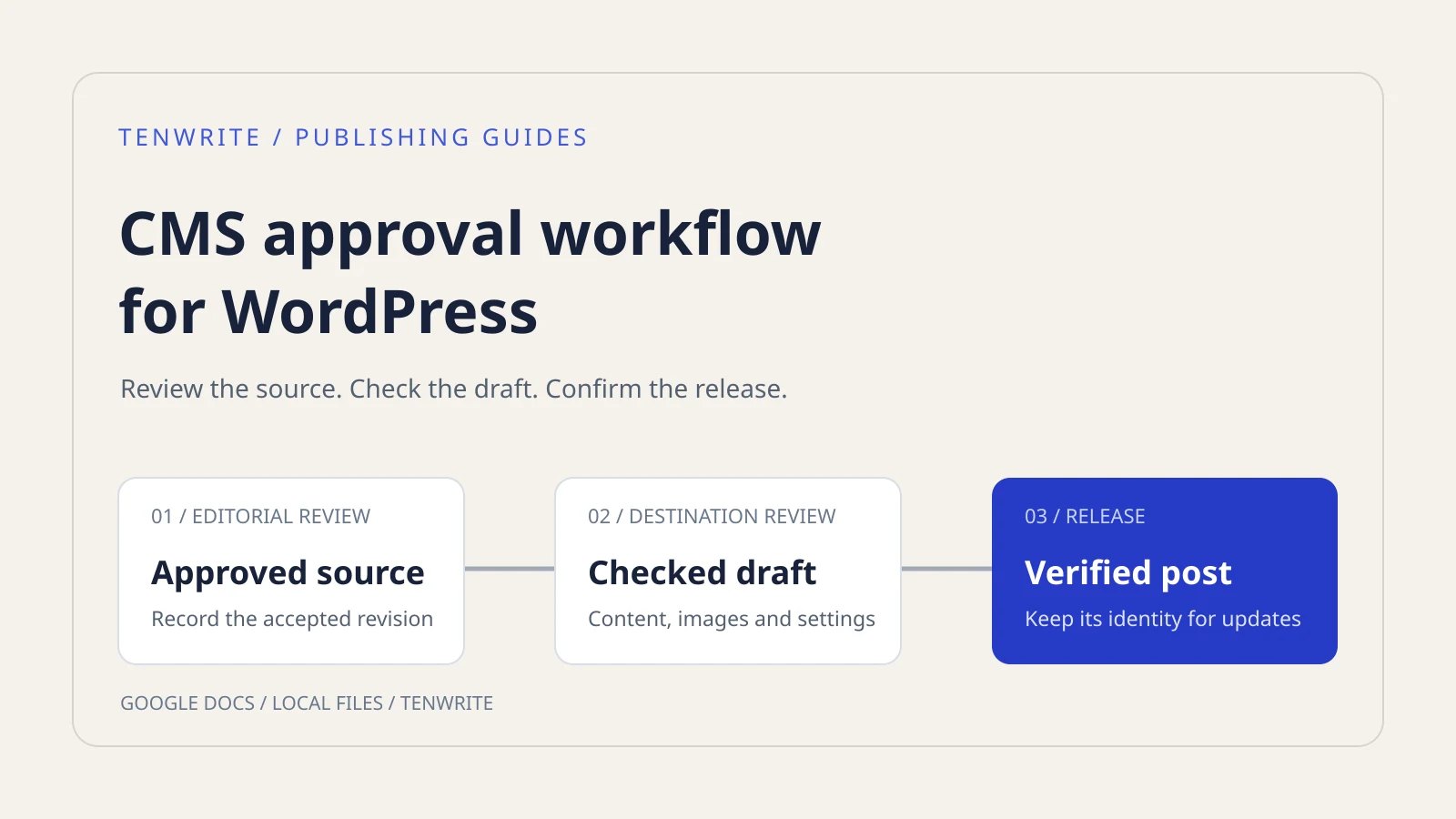
A CMS approval workflow for WordPress should connect an approved source document to a reviewed website draft and an explicit release decision. A practical sequence is: finish editorial review, identify the approved revision, export it as a draft, check the saved WordPress result, authorize publication, and verify the live page. Keep the same post when making later corrections so the review history does not become a collection of duplicate articles.
Tenwrite can handle the publishing part of that process from Google Docs or supported local files. Your team still owns the approval decision. This guide gives you a reusable approval record, a destination checklist, and a real upload and same-post update example. The example uses Markdown files in Tenwrite, while the source-review instructions also explain where a Google Docs review fits. It is not a test of automated approval routing or a new Google Docs Sync experiment.
Define the two decisions before choosing tools
Editorial approval answers whether the article says what it should say. The reviewer checks claims, examples, tone, links, disclosures and the intended action for the reader. Approval of that source gives the publisher a specific revision to work from. It does not establish that a converted WordPress draft looks correct or uses the right site settings.
Destination approval answers whether the saved WordPress item is ready for readers. A publisher might transfer the correct text and still choose the wrong category, omit a cover, or schedule it at the wrong time. A reviewer needs access to the actual draft to catch those problems. Screenshots are useful for discussing an issue, but a screenshot cannot prove that every link or paragraph is correct.
For a small team, one person can perform both reviews. Record them separately so a later editor knows what was checked. For an agency, the client might approve wording while an internal publisher checks the destination. Agree who can authorize release before the draft reaches that person. Repeatedly asking everyone to approve everything creates delays without clarifying responsibility.
WordPress provides statuses such as Draft and Pending Review. They describe the post’s state; your operating process must define what qualifies it to move forward. See the maintained WordPress post status documentation for the underlying distinctions. Do not assume that selecting Pending automatically assigns a reviewer, obtains client consent, or enforces your agency’s review policy.
Start with a small approval record
Use one record per article in your existing project tracker, spreadsheet, or document. The record should tell another publisher which source and which destination belong together. A title alone is weak identification because several drafts can share it. Include the source link or filename and the WordPress post ID or draft URL once it exists.
A useful record contains these fields: article title, destination site, source location, approved revision, editorial reviewer, editorial decision date, WordPress draft URL, destination reviewer, release owner, intended publication time and final result. Add a short change note when an accepted revision replaces an earlier one. Keep private review comments in the tracker rather than copying them into the published body.
For example, an entry might read: “Newsletter article; company blog; source v2; editorial wording accepted; WordPress draft 1683; destination review pending; release owner assigned; no publication scheduled.” The fields demonstrate a format, not an actual client approval. Our demonstration draft below uses that post identity, but it remains unpublished and has no real client sign-off.
Write decisions in terms of the action they permit. “Source v2 approved for preparation as a WordPress draft” is clearer than “looks good.” After checking the destination, record “draft reviewed for publication with the listed settings.” If publication must wait for a launch date, say so. A publisher should not have to interpret a reaction emoji as permission to release an article.
Review a Google Doc before the CMS handoff
When Google Docs is the writing source, resolve the editorial questions before exporting the article. Confirm that headings describe the structure, facts have appropriate sources, product claims match current capabilities, and links lead to the intended pages. Decide which suggestions are accepted. Google explains how reviewers can propose edits and how editors accept or reject them in its suggested edits guide.
Record the document link and the accepted revision in the approval record. A date and a brief change description can be enough for a small team if the source is controlled and the wording is unambiguous. When multiple writers can continue editing, agree when the document is ready for transfer and what happens if someone changes it afterward. A new substantive edit should return to the relevant reviewer.
Review notes are not article content. Check the source for internal instructions, unresolved placeholders, test links and private client details. With local files, keep the approved version clearly named and preserve it rather than overwriting the only copy. Tenwrite accepts supported uploads without requiring every file to be converted into a Google Doc first; select the source method that matches the material you actually receive.
The broad export procedure is covered in our Google Docs to WordPress publishing guide. Use this approval guide to decide who checks the result and when release is authorized. Keeping that boundary lets the team reuse a stable tutorial without repeating the entire publishing process in every approval checklist.
Create a WordPress draft through Tenwrite
Open New Export in Tenwrite’s WordPress workspace and choose the destination site. Verify the site name and hostname before selecting the document or uploading a file. An account connected to several client sites can make an otherwise successful export to the wrong destination. Include the destination in the approval record so it is part of the review rather than an assumption.
Choose a Google Doc through the supported selection flow, or use Upload a file for a local DOCX, Markdown or text file. In our November 6 walkthrough, we uploaded a small Markdown sample containing three subheadings, two list items, a table, a link and an image reference. Its opening sentence asked the reviewer to check the draft before release. The sample was deliberately small enough to compare completely.
Enter an explicit post title and choose Draft. Review the formatting and image settings that apply to the source. We used WordPress Blocks, kept image uploading enabled, and used the first image as the featured image. These are settings to verify for your article, not a promise that any source file will produce an identical result in every theme. Formatting deserves a destination check even when the export reports success.
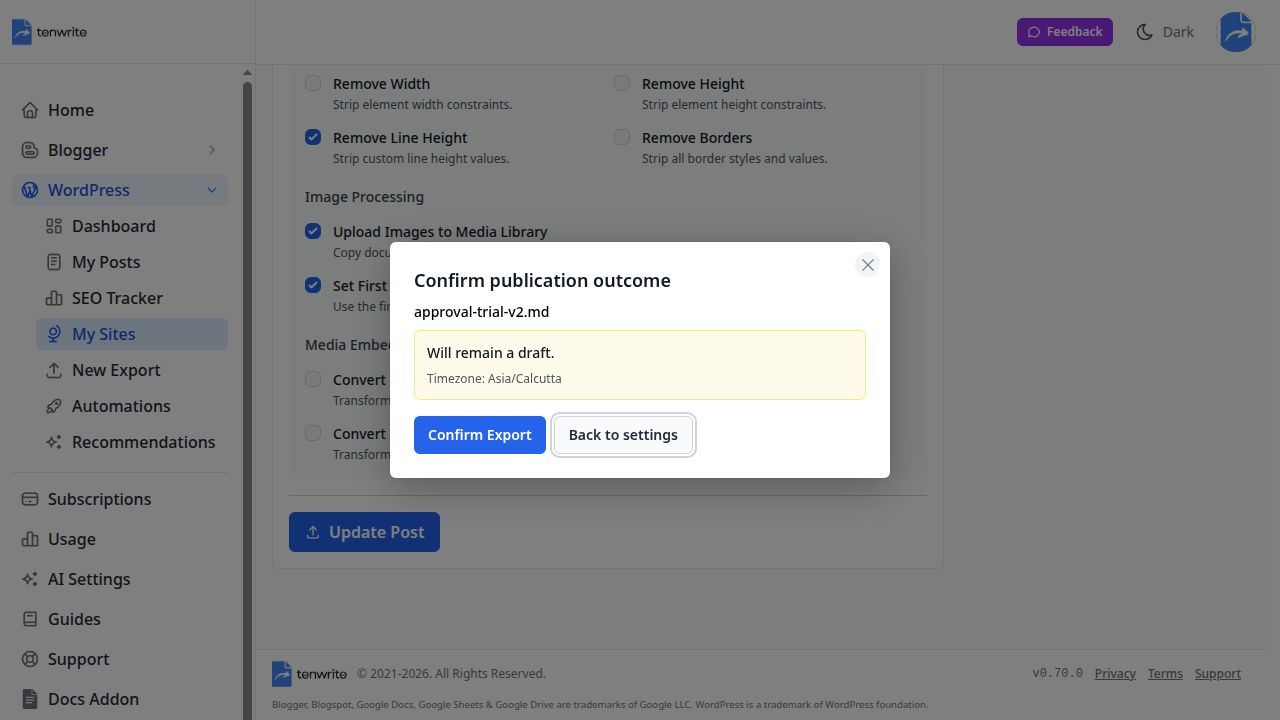
Start Export opens a publication-outcome confirmation. Read it before confirming. Our sample showed “Will remain a draft.” If the outcome says it will publish now when you intended a review draft, return to the settings and resolve the discrepancy first. A form selection and the resolved outcome should agree; source settings or other saved options may influence the result.
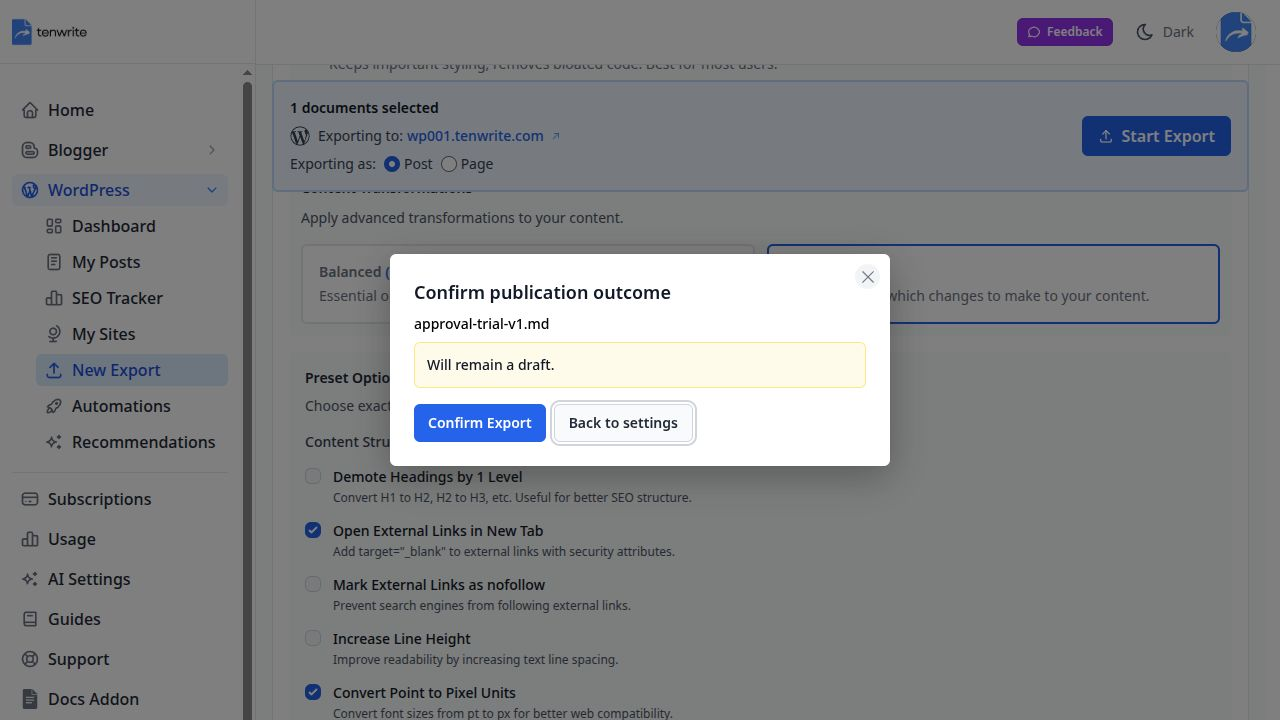
After confirmation, Tenwrite reported success and provided Edit and Preview links. The created WordPress draft was post 1683. We opened the authenticated preview and inspected the saved article rather than treating the success message as the end of review. This is the point where your approval record gains a destination identity that later revisions should retain.
Review the saved WordPress draft
Compare the source and preview while both are available. Start with the title and first paragraph, then move through every heading and section in order. Check that the ending is present. A long article can appear correct above the fold while losing a final section, nesting a list incorrectly, or placing a caption somewhere unexpected. Use a checklist that someone can actually finish rather than a broad instruction to “check formatting.”
For the sample, the preview contained the three intended subheadings, two list items, the approval table, the publishing-guide link and the release-check paragraph. The image appeared as the featured image. That distinction matters: when the first image becomes a cover, check whether you also want a separate body image and inspect what the theme actually displays. Do not assume a visible cover proves every inline image transferred.
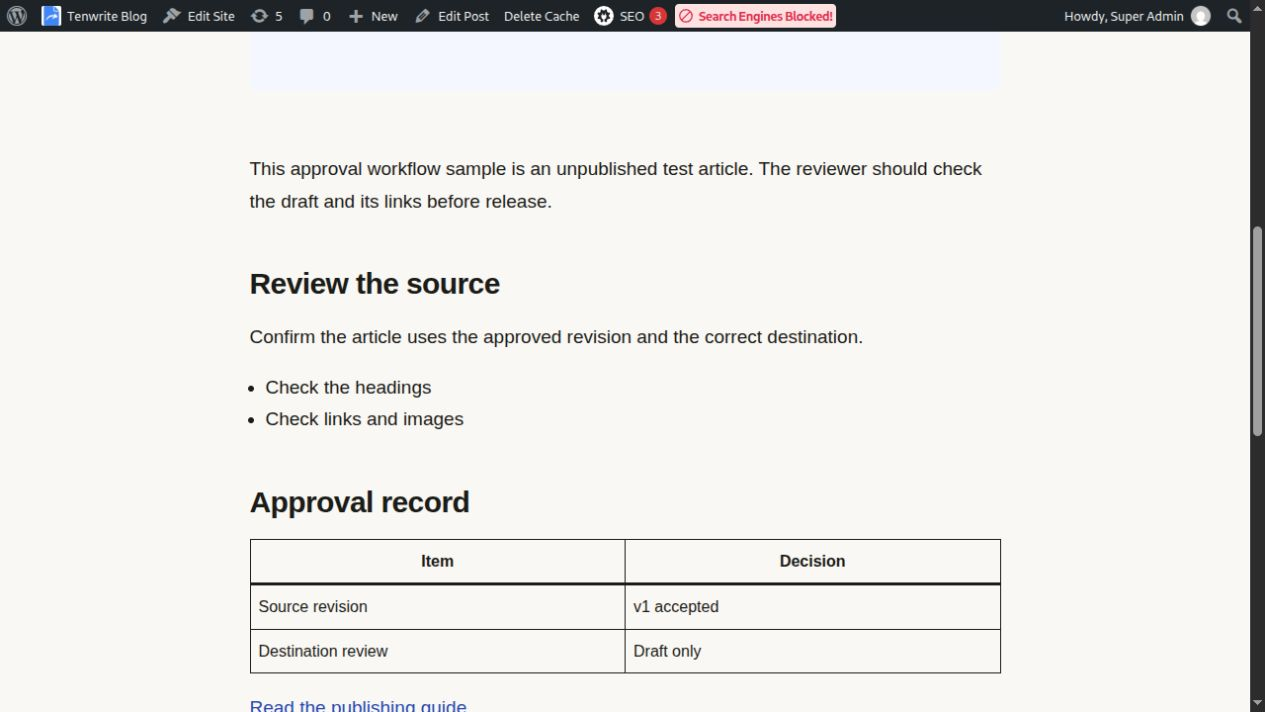
Inspect table labels and relationships, not only its rectangular appearance. Readers must be able to distinguish a field from its value. Our Markdown example provides a simple record with an Item and Decision header. For more complex tables, review the rendered structure and phone layout; an import can preserve words while still producing a table that is difficult to navigate or understand.
Open each important link and check the final destination. Look at images for missing content, inappropriate crops, unreadable text and incorrect alt text. Check the cover separately from the body. If images disappear, use the detailed Google Docs images troubleshooting guide rather than repeating an unsupported claim that one publishing method always handles images correctly.
Review excerpt, categories, tags, comments and supported SEO fields as separate settings. A correct article body does not establish that its metadata is correct. When using SEO integrations, inspect what the destination actually outputs; fields saved by an exporter and the title or description rendered by a particular SEO plugin may differ. Our AI SEO metadata walkthrough explains that saved-versus-rendered distinction with a tested example.
Apply a revision to the same post
A reviewer will often request a small change after the first destination check. Return that change to the authoritative source, identify the new revision, and update the existing WordPress record. Starting a fresh export for every correction can create several drafts with similar titles, making it harder to tell which one has been reviewed and which one will publish.
For our test, the revised Markdown changed “check the draft before release” to “check the draft and its links before release.” We opened the existing post in Tenwrite, uploaded the revised file through its Upload a file control, and retained Draft status. This is a revised local-file workflow. The file did not synchronize automatically, and we did not change a Google Doc to perform this test.
Use Update Post on the existing record and inspect the publication outcome again. A revision must not accidentally change the intended state. After the update completes, reopen or reload the preview rather than judging an old browser view. Check the requested change and compare the rest of the article: other paragraphs, headings, list entries, table values, link destination and image should still be appropriate.
The saved revision retained post 1683 and its preview URL. The requested sentence changed, while the three headings, two list items, table values and link stayed intact; the featured image still loaded. The table deliberately retained its sample “v1 accepted” label. Updating article text does not update a separate approval decision automatically: maintain your real approval record explicitly when accepting a new revision.
For a linked Google Docs source, use the documented existing-post workflow and the correct source link. Our dedicated update a WordPress post from Google Docs guide shows that route. Syncing the site’s content list into Tenwrite is a different operation from sending source edits to an existing WordPress article. Decide which action you need before clicking a control with “sync” in its name.
Use a destination approval checklist
Give the destination reviewer a compact list with clear completion criteria. They should be able to identify an issue and send it back to the right owner. If a factual claim needs rewriting, route it to the editorial owner. If the cover is missing or the destination category is wrong, route it to the publisher. Avoid turning every small CMS correction into a complete client review unless your agreement requires it.
- Confirm the source revision and destination post identity match the approval record.
- Compare the title, introduction, headings, lists, table and ending with the accepted source.
- Open the links and inspect the cover, inline media, captions and alt text.
- Check the excerpt, taxonomy, comments and any supported SEO settings.
- Preview the article at a narrow width and resolve unreadable tables or overflowing content.
- Confirm the intended status, publication time and person authorized to release it.
Record any remaining exception explicitly. “Approved except for cover replacement” means the article is waiting for that replacement; it should not be treated as an unconditional release decision. Once the issue is corrected, check the affected result and update the record. The purpose is to make the next action clear without asking every participant to repeat work that has not changed.
Make workflow states and exceptions visible
Use a small state record when an article passes between several people. The labels below belong in your tracker or approval log; they are not additional built-in WordPress statuses or an approval engine provided by Tenwrite. One person can own several transitions, but every transition needs a named owner and a condition that can be checked.
| Workflow state | Evidence needed before moving forward |
|---|---|
| Source approved | The accepted source revision, destination and required assets are identified. |
| Draft in review | A specific WordPress post ID exists and the destination checklist is being completed. |
| Changes required or blocked | A concrete defect or missing dependency has an owner, next action and review date. |
| Release approved | The checked draft and its publication conditions have an explicit release decision. |
| Published awaiting verification | The release action completed, but the public URL still needs checking. |
| Verified | The public result passed its checks or an authorized owner recorded the remaining exception. |
Keep a blocked item visibly blocked. If an image has not arrived, record the asset owner and the next decision time rather than leaving the article marked ready. If the draft has the wrong category but the source is correct, return it to the publisher for a CMS correction. If the proposed correction changes a claim, link destination or release instruction, send that change to the relevant approver and identify the new accepted revision.
A missed review deadline is not approval. Record the missed decision, contact the designated escalation owner through your normal process, and agree a new deadline or release instruction. When reviewers disagree, name the person authorized to settle the disputed requirement. The publisher should not silently choose between conflicting client instructions. For client-review models and consolidated feedback, use the separate client content approval workflow guide.
An urgent release also needs a specific decision. Record why the usual path is shortened, who authorized it, which source and draft were accepted, and who owns any deferred check and its due time. Do not waive a factual, legal or client requirement merely because the calendar is tight. When a live check fails, record the affected public URL, defect and repair owner, then verify the correction before closing the release. These records make exceptions visible without requiring a new tool or an elaborate approval queue.
Publish only after the release decision
Once editorial and destination reviews are complete, the release owner can authorize publication or scheduling. Check the selected site and the existing post identity again. For scheduling, verify the timezone and the resolved publication outcome. A future date alone is not enough evidence of the intended result. The team should know whether the saved item is still a draft, is scheduled, or is already public.
After publishing, open the public URL without relying on an authenticated preview. Verify the title, body, images, important links and layout. For a scheduled article, confirm the saved schedule now and verify the public result after that time. A task marked complete in a tracker does not prove that a website released the expected page.
Our demonstration sample remains a draft. It demonstrates transfer, review and revision without claiming a real client approval or publishing a disposable test article. Your live article needs its own release decision. The same separation is useful for regulated or contract-sensitive material, where the relevant reviewers and required evidence should come from your actual organization rather than a generic template.
Handle common approval failures
If the source changes after sign-off, identify what changed and who needs to review it. A punctuation correction may need only an editorial check, while a price, product claim or offer change can affect the approved message. Avoid silently treating an earlier decision as approval of wording the reviewer never saw. Preserve the earlier source or revision reference so the difference can be understood.
If two WordPress drafts exist, locate the one attached to the intended source and review record before proceeding. Compare their contents, IDs and statuses. Do not delete one simply because its title looks older. Resolve which item should remain authoritative, preserve any useful changes, and check whether either has a public URL or incoming links before retiring it.
If a reviewer cannot open the draft, resolve access through the site’s supported process. A private screenshot is an incomplete substitute for destination review. Do not make an unfinished article public merely to provide a preview unless that is an intentional, authorized choice. Keep access arrangements separate from the question of whether the article is ready to publish.
If the export succeeds but the preview differs from the source, stop release and record the specific mismatch. Save the source filename, post identity and the affected section. Repair the issue, update the same post where appropriate, and review the result again. An error report containing an exact missing image or changed table is more useful than “the import is broken.”
Keep the workflow proportionate to the team
A solo publisher can use a short checklist and one approval record. An agency can add a client reviewer and separate release owner without recreating every detail in several tools. Start with the few decisions that prevent actual errors: accepted source, correct destination, checked draft and authorized release. Add fields when they answer a recurring question, not because a template has space for them.
For several articles, track each destination separately. Bulk transfer does not mean every item received the same review or publication decision. Our bulk WordPress publishing guide covers batch handling; use the approval record to make exceptions and ownership visible. Verify that the linked guide and your current workflow match before adapting a batch process for client work.
Try the workflow with one approved article
Choose one article that already has editorial approval. Create a draft through Tenwrite, compare the saved result with the source, request one deliberate revision, and update that same destination. Keep the test focused enough that a reviewer can check it completely. This shows whether the publishing handoff fits your team before you roll it out across a full calendar.
Try one approved document as a WordPress draft in Tenwrite. Use the current pricing page to check plan limits and the capabilities your team needs. Judge the trial by the saved article and the repeatability of the review, then keep the approval record with the post for its next update.