
The phrase how to upload a Word document to Google Docs can describe more than one action. A team may need to store a DOC or DOCX file in Google Drive, open it through Google Docs, or create a separate Google Docs version for collaborative editing.
Those actions should not be treated as the same workflow state. For a publishing team, the useful question is not only whether the file opens. It is which file is approved for editing, which version remains the reference, and whether the content has passed the checks required before a CMS handoff.
This guide follows that path: identify the source, place it in the right Drive location, choose whether to retain or convert it, check the resulting content, and record the person responsible for the next step.
What uploading a Word document to Google Docs actually does
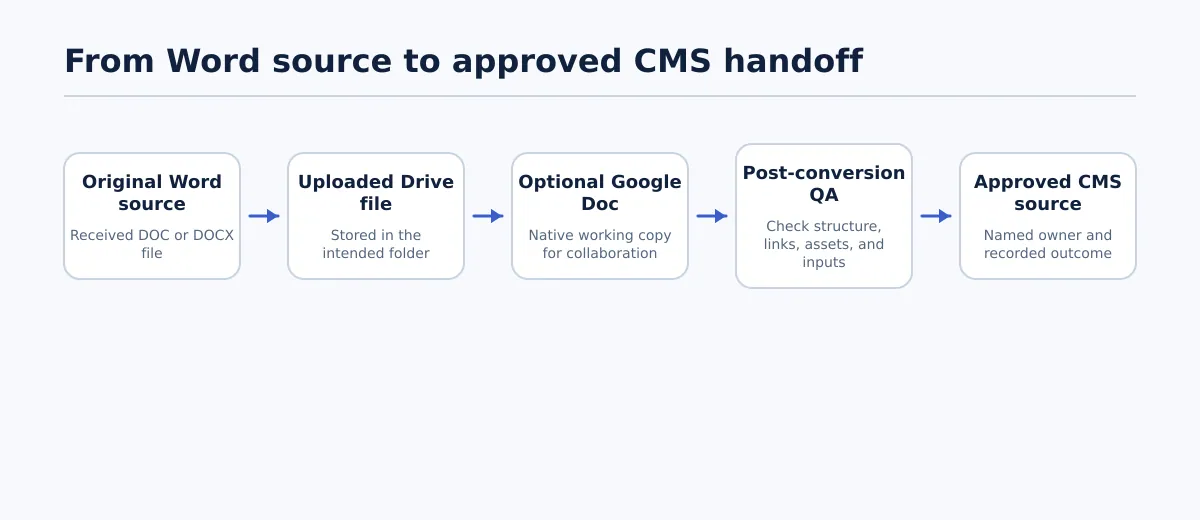 A Word file moves through upload, optional conversion, QA, and approval before it becomes a controlled CMS source.
A Word document can be added to Google Drive and then accessed through Google Docs. At that point, the team may still be working with the uploaded Word-format file, or it may create a separate document in Google Docs format. The format decision belongs in the workflow record rather than being inferred from the fact that the document opens.
Use these three states to keep the files distinct:
| State | Meaning | Control to record |
|---|---|---|
| Received Word source | The DOC or DOCX supplied by a writer, client, or contributor | Filename, version, sender, and source owner |
| Drive copy | The received file placed in the intended Drive location | Folder, access, format, and upload status |
| Google Docs working copy | A separate native document created when the team chooses the conversion route | New filename, editor, QA status, and authority decision |
This distinction also separates this article from the related guide on uploading a template to Google Docs for publishing. That post focuses on choosing an import, master-copy, or template-gallery route. This guide is for teams receiving a Word source and controlling what happens to it before CMS preparation.
The first completion condition is therefore modest: the correct Word file is in the intended Drive location and the team knows whether conversion is still pending. It is not yet a publishing approval.
Before upload: choose the source file and record the destination
The upload should begin with file identification, not with a search through a crowded Drive folder. Confirm that the attachment or local file is the version the team is meant to receive. If two filenames are similar, compare the supplied revision number, date, or sender’s handoff note before proceeding.
Record the following intake fields:
- Received filename and format: for example,
client-product-guide-v4.docx. - Source version: the revision number or date supplied with the file.
- Uploader: the person placing the file in Drive.
- Destination folder: the specific shared folder for the client, project, or site.
- Editing owner: the person authorized to choose the working format.
- Comments or tracked changes: whether the source contains unresolved review material.
- CMS destination: the intended WordPress site, post type, or other destination, if known.
Before the format decision has been made, use an unambiguous status in the intake record:
Received source: Client Product Guide v4.docx
Drive location: Client A / Product Guide / Incoming
Drive status: Uploaded; conversion decision pending
Editing owner: Assigned content editor
CMS destination: Client A WordPress / blog post
Reference file: Client Product Guide v4.docx
Do not label a future Google Doc as the authoritative editing source at this stage. After the editing owner chooses the working route, create a separate decision record. For example:
Format decision: Convert for shared editing
Authoritative working source: Client Product Guide v4 - Google Docs review
Reference source: Client Product Guide v4.docx
Decision owner: Assigned content editor
QA status: Not started
This two-record approach prevents the intake note from making a decision that the owner has not yet made.
Upload and open the Word document from Google Drive
The direct answer to how to upload Word to Google Docs is a short sequence, but each step has a useful control point.
- Sign in to the account used for the project. Make sure it can access the intended Drive folder.
- Open Google Drive and navigate to the destination folder. Confirm the client, project, or site before adding the file.
- Start a file upload and select the DOC or DOCX file. Choose the received source identified in the intake record.
- Wait for the upload to finish. Confirm that the complete filename appears in the target folder.
- Check the uploaded file against the intake record. Verify the extension, revision or date, and folder location. Do not select a similarly named file merely because it appears first.
- Open the selected file through Google Docs. Use this stage to inspect the document and determine whether the team needs to create a native Google Docs working copy.
- Confirm the designated editor can locate the file. The upload stage passes when the file is in the intended shared location, the recorded source is identifiable, and the editor can open it.
Record the result in plain language, such as:
Upload result: Pass
File: Client Product Guide v4.docx
Location: Client A / Product Guide / Incoming
Editor access: Confirmed
Conversion decision: Pending
A successful upload only establishes where the received file is and who can access it. It does not settle the editing format or the document’s readiness for a CMS.
Decide whether to keep the Word file or convert it to Google Docs format
The choice between retaining the Word file and creating a Google Docs version depends on the next task, the source owner’s expectations, and the team’s need for shared editing. Neither route should be selected automatically.
| Retain the Word file as the active source when… | Convert to Google Docs format when… |
|---|---|
| The sender expects the edited deliverable in Word format. | The team needs a shared native document for review and editing. |
| The received file must remain an unchanged reference. | The converted document will be the working source for the publishing team. |
| The team must compare later edits with the supplied Word file. | The editor has authority to create a working copy and check its imported structure. |
| No owner has approved a format change. | The next review stage is explicitly based on a Google Doc. |
| Preserving the received file is more important than collaborative editing. | The team can retain the original while reviewing the converted copy. |
The authoritative-source rule is straightforward: the handoff record names the authoritative file; the open file does not.
For example, a client may send Product-guide-v4.docx and request a Word-format return. In that case, the DOCX can remain the active source while a clearly named review copy is used for discussion. If the content editor is authorized to prepare a shared publishing source, the record can name Product-guide-v4 - Google Docs review as authoritative after the conversion decision is made and the QA stage begins.
Whichever route the team selects, keep the relationship between the files visible. A converted document should not silently replace the received source, and a retained DOCX should not be mistaken for an approved Google Docs publishing source.
If the destination is WordPress, the Google Docs-to-WordPress publishing guide covers the later destination workflow. This article’s conversion decision comes first.
Run a post-conversion content QA pass before editing or CMS handoff
Opening or converting a document is a reason to inspect it, not a reason to skip inspection. Use the received Word file as the reference when the team has created a Google Docs working copy, and record a result for every element that affects the intended CMS draft.
A focused QA table is more useful than a general statement that the formatting “looks fine.” Each row should identify the pass condition, the evidence of failure, and the next owner.
| Element | Pass condition | If it fails | Owner and next action |
|---|---|---|---|
| Heading hierarchy | Title and heading levels follow the approved structure and communicate the intended outline. | Note the affected heading and the level it currently uses. | Content editor corrects the structure, then repeats the heading check. |
| Inline formatting | Meaningful bold, italic, emphasis, and other inline treatments match the source or an approved editorial choice. | Identify the phrase and explain whether meaning or readability changed. | Source owner decides what is required; editor applies the confirmed correction. |
| Links | Anchor text and destinations match the approved source or a recorded destination decision. | Record the missing, incorrect, or ambiguous URL. | Editor tests and repairs the link, or returns an unclear destination to the source owner. |
| Images and captions | Each image is present or has a clear replacement instruction; captions, placement, and attribution needs are known. | Record the missing asset or changed placement. | Asset or content owner supplies the decision; CMS owner records how it will be added. |
| Lists | Ordered, unordered, nested, and interrupted lists retain their intended relationships. | Identify where list structure or numbering no longer reads correctly. | Editor rebuilds the list or assigns a destination-side correction. |
| Tables | Rows, columns, labels, and cell content remain usable for the intended publishing route. | Name the table and classify the issue as layout, content, or usability. | Content owner decides whether to rebuild it; CMS editor acts only when assigned. |
| Special characters | Dashes, quotation marks, apostrophes, symbols, and other meaningful characters are correct. | Record the changed character and its location. | Editor corrects it and checks nearby text for the same problem. |
| Comments and suggestions | Required comments and suggestions are resolved, accepted, or explicitly retained with approval. | Record the comment location and the decision still needed. | Comment or content owner resolves it; editor repeats the check. |
| Metadata inputs | Title, excerpt, slug direction, taxonomy, author, and other required CMS values are supplied or marked not applicable with a reason. | Record the missing or conflicting value and the decision owner. | CMS owner requests the value and records the result. |
A QA record should make the remaining work actionable:
QA status: Conditional — not ready for CMS handoff
Checked source: Client Product Guide v4 - Google Docs review
Headings: Pass
Links: Pass
Images and captions: Fail — hero image instruction missing
Lists: Pass
Tables: Fail — comparison table needs rebuilding
Comments: Pass
Metadata inputs: Pending — excerpt owner not assigned
Next action: Content owner supplies image instruction; CMS editor assesses table rebuild
Do not replace a specific finding with “formatting issue.” The next person should be able to identify the affected element, understand what needs deciding, and repeat the check after the correction.
For teams that need to inspect clean HTML before a WordPress transfer, Google Doc to HTML export and validation guidance provides an adjacent review path. It does not remove the need for source and content QA.
Set approval, ownership, and the next action for formatting exceptions
A failed check needs a recorded outcome. Use one of these three dispositions:
- Approved for CMS handoff: Required checks pass, or an authorized owner has accepted each documented exception.
- Returned for source correction: The writer, client, or source owner must change the document or provide missing information.
- Accepted with manual cleanup: The document can move forward, but a named editor must complete a specific correction before CMS approval.
Suppose a complex table is difficult to use after conversion. The editor should not quietly delete it or rebuild it based on an assumption. The content owner can require a rebuild in Google Docs, or the CMS editor can receive a specific task to recreate it during draft preparation. The record should include the decision owner, assigned worker, next action, and follow-up check.
Use a blocked status when the team lacks authority to choose a remedy or when a missing asset, unresolved comment, or structural defect could change the result. A document is not ready merely because its body is readable.
An approval record might look like this:
Outcome: Approved for CMS handoff
Approved source: Client Product Guide v4 - Google Docs review
QA completed by: Assigned editor
Accepted exceptions: None
CMS owner: Assigned WordPress editor
Approval recorded: 2026-09-12
If an exception remains, list it instead of writing None. That keeps approval separate from the work still required at the destination.
Prepare the verified Google Doc for WordPress or another CMS handoff
The Google Doc is ready to serve as a CMS source when another operator can identify the approved file, understand its status, and begin destination work without making an unrecorded editorial choice.
Confirm that:
- The approved document has a clear name, location, and version or approval reference.
- The original Word file is retained or archived according to the source rule.
- Heading structure, body formatting, links, images, lists, tables, and special characters have recorded results.
- Comments and suggestions are resolved or explicitly accepted.
- Assets have destinations, replacement instructions, or a named owner.
- Required title, excerpt, slug, taxonomy, author, and other CMS inputs are available or marked not applicable with a reason.
- A CMS owner is assigned.
- The handoff status and any accepted cleanup task are recorded.
This is a source-to-CMS handoff condition, not a release condition. Preparing a CMS draft, scheduling it, releasing it, and checking the live page are later stages that need their own outcomes.
Once these conditions pass, use the verified Google Doc as the controlled source for the next WordPress draft. Teams working with another destination can apply the same source, owner, and exception rules while adapting the destination fields.
Common questions about opening and converting Word files in Google Docs
How do I upload a DOCX or Word document to Google Docs?
Place the DOC or DOCX file in the intended Google Drive folder, wait for the upload to finish, locate the correct file, and open it through Google Docs. Confirm the folder, filename, format, and editor access. Then decide whether the Word file remains the active source or whether the team creates a Google Docs working copy.
Can Google Docs open a Word document without converting it?
A Word file can be opened through Google Docs without making conversion the default workflow outcome. Check the file format and record which document the team is editing. If a native Google Docs working copy is needed, treat conversion as a separate decision.
What is the difference between uploading a Word file and converting it to Google Docs format?
Uploading puts the received Word file into the team’s Drive workflow. Opening provides access to that file through Google Docs. Converting creates a separate Google Docs-format working document. Keep both filenames and their roles visible until the owner records which one is authoritative.
When should a content team retain the original Word file?
Retain it as the active or reference source when the sender expects a Word deliverable, the received file must remain unchanged, comparison with the original matters, or no authorized person has approved a format change. A review copy can still be created, but it should have a distinct name and status.
Can I edit a Word document after opening it in Google Docs?
The team can use the opened file for review or editing, or create a native Google Docs copy for collaborative work. In either case, identify the file being changed and run the relevant content checks before treating it as the approved source.
Will the Word formatting stay exactly the same?
Do not treat formatting preservation as guaranteed. Check headings, inline formatting, links, images, captions, lists, tables, special characters, comments, and metadata inputs. Record a pass result or a specific correction for each relevant category.
What should I do if a table, image, or link is wrong after conversion?
Record the affected element, the observed difference, the responsible owner, and the next action. Return it for source correction when the decision belongs to the writer or client. Assign manual cleanup when the team has authority to correct it during CMS preparation. Do not approve an unresolved issue without an explicit owner and disposition.
When is a Google Doc ready to become the source for a CMS draft?
It is ready when the approved document is identifiable, the required content and structure checks pass, assets and links have clear instructions, CMS inputs are available, exceptions have an authorized disposition, and a CMS owner is assigned. The later draft, schedule, release, and live-page checks remain separate.
Use that verified Google Doc as the controlled source for the next CMS draft, rather than selecting a similarly named file from Drive. For the destination-side process, continue with the site’s Google Docs-to-WordPress publishing workflow.