
Programmatic SEO is one of the most effective ways to build content at scale. Instead of writing each post individually, you generate a large number of structured pages from a data source — and let search engines surface the relevant ones. The approach is well-established for local businesses, product catalogues, comparison sites, and any niche where the same content structure repeats across many variations.
The model works. The execution bottleneck has always been publishing.
Most teams end up maintaining a Google Sheet as their content database regardless of which tooling they use. The data is already there: titles, content, categories, target URLs. Getting those rows into WordPress without a manual export step for each one is where the process breaks down.
This guide covers how to connect Google Sheets directly to WordPress using Tenwrite, so that each row in your sheet becomes a published WordPress post — automatically, on a schedule, without touching the WordPress editor.
What Is Programmatic SEO?
Programmatic SEO is the practice of publishing a large number of pages at scale by templating content from a structured data source. Each page targets a specific keyword or search intent, and the pages are generated systematically rather than written one by one.
Common use cases:
- Local SEO landing pages — “Best plumber in [City]”, “HVAC service in [Neighborhood]”
- Product and service variations — “Red cotton t-shirt”, “Blue cotton t-shirt” for e-commerce catalogs
- Comparison content — “[Tool A] vs [Tool B]”, “Best tools for [Use Case]”
- Directory entries — individual pages for each location, business, or listing in a database
- FAQ and topic coverage — one structured page per question or subtopic cluster
The common denominator: your content exists as rows in a spreadsheet, and you need each row to become a live page with minimal manual intervention.
Why Google Sheets Is the Natural pSEO Database
Google Sheets is where most content teams already work. It handles structured data well, it’s shareable, it integrates with tools like Airtable exports and data scrapers, and it’s easy to build or update without developer access.
For programmatic SEO specifically, a spreadsheet maps directly to what you need:
- Each row = one page
- Each column = one field (title, content, slug, category, status)
- Multiple rows can target different WordPress sites
The challenge is that WordPress has no native way to consume a spreadsheet and turn rows into posts. CSV imports exist, but they’re fragile and don’t handle ongoing updates or content sourced from Google Docs.
The Tenwrite Solution: Sheet Automation for WordPress
Tenwrite’s Sheet Automation feature connects a Google Sheet to one or more WordPress sites and turns each row into a post or page — automatically, every hour.
Here’s how it works at a high level:
- You prepare a Google Sheet with the required columns.
- You create a Sheet Automation in Tenwrite, linking the sheet to your WordPress sites.
- Tenwrite checks the sheet every hour. New rows create new posts. Changed rows update the existing posts. Unchanged rows are skipped.
The row limit depends on your plan: Pro supports up to 200 rows per automation and Agency up to 500. Split work into smaller, quality-reviewed batches—not more copies of a weak template.
Setting Up the Google Sheet
Tenwrite provides a ready-made template to get you started:
WordPress Sheet Automation Template
Go to File > Make a copy to get your own editable version.
Required Columns
| Column | Required | Description |
|---|---|---|
| SITE | Yes | WordPress site URL, e.g. example.com |
| TITLE | Yes | Post or page title |
| CONTENT | One of these two | Post body — Markdown is supported |
| GOOGLE DOC | One of these two | URL of a Google Doc to use as the post body |
Useful Optional Columns for pSEO
| Column | Options | Notes |
|---|---|---|
| SLUG | URL-safe text | Set the exact permalink |
| EXCERPT | Any text | Controls the meta description in many themes |
| STATUS | draft, publish, future | Start with draft; change to publish only after content, factual, and on-page QA |
| CATEGORIES | Comma-separated | e.g. Local, HVAC |
| TAGS | Comma-separated | Keyword tags for the post |
| OBJECT TYPE | post or page | Defaults to post |
| OUTPUT FORMAT | wp_blocks or classic_html | Gutenberg blocks or standard HTML |
| PRESET | balanced or preset name | Controls content cleanup on export |
For a pSEO workflow, the most important optional columns are SLUG (ensures clean, predictable URLs), STATUS (start with draft and move to publish only after QA), CATEGORIES, and EXCERPT.
Writing Content Directly vs Linking a Google Doc
You have two options for the content of each post:
Option A — Write directly in the CONTENT column. Markdown is supported, so you can use headings, bold text, lists, and links. This works well for shorter pages like local landing pages or product pages where the structure is repetitive and you’re filling in variations from a data set.
Option B — Link a Google Doc in the GOOGLE DOC column. Paste the Google Doc URL for each row. Tenwrite fetches and converts the document at run time. This works best for longer-form content where the body is written properly in Docs, and you want the sheet to serve as the publishing manifest while the content lives in Google Docs.
If you’re using Google Docs, each referenced document must be either shared with Tenwrite’s automation service account ([email protected]) or set to “Anyone with the link” in Google Docs sharing settings.
Creating the Sheet Automation in Tenwrite
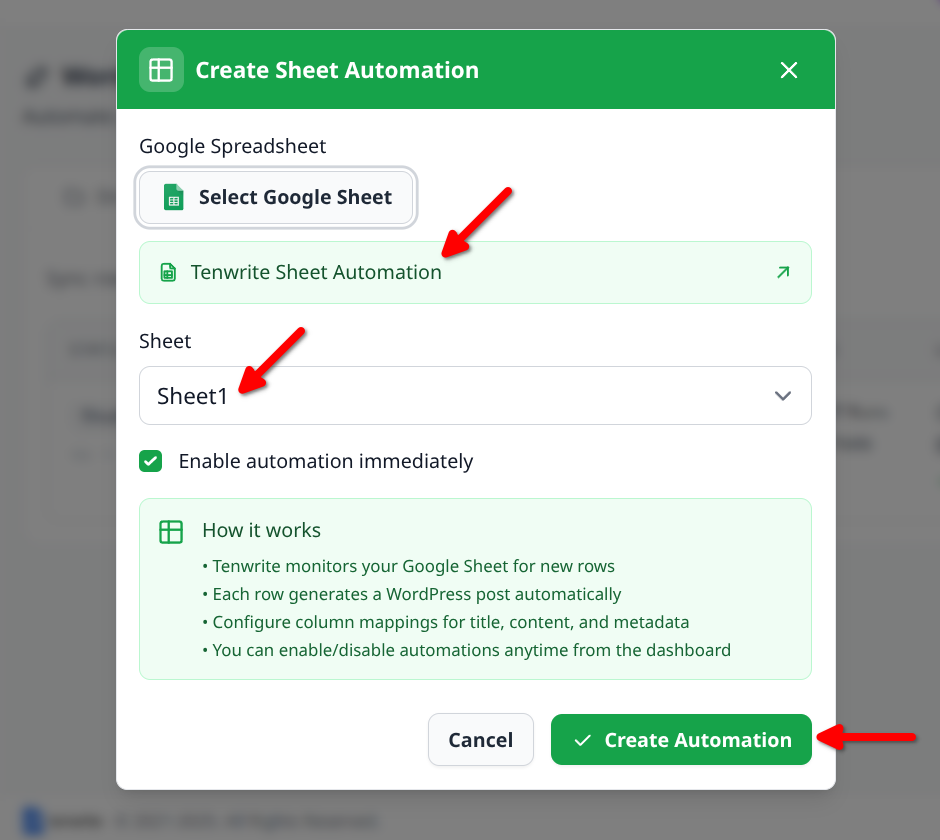
Step 1 — Open the Sheets Tab
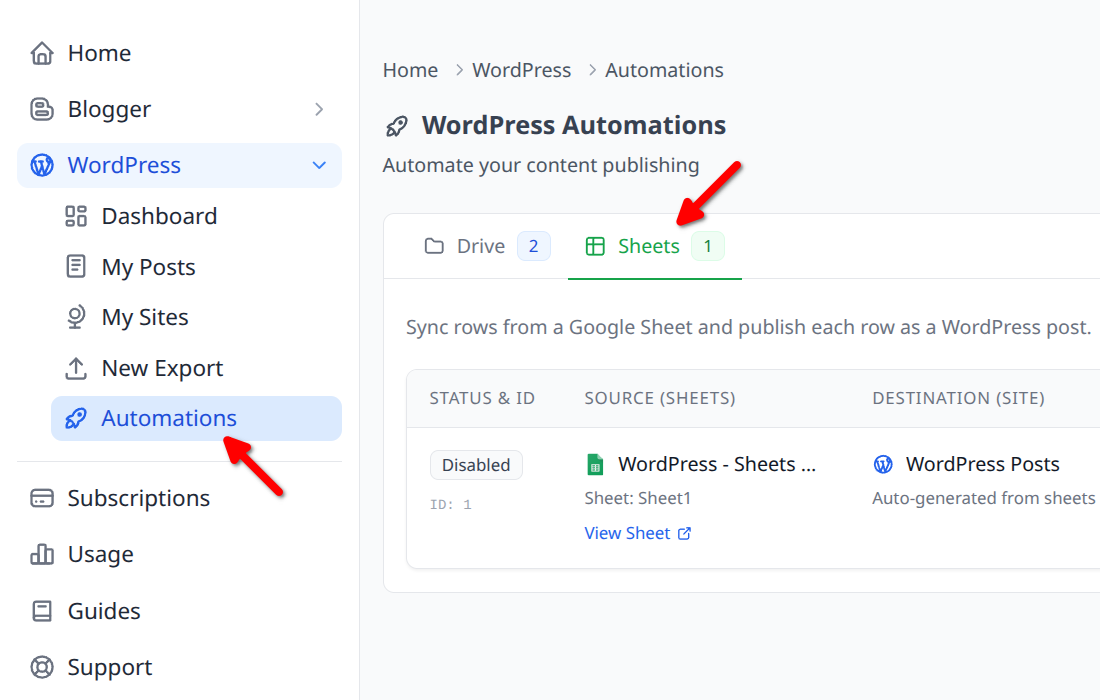
In the Tenwrite add-on or web dashboard, go to WordPress > Automations in the sidebar and switch to the Sheets tab.
Step 2 — Open the Create Form
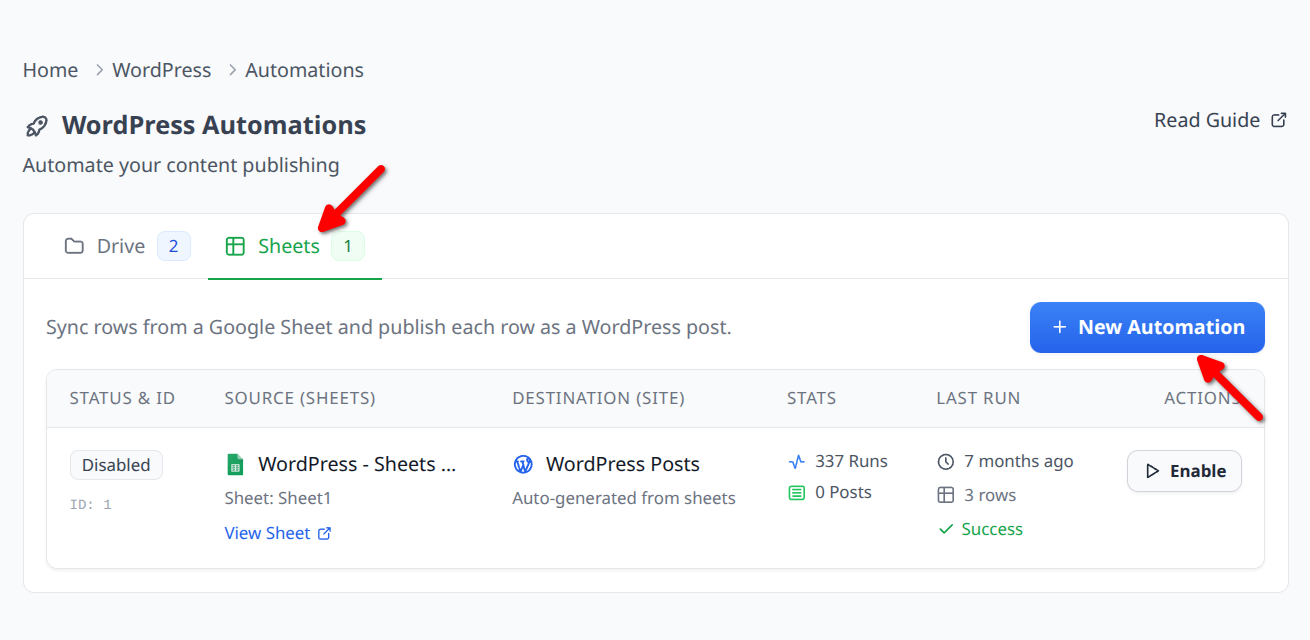
Click New Automation (or Create Sheet Automation if no automations exist yet).
Step 3 — Select Your Sheet
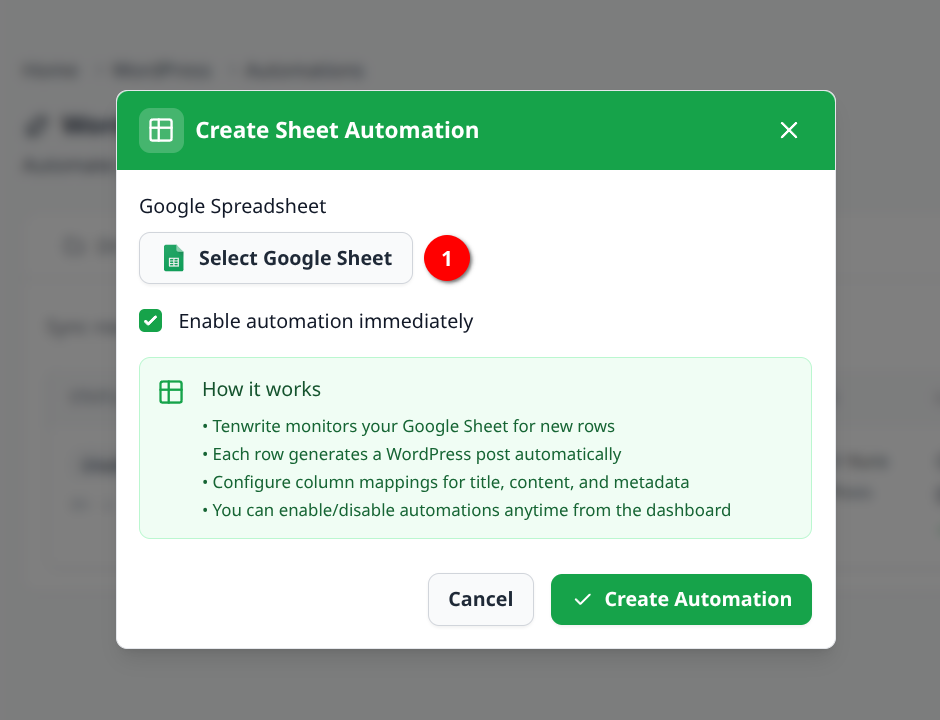
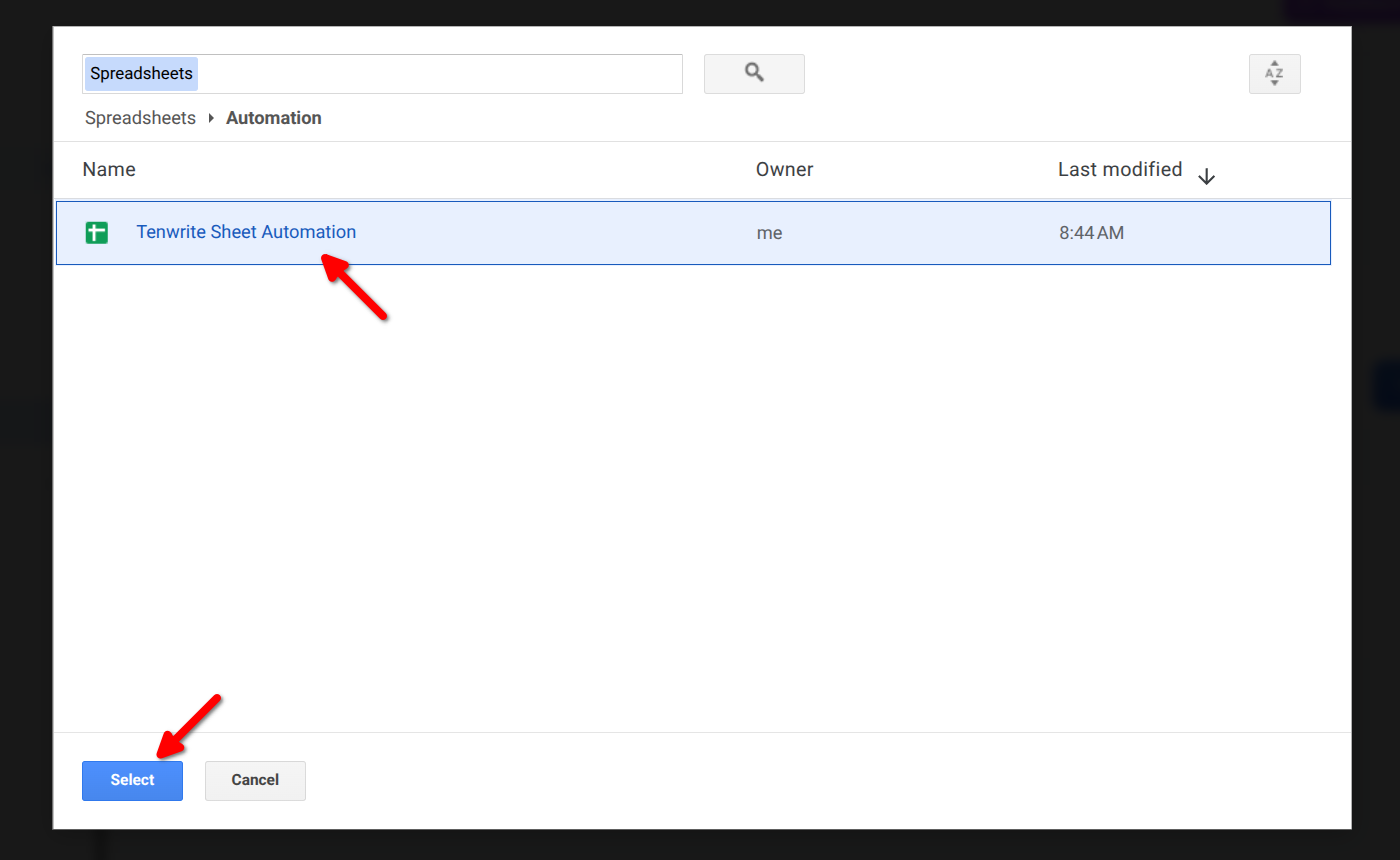
Click Select Google Sheet, choose your spreadsheet from the Google Drive picker, and select the correct tab (worksheet).
Step 4 — Enable and Create
Check Enable Automation Immediately to activate it on the next hourly run, then click Create Automation.
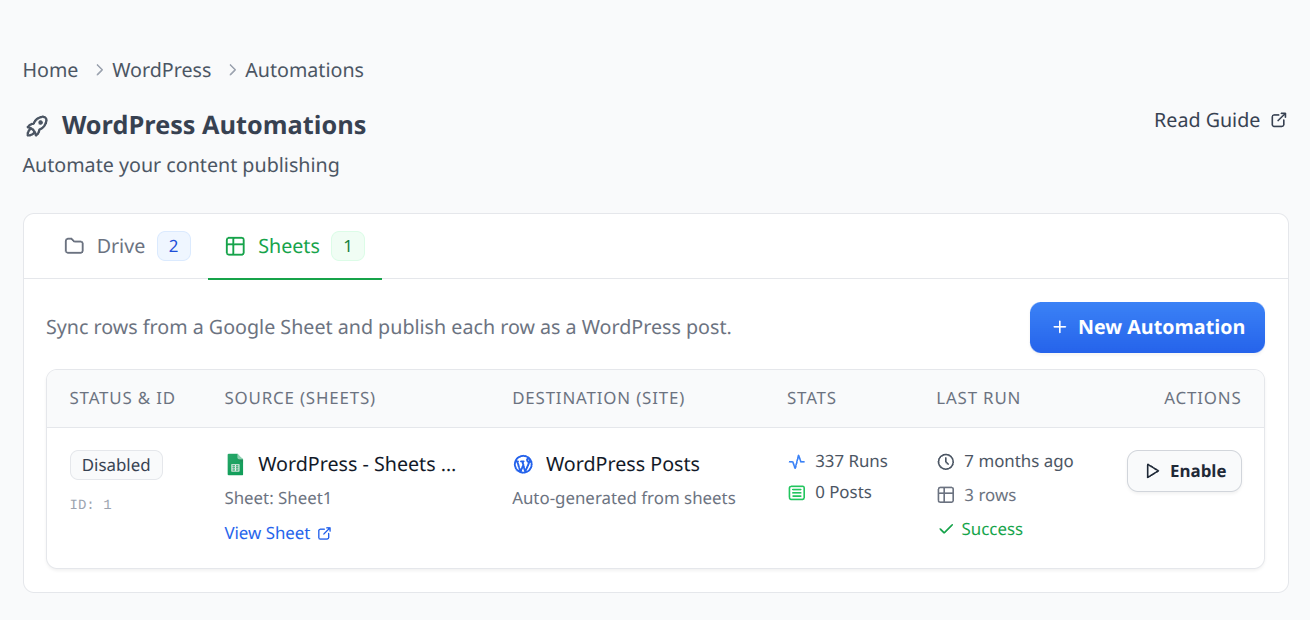
Once created, the automation appears in the Sheets list with its run stats — total runs, posts created, rows processed, and failures — and when it last ran.
A Real Programmatic SEO Example
Here’s what a basic local SEO setup looks like in the sheet:
| SITE | TITLE | CONTENT | SLUG | STATUS | CATEGORIES |
|---|---|---|---|---|---|
| acmeplumbing.com | Plumber in Austin TX | Call Acme for fast plumbing… | plumber-austin-tx | publish | Local, Plumbing |
| acmeplumbing.com | Plumber in Dallas TX | Call Acme for fast plumbing… | plumber-dallas-tx | publish | Local, Plumbing |
| acmeplumbing.com | Plumber in Houston TX | Call Acme for fast plumbing… | plumber-houston-tx | publish | Local, Plumbing |
Each row should first create a dedicated draft. Publish only when it has verified, location-specific or product-specific evidence—not merely a swapped city, service, or keyword—and it passes review.
For a multi-site agency setup, each row’s SITE column points to a different client site. One sheet handles publishing across all of them simultaneously.
Per-Document Metadata with Frontmatter
If you’re using the GOOGLE DOC column and want the document itself to carry its own publishing metadata, you can add a Frontmatter table at the top of the Google Doc.
Frontmatter lets a single Google Doc specify its own title, categories, tags, status, and publish date — directly in the document. If a doc has a Frontmatter table, it overrides the corresponding columns in the sheet for that row. This is useful when different documents have different metadata requirements and you don’t want to manage all of it in the spreadsheet.
See the WordPress Frontmatter guide for the full field reference.
What Plan Do You Need?
Sheet Automation is available on the Pro and Agency plans. The Free and Starter plans do not include it.
- Pro — up to 100 exports/month, up to 5 connected sites, Drive and Sheet Automation included (up to 200 Sheet rows per automation)
- Agency — unlimited exports, unlimited sites, Drive and Sheet Automation, team members (5 seats)
For pSEO at scale, the Agency plan is the right fit. A 500-row sheet counts as one automation run, not 500 individual exports, so the unlimited exports on Agency is mainly relevant for manual export volume rather than automation throughput.
See the pricing page for current plan details.
Frequently Asked Questions
Does every row create a new post, or can rows update existing posts?
Both. New rows create new posts. If you change a row that has already been processed, Tenwrite detects the change on the next run and updates the existing post. Rows that are unchanged are skipped.
Can one sheet target multiple WordPress sites?
Yes. Each row has a SITE column. Rows pointing to different sites are processed independently in the same automation run.
Can I use Markdown in the CONTENT column?
Yes. Tenwrite converts Markdown to HTML (or Gutenberg blocks depending on your OUTPUT FORMAT setting) before publishing.
What happens if a row is missing a required field?
The row is skipped and recorded as a warning in the automation run. Required fields are SITE, TITLE, and at least one of CONTENT or GOOGLE DOC.
How quickly after I update the sheet does the change go live?
Changes are picked up on the next hourly run. There is no manual trigger — Tenwrite polls automatically.
Does Sheet Automation work for Blogger too?
Yes. Tenwrite has an equivalent Sheet Automation for Blogger. The column structure is slightly different (labels instead of categories/tags) but the setup process is the same. See the Blogger Sheet Automation guide.
What to Do Next
- Use the WordPress Sheet Automation template
- Read the full WordPress Sheet Automation guide
- Learn about Frontmatter for per-document metadata control
- See Drive Automation for a folder-based alternative
- View pricing to see which plan includes Sheet Automation
QUALITY-FIRST PROGRAMMATIC SEO: A DRAFT-FIRST WORKFLOW
Programmatic SEO is a data and editorial problem before it is a publishing problem. Google Sheets makes it easier to manage structured content, but it cannot decide whether a query deserves its own page, validate a claim, or make a city-swapped template genuinely useful. Use Sheet Automation as a publishing manifest—not as a substitute for research, original evidence, or review.
1. Start with a page worth existing
Create a row only when it targets a distinct search intent and has information that would help a reader even if no similar page existed. A local-service page needs real service-area details, availability, proof of work, local constraints, or useful next steps. A product, directory, comparison, or template page needs accurate attributes, specifications, examples, pricing context, or another meaningful differentiator.
Do not create a page when the only change is a city name, service name, or keyword inserted into the same generic copy. If the data is too thin to support a standalone page, keep it as a draft, combine it into a stronger hub or category page, or do not publish it.
2. Build a publishable data model
Alongside SITE, TITLE, CONTENT or GOOGLE DOC, and SLUG, give every proposed page enough evidence to be reviewed. Useful working columns include:
• Target query and search intent
• Audience and page goal
• Unique facts, source URLs, and the date they were checked
• Location-, product-, or use-case-specific proof
• Internal pages the new post should link to
• A clear call to action where it is appropriate
• Review owner, QA status, and publish decision
These fields do not have to be exported to WordPress. They make the Sheet a reliable editorial system instead of a queue of unexamined URLs.
3. Use a draft-first quality gate
Set STATUS to draft for new programmatic rows. Before changing a row to publish, confirm:
• The title, H1, and URL match one clear intent without keyword stuffing.
• The page answers the main question early, then adds useful detail rather than filler.
• Claims, service areas, prices, availability, and comparisons are verified against a source.
• The page contains a credible differentiator: original data, practical examples, local expertise, a useful tool, or clear decision guidance.
• The title and meta description are specific to this page—not a copied template with one variable changed.
• Relevant internal links help readers continue their task, and the page does not compete with an existing stronger post.
• The canonical and index/noindex decision are deliberate. Do not add weak, duplicate, or unfinished pages to the sitemap.
Review a representative sample whenever a new template or data source is introduced. Expand only after those pages are accurate, distinct, and useful in their own right.
4. Roll out in small, observable batches
Publish a small, quality-reviewed batch first. Check the actual rendered pages on mobile, inspect titles and metadata, confirm internal links, and watch Search Console for impressions, clicks, indexing, and query/page overlap. Use the results to improve the template and the underlying data before adding more rows.
Automation should reduce repetitive publishing work. It should not make it easier to multiply low-value pages. When a recurring row fails QA, fix the data model or template once rather than patching each page after publication.
5. Keep the index clean as the site grows
Treat unobserved or under-specified rows as unknown—not ready. Consolidate overlapping topics, remove obsolete rows, and keep low-value variants out of the index. Build hubs that explain the broader topic and link to genuinely distinct supporting pages with descriptive anchor text. Update rows when the underlying facts change; a stale programmatic page is rarely a durable asset.
6. What Tenwrite automates—and what it does not
Tenwrite can turn a reviewed row into a WordPress draft or post, update a changed row, preserve predictable URLs, and report skipped or failed rows. It does not prove search demand, assess factual accuracy, judge uniqueness, or guarantee rankings. Those decisions belong in the content workflow before publication.
Google’s spam policies prohibit scaled content created primarily to manipulate rankings, while its people-first guidance asks whether content provides substantial value and demonstrates real expertise. Use those standards as the final test:
https://developers.google.com/search/docs/essentials/spam-policies
https://developers.google.com/search/docs/fundamentals/creating-helpful-content
The practical rule is simple: publish fewer pages with stronger evidence, then expand only when the data and results justify it.