

The Wordable alternatives worth shortlisting depend on what you need to publish. Tenwrite suits WordPress and Blogger workflows with Google Docs or local files. Docswrite is worth evaluating for a wider mix of publishing destinations and developer integrations. GoPublish focuses on a Google Docs-to-WordPress add-on workflow. Mammoth is a free DOCX conversion option for people comfortable handling more of the WordPress process themselves.
Start with your source documents, destination sites and update requirements. A lower subscription price is useful only if the tool handles the work you actually need. Someone publishing two straightforward WordPress articles has a different problem from a team publishing to several CMSs or maintaining a large archive.
Disclosure: this guide is published by Tenwrite. We explain where Tenwrite fits and where another option may fit better. Features and advertised prices were checked against official sources on November 4, 2026. Competitor descriptions are documentation-based, not a claim that we tested every product end to end.
Compare the four alternatives by workflow
| Alternative | Strong reason to evaluate it | Main boundary to check |
|---|---|---|
| Tenwrite | WordPress and Blogger, Google Docs and local-file publishing | Automation and analytics depend on the plan |
| Docswrite | Several CMSs and channels, with API-oriented workflows | Connections, seats and automation permissions vary by plan |
| GoPublish | Publishing from a Google Docs add-on to WordPress | Advanced features sit above the entry-level plans |
| Mammoth | Free conversion from DOCX to semantic HTML | Conversion is only part of the publishing workflow |
These are different ways to solve a publishing task, rather than four interchangeable bundles. Use the shortlist to eliminate an unsuitable workflow before comparing every feature. For example, a tool that does not explicitly cover your destination cannot become the right choice simply because its entry price is attractive.
What Wordable already does well
Wordable’s official site positions it around sending Google Docs to WordPress with image handling and reusable publishing templates. Its pricing-page FAQ also describes WordPress, HubSpot and Medium use cases, with a plugin required for WordPress connections.
If your current setup reliably produces the drafts you need, staying with Wordable can be reasonable. Before switching, identify a specific unmet requirement: another source format, a destination, recurring automation, a different site allowance or a more suitable operating cost. A vague wish for “more features” is hard to test.
We could not verify Wordable’s current plan amounts because the embedded plan page was unavailable during this check. We therefore do not repeat older dollar figures or claim that another service is cheaper than Wordable today. Check the live plan or request current terms before making a purchasing decision. That verification limit does not establish a general reliability problem with the product.
1. Tenwrite for WordPress, Blogger and multiple source formats
Tenwrite is a practical shortlist option when the destinations are WordPress and Blogger and the writing source may vary. You can select a Google Doc or upload Word DOCX, Markdown or plain text in the web app. A local DOCX does not have to be uploaded to Drive or converted into a Google Doc before publishing to WordPress.
The local-file route is particularly useful when writers deliver Word files containing embedded images. DOCX uploads support files up to 25 MiB; Markdown and text support up to 5 MiB. Markdown images need public HTTP/HTTPS URLs, while a DOCX can carry its images inside the file. A file on your computer is a snapshot, not a continuously watched source.
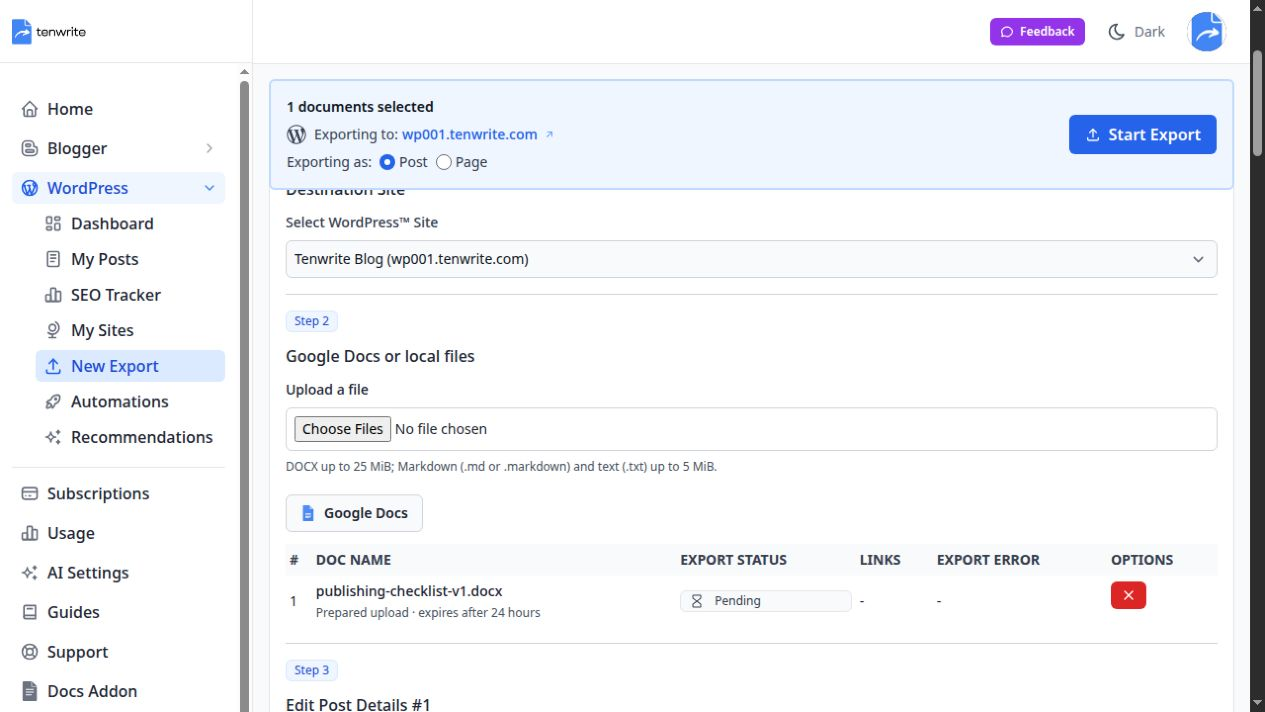
This screenshot comes from our same-day direct-upload test. The prepared DOCX is visible in the selected-content list; no Google Docs conversion was used.
Where Tenwrite adds value
You can create a draft, review the result and later update the same destination. Linked Google Docs use Sync Post; revised local files use the existing post’s Full Edit → Upload a file → Update Post route. That distinction matters if you maintain older articles rather than only create new ones.
For recurring publishing, eligible plans include Drive and Sheets automation. Drive automation works with Google Docs; do not assume it watches arbitrary local DOCX or Markdown files. Tenwrite also provides a multi-site post index and paid Search Console reporting through SEO Tracker. The tracker uses collected, finalized search data rather than live ranking measurements.
Basic WordPress publishing and supported SEO metadata have different connection requirements. Tenwrite’s WordPress plugin is needed for the supported SEO-field integration on self-hosted sites, including its Yoast/Rank Math mapping. Do not assume every SEO plugin will render an entered field identically.
When to choose another option
Tenwrite’s publishing destinations are WordPress and Blogger. If your essential destination is Webflow, Shopify, HubSpot or Medium, start with a tool that explicitly supports it. If you want only one simple paste into WordPress, a subscription may add little value. The Tenwrite versus Wordable comparison provides a more focused two-product view.
2. Docswrite for a broader publishing stack
Docswrite’s official product page advertises publishing across WordPress, Webflow, Shopify, Ghost, Contentful and other destinations, with API, MCP, Zapier and webhook options. That broader destination coverage is a meaningful reason to evaluate it when WordPress is only one part of your operation.
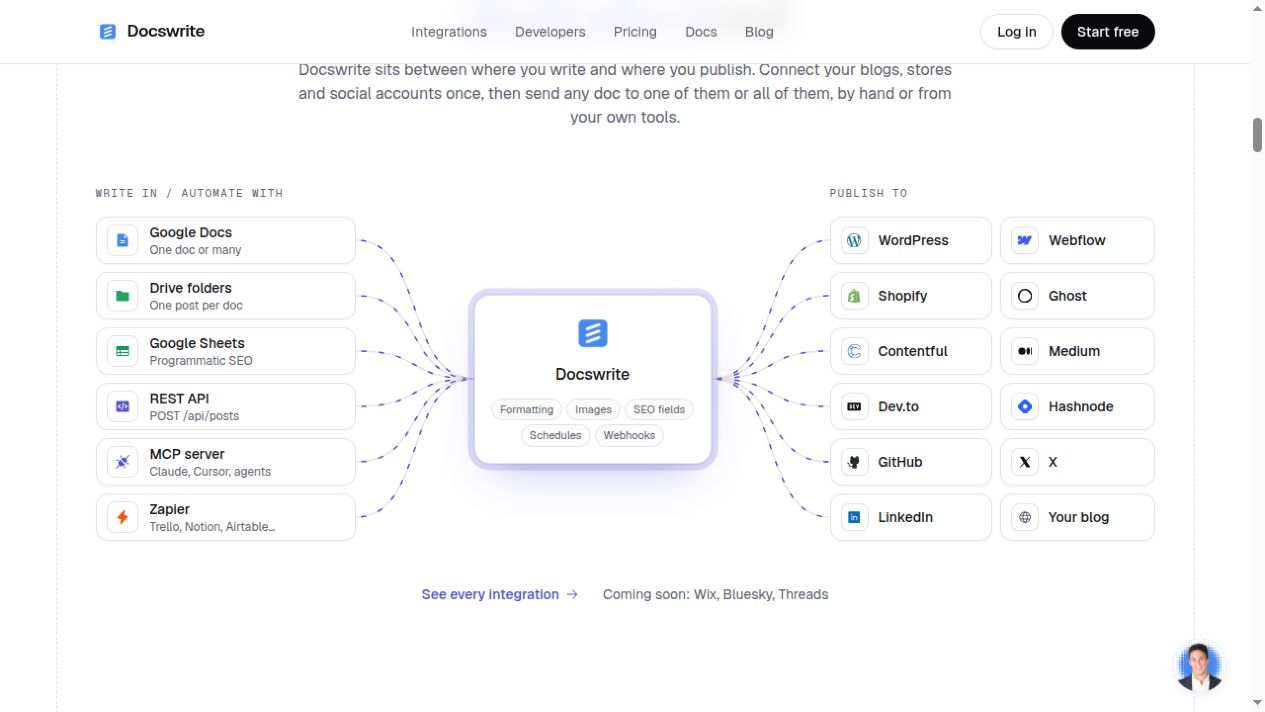
Docswrite’s public site presents a broader destination map. This is a screenshot of its advertised integrations, not a result from an authenticated publishing test.
Its pricing page distinguishes publishing volume, connections and seats. Start-Up advertises 75 Google Docs per month, three connections and three seats. Business advertises unlimited Google Docs, ten connections and five seats, with REST API access and advanced Zapier automation. The entry plan does not include those advanced integrations.
The buying question is whether those integrations reduce work in your actual publishing stack. If an existing system needs to trigger publication, inspect the API documentation and the destination’s field mapping before choosing a plan. If you publish manually to one WordPress blog, that integration breadth may be less valuable.
Ask what counts as a connection, which destinations receive your intended content type, and how you will update an existing entry. Those questions help distinguish a suitable multi-channel setup from a large feature list. Verify the precise route you intend to use rather than treating every advertised destination as the same workflow.
3. GoPublish for a Google Docs-to-WordPress add-on
GoPublish centers its workflow on publishing from Google Docs to WordPress through an add-on. Its official material describes draft and scheduling options, updates to existing posts, image optimization and SEO-related controls. It is worth evaluating if you want to keep the publishing action close to the document editor.
The important pricing distinction is between basic exports and advanced features. On the official pricing page, Free Forever lists ten exports per month for one website and one user. Starter lists twenty exports per month for one website and one user. Professional lists fifty exports per month, ten websites and three users.
We checked the rendered inclusion marks, rather than assuming every feature named in a plan card was included. The free card marks AI fields, image compression, team management, Sheets bulk export, ACF sync and API access as unavailable. Starter adds the advertised AI fields and compression; Professional adds team management. The Agency card includes the advertised Sheets, ACF and API features.
That makes GoPublish a useful candidate for a simple Docs-to-WordPress workflow, while its higher tiers deserve a separate evaluation for bulk or integration needs. Compare the plan that supports the required feature, not merely the cheapest paid card. Test an existing-post update as well as a first export before moving ongoing work.
4. Mammoth for free DOCX conversion
Mammoth converts DOCX documents into HTML using document structure such as heading styles. It aims for semantic content rather than an exact reproduction of Word’s fonts, page layout and colors. The library supports headings, lists, tables, links and images; its default image output can use inline data, and custom image handling is available.
The Mammoth WordPress plugin offers a WordPress-side import route. Its documentation explicitly lists image support and discusses image uploads. It would be inaccurate to describe Mammoth as having no image handling. The library’s HTML output and the WordPress plugin’s integration are related, but not identical, things to assess.
For a Google Docs source, download a DOCX copy before using the DOCX conversion route. Expect to handle publishing details such as the final title, taxonomy, status and destination review in your chosen WordPress workflow. Mammoth conversion alone is not a hosted multi-site publishing dashboard.
This option is attractive for occasional imports or a technical workflow where subscription cost matters more than minimizing manual steps. Read the project’s security guidance before incorporating the library into a custom service: conversion does not itself sanitize untrusted input. For an ordinary editor, evaluate the WordPress plugin on a test draft and check its current compatibility before installing it on a working site.
Compare current prices on the same billing basis
The following are advertised USD monthly-billing prices checked November 4, 2026. Annual billing, taxes, regional checkout amounts and later changes can differ. “Unlimited” reflects the vendor’s published allowance, not our independent capacity test. Links in each product section lead to the current terms.
| Product and plan | Monthly price | Selected allowance or requirement |
|---|---|---|
| Tenwrite Starter | $10 | 25 exports/month; two connected sites; manual publishing |
| Tenwrite Pro | $49 | 250 exports/month; ten sites; Drive and Sheets automation |
| Tenwrite Agency | $129 | Unlimited exports/sites; five included team seats |
| Docswrite Start-Up | $29 | 75 Google Docs/month; three connections; three seats |
| Docswrite Business | $49 | Unlimited Google Docs; ten connections; five seats; API access |
| GoPublish Starter | $9 | 20 exports/month; one website; one user |
| GoPublish Professional | $19 | 50 exports/month; ten websites; three users |
| GoPublish Agency | $69 | Advertised unlimited exports, websites and users; advanced features |
| Mammoth | Free software | DOCX conversion; your hosting and publishing work are separate |
Tenwrite prices and allowances are listed on its pricing page. The comparison intentionally includes competitors’ lower entry prices and larger advertised allowances where relevant. There is no single lowest-cost winner across every publishing volume and feature requirement.
Free allowances are not all monthly subscriptions
Tenwrite starts with five included exports and one connected site; those five are not a monthly renewal. Docswrite’s official pricing information describes five free exports in total. GoPublish’s free card lists ten exports per month, with the feature restrictions described above. Mammoth is free software, while hosting, installation and editorial work remain separate costs.
Budget for the required paid capability too. A manual-export plan is not an automation plan, and a larger export allowance does not necessarily include more seats. Ask each vendor how revisions, repeated exports, multiple destinations and failed attempts count toward usage before projecting a year’s cost.
For example, a hypothetical publisher with one WordPress site and fifteen short documents per month should compare the appropriate manual plans and the work still required. A team needing API-triggered publishing should compare API-enabled plans. These are purchasing scenarios, not measured savings or claims about a customer’s results.
Write down an ordinary month and a busy month before choosing an allowance. Count new articles, planned revisions and the destinations receiving each one. Then check the vendor’s definition of an export against that list. A plan that covers the initial publication batch may be too small once you include maintenance. Conversely, paying for a large volume allowance makes little sense when your real constraint is a missing destination or a required integration.
Test the same representative document before switching
Use a source that resembles your actual work: two heading levels, a list, an internal and external link, a small data table, a dedicated cover and an inline image. A single plain paragraph cannot reveal whether your regular tutorial will transfer well.
Create a draft on the intended destination. Check the section hierarchy, table values and whether the images are saved where you expect. Confirm the featured cover separately from body images. Open the important links and inspect a phone-width preview. Record any repair you would need to repeat for every article.
Then revise one sentence and update that same draft. Confirm the destination identifier stays the same, the new sentence appears and unrelated content remains intact. A good first import does not prove that the later maintenance workflow suits you.
Separate one-time setup from repeated repair. Connecting a site and choosing a reusable formatting preset may be initial work; correcting the same table or replacing missing images on every article is recurring work. Note both, rather than judging a tool only by the first button click. If your documents vary substantially, repeat the test with a second source containing the awkward element you publish most often. That produces a more useful purchasing decision than a generic feature score.
We exercised this create-review-update sequence with Tenwrite’s local DOCX workflow during our November 4 walkthrough. The test preserved the headings, table, list, link and image references while replacing one revised paragraph on the same draft. The Word to WordPress guide shows the actual steps and screenshots. This is evidence about that Tenwrite workflow, not a comparative performance benchmark against the other products.
Make a small transition instead of replacing the whole process
First, list the requirements that would rule a tool out. Include the source format, CMS, required fields, number of sites and how existing articles must be updated. Separate what you need today from a possible future integration; otherwise an impressive optional feature can dominate a simple decision.
Next, run one representative draft through your shortlist. Use the same document and inspect the same outputs. Compare the manual work left afterward, the clarity of the publication status and the ease of finding the destination again. Write down a concrete problem rather than assigning a vague quality score.
Move a small group of new articles only after the test fits. Keep existing post URLs and source files stable while you establish the update path. Avoid re-exporting an archive as new posts just to change tools. An integration that creates content is not automatically a migration tool that reconciles every historical entry.
Finally, decide which version owns later changes. If you revise an article directly in WordPress and then replace it from an older source document, you can overwrite the destination correction. Keep the writing source current, or deliberately maintain the article in WordPress. The same-post update test should reveal how that decision affects your routine.
Do you need an alternative for a few simple articles?
Possibly not. WordPress’s editor can accept pasted content, and a short article may need only a careful review afterward. Current WordPress Image block documentation says images copied from Word or Google Docs may upload automatically. Check their saved state rather than assuming every pasted image is an external link.
If ordinary paste already produces the draft you need, there may be little reason to add another tool. A publishing service becomes more compelling when repeated image handling, multiple destinations, structured metadata or ongoing updates create work you want to reduce. That is a workflow judgment to make with your own source, not a universal claim about time saved.
Try Tenwrite when its workflow matches yours
If your sites run on WordPress or Blogger and you want to publish from Google Docs or local files, begin with one real draft. For a Google Docs source, follow the Google Docs to WordPress walkthrough. For Blogger, use the Google Docs to Blogger guide. Choose the source you already have rather than converting it merely to imitate another tool’s route.
In Tenwrite, select the destination, select the Google Doc or upload the file, review the settings and read the effective publication confirmation. Keep the first result as a draft. Inspect it, make one source revision and confirm the update reaches the same post. If automation is your reason for switching, evaluate that separately on an eligible plan after the manual test.
Start with a representative document in Tenwrite. Use the initial exports to answer a practical question: does this workflow handle your sources, destinations and revisions well enough to become part of your publishing routine?
Leave a Reply