
To schedule a WordPress post, save the unpublished article with a future publication date and confirm that WordPress records it as Scheduled. Check the timezone along with the date and hour. A future date in a planning spreadsheet, or a date entered in a form that was never submitted, is not a saved WordPress schedule.
This guide covers the native WordPress route and a practical Tenwrite example. On November 6, 2026, we scheduled an owned sample for a safely distant future date, checked the saved time in WordPress, moved it one hour later and returned it to Draft. The article remained unpublished. The test verifies saving, rescheduling and cancelling a schedule; it does not demonstrate publication at the actual due time.
Distinguish a scheduled post from a dated draft
A draft and a scheduled post can both contain a future date, but their publication states are different. A draft is still waiting for a publication decision. A scheduled item has been saved for future publication. Confirm the resulting status in WordPress rather than inferring it from a date field or a calendar entry in a separate application.
Identify whether you are preparing a first publication or changing an article that is already public. Those are different tasks. If you want edits to a live article to appear later, use a workflow that explicitly supports delayed revisions. Do not assume that adding a future date somewhere will hold every body change you make to an already-published item.
The source document and the CMS item are separate too. A Google Doc can be ready for editing while the receiving WordPress draft still needs its own title, media and publication settings. Editing the Doc after an export does not establish that the saved scheduled item contains the newest wording. Check the destination content before relying on its release time.
For an initial trial, choose an owned sample and a date far enough ahead that it cannot become public during the test. Record its post ID, intended instant and initial state. Once you finish checking the workflow, return the sample to Draft and verify that it is no longer scheduled. That gives you useful evidence without leaving an unnecessary test release in the queue.
Check the site and input timezones
WordPress has a site timezone setting. On a self-hosted site, review it under Settings → General if you need to establish the site’s clock. A WordPress.com site has its own settings layout. The important point is to identify the timezone in which the saved date is displayed, rather than guessing from the time on your laptop or the location of your editorial team.
A publishing application’s date input may use a different timezone from the destination’s display. The same instant can therefore appear as different hours in the two places. A useful schedule record includes a date, a clock time and a timezone together. A bare instruction such as “publish at nine” leaves the actual release instant ambiguous.
Our test made this distinction visible. The Tenwrite form interpreted the entered time using Asia/Calcutta, while the connected WordPress site reported a UTC offset of zero. An entry of 09:00 therefore appeared in WordPress as 03:30 on the same date. These were equivalent instants in this test, not a five-and-a-half-hour scheduling delay.
Use a named timezone when planning releases that may be affected by daylight-saving changes. If a client specifies a different timezone, write down the intended instant before entering it. Recheck the saved destination after conversion, especially near a date boundary. A time just after midnight in one timezone may belong to the previous calendar date in another.
Schedule an unpublished post in WordPress
The native WordPress editor supports ordinary future publication without a separate scheduling plugin. Open the intended unpublished post, find the Publish date in its settings, choose the future date and time, then submit the scheduling action. Reopen the settings or post list and verify the saved state and timestamp. WordPress.com’s scheduling instructions illustrate the native controls.
Control placement can vary with editor version and site setup. If the post settings sidebar is hidden, open it before looking for the date. If you are using another editing interface, use its supported publication controls and perform the same saved-result check. The label or button position matters less than establishing what WordPress actually stored.
Before confirming, check the article’s title and destination. In an account with several sites, a familiar title does not identify the correct domain. Confirm that the item is the one you intend to release and that its body, links, media and featured image are ready. The schedule is a publication setting, not a substitute for reviewing the article itself.
If WordPress still shows Draft afterward, do not assume that choosing a date completed the operation. Look for an unsaved change, a remaining confirmation or an error. If it shows Published when you intended a future release, inspect the direct public URL immediately and correct the state through the site’s normal supported process. Record the observed outcome before retrying another action.
Create or find the post in Tenwrite
In Tenwrite, choose the correct WordPress destination and the source you intend to maintain. For a new article, WordPress → New Export accepts a native Google Doc or supported local file. For an existing item, open My Posts, locate the correct site and post, and use Full Edit to review that record rather than creating another version just to change its publication time.
For the scheduling test, we used an owned native Google Doc that had already been exported as draft 1722. Its content came from a small HTML import demonstration, but the scheduling check concerned the existing WordPress item’s settings. The article’s body did not need to change to test whether a future publication state and timestamp could be saved.
Using an existing sample also made identity easy to verify. We recorded its ID and preview before changing its state. We then continued working on that same item for the first schedule, the revised time and cancellation. A new post with the same title would not have established that the original scheduled record was changed correctly.
If you are still preparing the article itself, follow the Google Docs to WordPress publishing guide first. It covers source choice and draft review. Once the saved draft contains the intended content, use the scheduling controls for that existing record and verify the publication outcome independently.
Save a future date through Tenwrite
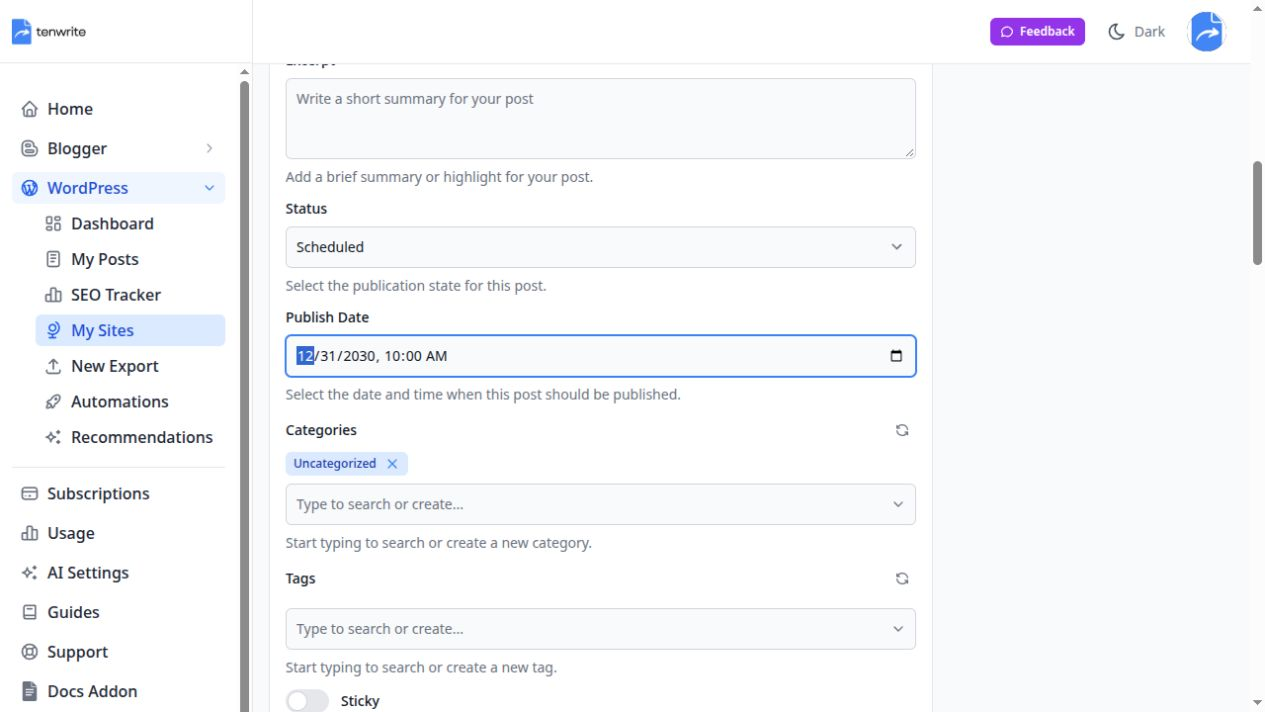
In the existing post’s Full Edit form, choose Scheduled as the Post Status. Enter the intended date and time in Publish Date, then review the destination and other publication fields before selecting Update Post. If a confirmation is shown for your operation, read its effective publication outcome before submitting it. Do not infer the outcome only from a selected label.
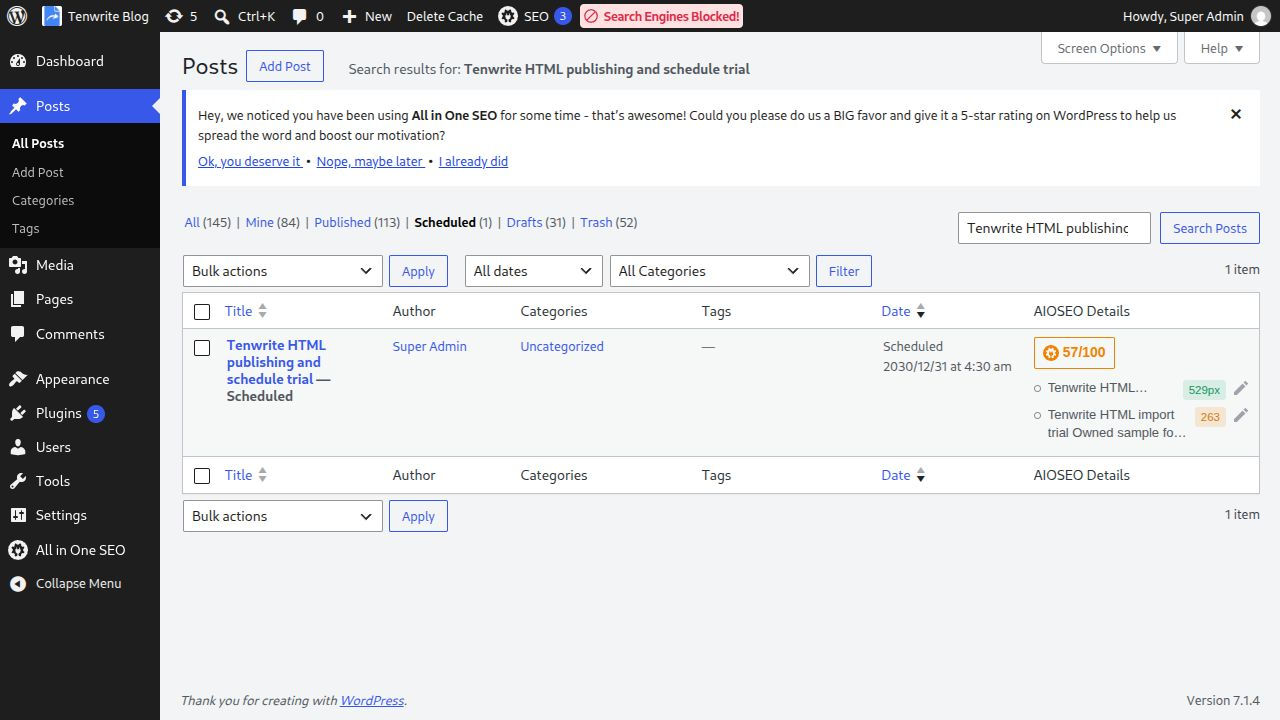
We entered December 31, 2030 at 09:00 for our owned sample. The distant date was chosen to keep the trial away from an actual release window. After saving, we opened the WordPress scheduled-post list and found the same title marked Scheduled, with December 31, 2030 at 03:30 am in the site’s zero-offset clock.
That destination check was essential. It confirmed both the future state and the converted time. A success notice in the publishing application alone would not have shown how WordPress displayed the schedule. Conversely, seeing a different hour without considering the timezone could have led us to diagnose a failure where the saved instant was actually correct.
Keep a copy of the intended time beside the saved result while establishing the workflow. After reopening a form, check which clock its date value represents before editing it. In our test, the reloaded field showed the stored 03:30 value. When rescheduling, we explicitly entered the new intended input time and checked WordPress again rather than reusing an unlabeled hour from memory.
Reschedule the same post and verify the difference
To choose another future time, open the existing scheduled item and replace its date or time through the supported scheduling controls. Save the change, then confirm that the same record remains scheduled at the new intended instant. Creating a second item would leave you with a different problem: two versions that might both be waiting to publish.
For our test, we changed the Tenwrite input to December 31, 2030 at 10:00. WordPress then showed December 31 at 04:30 am. The destination time moved forward by one hour, matching the intended change. The title and post ID remained the same. We compared the saved body as well and found it unchanged by the scheduling operations.
| Test action | Entered time in this test | Saved WordPress time |
|---|---|---|
| First schedule | December 31, 2030 at 09:00, Asia/Calcutta | December 31 at 03:30, UTC offset zero |
| Reschedule | December 31, 2030 at 10:00, Asia/Calcutta | December 31 at 04:30, UTC offset zero |
| Cancel | Change status to Draft | No longer in the scheduled-post list |
Your saved hours may differ because your browser, application or site uses another timezone. Use the relationship between the intended instant and the saved destination, rather than copying our hours into another site’s schedule. If the conversion is unclear, stop before the real release window and establish the correct clock with the site owner or support team.
Confirm the saved schedule in WordPress
Open the destination’s post list and use its scheduled filter where available. Locate the exact title and inspect the saved date. In our current WordPress view, the owned trial was the only scheduled item, making the change from 03:30 to 04:30 straightforward to verify. A larger production queue needs the same identity check, even when many titles are visible.
Compare the saved state and time with your intended record. If the row still shows an older value, refresh the view or reopen the item’s settings before concluding that another update is required. A stale list and an unsuccessful save are different conditions. Resolve which one applies so you do not repeatedly submit changes without knowing what the destination contains.
If the destination is not available, leave the schedule unverified. A calendar entry or a central post list can help you plan the release, but it does not replace a check of the actual WordPress record. Record the missing verification and resolve it before depending on the schedule for a time-sensitive announcement or coordinated launch.
Our screenshots establish the saved future state and time. They do not establish that the article published at that future instant, because we did not wait until 2030 or run a real release. Keep that boundary clear in your own test notes: saving a schedule is one result; successful due-time execution and public availability are later results.
Cancel the schedule without discarding the article
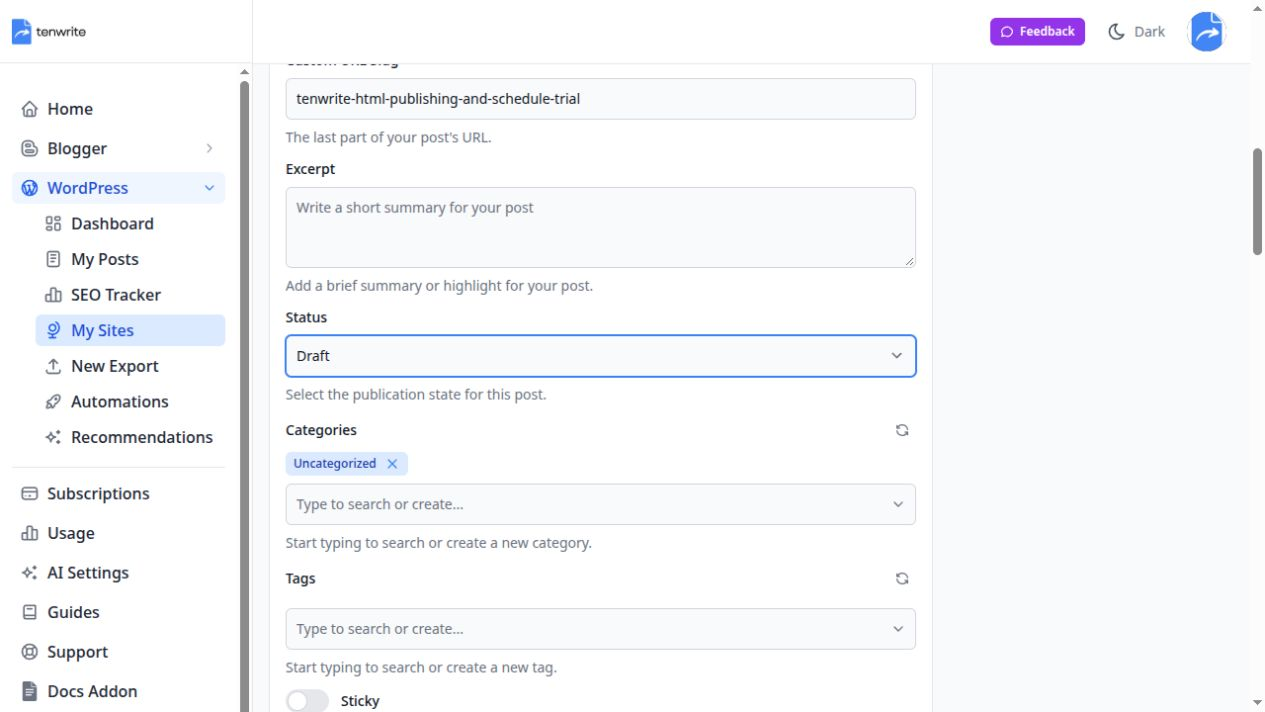
If you no longer want an automatic future release, change the existing item to Draft through its supported status control and save. Then check that it is no longer listed as scheduled. The content can remain available for later review without keeping the old release instruction active. Do not treat an unsaved Draft selection as a completed cancellation.
We returned trial1722 to Draft through Tenwrite and rechecked WordPress’s scheduled-post filter. It showed No posts found. The Tenwrite form also showed Draft, and the sample’s body HTML was unchanged. This completed the scheduling pilot without publishing the sample or deleting its content, so the result could still be inspected afterward.
A stored future date can remain associated with a draft. The cancellation check therefore concerns the publication state and scheduled queue, not merely whether every future-looking date disappeared from a form. If you later decide to release the item, review the intended date and effective outcome again rather than assuming the earlier test time is still appropriate.
For several affected articles, record each destination-specific cancellation separately. Similar titles on different sites can represent different scheduled items. Confirm the domain and ID for every one you intend to change, then check each resulting status. A cancellation on one site does not establish that another site’s copy or an independent publishing automation was cancelled too.
Diagnose a missed schedule from the saved state
Begin with the record that exists now. If it is still scheduled for a future instant, compare the date and timezone with your expectation. If it is Draft, the future publication state may never have been saved or may have been cancelled. If it is Published, open the direct URL before treating its absence from a homepage or feed as a scheduling failure.
On self-hosted WordPress, scheduled publishing depends on the site’s task execution. The official WP-Cron documentation explains that the default mechanism checks due work during page loads rather than running continuously like a system scheduler. That is one reason a saved future time should not be treated as an unconditional guarantee of publication at the exact second.
If WordPress reports a missed schedule, collect the post ID, intended instant, saved state and relevant error message before contacting the host or site administrator. These details help distinguish a timezone mistake from a task-execution problem. Avoid changing server configuration, disabling protections or installing several scheduling plugins before someone has established the cause on that particular site.
WordPress.com and other managed platforms have platform-specific behavior and support paths. Use the instructions for the actual destination rather than assuming a self-hosted diagnostic applies unchanged. Once the cause is resolved, check the saved state again and verify the direct public URL if an immediate release is now intended. A retry message alone is not a public-page check.
Keep article updates separate from release timing
Changing the content of a source document and changing a destination’s publication time are separate operations. Before the due time, confirm that the saved WordPress version contains the intended revision. A Google Doc may have been edited after the original export, while the scheduled post still contains the earlier version. Review the supported update route for the linked source or revised file.
Use the existing post when applying that revision. Our same-post Google Docs update guide explains how to maintain identity while updating content. Review the effective publication state as part of the operation so a source update does not unintentionally change the release decision or leave a new duplicate draft beside the scheduled item.
An automation’s run schedule is also different from the post’s publication schedule. A process can check a Drive folder at one interval while an individual WordPress item has a different intended release time. Confirm both settings if your workflow uses them. Do not assume that pausing a source-checking automation automatically removes an already-saved future WordPress publication.
For a shared calendar, keep one record per site-specific post. Include the intended instant, the source revision and the latest verified CMS state. Tenwrite’s multi-site post management guide covers finding those records across connected destinations. Use the calendar to organize the work and the destination checks to establish what was actually saved.
Check the public page after the due time
When a real scheduled article becomes due, confirm that WordPress marks it Published and open its public URL. Check the title, changed passages, links, images and featured cover at the intended domain. If the editor shows the correct content but the public view differs, investigate visibility and caching through the site’s normal supported process before submitting another content update.
Keep evidence proportionate to the importance of the release. A routine article may need a brief saved-result note and public check. A coordinated announcement may require a second reviewer and a record of the actual availability time. Neither process benefits from claiming completion before the public result has been observed, or from confusing the scheduled timestamp with a measured release time.
Try one controlled publishing draft in Tenwrite. Choose the intended destination, verify the article, save a future schedule and inspect the saved time. Practise rescheduling and returning your sample to Draft before using the same routine for a real release. You then have a workflow tested against the destination’s actual state rather than an unverified calendar plan.