
Creating a Google Doc takes only a few steps: open Google Docs, start a blank file, and begin typing. For content work, add one small layer of clarity before you send it anywhere: make the file identifiable, show the reader its proposed structure, and state what kind of review you need.
Those details keep an editable working draft separate from an approved source or a CMS draft. A shared document can be useful for collaboration without being ready to transfer or publish.
Create a new Google Doc
On desktop, open Google Docs while signed in to the account used for the assignment. Google’s Docs help describes the basic sequence: create a document, edit and format it, then share it when you need to work with other people.
To create a blank document for a content draft:
- Open Google Docs.
- Choose a blank document.
- Click into the page and type one line, such as
Draft created for editor review. - Check the document title at the top of the page. A new file normally begins with the label Untitled document.
- Return to the Google Docs home page when needed and confirm that you can find the file in the account you intended to use.
Typing a line is a useful first check: it confirms that the document is open and editable rather than merely a page you can view. Finding the file again is the second check. If the document is missing from the expected account or shared location, resolve that before sending a link to anyone else.
At this point, you have created a Google Doc. You have not created an approved source, a CMS draft, or a published page. Those are separate records that may be created later by different people.
Name and structure the content draft
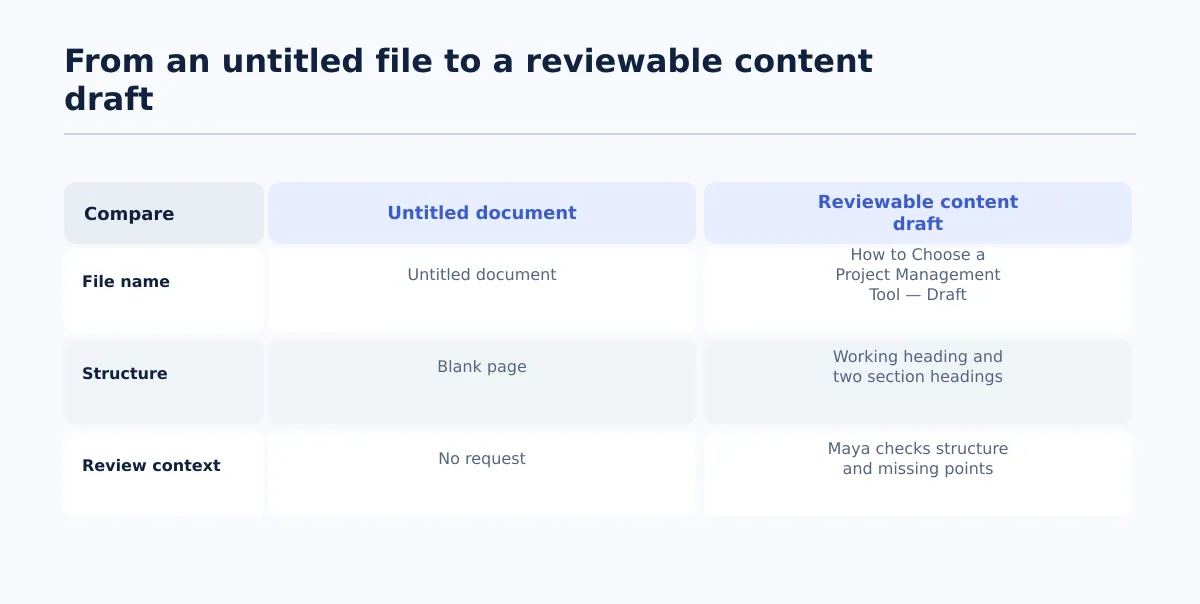 A content draft needs a clear name, visible structure, and a stated review request before it is shared.
Replace Untitled document before the file starts circulating. The name is an editorial convention rather than a Google Docs requirement, but it helps a reviewer identify the subject and the document’s current state without opening several similar files.
A simple pattern is:
[Working topic] — [status]
For example:
How to Choose a Project Management Tool — Draft
The status word matters. Draft tells the recipient that the material is still being developed. If your team uses a different label, such as In review, use the label consistently and make sure it does not imply a decision that has not happened.
Here is how an empty file can become a small, reviewable content draft:
| Before | After |
|---|---|
| File name: Untitled document | File name: How to Choose a Project Management Tool — Draft |
| Blank page | Draft heading: How to Choose a Project Management Tool |
| No review context | Review note: Maya to check structure and missing points |
| No visible sections | Section heading: Start with the team’s requirements |
| Section heading: Compare the shortlisted options |
Put the working article heading at the top of the document, then add only enough content to make the proposed shape clear. A beginner-friendly outline could look like this:
How to Choose a Project Management Tool

[Opening paragraph: explain who the comparison is for and what decision it should help with.]

Start with the team’s requirements
[Notes or draft copy about the work, budget, integrations, and reporting needs.]

Compare the shortlisted options
[Notes or draft copy explaining the comparison criteria.]

Review: Maya — please check whether the structure covers the required points and flag anything missing.
This is deliberately small. It gives an editor something concrete to assess without turning an early draft into a complete publishing checklist.
The two section headings do not need to be final. Their purpose is to show the intended order of the article and provide clear places for comments. If the piece is likely to become a web article, use Google Docs heading styles once the hierarchy is settled rather than making heading text look larger manually. That makes the document’s structure easier for a reviewer to read and provides a clearer source for a later transfer.
The review note should name both the reviewer and the decision you need from them. Compare these requests:
- Too broad: “Please review.”
- Usable: “Please check the two sections and confirm whether changes are needed before the draft moves forward.”
The second request tells Maya what to inspect and what response is expected. It does not suggest that approval has already been given.
Share it for review without implying approval
When the document is ready for another person to read, use Google Docs’ sharing controls to give the designated reviewer access. Add the reviewer, choose access that fits the task, and send a short message with the document. Google Docs supports sharing and collaboration, but access to a file is not editorial sign-off.
For a structure review, a message can be as short as:
Please review the draft structure and flag missing points or changes needed. This version is in review and is not approved for CMS transfer.
That final sentence prevents a common handoff mistake. A document can be shared because someone needs to add comments, suggest revisions, check a claim, or edit a section. None of those actions means the whole draft is accepted as the source for the next stage.
Use the share request to distinguish the task from the decision:
| If you need the recipient to… | Say this in the request |
|---|---|
| Check whether the article covers the brief | “Please flag missing points or sections that need reordering.” |
| Correct wording or facts | “Please add comments where copy or source details need changes.” |
| Confirm a completed review | “Please confirm whether this named version is approved for handoff.” |
Before describing a draft as approved, the team should be able to identify three things:
- The version being accepted. The accepted document should have a clear name or other agreed identifier so the next person does not select a newer working copy by mistake.
- The person authorized to accept it. A commenter, writer, and approver may be different people.
- The recorded decision. The decision should be clear enough that the handoff owner can act on it without interpreting a vague message or silence as approval.
If any of these are absent, leave the status as Draft or In review. Do not treat a share setting, an editable link, a positive comment on one paragraph, or the absence of comments as proof that the document is approved.
Identify the version and owner before a publishing handoff
When the writing stage is complete, attach a short handoff note to the document or the message that accompanies it. This does not replace export checks, CMS QA, or release authorization. It simply tells the next person which source to use, whether they may proceed, and who owns any unfinished work.
For the example draft, the note could read:
Source: How to Choose a Project Management Tool — Draft
Location: [Google Docs link or agreed shared-folder location]
Status: In review — not approved for CMS transfer
Open edits owner: Maya
Use these three checks before passing the document onward:
- Link or location: Provide the exact document link or the agreed shared-folder location. The recipient should be able to open the intended file without searching through similarly named drafts.
- Approval status: State whether the document is in review, approved, or awaiting a decision. “Shared” describes access; it does not describe the content’s status.
- Owner of unresolved edits: Name the person responsible for open comments, missing material, factual checks, or the final approval decision. If nobody owns an open item, it is easy for that item to disappear during handoff.
A passing handoff note answers all three questions directly. If the status is In review, the next person can see that transfer should wait. If the status is Approved, the record should still identify which version was approved and whether any exceptions remain.
If your draft started as a Microsoft Word file rather than a new document, read how to open a Word doc in Google Docs without creating publishing cleanup before treating the working copy as the source.
Once the document is approved, continue with your team’s Google Docs publishing-handoff guidance for the export, CMS-draft comparison, and destination checks that follow. Creating a document, sharing it, approving its source, checking a CMS draft, and releasing a page are connected activities, but they are not the same step.
A Google Doc is ready for review when it is easy to locate, its proposed structure is visible, and the reviewer knows what decision is needed. Keeping the status and open-work owner visible gives the next person a reliable starting point without treating the file itself as permission to publish.