
When someone asks how to render HTML in Google Docs, they may be asking for readable web content in an editable document—not for Google Docs to execute website code. Those are different tasks.
Google Docs is not a browser. Pasting raw tags, CSS, or scripts into a document does not turn the Doc into a live web page. For a content team that needs to review HTML-origin material before a WordPress handoff, the practical route is to copy the content after a browser has rendered it, then check the transferred structure before treating the document as ready.
Choose the right goal: rendered content, literal HTML code, or Docs-to-HTML export
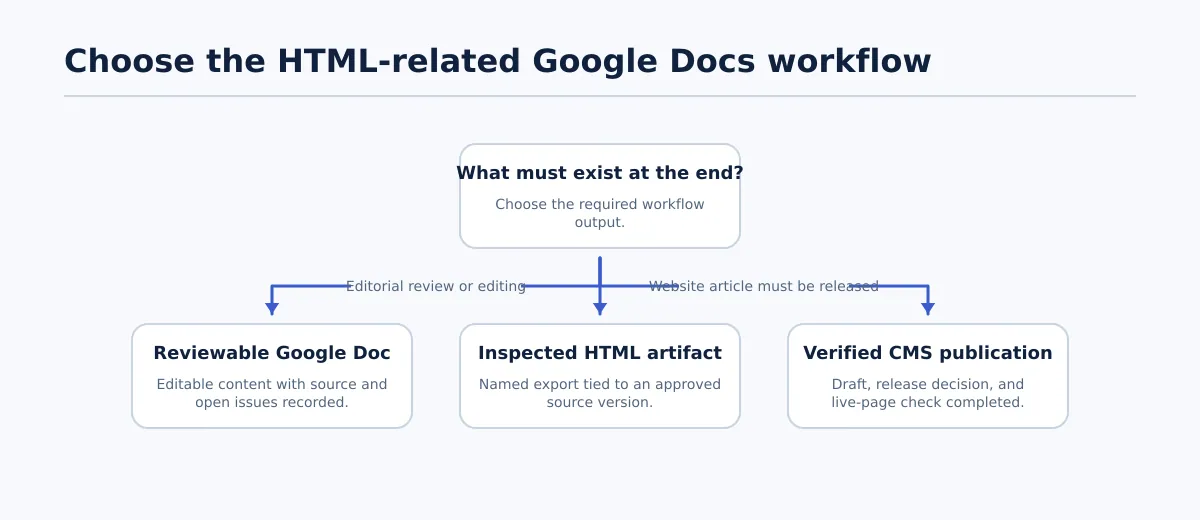
Start by naming the output you actually need. This prevents a simple editorial transfer from becoming an unnecessary conversion task.
| Goal | Start with | What to do | Expected result |
|---|---|---|---|
| Readable, editable content in a Google Doc | A permitted page open in a browser | Copy the visible, rendered passage | Document text with transferable formatting that still needs review |
| Visible HTML markup for review or documentation | The HTML source itself | Paste or type the markup as text | Literal tags such as <h2> and <a> remain visible |
| HTML output from an approved document | A finished Google Doc | Use an export or conversion workflow designed for HTML output | An HTML working artifact for inspection or implementation |
If the editor needs to comment on an article, correct wording, or prepare a draft for WordPress, choose the first route. Select text from the rendered browser page, not from a code editor, page-source view, or HTML field.
If a developer needs to inspect markup, keep the markup visible as code. That is a documentation task, not a rendering task.
The third route runs in the opposite direction. Exporting a Google Doc to HTML starts with a document and produces web markup; it does not help Google Docs interpret pasted HTML source. For the larger handoff context, use the
.
Transfer browser-rendered HTML content into a Google Doc
Use a small test before copying a full article. The test tells the team what the specific source-to-Doc transfer preserves and what will need repair.
Begin with a simple rendered passage containing a heading, one link, and a list. Its HTML-origin source might look like this:
<h2>Planning the content handoff</h2>
<p>Read the <a href="https://example.com/editorial-brief">editorial brief</a> before review.</p>
<ul>
  <li>Confirm the heading structure.</li>
  <li>Check the destination URL.</li>
</ul>
Do not copy that code block into Google Docs when the goal is formatted content. Open the permitted page where the browser displays the result, then:
- Select the visible heading, linked sentence, and list. Include the whole passage so list boundaries and link text are easier to compare.
- Copy the selection from the browser.
- Create a test Google Doc, place the cursor in an empty area, and paste.
- Keep the browser tab open. Compare the source page and the pasted document before repeating the process for a larger section.
The relevant result is not whether the Doc looks identical to the page. It is whether the editorial structure and meaning survived: a real heading rather than an enlarged bold line, a working link rather than linked-looking text, and list items that remain separate items.
Record the outcome of this test with the source URL, date, browser used, and any repairs made. That record is especially useful when different contributors copy material from different systems or when a later publisher needs to explain why the Doc differs from the original page.
Check the transferred draft against its source before CMS handoff
A successful paste is only the beginning of review. Check the Google Doc against the rendered source line by line, then repeat the destination-specific checks in the WordPress draft and preview.
For the sample passage above, use these pass/fail checks:
| Element | Pass in the Google Doc | Repair if it fails | Recheck in WordPress |
|---|---|---|---|
| Heading | The text is present and uses the intended Google Docs heading style | Apply the appropriate heading style; do not rely on bold text alone | Confirm the heading level and placement in the editor and preview |
| Link | The anchor text is present and its destination matches the source | Open the link, replace an incorrect URL, and retest it | Test the link from the preview, not only from the editor |
| List | Each item is a native list item in the intended order and nesting | Rebuild the list using list controls; correct nesting manually | Check bullets, numbering, spacing, and nesting in preview |
| Image | The intended image is present, placed correctly, and available to the publishing team | Upload or replace the approved asset and add appropriate alt text in the destination | Confirm the image loads, is positioned correctly, and retains its alt text |
| Stray formatting | No unexplained font changes, empty paragraphs, or pasted page controls remain | Remove accidental formatting and reapply only the required document styles | Look for spacing or style changes introduced by the theme or editor |
Treat the test results as specific to the source and transfer you performed. A heading, link, or list may transfer cleanly in one example and need attention in another; no paste outcome guarantees complete HTML or CSS fidelity.
Before approval, identify which changes were editorial corrections and which are source discrepancies. Then create or update the WordPress draft and inspect both the editing view and the preview. The document can be structurally sound while the destination theme changes spacing, list behavior, image placement, or link presentation.
For a fuller field-by-field handoff process, see
Google Doc to HTML: how to export, clean up, and validate content for WordPress
.
Troubleshoot raw tags or changed formatting
Raw tags appear in the document
If you see <h2>, <a>, or <li> in the Google Doc, the selection likely came from source markup, a code editor, or an HTML input field rather than from a browser-rendered page.
Return to the visible page, select the reader-facing content, and repeat the small test. If the team actually needs the code visible, leave it as text and label it as HTML source rather than trying to make the Doc behave like a browser.
The content arrives, but the formatting changes
First, separate structural changes from visual changes. A different font or spacing may be acceptable in an editorial document. A flattened heading, broken link, merged list, missing image, or lost list level affects meaning or publishing quality and should be repaired.
Apply Google Docs heading styles to headings, rebuild lists with native controls, correct link destinations from the rendered source, and handle images as approved publishing assets rather than assuming a copied image is ready for WordPress. If the page depends on complex layout, custom styling, interactive components, scripts, or responsive behavior, keep that material in its more suitable web or design format. A Google Doc can serve as the editorial record without reproducing the original interface.
Use the document as an editorial handoff, not a rendering environment
Copying browser-rendered content into Google Docs can be a useful way to begin an editable review draft. It is not a method for running raw HTML, preserving every CSS rule, or replacing destination QA.
Run the sample transfer on a real section of your next draft: copy the rendered passage, verify headings, links, lists, and images in the Doc, then check the same elements in the WordPress preview before approval. That short test gives the team a clearer handoff than assuming that a successful paste is publish-ready.