
A Google Docs export can give you HTML to inspect, but it does not establish that the content is ready to approve in WordPress. The publishable item is the WordPress draft: it needs to retain the approved document’s meaning, links, list order, image placement, and readable structure.
This workflow separates those jobs. First, choose whether you need a retained HTML file or editable WordPress content. Then export and inspect a small package, transfer only the article content into an unpublished draft, and compare the preview with the approved Google Doc.
Convert Google Doc to HTML: choose the output you need
Start with the destination. An HTML export is useful when someone needs a file to inspect, hand to a developer, or retain with the project. A WordPress draft is useful when the content team needs native, editable post content that can move through the site’s review process.
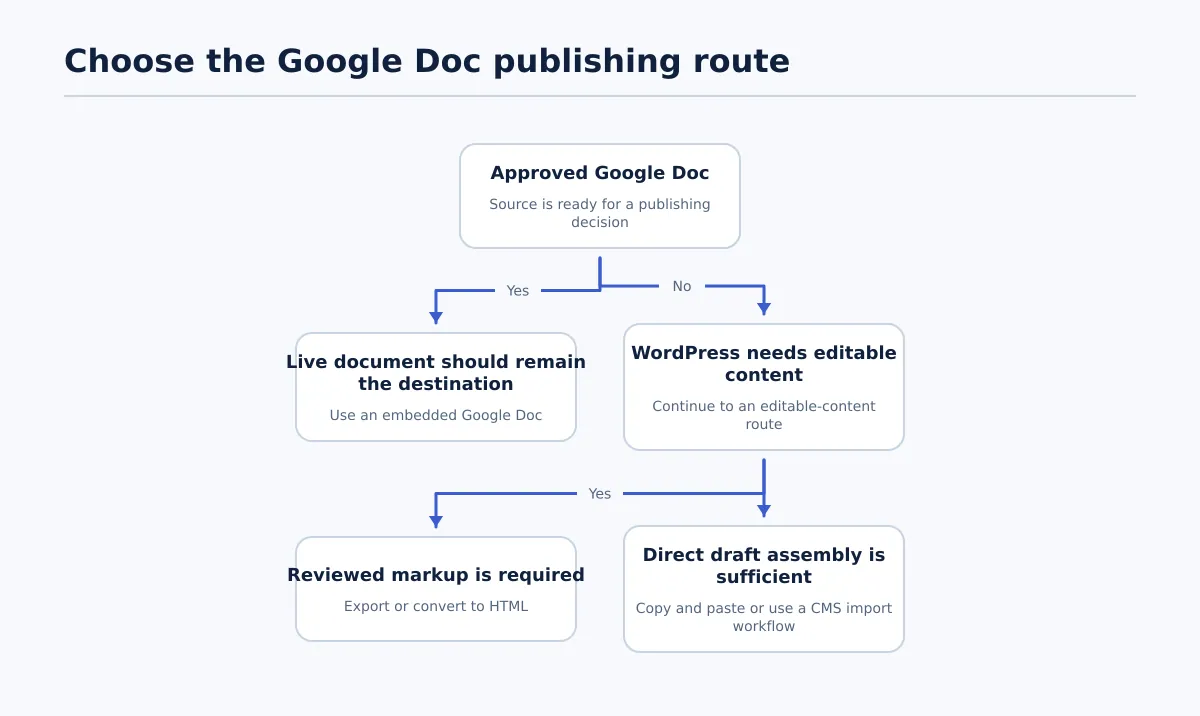
Displaying a Google Doc on a page is a separate outcome. It keeps the document as an external item rather than turning its text into editable post content; for that use case, follow
Google Docs embedding guidance
.
| Intended outcome | Route | Approval check |
|---|---|---|
| Retain a web-page export for implementation or review | Download the Google Doc in its available web-page HTML format and keep the resulting HTML and related files together | The exported file contains the expected article content, and every media reference has an owner or destination plan |
| Create editable content in WordPress | Use the export to inspect the article structure, then move the article content into an unpublished WordPress draft | The WordPress preview matches the approved source for headings, links, lists, images, and intentional emphasis |
The two routes can share the same export, but they do not share the same finish line. Do not submit the downloaded web page for editorial approval when the assignment is to create a WordPress post.
For recurring work, name the source owner, draft builder, and approver before the conversion begins. That prevents a reviewer from having to guess whether a discrepancy belongs in the source document or the destination draft.
multi-client content workflow for agency publishing
Export the Google Doc as an HTML web page
Use a copy of the approved Google Doc if the export needs testing or cleanup. Resolve suggestions intended to stay out of the published version, and apply Google Docs heading styles to real headings rather than relying on larger, bold body text.
If the document originated in Word, first upload a Word doc to Google Docs and check the result. Fix import problems before making HTML part of the handoff.
Google Docs supports a web-page HTML export. In the Google Docs editor:
- Open the document you intend to export.
- Open File, then Download.
- Select the available web-page or HTML download option.
- Save the download in a project folder that is separate from the approved source document.
- Open the downloaded result and identify the HTML document and any files supplied alongside it.
- Keep those related files until the WordPress media check is complete.
Google’s interface labels can change, so confirm the option produces an HTML web-page export before making it part of a documented team procedure. The important output check is practical: you need an HTML file to inspect and any related assets available long enough to account for them during the WordPress transfer.
A reusable source template makes this check faster because heading, list, and image conventions are already agreed. For a starting point, see
how to reuse a Google Docs publishing template
.
Inspect and clean the HTML without losing content structure
Before transferring a long article, make a compact test copy that contains two heading levels, a linked phrase, a bulleted list, and an image. This is not a generic preflight list; it creates a known set of source elements that can be traced through the exported HTML and into WordPress.
Open the HTML file in a browser to check visible content. If a team member can review markup, also open it in a code editor and focus on the article material rather than trying to shorten every line of generated code. Check whether the document’s meaningful parts are represented: headings, paragraphs, lists, link destinations, and image references.
Run one completed export-to-draft check
Use a record like the following for one test export. It is a worked example of how to document a result, not a promise that every Google Docs export will behave the same way.
The sample source contains:
- an H2, Release requirements;
- an H3, Assets;
- the linked phrase editorial brief;
- three bulleted requirements; and
- one image placed after the list.
In the exported HTML review, the editor records that the H2, link text, link destination, list items, and image reference are present. The H3 is present in the rendered export but is recorded as ordinary paragraph text rather than a heading in the working markup. The editor marks that row fail, because the hierarchy is part of the article’s meaning.
The correction is specific: retain the H3 wording, then create an Assets Heading block at the same point in the WordPress draft. After saving the draft, the editor checks the preview again and records pass when Assets appears beneath Release requirements as the next heading level, without changing the list or image position.
| Source item | Export result recorded | Transfer action | Preview result |
|---|---|---|---|
| H2: Release requirements | Present as the main section heading | Add as a WordPress Heading block | Pass: heading and position match the source |
| H3: Assets | Visible but recorded as paragraph text | Create the correct lower-level Heading block with the same text | Pass after correction and second preview |
| Linked phrase: editorial brief | Link text and destination present | Add the same linked words and URL in the paragraph block | Pass: linked words and destination verified |
| Three-item bulleted list | Three separate items in the same order | Add a List block with three bullets | Pass: count and order match |
| Image after list | Image reference identified in the export files | Upload the intended image to WordPress and insert it after the list | Pass when placement and required alternative text are checked |
This record gives an editor a useful decision point. A missing item, changed link destination, merged list, or media reference that cannot be used in WordPress is a failure to resolve—not a reason to assume the rest of the article is correct.
Avoid cleanup that removes content merely because it looks technical. The goal of a google doc to clean HTML workflow is to preserve useful structure while removing or rebuilding only the parts that prevent the destination from presenting the approved content correctly.
Add the content to a WordPress draft and compare it with the source
Create a new unpublished WordPress post before transferring anything. Keep the Google Doc, exported HTML, and related assets available while you build the draft.
Do not place the entire exported web page into the post. The exported package may include document-level material that is not article content. Instead, use the HTML file to identify the article’s headings, paragraphs, lists, links, and image positions, then transfer those article elements into the WordPress editor in their original order.
A workable transfer sequence is:
- Create the post title in the WordPress title field from the approved document.
- Starting at the first article heading or paragraph, add the article content as WordPress blocks or through the site’s approved HTML-entry method.
- Recreate headings as Heading blocks at their intended levels; do not use bold paragraphs as a substitute.
- Add each paragraph, link, and list item in order, checking against the HTML when the formatting in the Google Doc is unclear.
- Upload each required image from the export files or use the approved original image file. Insert it at the documented location, then add alternative text where the editorial process requires it.
- Stop at the end of the article content. Do not transfer document wrappers or unrelated exported-page material into the post body.
Save the draft, open its preview, and compare it with the approved Google Doc from top to bottom. Record each discrepancy with four details: location, expected result, observed result, and correction owner. For example: “Assets section; expected lower-level heading; exported text entered as paragraph; publishing editor to replace with Heading block and re-preview.”
Check these items during that comparison:
- Heading order: Each section and subsection should remain in the same logical hierarchy as the source.
- Links: Open important links from the draft or preview and confirm both destination and linked wording.
- Lists: Confirm that bullets or numbered steps are separate, complete, and in source order.
- Images: Confirm the intended image is in WordPress, placed correctly, and has the required alternative text.
- Formatting: Look for merged paragraphs, unintended blank space, missing emphasis, or other changes that alter readability.
If your team’s next step is a broader Google Docs-to-WordPress publishing process, SEO with Tenwrite: Publish Google Docs to WordPress is a related guide. It does not replace the source-to-preview comparison for the individual draft.
Resolve discrepancies before approval or publication
Correct the problem where it begins whenever possible. Change the Google Doc when the approved text, heading level, link, list order, or image instruction is wrong. Change the WordPress draft when the source is correct but the destination needs its own block, media, or layout adjustment. Make a limited HTML change only when the team understands the effect and needs that markup for its chosen transfer route.
Then rerun the affected check. A repaired heading needs another preview review; a replaced image needs another placement and alternative-text review; a changed link needs to be opened again. Do not mark the draft ready simply because the edit was saved.
Before handing the draft to an approver, confirm that the approved source and WordPress preview agree on heading hierarchy, important links, list order, required images, and meaningful formatting. The export supplies an inspectable handoff. The completed source-to-export-to-preview check is what makes the WordPress draft ready for approval.