
“Word to WordPress” can mean several things in search results. This guide uses it in the narrow operational sense: moving the contents of an approved Microsoft Word .docx file into a WordPress draft for editorial review.
That distinction matters because a file transfer is not a publication decision. The approved document, the editable WordPress draft, and the public page are separate records with separate checks. A transfer can create useful starting content and still leave a heading, link, image, table, or wording decision unresolved.
Use the procedure below when a content team or agency receives a DOCX file that is intended to become a WordPress post. Its aim is not to promise perfect conversion. Its aim is to make the handoff observable: everyone should be able to identify the source, the destination, the owner of the next action, and the evidence required before release.
Begin with a handoff record, not the latest attachment
Do not assume that the newest file in an email thread is the approved file. A filename such as Article-final-v7.docx says nothing reliable about whether its copy, images, or destination have received approval.
Create one handoff record before transfer. It can live in a tracker, project system, or shared spreadsheet, provided the next owner can find it and update it.
| Field | Example entry | Pass condition |
|---|---|---|
| Content item | Autumn onboarding guide | One item identifier ties the source, draft, and live page together. |
| Approved source | Autumn-Onboarding-Guide-v4.docx, shared-folder link | The file is named or linked and the source approver has confirmed this version. |
| Approval status | Copy approved, 18 September | Approval is explicit; “latest” or “sent to client” does not count. |
| WordPress destination | North America site, standard Posts | The specific site and post type are known, not merely the client or brand. |
| Intended title | Autumn onboarding guide | The title can be checked in the draft and on the live page. |
| Transfer owner | Priya, publishing coordinator | One person is responsible for creating and recording the draft. |
| Draft URL or post ID | Blank until created | This is filled only after a saved WordPress draft exists. |
If either the source version or the WordPress destination is unclear, stop the transfer. Ask the source approver to identify the correct DOCX, or ask the site owner to confirm the target site and content type. Guessing creates a draft that may look complete while representing the wrong assignment.
This is also where teams should distinguish a post body from a downloadable document. This guide concerns an editable WordPress post based on the DOCX content. If visitors instead need the original file itself, record that as a document-access request rather than treating an uploaded attachment as an imported article.
For a broader model of the decisions around source approval, draft review, and release, see this CMS approval workflow guide.
Make the destination draft before asking for draft approval
The transfer owner’s job is to create an editable WordPress draft in the recorded destination. It is not to publish, schedule, or silently approve the document.
There are two reasonable paths to consider:
- Manual transfer: Copy the document content into the WordPress editor, then rebuild or adjust the resulting blocks as needed. This is appropriate when the post is short, the document is simple, or the team wants direct control over every destination element.
- A DOCX conversion or transfer route: Use a route the team has already verified for its WordPress setup to turn document content into a draft. Treat this as a tested workflow, not a guarantee that every source feature will arrive unchanged.
Tenwrite supports moving MS Word DOCX files held in Google Drive toward WordPress and Blogger, alongside its content-index capabilities. For this article’s workflow, the relevant outcome is still a saved WordPress draft that a reviewer can inspect; the transfer does not replace that review.
Keep interface instructions conditional. WordPress editor configurations, conversion tools, post types, and custom fields vary. Before standardizing any route, test it with a representative DOCX and verify that it creates the type of draft your site needs. Record whether the route handles only body content or also requires manual handling for items such as categories, featured images, excerpts, custom fields, or SEO settings.
When the transfer is complete, save the post as a draft and add its edit URL or post ID to the handoff record. The draft is ready for review only when all three statements are true:
- It is saved in the intended WordPress site and post type.
- Its URL or ID is recorded against the approved DOCX.
- It remains unpublished while source-to-draft QA takes place.
A draft that exists only in a browser tab, or one that has already gone live, does not meet this handoff condition.
Review the draft as a comparison, not a reading exercise
The CMS QA owner compares the WordPress draft against the approved DOCX. Reviewing the draft by itself may catch obvious problems, but it cannot establish whether a paragraph, link destination, list item, caption, or section disappeared during the transfer.
Use the approved file as the comparison source and inspect the draft in the editor and, where practical, its preview. Work from the title through the final section in source order. For each check, record Pass, Fix, or Escalate rather than a vague “reviewed.”
| Check | How to test it | Pass | Fix or escalate |
|---|---|---|---|
| Title and heading order | Compare the title and every heading level in sequence. | Same wording and intended hierarchy. | Rebuild a misplaced heading; escalate if the wording differs from approved copy. |
| Paragraphs and emphasis | Compare opening, closing, and a sample within each section; check bold or italic text where it carries meaning. | No omitted, duplicated, or altered approved copy. | Correct a transfer error; seek source approval for a substantive text change. |
| Lists | Count items and inspect nesting, numbering, and item order. | Items and their order match the source. | Rebuild formatting when the content is unchanged; escalate if an item is absent or rewritten. |
| Links | Open each important link from the draft or preview and compare its destination with the source. | Link text and destination are correct. | Replace an incorrect destination and recheck it. |
| Tables | Compare headings, rows, columns, and values where tables appear. | The reader can interpret the same information. | Rebuild the table or ask the source approver before changing the information structure. |
| Images and captions | Match each intended image and caption to the source package or instructions. | The expected asset and caption appear in the correct context. | Add, replace, or reposition the asset; escalate if the approved asset is unavailable. |
The QA owner should log each mismatch with enough detail for another person to find it: the source section, the affected WordPress element, the proposed correction, the owner, and the retest result.
For example: Section: First-week checklist. Issue: Item 4 became a normal paragraph. Proposed fix: restore it as the fourth numbered-list item. Owner: Priya. Result after retest: Pass. This is a formatting-only correction because the approved words and their order remain intact.
By contrast, Section: First-week checklist. Issue: WordPress draft says “24-hour response” but the approved DOCX says “two-business-day response.” is substantive. The QA owner must not choose the new wording merely because the draft is easier to edit. Return it to the source approver, obtain a recorded decision, update the approved source or explicitly approved change, then compare the corrected draft again.
Route exceptions to the person who can decide them
A successful transfer does not give the transfer owner authority to approve every result. Assign ownership by decision type so that a routine correction does not stall, while a meaningful content change does not slip through without approval.
| Situation | Responsible owner | Required decision |
|---|---|---|
| A list loses its nesting or a heading block has the wrong level | CMS QA or transfer owner | Correct the destination formatting, then recheck against the source. |
| A link is broken, missing, or points somewhere different | CMS QA owner, with source approver input if intent is unclear | Confirm the intended destination and record the corrected result. |
| A table must be simplified, combined, or rewritten to work in WordPress | Source approver | Approve the information change before the draft is accepted. |
| A sentence, claim, caption, or call to action changes | Source approver | Confirm revised wording or provide a revised approved source. |
| The post is ready to become public | Release owner | Authorize publication timing after draft acceptance is recorded. |
Once every required check passes, the QA owner records draft accepted in the handoff record, with their name and date. That state means the draft reflects the approved source to the team’s agreed standard. It does not mean the post has been released.
The release owner then makes the separate publication or scheduling decision. On a small team, one person may hold several roles, but the record should still name the decision made at each stage. This keeps “I created the draft” from being mistaken for “I approved the content” or “I authorized release.”
Teams that are defining these responsibilities across several sites can also use a content tracker for a publishing workflow to keep the source, draft, exceptions, and owners connected.
Verify the public page after release
Publication changes the state of the item, but it does not prove that visitors see the intended result. The release owner, or a named live-page verifier, should open the public URL after the post is live and compare it with the accepted WordPress draft.
Check at minimum:
- the live URL resolves to the intended page;
- the visible title and heading sequence match the accepted draft;
- the expected body content is present in the right order;
- key links open the expected destinations; and
- intended images and captions display on the public page.
Record the actual live URL, verifier, timestamp, and outcome. If the page differs from the accepted draft, log the difference and return the item to the appropriate owner. For example, a visible image failing to load is a release or CMS issue to fix and verify again; a newly discovered inaccurate sentence returns to the source approver for a content decision.
This final check is particularly important when scheduling, caching, theme behavior, or destination-specific settings can affect the public result after the draft was accepted. For more context on keeping human checks around automated steps, read what to automate and what to verify in WordPress.
Use this Word-to-WordPress handoff checklist
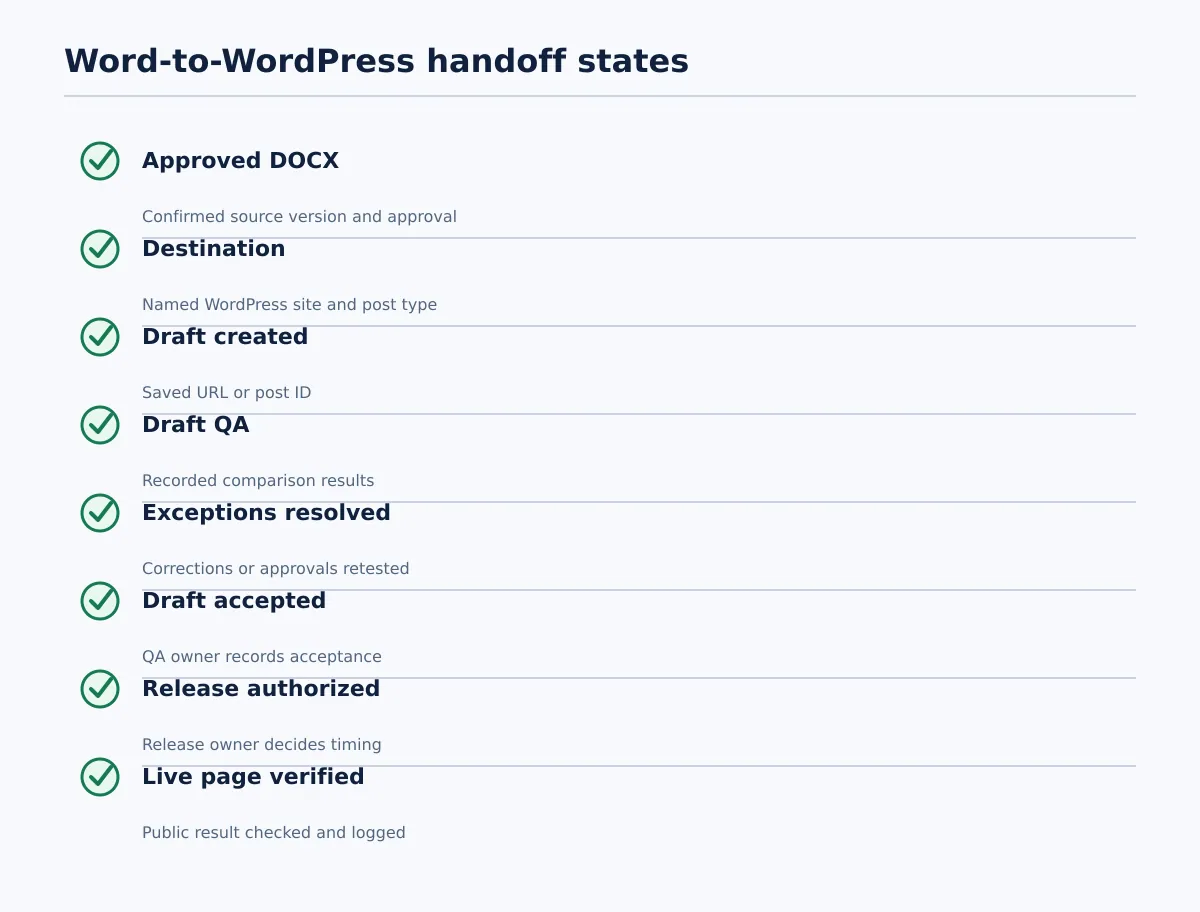 A DOCX transfer is complete only when the source, draft, approval, release, and live-page checks have separate recorded outcomes.
Before closing the handoff, make sure the record contains separate evidence for each state:
- Approved DOCX: File name or link, confirmed version, source approver, and approval status.
- Destination: Specific WordPress site, post type, intended title, and transfer owner.
- Draft created: Saved draft URL or post ID, with no unintended publication.
- Draft QA: Pass, fix, or escalation results for headings, copy, lists, links, tables where present, and images or captions.
- Exceptions resolved: Each mismatch has an owner, a correction or approval decision, and a recorded retest.
- Draft accepted: Named QA owner and acceptance date.
- Release authorized: Named release owner and publication or scheduling decision.
- Live page verified: Public URL, verifier, timestamp, and resolved outcome.
This checklist keeps the Word-to-WordPress process bounded. A supported DOCX transfer route, including Tenwrite’s DOCX workflow for eligible Google Drive files, can help create the draft. The team still needs to identify the approved source, compare the destination result, authorize release, and verify what readers receive.