

If you are searching for how to upload Word doc to Google Docs, start in Google Drive: upload the .docx file into the folder your team uses, then open it with Google Docs if you need to read or edit it there.
The important follow-up is deciding what the team is actually working from. The uploaded Word file and a Google Docs copy are different artifacts. Choose one as the editing source, then check a converted copy before it becomes the version used for review or approval.
How to upload a Word doc to Google Docs through Drive
Start with the intended .docx file on your computer and open the Drive folder where the receiving editor should be able to find it.
- In Google Drive, select New and choose File upload.
- Select the Word document from your computer.
- Wait for the file to appear in the Drive folder.
- Open the uploaded file using the available Google Docs or Open with option if you need to work on it in Google Docs.
- Confirm that the file now visible in the folder is the document your team meant to transfer before you share it onward.
This answers the immediate question of how to transfer a Word doc to a Google Doc workspace: the file is now in Drive and available through Google Docs. Uploading it does not, by itself, mean that a native Google Docs file has been created.
Decide whether the DOCX or a Google Docs copy is the editing source
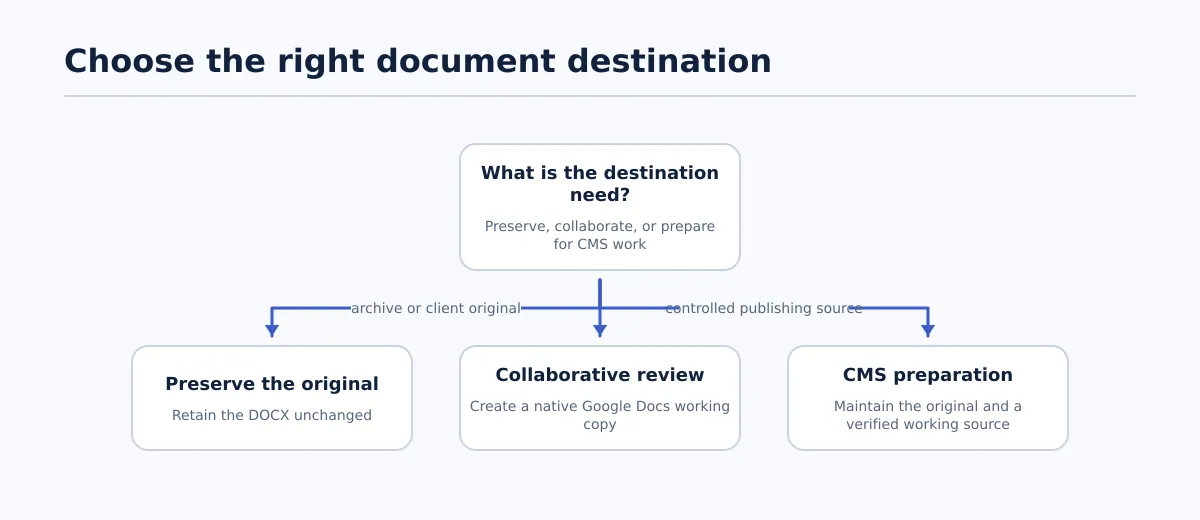
There are two sensible routes after upload:
- Retain the uploaded DOCX when the Word file remains the agreed document for the next stage. Label it clearly so nobody mistakes it for a converted document.
- Create a Google Docs copy when the team intends to edit, comment on, and approve a Google Docs-format version. Keep the DOCX identifiable as the received source while the copy becomes the collaboration file.
To convert Word to Google Docs, open the uploaded document and use the available option to save or create a Google Docs version. The exact label may vary, so use the resulting file—not the menu choice—as the confirmation point. You should be able to identify one Word source and, if conversion was requested, one Google Docs copy with an unambiguous role.
A simple naming convention prevents the most common mix-up:
Spring-campaign-brief-source.docx— received Word fileSpring-campaign-brief-review— Google Docs copy for editorial work
In the handoff message, state which one editors should use. That is more reliable than assuming the file format from the editing interface alone.
For a related look at opening Word files while keeping the broader editorial process organized, see
how to open a Word document in Google Docs without derailing the publishing workflow
.
Check the converted document before handing it off
A conversion check should produce a decision, not just a vague request to “review formatting.” Use the Word source and the Google Docs copy side by side, then record what happened to the items the next editor will rely on.
Here is a worked example. An editor receives Spring-campaign-brief-source.docx and creates Spring-campaign-brief-review for approval. The draft includes a heading called “Campaign timeline,” a three-column schedule table, a hero image beneath the introduction, and two linked calls to action.
| Item checked | Result in the Google Docs copy | Action and handoff record |
|---|---|---|
| Heading | “Campaign timeline” is present in the same place as the Word source and remains visually distinct from the body text. | Pass. No repair needed; the heading is ready for editorial review. |
| Schedule table | The same rows and cell text are present, but the final column wraps so narrowly that the dates are hard to scan. | Repaired. The editor widens the affected column and records: “Timeline table adjusted for readability in review copy.” |
| Hero image | The image does not appear below the introduction, although the surrounding text is present. | Flagged. The editor records: “Hero image missing from Google Docs copy; source owner to provide or confirm the asset before approval.” |
| Calls to action | The first linked phrase goes to the same destination as the DOCX. The second linked phrase is present but has no destination in the copy. | Partly repaired. The editor restores the second link from the Word source, tests it, and records that both links now match the source. |
The result is specific enough to approve the copy conditionally: the heading, table, and links are ready for the next editor, while the missing image remains an open item with a named owner. Do not call the copy fully ready until the remaining item is resolved or the approver accepts the documented exception.
This check is especially useful when the document will later move into a CMS, because it establishes the editing source before a publishing task begins. Once the copy is approved, continue with the
Google Docs-to-WordPress publishing workflow
if WordPress is the next destination.
Resolve common upload or formatting snags
If you cannot see the Word file after uploading, return to the Drive folder where you started the upload and look for the file there. If it is not present, make sure you are working in the intended Drive account, then repeat the upload from the confirmed local DOCX if necessary.
If the wrong document appears in the folder, stop before editing it. Check the file extension and identify the intended source file rather than trying to correct a similarly named draft in place.
If a Google Docs copy differs from the Word source, isolate the affected item instead of reformatting the whole document. Check the relevant heading, table, image, or link against the DOCX; correct it in the copy when the source makes the answer clear; otherwise, flag the location and assign the decision to the person who owns the content.
Before you pass the draft on, name the authoritative editing file, share that exact file, and include the outcome of the comparison. That small record keeps the next editor from approving or publishing from the wrong version.