
If you’re wondering how to add templates to Google Docs, start with your document, not the template: choose a gallery template for a new document, copy your own reusable master, or move an existing draft into a template copy. Each route gives you a working document to review before sharing.
This guide focuses on using a simple article template. For an existing draft, the important distinction is that a new structure does not automatically put every paragraph in the right place or resolve every formatting difference.
Choose how to add a template to Google Docs
| Starting situation | Route | Expected result |
|---|---|---|
| You are starting a new article | Choose a template from the Google Docs gallery | A new document with sample content you can replace |
| You have a reusable article layout | Make a copy of your master document | A separate working document; the master remains available for reuse |
| You have an existing draft | Copy a template, then move the draft into it section by section | A working document with your draft in the chosen structure, ready for review |
A gallery template is a starting document offered through Google Docs. A master can be an ordinary document you keep as your own reusable starting point. Making a copy is a way to reuse that document; it is not a gallery-submission procedure.
The related guide to uploading a template to Google Docs also covers reusable documents and existing drafts, alongside importing a template file. Use the article example below when you want to plan and check a section-by-section transfer.
Start a new document from the Google Docs template gallery
On a desktop browser, use the gallery when you want a ready-made starting document and do not need to preserve an existing draft in place.
- Open Google Docs and sign in to the account where you want to work.
- On the Docs home page, find the template gallery and open it to see the available choices.
- Select a template with a useful layout. Google Docs opens a new document based on it.
- Name the new document, for example Article — Choosing a desk lamp.
- Replace sample text with your title and article content. Remove sections or instructions you do not need.
You should now have a named working document containing your content rather than the template’s examples. Reopen it and scan the whole document for sample text before sharing it. A gallery template is a starting point; you can adapt the structure to the article.
Reuse your own template without editing the master
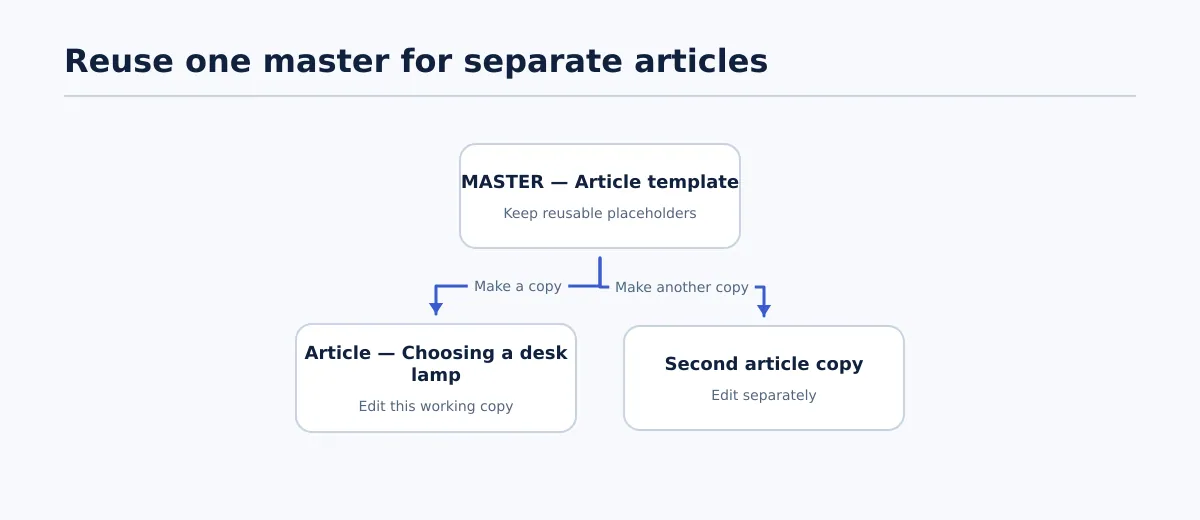 Make a new copy of the master for each article.
If you regularly write articles with the same structure, keep an ordinary Google Doc as your master. Give it a recognizable name, such as MASTER — Article template, and leave placeholders rather than content for a particular assignment.
To use it for a new article:
- Open MASTER — Article template.
- Choose File → Make a copy.
- Name the copy for the article, for example Article — Choosing a desk lamp. Choose where to save it if prompted, then make the copy.
- In the copy, replace the placeholders and write the article. Add or remove sections to suit that piece.
- Reopen the master and confirm it still contains the reusable placeholders rather than the new article text.
For a second article, return to the master and make another copy. Starting with the first article instead would mean removing its article-specific content and checking the changes made there.
Some organizations may offer a shared template gallery, but the option to submit a custom template depends on the account. If you cannot see that option, copying an accessible master is another way to reuse its structure. If you cannot make a copy, ask the document owner for the access you need.
Move an existing draft into a template
You can adapt an existing Google Doc to a template, but do not count on a universal one-click command to place every paragraph into the right section and apply the right styles. A controlled transfer lets you keep the original draft intact and compare the result.
- Keep the original draft. Leave it unchanged while you work. Open it alongside a separate copy of the template.
- Name the template copy. Distinguish it from both the master and the original, such as Article — Choosing a desk lamp — template copy.
- Map the sections before pasting. Decide which text belongs in the opening, each main section, and any subsection. If useful material does not fit, add a place for it instead of discarding it.
- Transfer one section at a time. Replace the corresponding placeholder with the draft text. Compare the copy with the original before moving to the next section.
- Review formatting and non-text content. Check headings, links, emphasis, images, lists, and tables. Remove unused template sections and drafting notes only after accounting for the original content.
Normal paste can carry formatting from the original draft. That may retain useful emphasis or links, but it can also bring inconsistent fonts, spacing, or headings. If a passage looks wrong, undo the paste and try Edit → Paste special → Paste without formatting in the destination document. On desktop, you can also use Ctrl+Shift+V on Windows or Command+Shift+V on a Mac.
An unformatted paste gives you text to format in the destination. You may need to rebuild headings, emphasis, and links. Review images, lists, and tables separately rather than assuming a plain-text paste will carry them across.
For example, if a pasted main heading looks like body text, select the heading in the working copy and choose the intended paragraph style from the toolbar’s style menu. Then inspect the paragraphs beneath it. A heading that merely looks larger is not necessarily using the heading style you intended.
Worked example: turn an article outline into a reusable starting document
The following is an illustrative example, not a tested customer workflow. It is a small master for writers who want an answer near the beginning and room for two main sections. Copy the text into a blank Google Doc and name the document MASTER — Article template.
[Article title]

[Opening answer: respond to the reader's main question.]

[Main section 1]
[Explain the first part of the answer.]

[Main section 2]
[Explain the next part of the answer.]

[Optional subsection]
[Add a detail that belongs under main section 2, or remove this subsection.]

[Image note: describe an image to consider, or remove this note.]

[Next step: tell the reader what to do with the answer.]
Apply a title or heading style to the article-title line, Heading 2 to the two main-section lines, and Heading 3 to the optional subsection if you keep it. Leave the explanatory placeholders as normal text. Select each line and use the paragraph-style menu to make that choice; changing font size or making text bold changes its appearance but does not necessarily assign a heading level.
The bracketed text is a drafting aid. Replace it with article content or remove it in each working copy. The image note is not an image or a caption: it is a reminder to make an editorial decision.
Adapt the master to one article
Imagine you are writing Choosing a desk lamp for a small workspace. Make a copy of the master, name it for that article, and map the outline like this:
| Template field | Illustrative article content |
|---|---|
| Article title | Choosing a desk lamp for a small workspace |
| Opening answer | Choose a lamp that fits the available space and puts light where you work. |
| Main section 1 | Measure the space beside your work area |
| Main section 2 | Compare where each lamp directs light |
| Optional subsection | Check whether the lamp can be adjusted |
| Image note | Consider a photo showing the lamp’s position on a desk; remove the note after deciding. |
| Next step | Measure your desk before comparing lamp sizes. |
If you already have a lamp article draft, open it beside the template copy. First replace the title and opening placeholders. Then move the paragraph about desk measurements under the first main heading. Move the discussion of light direction under the second heading, and put the paragraph about adjustable arms beneath the optional subsection.
Suppose the original also has a list of measurements, a linked product specification, and a photo with a caption. Move the list into the measurement section and check that every item is present and in order. Check the link’s destination after transferring its paragraph. Place the photo and caption where they support the article, then compare both against the original. If any item is missing or changed, restore or rebuild it in the copy.
Keep useful material that does not fit by adding another section or revising the outline. When finished, the master should still have bracketed placeholders. The named copy should contain the lamp article, intentional heading styles, and no unused instructions. These checks apply whether the article began as a blank copy or an existing draft.
Check the finished copy and fix common problems
Before sharing the working document, compare it with your source and the master. Check three different things:
- Structure: The title and sections are in the intended order, and every useful part of the original draft has a home. Remove unused sections and sample text.
- Paragraph styles: Select each title and heading and check its style in the toolbar. Main sections should use the level you chose; a subsection should sit beneath the appropriate main section. Fix mismatches rather than relying on font size alone.
- Content needing manual review: Open links and confirm their destinations. Compare images, captions, lists, and tables with the original, checking for missing items, broken list sequences, and misplaced table content. Restore or rebuild anything that did not transfer as intended.
Also confirm the working copy has the right name and reopen the master to make sure its reusable content remains intact. Search the copy for brackets or distinctive placeholder phrases, then read through it once more: a search will not necessarily catch every leftover note.
| Problem | What to do |
|---|---|
| Sample text or a drafting note remains | Replace it with the intended content or remove it. Search for other placeholders and read the surrounding section for context. |
| Pasted text has inconsistent styling | Try an unformatted paste for the affected passage, then reapply the intended paragraph style, emphasis, and links. Compare it with the original. |
| The master contains article-specific changes | If available, use the document’s version history to inspect and restore an appropriate earlier version. Confirm the placeholders are back, then make a fresh copy for article work. |
| A shared template cannot be copied | Ask its owner for the access or a copy you are permitted to use. Do not treat a missing copy option as permission to work around the restriction. |
| An organization template submission option is missing | Use a copy of an accessible master instead, or ask the organization how its shared templates are managed. |
To try the workflow, make one working copy of the illustrative article template, replace its placeholders, and confirm that the master remains unchanged. If the finished document is a revision to an article already published on WordPress, the next step is separate: see how to update a WordPress post from Google Docs without creating a duplicate.