
A Google Doc can be a collaborative source, a public document, or the starting point for a WordPress article. Those outcomes are related, but they are not interchangeable.
When someone asks about Google Docs and WordPress, they may mean one of three things:
- Show the Google Doc inside a WordPress page.
- Copy the document into WordPress for an occasional post.
- Export the document into WordPress as a native article with fields, media, and publishing settings.
The right choice depends on what visitors should receive and how much control your team needs over the WordPress result. An embedded document keeps Google Docs as the content location. A copied document becomes WordPress content, but usually needs more manual cleanup. An export workflow is designed for repeatable publishing, where formatting and article fields need to move into a reviewable WordPress post.
What people mean by “Google Docs and WordPress”
Start with the desired destination rather than the transfer method. Do readers need a document viewer, or does the content need to become part of a WordPress site’s normal editorial and SEO structure?
| Method | Visitor experience | Where edits happen | WordPress-native post? |
|---|---|---|---|
| Embed | Visitors view the Google Doc within a WordPress page or post | Google Docs remains the source | No. WordPress contains an embed, not the article body as native post content |
| Copy and paste | Visitors read content rendered by the WordPress theme | The copied content is edited in WordPress after transfer | Yes, once it is saved as a post, but cleanup is manual |
| Export | Visitors read a WordPress article with its transferred content and configured fields | Google Docs is the writing source; WordPress remains the destination for review and release | Yes. The result can include article content and supported fields such as images, categories, tags, excerpts, and SEO metadata |
These methods also differ in how they handle change. If a team embeds a document, later edits to the Google Doc can update what visitors see without rebuilding a WordPress article. With copy and paste or export, later changes to the source do not automatically make the WordPress post current unless the team transfers and reviews them again.
If your team is deciding how an approved source moves through publishing, the related guide on publishing Google Docs to WordPress without messing up formatting covers the formatting problem in more detail. This article focuses on choosing the outcome first.
Option 1: Embed a Google Doc when the document itself is the content
Embedding is appropriate when the Google Doc is meant to remain a document. Examples include a maintained reference guide, a public meeting document, a long policy document, or material that must continue to be edited in Google Docs by several contributors.
An embedded document is not a normal blog post. WordPress provides the surrounding page, while Google Docs supplies the document view. That can be useful when the source needs to stay in one place, but it is a poor fit when the goal is a search-focused article with a WordPress permalink, taxonomy, excerpt, featured image, and SEO fields.
How the basic embed path works
The supplied WordPress.com Google Docs instructions describe three practical stages:
- Adjust the document’s privacy. The document must be accessible to the intended visitors. A private or restricted document will not provide a useful public viewing experience.
- Obtain the Google Doc embed code. Google Docs provides an embed or published-document option that produces code for displaying the document.
- Add the embed code to the WordPress page or post. Place the code in the appropriate WordPress embed or HTML area supported by the site configuration, then preview the page.
Check the result as a visitor, not only as an editor. The pass condition is that an unauthenticated visitor with the intended access can load the document, read it at a usable size, and reach any links or supporting material it contains. If the document requires a Google account, shows an access error, or is difficult to read on a narrow screen, the embed is not ready for release.
Embedding is the better option when the document itself is the deliverable. Choose a native WordPress post instead when the content needs to participate in the site’s article template, internal linking, categories, tags, featured-image treatment, metadata, or standard publishing schedule.
Option 2: Copy a Google Doc into WordPress for occasional simple posts
Manual copy and paste is still reasonable for a rare, straightforward post. It may be sufficient when the article is short, contains few images, uses ordinary headings and links, and does not justify setting up a repeatable export path.
The trade-off is that the transfer is not the finished post. Google Docs and WordPress represent structure differently, so pasted content may need adjustment. Formatting can become inconsistent, images may not arrive in the right place or media library, and fields outside the body generally need to be entered separately.
A practical manual method is:
- Finish the source document and remove drafting comments, suggestions, and instructions that should not appear in the article.
- Copy the article body into the WordPress editor.
- Reapply the intended heading levels and confirm that lists, quotes, tables, and other blocks use the correct WordPress structures.
- Handle images individually. Confirm that each image appears beside the intended paragraph, has suitable alternative text, and uses an appropriate caption or credit where required.
- Complete the WordPress fields: title, permalink, featured image, category, tags, excerpt, and SEO fields used by the site.
- Preview the post and correct any layout or link problems before saving the intended status.
For example, copy and paste is usually sensible for a 400-word announcement with one image and no unusual formatting. It creates unnecessary rework when an agency repeats the same operation for dozens of articles, several client sites, or posts that require consistent metadata and image handling.
Use a simple pass/fail rule: manual transfer passes when the WordPress body matches the approved source and every destination-specific field has an owner and a value. It fails when the editor must guess which heading level, category, image, slug, or SEO description belongs to the post.
Option 3: Export Google Docs into WordPress for repeatable article publishing
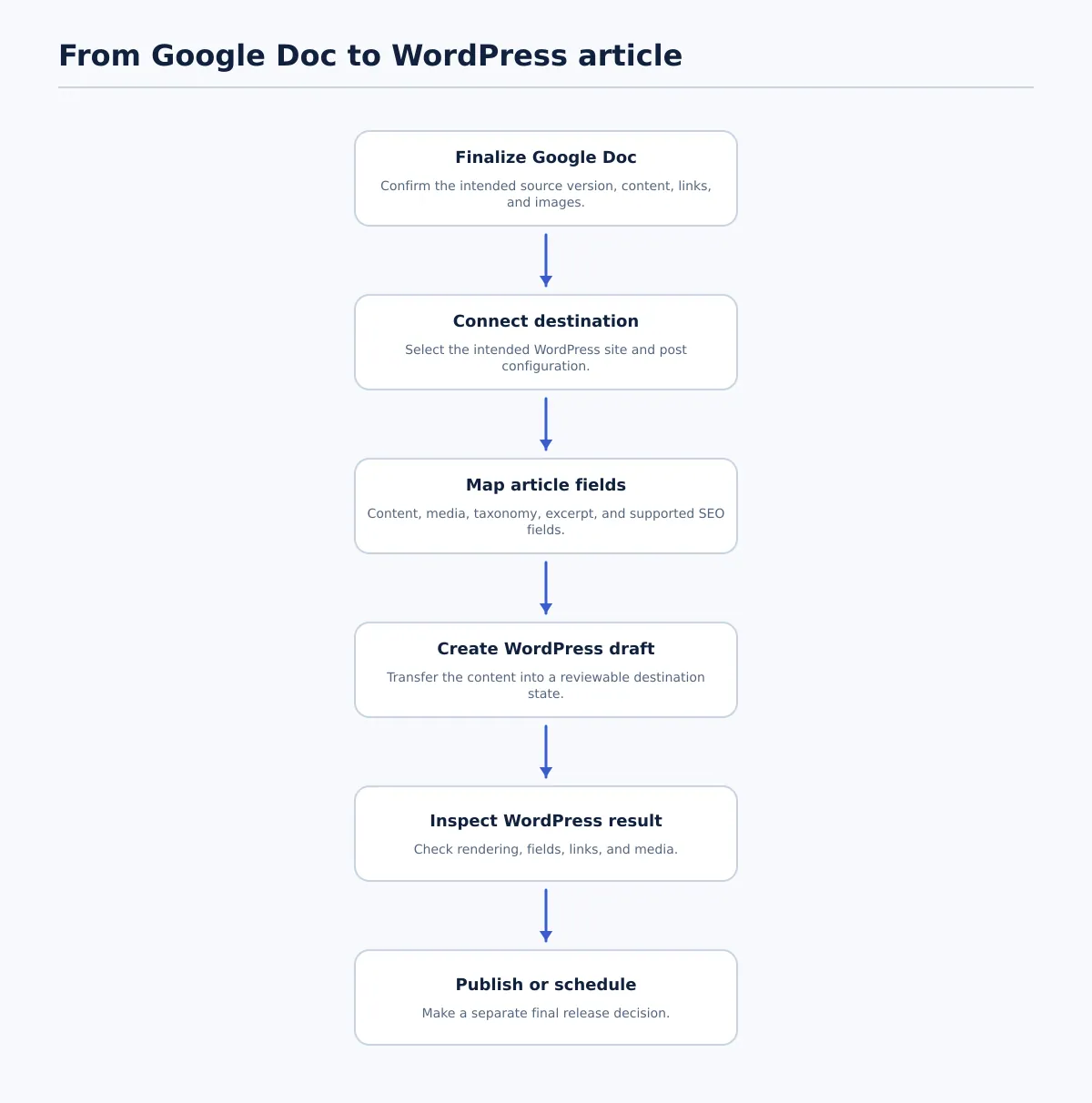 A Google Doc can supply the article and supported fields, but the WordPress result still needs destination review before release.
Export is the practical middle ground between keeping a document in Google Docs and rebuilding every WordPress post by hand. It suits standard articles that begin in Google Docs but need to become WordPress-native content on a recurring basis.
A dedicated export workflow can transfer supported article components such as formatted content, links, images, categories, tags, excerpts, and SEO metadata. The exact fields available depend on the tool and destination setup, so treat the mapping as something to confirm rather than assume.
The important distinction is that exporting creates or prepares WordPress content; it does not automatically settle whether that content should be published. A source can be ready for transfer while the destination still needs editorial, SEO, brand, or release review.
A source-to-destination sequence
Use this sequence for a repeatable Google Doc to WordPress post:
- Finalize the Google Doc. Confirm the intended title, article structure, links, images, and any source-side fields or instructions. Make sure the team is using the correct version.
- Connect the intended WordPress destination. Select the correct site and, where supported, the intended post type or destination configuration. A successful connection to the wrong site is still a failed publishing operation.
- Map the available article fields. Identify where the title, body, images, categories, tags, excerpt, slug, and SEO metadata will go. Note fields that will remain manual.
- Export to a reviewable WordPress state. Prefer a draft or another non-public state when the article still requires destination review. Scheduling or publishing is a separate release decision.
- Inspect the resulting post. Compare the WordPress result with the source and confirm that content, media, taxonomy, excerpt, and SEO fields transferred as intended.
- Publish or schedule only after destination checks pass. The person or process authorized to release the post should confirm the final status and timing.
The source-to-destination mapping should be explicit:
- Google Docs headings and paragraphs become the WordPress article body.
- Google Docs links become links in the post body and need a click test.
- Source images become WordPress media or image blocks when the selected workflow supports that transfer; placement, file details, and alternative text still need inspection.
- Source-side categories and tags map to the destination taxonomy only when those terms exist or the workflow is configured to create or select them.
- An excerpt and SEO fields transfer only if the selected tool and WordPress setup support those fields.
Tenwrite is designed for the Google Docs-to-WordPress publishing use case and supports transferring supported formatting, links, images, categories, tags, excerpts, and SEO metadata. That makes it relevant when your team repeatedly turns approved Google Docs into WordPress drafts, but the resulting post should still be checked in the destination before release.
How to choose the right method for your team
Choose based on the content’s intended home, not on the fact that it was written in Google Docs.
| Scenario | Best fit | WordPress editing required | Formatting and metadata considerations | Publishing frequency |
|---|---|---|---|---|
| A live client-facing reference document | Embed | Edit the surrounding WordPress page and access presentation | Google Docs remains responsible for the document; it is not a native article with WordPress fields | Changes may happen continuously in Google Docs |
| A rare short announcement | Copy and paste | Moderate; clean the body and complete post fields manually | Works when the structure and media are simple enough to inspect quickly | Occasional |
| A standard blog article | Export to a WordPress draft, then review | Focused destination review rather than full re-entry | Confirm supported formatting, links, images, taxonomy, excerpt, and SEO fields | Recurring |
| Repeated publishing across several client sites | Export with a configured destination workflow | Review each destination and its required fields | Mapping, site selection, media handling, and metadata consistency matter more than one-off convenience | High or repeatable volume |
A useful decision test is to estimate the number of destination decisions per article. If the post needs only a title, body, and one image, manual transfer may be faster overall. If it needs a featured image, taxonomy, excerpt, SEO title, meta description, custom fields, or several destination sites, repeated manual entry increases the number of places an editor must verify.
Embedding should not be selected merely because it avoids copy and paste. It changes the visitor experience and leaves the document outside the normal WordPress article model. Export should not be selected merely because it reduces re-entry. The destination still needs a reviewable result and a release decision.
What to check in WordPress before publishing
A document reaching WordPress is evidence of transfer, not proof that the post is ready. Run the review against the actual destination site and theme.
Confirm the destination and post identity
- The post is in the correct WordPress site, environment, and post type.
- The title matches the approved source and the intended search or editorial brief.
- The permalink or slug is correct, readable, and available.
- The post status is the intended one: draft, scheduled, or published.
Inspect the rendered body
- Headings follow a logical hierarchy and do not skip levels without a reason.
- Paragraphs, lists, quotes, tables, and other blocks render as intended.
- No comments, suggestions, placeholder text, or internal instructions remain.
- Links point to the intended destinations and open as expected.
- The introduction, calls to action, and internal links appear in the right positions.
Check images and media
For every in-body image, confirm the placement, crop, loading result, alternative text, caption, and credit requirements. Confirm that the featured image is the intended asset and is assigned to the post rather than appearing only inside the article body.
A media check fails if an image is missing, attached to the wrong paragraph, inaccessible, misleadingly described, or replaced by an unintended asset. Do not treat a successful image transfer as proof that its WordPress presentation is correct.
Check article fields
Compare the WordPress fields with the publishing brief:
- Category and tags use the intended destination terms.
- The excerpt exists when the site or template requires one.
- The SEO title and meta description are present and fit the configured fields.
- The author, date, visibility, and any site-specific settings are correct.
- The post preview looks appropriate on the destination theme, including narrow-screen behavior.
Only after these checks pass should the authorized publisher choose Publish or Schedule. If a field is unavailable through the export path, record it as a manual completion step rather than assuming it transferred.
Frequently asked questions about Google Docs and WordPress
Can I publish from Google Docs to WordPress?
Yes, but “publish” can describe different actions. You can embed a Google Doc, copy its contents into a WordPress editor, or export it into a WordPress-native post. An export can prepare a draft or scheduled item, but final publication still requires checking the destination and selecting the appropriate release status.
Can I upload a Google Doc as a WordPress post?
Uploading a Google Doc file is not the same as creating a WordPress article from its contents. A file may be attached for download, while a native post requires article content in the WordPress editor and normally needs a title, URL, taxonomy, media, excerpt, and other configured fields. Use an import or export method when the document’s contents need to become the article.
How is embedding different from publishing?
Embedding displays the Google-hosted document inside a WordPress page. Publishing creates content in the WordPress site’s own post structure. The embedded document remains maintained in Google Docs; a native WordPress post is reviewed, edited, indexed, linked, and released through the destination site.
Does Google Docs Publish to web publish directly to WordPress?
No. Google Docs’ Publish to web option makes the document available through a Google-hosted web URL. It does not create a WordPress post. For a fuller comparison, see Google Docs Publish to Web: when it works—and when to publish to WordPress instead.
Do images need checking after transfer?
Yes. Check whether each image arrived, appears beside the correct content, uses the intended asset, and has the required alternative text, caption, credit, and featured-image assignment. Image handling is part of destination review even when the selected export method supports image transfer.
When is copy and paste sufficient?
It is sufficient for occasional, simple posts when an editor can quickly verify the body, links, images, and WordPress fields. It becomes a poor fit when the same structure is published repeatedly, when several sites are involved, or when every article requires consistent metadata and media handling.
How should an agency choose a method for repeatable publishing?
Use embedding only when the document itself should remain the maintained public content. Use manual transfer for genuinely occasional, low-complexity posts. For recurring article publishing, use an export workflow that creates a reviewable WordPress result and carries the supported article fields your sites require. Then keep destination review and final publication as separate decisions.
The simplest reliable rule is: embed a document when you want to display a document, copy it when the job is small, and export it when Google Docs is a repeatable writing source for WordPress-native articles. Teams that repeatedly move approved Google Docs into WordPress should evaluate a workflow that creates a reviewable draft while carrying the article fields they actually need.