
A Google Doc does not arrive in WordPress with the same job description it had in the editor. You may need a normal, editable post, a document viewer, or a repeatable way to create drafts for several sites. Each outcome calls for a different import path—and each leaves a different set of checks for the publisher.
For a one-off article with modest formatting, Gutenberg may be enough. For recurring articles with images, links, taxonomy, excerpts, and SEO fields, a publishing workflow may be a better operational fit. If visitors only need to read a document that will continue to be maintained in Google Docs, embedding is the more appropriate result.
This guide compares those three options, shows how to prepare the Google Doc, and gives you a practical review sequence for the WordPress draft. The goal is not to promise a perfect transfer. It is to select an approach that matches the content and makes the remaining work visible.
Start with the import decision: editable WordPress content or an embedded document?
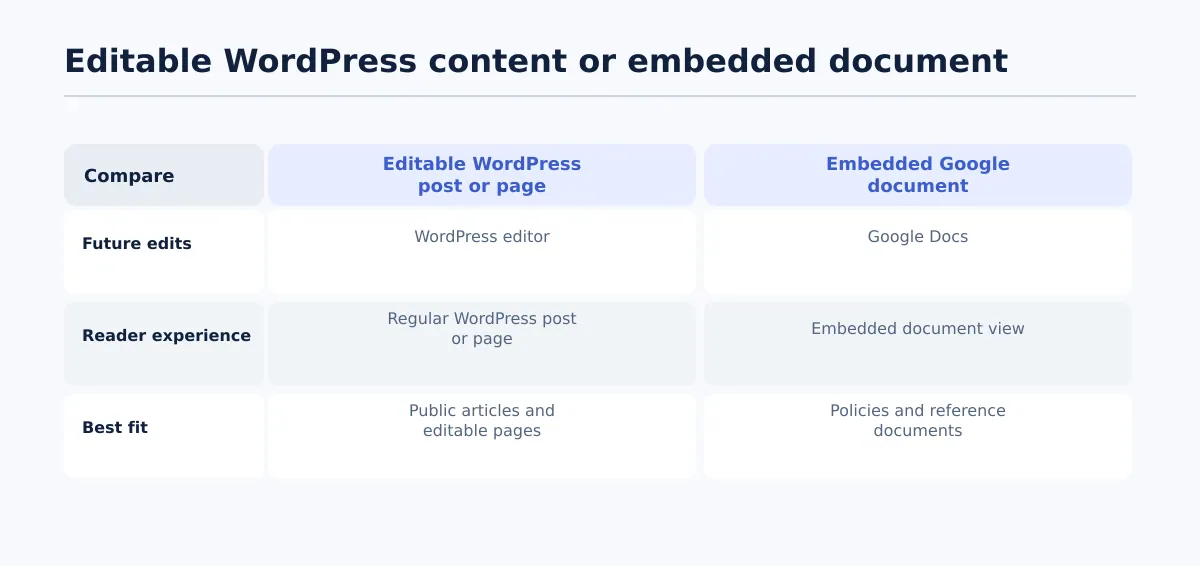 Choose an editable WordPress result or an embedded Google document according to where future edits and viewing should happen.
First decide what the finished page needs to be. Importing a document as WordPress content gives the team a post or page to edit in WordPress. Embedding keeps the document-viewing experience tied to Google Docs instead of rebuilding the material as ordinary WordPress content.
| Intended result | Where future edits happen | How visitors encounter it | Appropriate use |
|---|---|---|---|
| Editable WordPress post or page | WordPress editor after the content is transferred | Through the site’s regular post or page presentation | Public articles, landing pages, documentation, and content that belongs in the CMS |
| Embedded Google document | Google Docs | Through an embedded document view | Policies, reference material, or a document that must remain maintained in Google Docs |
These options solve different publishing problems. An editable post can be revised with WordPress blocks and managed with the site’s post fields. An embedded document is useful when the Google Doc itself remains the maintained reference. It should not be treated as a substitute for a conventional, editable blog post.
If your source begins as a Word file, first decide whether it should remain a DOCX or become a native Google Doc. How to Open a Word Doc in Google Docs Without Derailing Your Publishing Workflow covers that earlier decision.
Choose an import method based on document complexity and volume
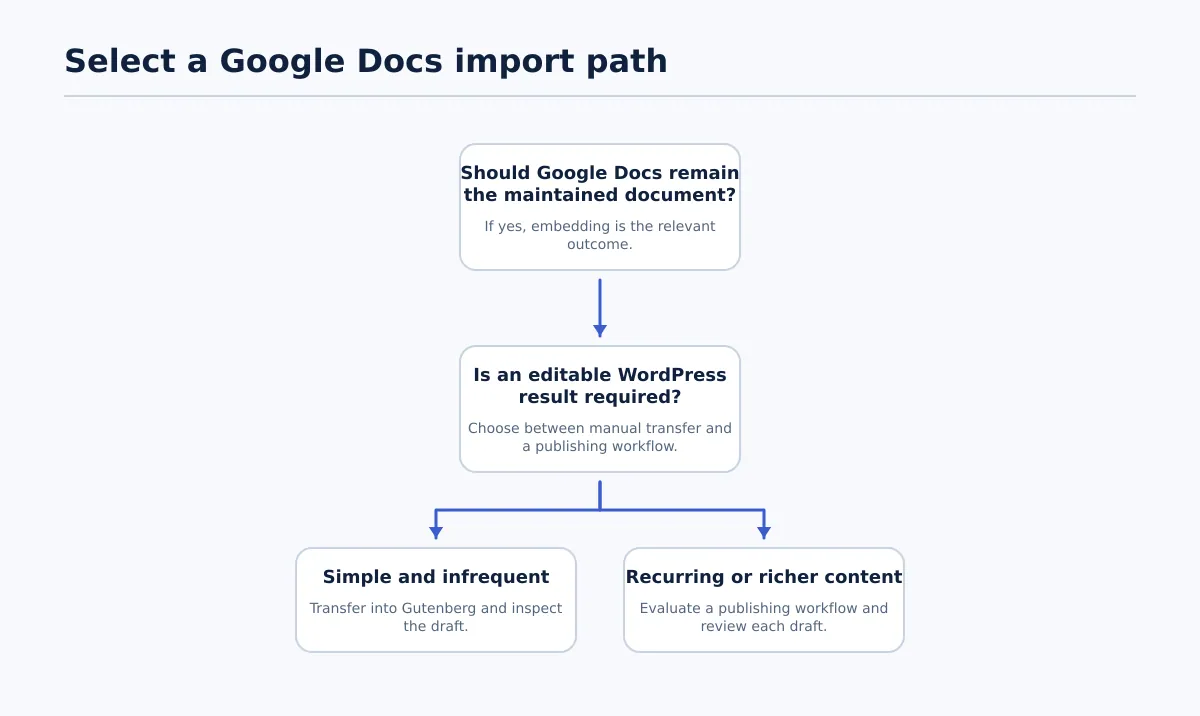 Select manual transfer, a publishing workflow, or embedding based on the required output and recurring workload.
The practical options are manual transfer into the block editor, a Google Docs-to-WordPress publishing workflow, and embedding. Use the matrix below to make the choice before opening the destination site.
| Document and workload | Manual Gutenberg transfer | Publishing workflow | Embedding |
|---|---|---|---|
| Short, text-only, one-off post | Output: editable. Review: inspect headings, links, and spacing. Best fit: a small article that will not be repeated often. | Output: editable draft where supported. Review: still required. Best fit: usually unnecessary unless the team already uses the workflow. | Output: document view, not normal WordPress body content. Best fit: only if the document itself is the deliverable. |
| Article with headings, links, and images | Output: editable. Review: check block structure, media, and destination fields individually. Best fit: occasional content when an editor can inspect it closely. | Output: editable draft where the workflow supports the required elements. Review: confirm the actual result on the target site. Best fit: recurring or richer articles. | Output: document view. Best fit: reference material rather than a WordPress-native article. |
| Repeated multi-post publishing | Output: editable. Review: every post requires the same manual assembly. Best fit: only when volume is low or documents vary too much for a standard path. | Output: repeatable draft creation where supported. Review: test the site and document pattern first, then review each draft. Best fit: agencies handling similar approved content across sites. | Output: document view. Best fit: a narrow use case where WordPress-native posts are not required. |
A useful decision rule is:
- Choose manual transfer for simple, infrequent content.
- Choose a publishing workflow when repeated imports or richer document elements make manual assembly a recurring task.
- Choose embedding only when Google Docs should remain the document’s editing and presentation context.
The method does not determine the quality of the final post by itself. The source structure, supported export scope, WordPress configuration, and review performed afterward all affect the result.
Prepare the Google Doc before importing it
A clean import begins with a source that communicates structure directly. Do not make the publisher infer whether a large bold line is a heading, whether an image belongs in the article, or whether a note is still part of the editorial process.
Use this preparation example for an approved article:
- Apply heading styles. Set the article title as the document title, use Heading 2 for main sections, and use Heading 3 only for genuine subsections. Do not create hierarchy with font size, bold text, or blank lines.
- Confirm links. Use descriptive anchor text and open each important destination. Record the intended URL separately if a link is especially important to the article.
- Place images deliberately. Put each image beside the section where it belongs. Note the intended alt text and caption, and keep the source asset available to the person preparing the WordPress draft.
- Prepare CMS fields separately. List the intended category, tags, excerpt, slug, SEO title, meta description, author, and featured-image requirement in a clearly labeled area. Formatting in the body is not a reliable substitute for these WordPress fields.
- Resolve comments and suggestions. Accept or reject proposed edits, then remove notes that are not meant for the published article. Comments are editorial instructions, not body copy.
- Remove visual workarounds. Delete repeated spaces, manual page breaks, placeholder text, and pasted styling that has no publishing purpose.
For example, a source document might contain:
- Title: “How to Audit a WordPress Redirect Plan”
- Structure: six Heading 2 sections and two Heading 3 subsections
- Links: three descriptive links with confirmed destinations
- Images: one process illustration after the introduction and one screenshot in the relevant section
- Metadata notes: one category, four tags, a proposed slug, an excerpt, an SEO title, and a meta description
That preparation gives the publisher explicit instructions for both the article body and the fields that sit outside it. It still does not establish that every element will map identically to every WordPress installation; the target draft remains the place to confirm the result.
For recurring document formats, a reusable Google Docs publishing template can keep headings, metadata notes, and asset instructions consistent.
Signals that should not carry publishing meaning
Do not rely on these as CMS instructions:
- Enlarged text without an assigned heading style
- Blank lines used to imitate section spacing
- An image with no placement, alt-text, or caption direction
- A link whose visible words do not identify its destination
- An unresolved comment containing a possible revision
- A category, tag, excerpt, or SEO instruction that exists only in a chat message
Method 1: Transfer a simple document into the WordPress block editor
Manual Gutenberg transfer is a sensible low-setup option for an occasional, low-formatting article. It gives an editor direct control of the resulting blocks, but the editor must also check the media and fields that are not safely represented by ordinary body text.
Use this procedure:
- Create a draft on the correct WordPress site and select the intended post type.
- Enter the article title in the title field and transfer the prepared body into the editor.
- Review the resulting blocks. Confirm that headings, paragraphs, lists, and any tables have the intended structure.
- Inspect important links in the editor or preview. Correct the anchor text or destination if either changed.
- Add or replace images in the required sections. Confirm the asset, alt text, caption, and presentation.
- Enter the category, tags, excerpt, slug, author, featured image, and SEO fields in their WordPress locations.
- Preview the draft at desktop and mobile widths before choosing whether to keep it as a draft, schedule it, or publish it.
This path fits a short text-led article or an infrequent post with a small number of straightforward assets. It is less attractive when publishers repeatedly reconstruct the same headings, images, and metadata for a queue of similar articles. Copying the body into Gutenberg moves content; it does not verify the assembled post.
Method 2: Use a Google Docs-to-WordPress publishing workflow for recurring imports
A publishing workflow becomes worth evaluating when the team regularly moves approved Google Docs into WordPress drafts. The basic sequence is:
- Connect the Google Docs source and the WordPress destination.
- Select the approved document intended for that site and post type.
- Export or create the result as a WordPress draft.
- Open the draft and inspect its body, assets, and fields.
- Correct destination-specific issues before scheduling or publishing.
The important distinction is between repeatable transfer and unattended release. A workflow can standardize how a document is sent to WordPress, but the team must still test the result against the target site’s editor, theme, media requirements, and field configuration.
Tenwrite is a practical example of this publishing-workflow category. Its documented Google Docs-to-WordPress export supports supported formatting, links, images, categories, tags, excerpts, and SEO metadata. Those capabilities are relevant when the team wants more than the article body assembled in a draft. They should be tested with a representative document and destination before the approach is used broadly.
Imagine five approved client articles that follow the same source conventions. Each has headings, internal links, two images, a category, tags, an excerpt, and SEO fields. A publishing workflow can create WordPress drafts through the same selected route, after which the publisher checks each site-specific result. The workflow is a candidate for this pattern because the work repeats; it is not automatically the right answer for an irregular document with unusual blocks or unsupported fields.
Run a small test before adopting the method:
- Confirm that headings become the intended WordPress structure.
- Open important links and compare both text and destination.
- Check image locations, asset availability, alt text, and captions.
- Look for categories, tags, excerpts, and SEO fields in the places the site uses.
- Confirm that the process creates the intended draft state.
For related guidance on the SEO fields involved after transfer, see SEO with Tenwrite: Publish Google Docs to WordPress.
Method 3: Embed a Google Doc when the document should remain a document
Embedding makes sense when the Google Doc is the maintained reference and readers need to view that document rather than consume a WordPress-native article. An internal policy is one example: its owners may need to update the Google Doc while the WordPress page provides access to the current reference. A public reference document can have the same requirement.
A public article has a different destination requirement. If it needs WordPress headings, editable blocks, media placement, categories, tags, an excerpt, SEO fields, and the site’s normal presentation, use an import path that creates WordPress content instead of an embedded document view.
The direct rule is simple: embed the document when the document itself is the deliverable. Do not embed it when the goal is a normal, editable WordPress blog post.
Verify the imported WordPress draft before publishing
The WordPress draft is where the transfer meets the actual site. Review it beside the Google Doc, then use the preview to inspect how the assembled post presents at different widths.
Content structure and completeness
- Title — pass: the intended headline is in the WordPress title field once, with no duplicate title at the top of the body. Fail: it is missing, truncated, duplicated, or left only in the content area.
- Headings — pass: the section order is intact and heading levels communicate the intended hierarchy. Fail: a section is missing, a paragraph is styled as a heading, or levels are skipped for appearance alone.
- Body — pass: the full article, required lists, tables, calls to action, and approved links are present. Fail: text is missing, duplicated, or mixed with source-only notes.
Links, images, and presentation
- Links — pass: each important link opens the intended destination and remains attached to the correct words. Fail: a link is empty, malformed, attached to the wrong phrase, or points to an unintended page.
- Images — pass: each required image appears in the planned section, uses the intended asset, and has alt text where required. Fail: an image is missing, replaced, displayed as an empty placeholder, or inaccessible to the site.
- Captions and layout — pass: required captions are present and the preview has readable spacing, alignment, and image sizing. Fail: a caption is attached to the wrong image or the layout breaks at desktop or mobile widths.
WordPress fields and release settings
Confirm these fields in the destination rather than assuming the body transfer populated them:
- Category and tags
- Excerpt
- Permalink or slug
- Author
- SEO title and meta description
- Featured image, where required by the site
- Intended status, schedule, and publication settings
The draft passes when the content is complete, required fields are filled, no broken links or empty image placeholders remain, the heading structure is clear, and the preview is usable on desktop and mobile. Keep it in draft status when any required asset, field, link, or structural element is unresolved.
Use a repeatable import standard for recurring agency content
A lightweight standard can make recurring imports easier to evaluate without turning the process into a large governance exercise. Keep it to one page and define:
- Source format: heading styles are used, links are descriptive and checked, images have placement notes, and comments are resolved.
- Field instructions: category, tags, excerpt, slug, SEO fields, author, and featured-image requirements are identified before transfer.
- Method selection: manual Gutenberg transfer is reserved for simple, infrequent articles; a publishing workflow is evaluated for recurring or richer imports; embedding is used only for document-viewing requirements.
- Review responsibility: a named publisher compares the WordPress draft with the source and previews the result.
- Completion standard: required content, assets, links, fields, and presentation checks all pass before release.
Update the standard when the same repair appears repeatedly. If every imported image needs repositioning, improve the source placement note or test the workflow’s image support. If excerpts or SEO fields are often absent, make them explicit inputs instead of leaving them to a final message.
For teams scheduling WordPress posts and pages from structured content, evaluate Tenwrite’s Google Docs and Google Sheets publishing workflow against one recurring article type. Compare the manual path with the workflow path by looking at the draft each one produces and the corrections still required. The suitable approach is the one that fits the document, preserves the needed information, and leaves a WordPress draft your team can confidently review.