
Moving an approved article from Google Docs into WordPress often takes more work than copying the words. The publisher may still need to rebuild headings, place images, add links, select categories, write an excerpt, enter SEO fields, and choose a publication time. At one post, that work is manageable. Across several client sites, it becomes a repeated production task with plenty of opportunities for re-entry errors.
WordPress publishing automation is useful for this specific stage: transferring approved source content and known publishing details into a WordPress draft or scheduled post. It does not determine whether the article is good enough, whether an image is appropriate, or whether a category makes strategic sense. Those decisions still belong to the editorial team.
This guide focuses on the path from an approved Google Doc to a reviewable WordPress post. You will see which tasks are suitable for automation, how to prepare the source, how to map document elements to CMS fields, how to review the result, and when bulk publishing is a sensible option.
What WordPress publishing automation means for a content team
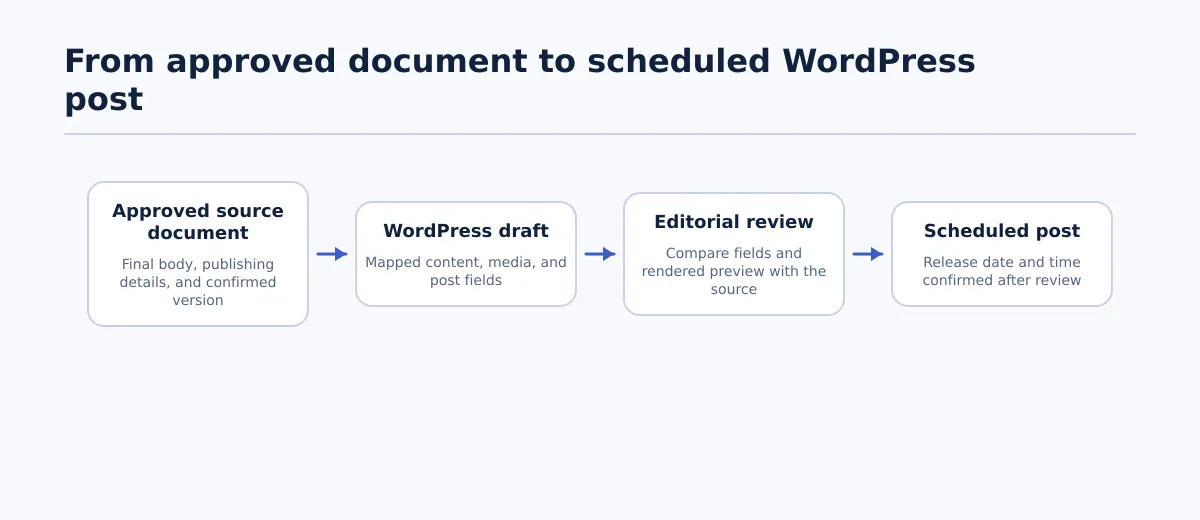 WordPress publishing automation can move approved source content into a draft while leaving review and scheduling decisions visible.
For a content team, WordPress publishing automation covers the repetitive transfer and setup work that happens after an article has been approved. A publishing run may take known values from a source document and use them to:
- create WordPress body content from the document structure;
- carry over links and inline images;
- populate categories, tags, excerpts, and SEO fields when those values are supplied;
- create a draft for review; and
- apply a confirmed status and publication date.
A manual version of the same job might involve opening an approved Google Doc, copying the body, repairing formatting, downloading images, uploading media, recreating links, entering metadata, selecting a category, previewing the post, and scheduling it. Automating the predictable parts reduces repeated entry. It does not turn editorial judgment into a transfer rule.
That distinction defines the useful boundary:
- Automation handles known values and repeatable actions. For example, a final meta description in a labeled source section can be sent to the destination field selected for that site.
- An editor handles interpretation. For example, an editor decides whether a weak description should be rewritten or whether an image actually supports the article.
- The CMS draft is the review point. The transferred result needs to be checked in WordPress before it receives a schedule or goes live.
A practical completion condition is that the draft contains the intended body, media, publishing fields, destination, and status, and that an editor can compare it with the approved source without reconstructing missing information.
The same principle applies whether a team uses a dedicated publishing product or a custom connection between a document source and WordPress. The transfer can be automated; the decision to publish should remain deliberate.
Choose the publishing tasks worth automating
Do not begin with the promise of automating an entire content operation. Break publishing into tasks and identify where the input is stable enough to produce a predictable result.
| Task | Automate when | Keep human review | Completion signal |
|---|---|---|---|
| Document conversion | Articles use a consistent title, heading, paragraph, and list structure | Tables, embeds, unusual layouts, or formatting that changes meaning | Body content is complete and readable in the draft |
| Links and images | Final URLs and approved assets are present | Broken links, missing files, image relevance, and alt-text decisions | Important links and images appear in their intended locations |
| Categories and tags | The destination taxonomy is known and the source gives approved terms | New, ambiguous, or site-specific taxonomy choices | Terms exist on the destination site and match the publishing notes |
| Excerpt and SEO fields | Final values are supplied separately from the body | Missing, conflicting, or site-specific values | Destination fields match the approved source values |
| Status and schedule | Destination, date, time, and time zone are confirmed | Unclear release authority or timing | Status and schedule show the intended release state |
| Final preview | Posts use a stable template and familiar content pattern | Every post before scheduling, especially the first few runs | Rendered preview matches the approved source |
A sensible first scope is document conversion, draft creation, and transfer of clearly labeled fields. Keep the preview and exception decisions visible to an editor. If an automated step regularly produces corrections, either improve the source format or remove that step from the automated scope.
For teams that manage many posts in a structured spreadsheet, the Google Sheets to WordPress bulk publishing workflow covers a different source model.
Start with a publishable source document
The source document determines how much interpretation remains after transfer. A publisher should not have to search comments for the final title, choose between several image versions, or infer a category from the article’s subject.
Before using a Google Doc as the publishing source, confirm these items:
- Final post title: Separate the reader-facing title from an internal campaign or project name.
- Resolved heading hierarchy: Use heading styles consistently and remove outline headings that do not belong in the article.
- Descriptive links: Keep final URLs and meaningful anchor text. Replace unfinished destinations and generic placeholders.
- Image placement: Put approved inline images where they should appear and identify whether each is also intended as the featured image.
- Image instructions: Identify the approved asset and record the alt-text decision required by the destination site.
- Taxonomy instructions: Name the destination category and tags, using the site’s actual terms when they are known.
- Excerpt: Write the excerpt separately from the article body.
- SEO metadata: Add the final meta title and description in a labeled publishing section when the site uses them.
- Source version: Resolve suggestions and comments, confirm the approved revision, and record the version or update date.
- Destination details: Identify the WordPress site, post type, intended status, and requested schedule.
Keep reader-facing content separate from operational notes. A compact block at the end of the document might look like this:
PUBLISHING DETAILS — not part of the article body
Destination: Fictional client site
Post type: Post
Category: Operations
Tags: WordPress, publishing automation
Excerpt: A practical guide to moving approved documents into reviewable WordPress posts.
Meta title: WordPress Publishing Automation Guide for Content Teams
Meta description: Learn how to move approved Google Docs into reviewable, scheduled WordPress posts.
Featured image: approved-assets/publishing-workflow.png
Alt-text decision: Describe the document-to-CMS publishing process.
Schedule: 2026-09-15, 09:00, destination site time
Source version: Approved v4
The exact labels can match the team’s tooling. The important requirement is that body content and publishing details are easy to distinguish. If a value is missing, mark it as missing rather than expecting the transfer process to invent one.
A useful readiness test is simple: give the document to another publisher who knows the destination site. If that person can identify the final body, required fields, assets, destination, and source version without asking a series of questions, the document is suitable for the next step.
Map the source document to the WordPress post
A field map turns a document into a set of destinations. It also gives the reviewer a defined list of values to check after the CMS draft exists.
| Source element | WordPress destination | Transfer rule | Review question |
|---|---|---|---|
| Document title | Post title | Use the final reader-facing title and do not duplicate it as an unintended body heading | Does the CMS title match the approved source? |
| Heading styles | Post body headings | Preserve level and order | Are headings nested logically in the preview? |
| Paragraphs and lists | Post body | Convert into supported blocks or HTML | Is any content missing, duplicated, or damaged? |
| Hyperlinks | Linked body text | Preserve the approved URL and anchor text | Do important links lead to the intended pages? |
| Inline images | Media library and body placement | Transfer the approved asset to its specified location | Does each image load and appear in the right place? |
| Category | Category field | Use a term that exists on the destination site | Is the category valid and approved for this site? |
| Tags | Tag field | Transfer only supplied or approved terms | Are the terms spelled and used as expected? |
| Excerpt | Excerpt field | Keep separate from body content | Does the excerpt summarize the post accurately? |
| SEO metadata | SEO plugin or custom fields, where used | Map only final supplied values | Are the values in the fields the site actually uses? |
| Status | Draft or scheduled status | Create a draft first unless another state is explicitly authorized | Is the post still safe to review? |
| Publish date | Schedule field | Use the confirmed date, time, and destination time zone | Will it release at the intended time? |
The destination site belongs in the map. Two client sites may use different categories, tags, post types, or SEO fields. A source label such as Operations may exist on one site and be unavailable on another. If the destination requires a different value, record that mapping before the transfer rather than relying on a universal taxonomy.
When a required value is absent, leave the item in draft or blocked status. Do not guess a category or derive a meta description from the first paragraph unless the team has explicitly approved that fallback.
Worked example: approved Google Doc to scheduled WordPress post
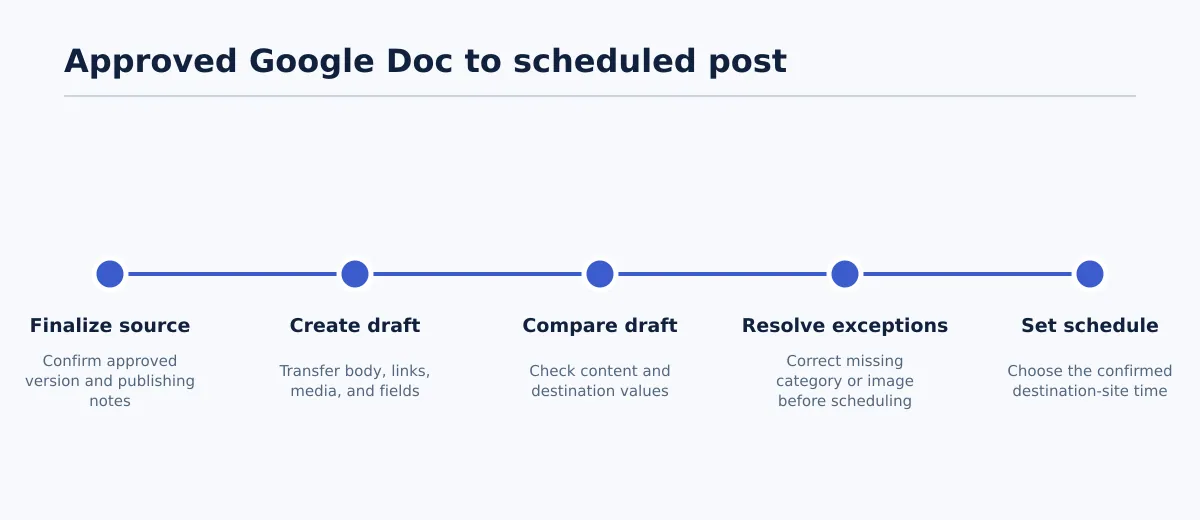 A five-step publishing run creates a draft first, resolves exceptions, and schedules only after the preview passes.
Imagine an agency is publishing a fictional client article titled “Choosing a Service Area for Your Next Expansion.” The editor has approved version 4 of the Google Doc. Its publishing notes identify the destination site, category, tags, excerpt, meta description, featured image, and requested Tuesday schedule.
A complete publishing run looks like this:
- Finalize the source. The editor resolves comments and suggestions, confirms version 4, checks the links, and places the final publishing notes after the body. Output: one identifiable source document with approved content and fields.
- Create the WordPress draft. The transfer process uses the title, body structure, links, image references, taxonomy instructions, excerpt, SEO values, and destination details. Output: a WordPress draft, not a live post.
- Compare the draft with the source. The editor checks the title, headings, links, featured image, excerpt, metadata, and status. Output: passed checks or a list of corrections.
- Stop for exceptions. In this fictional run, the requested
Expansioncategory does not exist on the destination site, and the featured image is unavailable. Decision: do not schedule. The publisher requests a valid category and the approved image. - Set the schedule after correction. Once both issues are resolved, the editor previews the post again, confirms the destination-site time, and schedules it. Output: a scheduled post whose destination fields match the approved source.
The important signal is not that the transfer completed without an error message. A technically successful transfer with a missing asset or invalid category is unfinished. The run is ready only when the content and required fields have passed review.
Tenwrite supports this draft-first type of process by allowing users to review, revise, schedule, or save generated content as a CMS draft before it goes live. A team can evaluate that path with one representative approved document and one destination site before using it more broadly.
Review the WordPress draft before scheduling
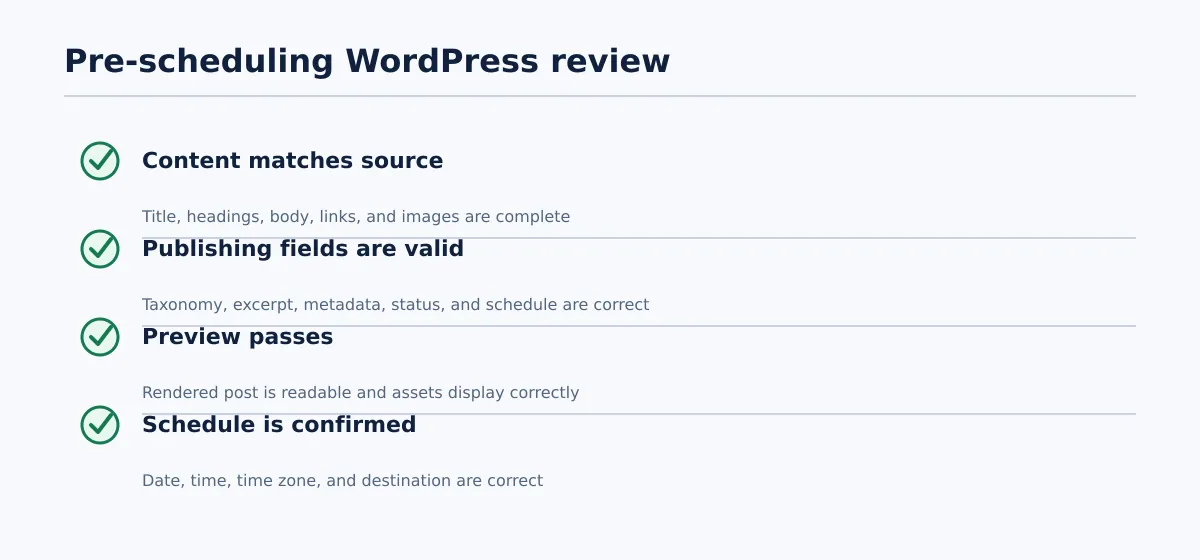 Schedule only after the approved source, WordPress fields, and rendered preview agree.
Review the CMS result in three passes: reader-facing content, destination fields, and rendered preview. The source document review does not replace this step because the CMS may interpret formatting, media, and fields differently from the source.
Check the reader-facing result
- Title and permalink: Confirm the title and inspect the permalink for accidental duplication, unwanted placeholders, or an unsuitable structure.
- Heading hierarchy: Scan the article in order. Look for missing levels, empty headings, or a title that became an unintended body heading.
- Body content: Compare the opening, sections, lists, tables, emphasis, and closing text with the approved document. Check for omissions and duplicates.
- Links: Test important links and compare both destinations and anchor text with the source.
- Images: Confirm that approved images load, appear in the intended locations, and have the correct inline or featured treatment. Verify the alt-text decision.
Check WordPress fields
- Taxonomy: Confirm that the category and tags exist on this site and match the publishing notes.
- Excerpt: Read the excerpt on its own. It should describe the article, not contain an internal instruction.
- SEO metadata: Check the fields used by that site’s SEO setup. Text visible in the body does not prove that the corresponding metadata field is populated.
- Status and schedule: Verify the post status, date, time, time zone, destination site, and other required publishing settings.
Use the rendered preview as the pass/fail check
Open the front-end preview rather than relying only on the editing screen. Check the first screen, heading spacing, lists, tables, image behavior, links, and any element that looked unusual in the Google Doc.
Pass when the approved source, intended WordPress fields, and rendered preview agree; required assets are present; and the schedule is correct.
Fail when content is missing or meaningfully changed, a required field is blank or invalid, an asset is unavailable, a link is wrong, or the preview is difficult to read.
If the check fails, keep the post unscheduled. Correct the source or destination field according to the appropriate owner, then repeat the affected check. Creating a draft is not the same as approving it for publication.
Use bulk publishing only for repeatable content rows
Bulk WordPress publishing is appropriate when each item follows the same structure and its publishing data can be represented consistently. It is less suitable for articles that require individual media treatment, unusual formatting, or substantial editorial interpretation.
A repeatable series might include location pages, partner updates, or recurring client posts with the same required fields. A long-form article with a different table, image set, category decision, and metadata treatment is usually safer to review separately.
A conceptual publishing sheet could contain these columns:
| Source URL | Destination site | Status | Category | Schedule | Owner |
|---|---|---|---|---|---|
docs.example.test/location-a | client-a.example | Approved | Locations | 2026-09-15 09:00 | Editor A |
docs.example.test/location-b | client-a.example | Approved | Locations | 2026-09-16 09:00 | Editor A |
docs.example.test/partner-update | client-b.example | Needs image | Partners | Not set | Editor B |
Before sending a batch, take these steps:
- Define required columns and permitted status values.
- Choose one representative row.
- Create its draft and compare every mapped field with the source.
- Confirm the destination taxonomy, media requirements, and metadata treatment.
- Approve the sample row before processing the remaining rows.
- Review failed, skipped, and partially completed rows after the run.
A sample-row test catches errors before they are repeated across a batch. If the sample reveals that the destination site uses different categories or handles images differently, revise the mapping before continuing. For a spreadsheet-led publishing process, use the Google Sheets publishing guide rather than forcing every article into a uniform row.
Common automation mistakes and how to avoid them
Inconsistent source formatting
Problem: One document uses real heading styles, another uses bold paragraph text, and a third leaves outline labels in the body.
Prevention: Use one source template and define the styles that represent the title, headings, lists, and publishing notes.
Recovery: Compare the affected draft with the approved source, repair the structure, and update the template before the next transfer.
Missing publishing details
Problem: The body transfers correctly, but the excerpt, meta description, featured image, or schedule is blank.
Prevention: Make required fields explicit in the source template or publishing row.
Recovery: Keep the post as a draft, obtain the missing value, and repeat the field review.
Treating every site taxonomy as identical
Problem: A category from one client site is unavailable or inappropriate on another.
Prevention: Maintain destination-specific category and tag requirements.
Recovery: Do not substitute a guessed term. Select an approved alternative and record the mapping for future posts.
Scheduling before previewing
Problem: The post has the correct status but contains a broken link, misplaced image, or unreadable table.
Prevention: Require preview review before the schedule action.
Recovery: Return the post to draft status, correct the issue, and preview it again.
Publishing a batch without a test item
Problem: One mapping error appears across multiple posts.
Prevention: Run and approve one representative row first.
Recovery: Pause the batch, identify affected items, correct the mapping, and recheck representative drafts before resuming.
Measuring only output volume
Problem: More posts are created, but publishers spend as much time repairing drafts as they previously spent preparing them.
Prevention: Track correction time and scheduling errors alongside post volume.
Recovery: Identify the expensive step and narrow the automation scope if cleanup costs outweigh transfer savings.
Measure whether the workflow is actually saving publishing time
Measure the time from an approved source to a reviewable, scheduled WordPress post—not only the number of drafts created. First establish the average minutes a publisher spends manually transferring and preparing one comparable post.
Then track these measures for a representative sample:
| Metric | How to record it | What it tells you |
|---|---|---|
| Manual publishing baseline | Minutes from approved source to ready-to-schedule post before automation | The comparison point |
| Automated-review time | Minutes from transfer through completed CMS review | Whether repetitive work is reduced |
| CMS corrections per post | Count missing, changed, or manually repaired elements | Whether transfer quality is stable |
| Scheduled-post errors | Count incorrect dates, times, statuses, or destinations | Whether publishing details survive transfer |
| Batch completion rate | Completed rows divided by attempted rows | Whether bulk runs are dependable |
Use this calculation:
time saved per month =
(manual minutes per post - automated-review minutes per post)
× posts published
For example, if manual preparation takes 32 minutes, transfer plus review takes 18 minutes, and the team publishes 40 comparable posts in a month:
(32 - 18) × 40 = 560 minutes saved
Include correction time in the automated-review figure. If each post needs another 10 minutes of repair, the effective automated time is 28 minutes and the monthly saving is only 160 minutes at the same volume.
Review the measures after a defined sample, such as the next 20 comparable posts. Keep the process if preparation time falls without an unacceptable increase in corrections or scheduling errors. Narrow the scope if the transfer creates more cleanup than it removes.
If your team publishes approved Google Docs at volume, evaluate whether your current process can create reviewable WordPress drafts, preserve the publishing details that matter, and schedule repeatable content without manual re-entry. Tenwrite can be assessed with a representative document and destination before you expand the process across a larger publishing queue.