
If an agency receives an article as HTML but needs to revise it with a client, a Google Doc can be a convenient editing surface. The conversion is worthwhile only when the resulting document still gives editors the structure and context they need.
That is the practical test for an HTML to Google Docs converter: not whether it creates a document, but whether the headings, links, images, tables, and editorial notes remain usable. Web pages can also contain layout rules, scripts, embeds, and CMS-specific information that do not belong in an ordinary document.
This guide compares three ways to convert HTML to Google Docs, shows how to review one imported article, and gives selection rules for Google Docs, Markdown, HTML, and a CMS draft.
A practical decision guide for the next HTML conversion
Start with the destination and the editing job, not with the converter. Use the following rules:
| Situation | Recommended working format | Why |
|---|---|---|
| A basic article needs copy changes and comments from several people | Google Docs | Reviewers can work on readable copy without rebuilding the page immediately |
| The page depends on custom layout, interactive elements, or important web behavior | HTML or the live page as the reference, with a purpose-built Doc only if needed | The web implementation carries information the document may not express |
| The content is mostly text and will live in a repository or Markdown-compatible system | Markdown | Structure can be versioned and moved between compatible destinations |
| The final site’s fields, media, and presentation must be reviewed now | CMS draft | The team can inspect body content alongside destination-specific settings |
For a simple article, an HTML to Google Docs online route may be a reasonable first attempt. For a complex page, copying or rebuilding only the editorial content may be safer than treating the imported document as a complete replica. If the team already knows that the next step is destination-specific CMS preparation, creating a draft in that system may avoid an unnecessary intermediate format.
What an HTML-to-Google-Docs converter is actually for
An HTML-to-Google-Docs converter is intended to make web-based content available in an editable document format. In an editorial setting, that usually means giving writers and clients a place to revise text, add comments, and discuss changes without editing the live page.
Consider an agency that inherits a client’s existing article. The agency needs to update the introduction, replace outdated examples, and ask the client to review the changes. The live page remains useful as a reference, while a Google Doc gives the team an editable copy. After the review, the revised material can be prepared for the destination that will receive it.
The document should be treated as an editorial representation of the article, not automatically as the web page itself. A Google Doc can hold common article material such as paragraphs, heading-styled text, lists, links, images, and tables. It does not by itself reproduce every visual, behavioral, or destination-specific feature of HTML.
In practical terms, the conversion answers one narrow question: “Can the team work on this content in Google Docs?” It does not answer whether the content is ready for publication, whether a CMS field has been populated, or whether an interactive page component has been recreated.
For the later stage, see the [Google Docs publishing handoffs][wordpress:1181] guide. That is a separate concern from making inherited HTML easier to edit.
Three ways to get HTML into an editable Google Doc
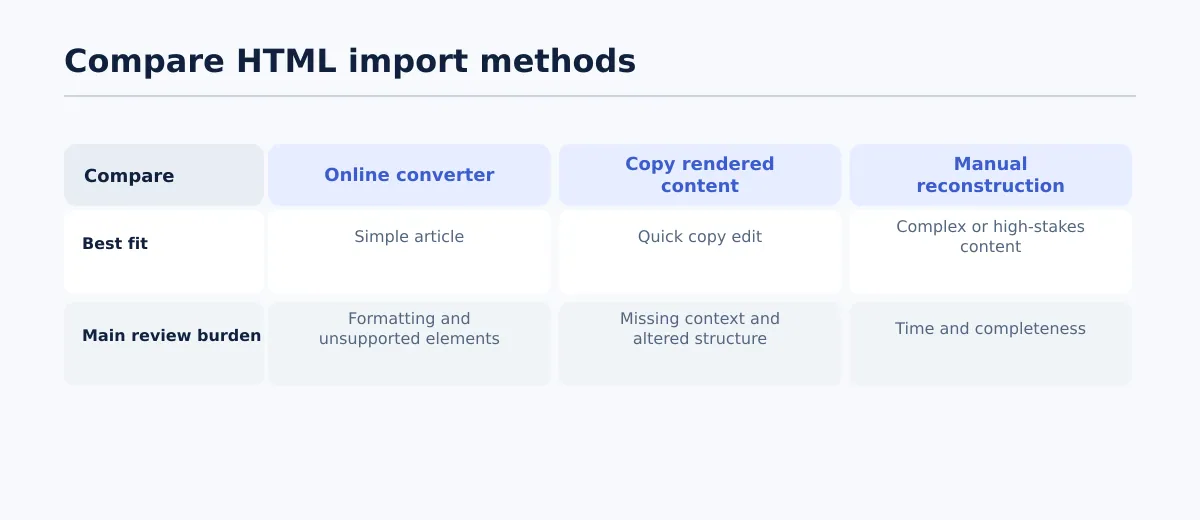 Choose an import method based on article complexity and the amount of review the resulting Doc can tolerate.
The right method depends on the source available to the operator and the cost of correcting the result. Dedicated tools for this direction exist, including services described as HTML-to-Google-Docs converters and a Docs to Markdown Pro route that can take HTML toward a document workflow. Their existence does not establish that every page element will transfer in the same way, so test the actual article before committing to a large batch.
| Method | Best for | Likely to retain | Likely to require repair |
|---|---|---|---|
| Dedicated online converter | A straightforward article with ordinary text structure | Common article content and some formatting, depending on the source and tool | Unusual styling, media context, tables, code, embeds, and page-specific elements |
| Copy rendered content | A fast editorial pass on a readable page | Visible text, links, headings, and some visual formatting | Content not visible on the page, detached captions, complex tables, and interactive elements |
| Manual reconstruction from the source | Complex, high-stakes, or layout-dependent material | The structure the operator deliberately identifies and rebuilds | More operator time and a need to account for every source element |
Use an online converter for a simple article
A dedicated converter is a sensible trial for an article made mainly of paragraphs, headings, lists, links, and a small number of images. Upload or provide the source according to the tool’s documented process, then inspect the resulting Doc before sharing it with reviewers.
The useful measure is correction effort. If a ten-section article imports with its headings, links, and table intact, a short review may be enough. If the first inspection reveals missing images, flattened headings, or broken tables, estimate the work required to repair the document before choosing this route for similar pages.
Run a small test first. Select one representative page and record:
- which heading levels arrived as actual document styles;
- whether important links open the expected destinations;
- whether images have identifiable source assets and nearby context; and
- whether tables remain readable and complete.
Copy the rendered page for a quick copy edit
Copying the visible article from a rendered page can be efficient when the goal is wording review rather than technical reconstruction. It avoids spending time rebuilding portions of the page that the editor does not need.
The limitation is visibility. A rendered page may show the result of scripts, tabs, lazy loading, personalization, or other browser behavior without exposing all of that content as ordinary copy. A copied image may also arrive without its caption, attribution, source file, or intended relationship to the surrounding text.
Before inviting comments, compare the copied document with the page and add explicit notes for anything that needs separate treatment. For example:
Interactive calculator in the source page: retain the live-page reference and ask the destination owner to confirm the replacement.
That note keeps the missing component visible without pretending that a static document contains the calculator.
Rebuild the editorial document from the source
Manual reconstruction takes longer, but it lets the operator decide exactly what the document is meant to contain. Inspect the HTML structure, create appropriate Google Docs heading styles, add links deliberately, place images with their captions or surrounding explanation, and mark unsupported components with named placeholders.
Do not try to reproduce the page pixel by pixel. Rebuild the content model needed for editing. This route is appropriate when:
- a custom layout affects how readers understand the article;
- tables, code blocks, or image relationships are important;
- the page includes embeds, forms, or interactive tools; or
- an omission would create significant editorial or commercial risk.
A manual document is complete enough for editing when every meaningful source element has one of three outcomes: it is represented in the Doc, it is retained as a clearly labeled placeholder, or it is recorded for a separate destination-specific task.
What to check after conversion: structure, links, media, and tables
A document can look convincing while containing structural or content omissions. Review the imported article against the source in a fixed sequence, and mark each element pass, repair, or separate handling.
Check the heading hierarchy before editing prose
Compare the article title and each subsection with the source. Use actual Google Docs heading styles for structural headings rather than relying on font size, bold weight, or spacing. Those visual cues can make text appear organized without communicating the intended hierarchy to later editors or publishing tools.
For a pass, confirm that:
- each source heading appears once;
- headings occur in the same order;
- subsection levels communicate the same nesting; and
- body paragraphs have not been promoted because they were visually emphasized.
If the page title sits outside the article body, decide whether it belongs in the document name, the body, or neither. This prevents an accidental duplicate title when the revised copy is prepared for a CMS.
Open representative links
Do not approve links merely because they remain blue or underlined. Open at least one internal link, one external link, and any link that is important to the article’s action or evidence. Compare the destination and anchor wording with the HTML source.
A link passes when it opens the intended destination, the visible anchor still describes that destination, and any required tracking treatment remains understood by the receiving team. If a link has become plain text or points somewhere unexpected, fix or flag it before copy editing proceeds.
Confirm images and their surrounding context
Review each meaningful image beside the source article. Confirm the asset, location, caption, attribution, and nearby explanatory text. If the document contains only a visual placeholder, identify who must retrieve or replace the original asset.
Separate editorial placement from destination media requirements. The Doc can indicate that an image belongs below a particular section, but the eventual site may still need an uploaded file, alt text, a caption, a featured-image choice, or a specific crop.
Pass this check when every required image has an identifiable asset or an explicit replacement note and its intended location is clear. Mark it for repair when an image is missing, paired with the wrong text, or detached from its caption.
Compare tables cell by cell
For a small table, compare every header and cell. For a larger one, check the header row, the first and last rows, the row with the longest value, and any row containing an unusual or empty value. Confirm the number and order of columns as well as the content within them.
A table passes when its column meanings remain clear, cell values are in the correct columns, and the document is readable. If cells have merged, rows have been dropped, or the table is too wide to interpret, keep the source available and assign a deliberate treatment for the final destination.
Isolate embeds, code, and custom components
Flag scripts, forms, interactive widgets, responsive components, and embedded experiences separately. They may need to be recreated in HTML or the CMS, replaced with static explanatory text, or retained only on the original page. Code blocks also deserve a direct check for indentation, characters, and visual distinction.
A placeholder should include the component name and next action, for example: “Product comparison embed — publisher to confirm CMS-supported replacement.” A blank space is not a sufficient review result because it gives the next editor no indication that content was lost.
Worked example: review one imported article
Suppose an article contains this sequence:
- an article title;
- an H2, “Choosing an import method”;
- an H3, “Use a converter for simple pages”;
- a paragraph linking to a technical reference;
- an image with a caption;
- a three-column comparison table; and
- an embedded interactive calculator.
Trace each item from the HTML into the editable Doc:
- Title and headings: Confirm the title, H2, and H3 appear once and use the intended document styles. If the H3 is only bold body text, restyle it before comments begin.
- Technical link: Open it and compare both the URL and anchor text with the source. A visible link that reaches the wrong page fails the check.
- Image and caption: Confirm the image is beside the paragraph it supports and that the caption remains attached. Record the source asset and any later media-field requirements.
- Comparison table: Check all three headers, then compare representative rows from the top, middle, and bottom. If two columns have merged, stop treating the Doc as ready for routine editing until the table is repaired.
- Calculator: Add a labeled placeholder and retain the live page as the functional reference. The surrounding explanation can be edited in Docs, but the interactive behavior requires a later implementation decision.
This result may be perfectly suitable for revising the article’s wording while remaining unsuitable as a complete replacement for the web page.
When the HTML source should remain authoritative
Keep the original HTML file or live page as the implementation reference when layout, scripts, embeds, responsive behavior, structured markup, custom components, or exact styling contribute to the page’s meaning or operation.
The decision rule is straightforward:
- Use the Google Doc as the working copy when collaborators need to revise readable prose.
- Use the HTML or live page as the reference when a web-specific feature must be preserved or recreated.
- Use both when the document supports editorial changes but cannot express the final implementation.
For an existing article, record the source URL or file, the date or version used, and the elements represented only by placeholders. This gives the editor a way to distinguish an intentional omission from an accidental one.
Do not assume that converting the Doc back into HTML will restore the original page. The revised content may need new links, assets, components, metadata, or destination-specific markup.
When to use Markdown or a CMS draft instead
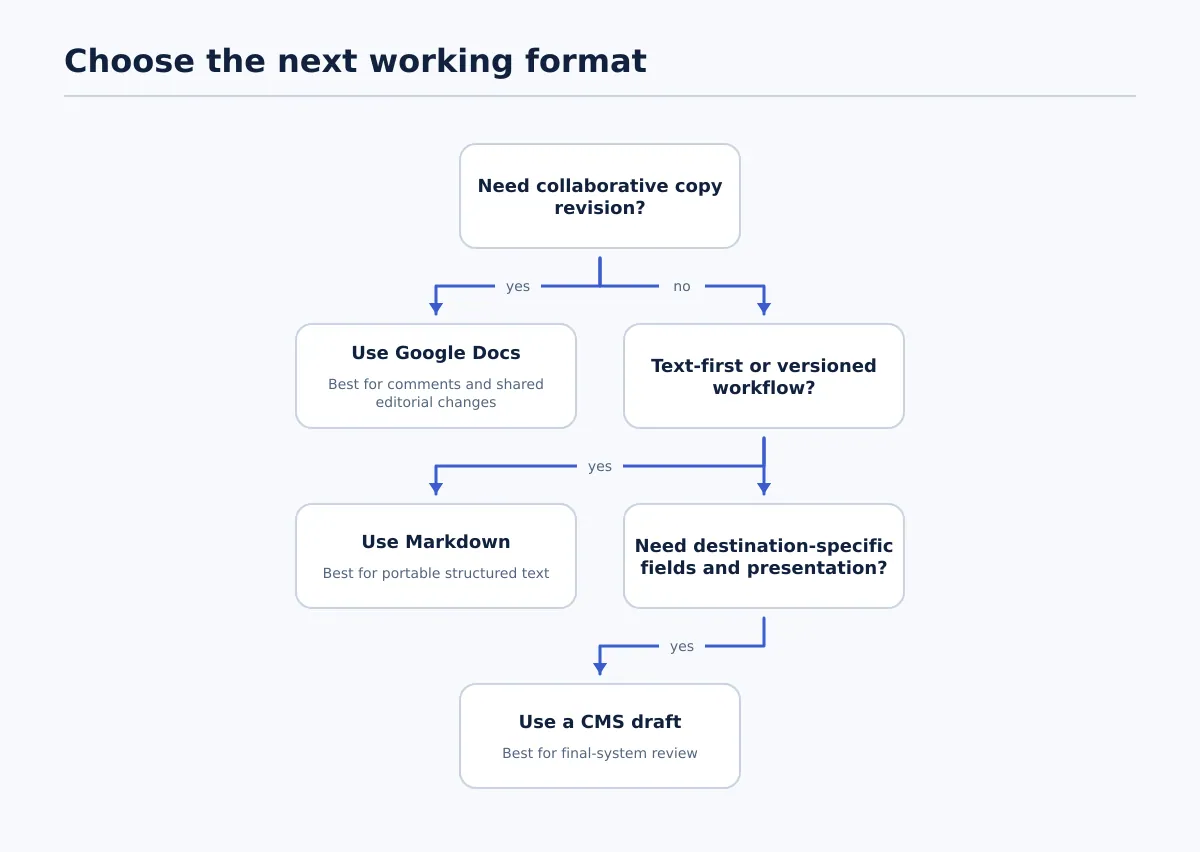 Choose the working format according to the editing need, content complexity, and final destination.
The best intermediate format depends on how the content will be reviewed and where it will go next.
Choose Markdown for portable, text-first content
Use Markdown when the article is primarily text, the team works with versioned files or repository review, and the receiving system supports Markdown. Headings, lists, links, and code are represented as text syntax, which can make changes easier to compare across versions.
Markdown is less suitable when reviewers depend on Google Docs comments, visual page layout, or fields that exist only in a CMS. If the edited article needs a Markdown output, the Google Doc to Markdown workflow explains the complementary direction. Review the generated file and its rendered result for heading syntax, list nesting, links, image paths, tables, and code.
The phrases Google Doc to Markdown converter and google doc to md converter describe that reverse conversion. They are not alternate names for importing HTML into Google Docs.
Choose a CMS draft when the destination is part of the review
Prepare a CMS draft when the team must verify the final system’s fields and presentation. This is the better route when the work includes a slug, excerpt, taxonomy, SEO metadata, featured image, custom fields, author settings, or destination-specific components.
A CMS draft allows reviewers to inspect the body alongside those settings. It does not remove the need to compare an update with the original HTML, but it puts the review in the place where the final presentation will be decided.
If the team has already edited the content in Docs and needs web markup next, use the guide to Google Doc to HTML conversion for that complementary direction.
Three format choices, applied to common team requests
The following examples turn the format rules into an immediate selection:
- “The client needs to rewrite a basic service article.” Use Google Docs. Import or copy the article, verify its headings and links, and keep the live page available for comparison.
- “The article contains a pricing table, calculator, and custom comparison block.” Keep HTML or the live page authoritative. Create a manually prepared Doc for copy-only changes, with explicit placeholders for components requiring implementation.
- “The revised article will be committed to a documentation repository.” Use Markdown after editorial decisions are complete, then inspect the rendered output in the receiving system.
- “The content is ready for a WordPress review with metadata and media.” Prepare a CMS draft rather than treating the converted Doc as the final artifact. For a WordPress or Blogger publishing step, follow the relevant [Google Docs publishing workflow][wordpress:1181].
A word to Google docs converter addresses a different input: a Word file being opened or transformed for editing in Google Docs. That route may help when the supplied source is .docx, but it does not resolve HTML-specific questions about web components, live-page context, or structured markup.
The sensible choice is the format that matches the next decision. Use Google Docs for collaborative copy revision, retain HTML when implementation matters, choose Markdown for portable text, and prepare a CMS draft when destination fields and presentation need direct review.