
Publishing in WordPress is often treated as a single action: a document arrives, someone creates a post, and someone clicks Publish. For a content team, that shortcut obscures several separate decisions.
The approved document identifies the intended content. The WordPress draft is the version that must survive CMS QA. The release owner decides whether that draft can go live. Finally, a public-page check confirms what readers can actually access. Keeping those decisions separate makes a handoff easier to manage when a document, a site, or a schedule changes late in the process.
This guide is for teams receiving an approved document and preparing to publish on WordPress. It does not assume that transferring a file grants permission to release it.
Treat WordPress publish as four recorded decisions
Before work begins, agree that these are distinct states, even if one person performs more than one role:
- Source approved: a named approver has accepted a specific document version for a stated purpose.
- CMS draft checked: a WordPress draft has been compared with that source and its exceptions are resolved or assigned.
- Release authorized: the release owner has approved the final WordPress version, destination, visibility, and timing.
- Live release verified: a named person has checked the public URL and recorded the result.
A draft can be correctly imported without being approved for release. Likewise, a post can show a published status without proving that its public page displays the intended title, images, and links. The record for the item should make it possible to tell which decision has actually been made.
Confirm the approved source and release owner
Start with the source that controls the release—not the latest attachment in an email thread or an editable working copy. The approver should identify the version that the WordPress post is expected to represent. If the document is still changing, label it as in review rather than treating it as approved.
Create a compact handoff record before creating or updating the post. A spreadsheet row, task, or content tracker can hold the same information, provided the team can find it at each stage.
| Field | Example value | Why it is needed |
|---|---|---|
| Source | Client-guide-v6.docx in Google Drive | Identifies the document being released. |
| Source approval | Approved by Priya, 18 September | Shows who accepted the content and when. |
| Destination site | exampleclient.com production WordPress site | Prevents a draft from being created on the wrong property. |
| Intended post type | Post | Distinguishes an article from a page or another content type. |
| CMS draft owner | Leon | Names the person responsible for creating and checking the draft. |
| Release owner | Priya | Names the person who can authorize publication or scheduling. |
| Requested release | Public, 09:00 site time, 22 September | Gives the publisher a setting to verify rather than infer. |
| Open exceptions | Featured image awaiting replacement | Keeps unresolved work visible. |
The source approver and release owner may be the same person, but do not assume that they are. An editor might approve the wording while a client contact, campaign manager, or site owner controls the release date.
If the source arrives as a Google Doc, use a transfer route appropriate to the team’s setup, then inspect the result in WordPress. Our guide to a Google Docs to WordPress handoff covers choosing that route and checking the destination draft.
For teams coordinating several client sites, Tenwrite’s Content Index can help locate and manage content across sites. It also supports exporting Google Docs and MS Word DOCX files stored in Google Drive to WordPress and Blogger. That transfer still creates a draft to review; it does not replace source approval or release authorization.
Create and inspect the WordPress draft
Create the draft in the named destination site and intended post type. Save it as a draft while the comparison is underway. This gives the team a stable CMS version to review without exposing an unfinished post publicly.
The draft QA owner should compare the approved source and WordPress draft in source order. Reading only the draft is not enough: it may reveal a typo, but it cannot reliably show that a section, destination URL, or caption changed during transfer.
Check the title first, then work through headings and body content. Confirm that heading levels still express the intended hierarchy, list items remain separate items, and paragraphs have not merged or split in a way that changes meaning. Open every important link rather than comparing visible anchor text alone. For images, inspect both placement and the caption or alt-text decision where one is required.
Use a short comparison log instead of a generic “reviewed” note:
| Check | Observed difference | Assigned owner |
|---|---|---|
| Heading order | Source H2 “Release timing” appears as a paragraph in the draft | CMS draft owner restores the heading and retests. |
| Featured image | Approved asset is not yet attached | Asset owner supplies the approved file; CMS draft owner adds it. |
| Link destination | Draft points to an older resource URL | Source approver confirms the correct destination. |
| Numbered list | List numbering resets halfway through the article | CMS draft owner repairs formatting and checks the preview. |
| Caption | Caption text is absent from the draft | Editor decides whether the omitted text must be restored. |
Not every difference needs a new editorial decision. The point of the log is to prevent a substantive change from being silently fixed, or an unfinished fix from being mistaken for approval. A draft passes CMS QA when every required comparison item is marked pass, fixed and retested, or escalated to the person who can decide it.
For a wider team-level view of responsibilities and statuses, see the practical guide for content teams.
Resolve differences before authorizing publication
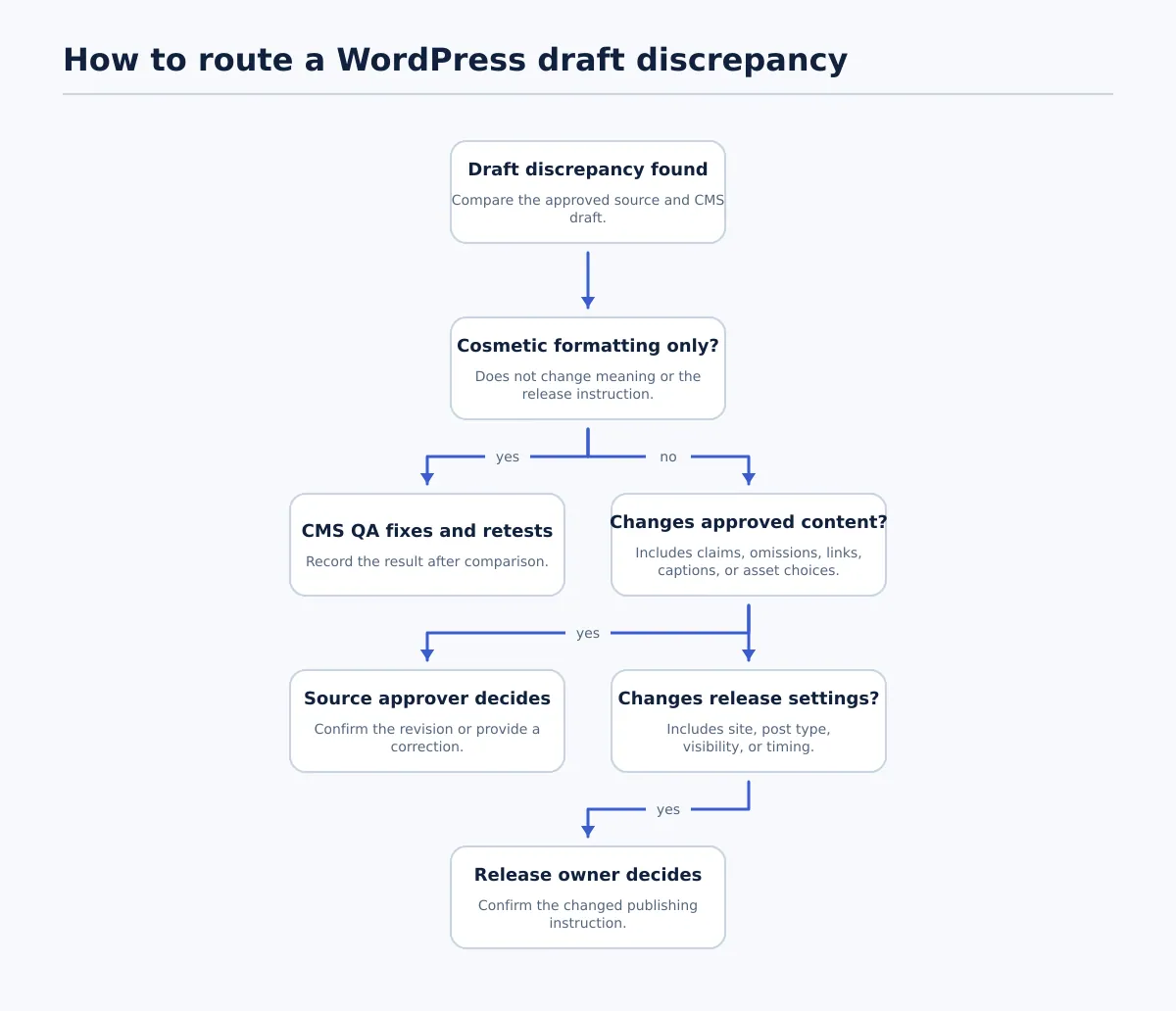 Route each difference according to whether it affects formatting, approved content, or release settings.
A useful rule is based on what the discrepancy changes:
- Cosmetic cleanup can stay with CMS QA when it does not alter the approved message or destination. Examples include correcting accidental spacing, restoring a list style, or repairing a heading level that is clearly identifiable from the source.
- Content-affecting changes return to the source approver. Escalate changed claims, missing paragraphs, different link destinations, revised captions with editorial meaning, substituted images, or any material that the source approval covered.
- Release-setting differences go to the release owner. A changed site, post type, visibility, author assignment, or publication time is a release decision even when the body copy is unchanged.
Use a pass-or-escalate decision for each unresolved item:
| Condition | Decision | Next action |
|---|---|---|
| Difference is a clear formatting defect and the approved source makes the correction unambiguous | Pass after fix | CMS QA owner corrects it, compares again, and records the retest. |
| Difference changes reader-facing meaning, a claim, an asset choice, or a link destination | Escalate | Source approver confirms the revised version or supplies a correction. |
| Difference changes where, when, or how the post will be released | Escalate | Release owner confirms the revised setting before publication. |
Do not treat a conversation in chat as a completed decision unless the outcome is added to the handoff record. Record the mismatch, the owner, the decision, and the retest result. The release owner should authorize the final CMS draft—not an earlier document version that no longer matches it.
Publish with the intended visibility and timing
Once the CMS draft has passed and the release owner has authorized it, the publisher can perform the WordPress publish action. Immediately before doing so, compare the release settings against the handoff record.
Confirm these five items:
- Destination: You are working in the intended production site, not another client property, a staging site, or a similarly named site.
- Post identity: The title and post type match the approved item, so the correct draft is being released.
- Visibility: The selected visibility matches the instruction—for example, public or another explicitly approved access state.
- Timing: The post is being released now or scheduled for the recorded date and time, using the site’s relevant time setting.
- Publisher authority: The person performing the action is the assigned publisher or has confirmed permission from the release owner.
Pause if any setting differs from the record. A corrected slug, a new release date, or a switch from scheduled to immediate publication may be sensible, but it needs the right owner’s confirmation before it becomes the new instruction.
This is particularly important when a team needs to publish WordPress content across multiple sites or in volume. A batch can move items efficiently, but each item still needs an identifiable source, a completed QA result, and an authorized status. For that situation, read how to publish multiple WordPress posts while retaining QA and scheduling control.
Verify the live post and record the release
A successful publish action is the beginning of live verification, not its substitute. Open the public URL in a normal visitor view and check the page itself. Do not rely only on the editor screen or a status label.
At minimum, verify that:
- the URL opens for a public visitor and leads to the intended post;
- the visible title and key headings match the accepted CMS draft;
- required images appear in the expected places and captions are present where applicable;
- key internal, external, and call-to-action links lead to the intended destinations; and
- lists, emphasis, spacing, and other visible formatting remain usable on the public page.
Record the result in the same handoff item. A concise release record might look like this:
| Release field | Example value |
|---|---|
| Public URL | https://exampleclient.com/release-handoff/ |
| Published or scheduled time | 22 September, 09:00 site time |
| Live-page verifier | Inez |
| Verification time | 22 September, 09:12 site time |
| Outcome | Passed: title, links, featured image, and numbered list checked |
| Follow-up | None |
If a check fails, keep the item open. Assign the correction to the appropriate owner, update the CMS draft if necessary, and repeat the affected public-page check. For example, a broken image delivery issue belongs with the CMS or asset owner; a newly discovered inaccurate statement goes back to the source approver.
Use this handoff checklist on the next post
Before you publish on WordPress, make sure the team can answer all four questions:
- Which exact source version was approved, and who approved it?
- Does the checked WordPress draft match that source, with every mismatch resolved or assigned?
- Has the release owner authorized this destination, visibility, and timing?
- Has someone opened the public URL and recorded what they found?
Use the checklist for one upcoming post before applying it more widely. The goal is not to add ceremony around a publish button. It is to make every handoff decision visible, so the approved source, the WordPress draft, and the verified public page remain connected.