
The phrase render HTML in Google Docs describes several different jobs, and they do not have the same output. A team may want to turn HTML content into an editable document, produce HTML from an approved document, or display a published Google Doc on a website.
Those workflows should not be treated as interchangeable. Google Docs is a document editor, not a browser-based HTML rendering environment. It can represent imported or converted content for editing, and Google Docs can provide a published-document embed workflow, but neither action proves that a WordPress article is ready for release.
The practical model is to keep three artifacts separate:
- Source HTML: The original web-oriented content or markup.
- Editable Google Docs draft: The version used for collaboration, review, and approval.
- Web destination: The WordPress draft, published article, or embedded document where readers will see the result.
Once those artifacts are distinct, the right route becomes easier to select and verify.
What “render HTML in Google Docs” can mean
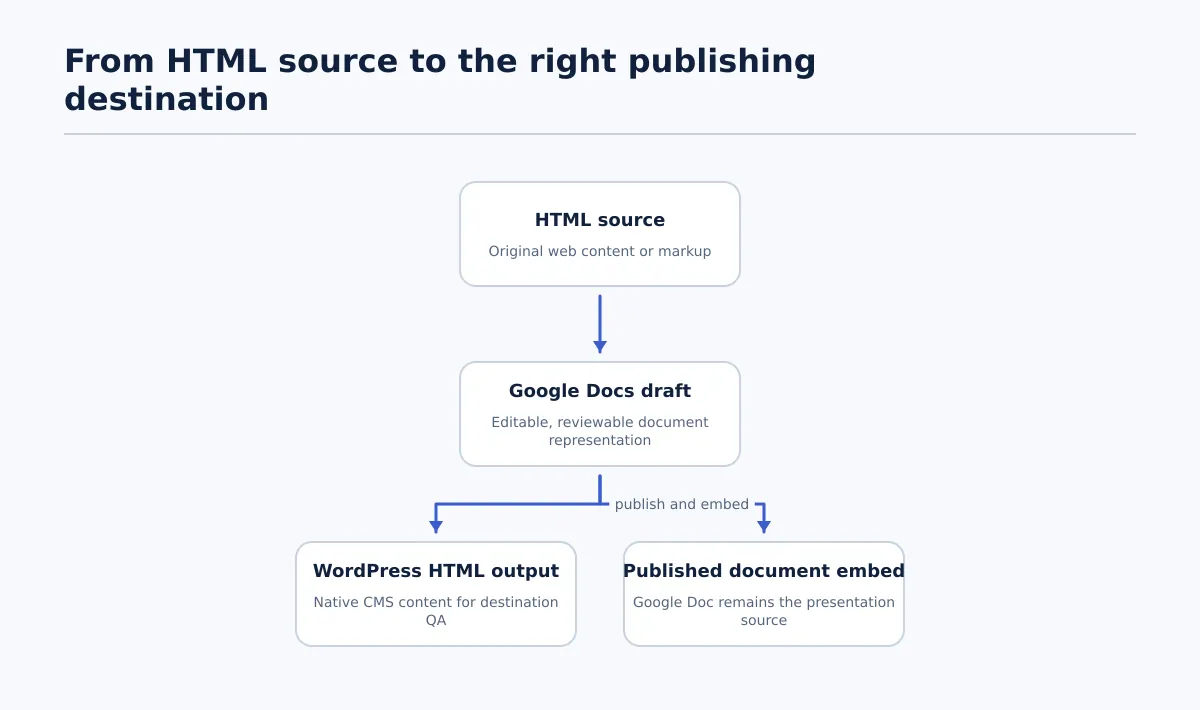 HTML source, editable Google Docs draft, and web destination are separate workflow artifacts.
Google Docs does not execute raw HTML in the same way a web browser does. If you paste tags such as <h2>, <a>, or <ul> into a document, you should not assume that Google Docs will turn them into a functioning webpage. The tags may appear as text, or the content may need to be imported or converted before it becomes editable document content.
In a publishing workflow, “render HTML” usually means one of three things:
| Job | Where the team works | Output | Where the result belongs |
|---|---|---|---|
| Bring HTML content into an editable draft | Google Docs | A document representation of the content | Google Docs for review and editing |
| Produce web-ready markup from an approved document | A conversion or export workspace, then the CMS | HTML or a CMS draft based on HTML | WordPress or another web destination |
| Present a published document on a website | Google Docs and the target site | An embed snippet or published-document view | The website, while the Google Doc remains the source presentation |
The first route is about conversion into a working document. The second is about handoff to a web destination. The third is about displaying a document externally, not converting that document into a native WordPress article.
This distinction also answers the common question, “Can Google Docs render raw HTML like a web browser?” The safe answer is no. Google Docs can contain text and formatting derived from HTML, and a published Google Doc can be embedded on a site, but it should not be treated as a browser, HTML execution layer, or guarantee of unchanged source markup.
Choose the route: editable draft, HTML output, or website embed
Start with the intended destination rather than with the file extension. Ask whether the next person needs to edit document content, inspect HTML, or present a document that remains managed outside WordPress.
| Route | Output | Appropriate owner | Pass condition |
|---|---|---|---|
| HTML-to-editable-document conversion | A Google Docs draft that can be reviewed and edited | Editor or content owner | Required content is present, the structure is usable, and differences from the HTML source are reviewed |
| Approved-document-to-HTML handoff | HTML output or a WordPress draft derived from the approved Google Doc | Publisher, developer, or CMS operator | The destination requirements are recorded and the WordPress draft passes content, media, metadata, and formatting checks |
| Publish-to-web embed | A published Google Doc and an embed implementation on the target page | Document owner and website owner | External visibility is approved and the embedded document displays correctly on the intended page |
Use an editable conversion when collaboration and revision are the immediate goals. Use an HTML handoff when WordPress must contain native, editable post content. Use an embed only when the document should remain the document’s primary presentation and management context.
If the final destination is WordPress, an embed is not automatically a shortcut to a managed article. A WordPress editor may still need a title, slug, metadata, taxonomy, media decisions, and native content blocks. For that workflow, continue with a controlled Google Docs-to-WordPress publishing process rather than treating the embed as the finished post.
Route 1: turn HTML content into an editable Google Docs draft
This route fits a team that has web content in HTML but needs a collaborative document for editing, client review, or approval. The goal is not to preserve every HTML element exactly. The goal is to produce a reliable editable draft while keeping the original source available for comparison.
Keep the HTML source record intact
Before importing or converting anything, save the original HTML in a clearly identified location. Record its source URL or filename, capture date, source owner, and version if those details are available. Do not overwrite the source with the Google Docs copy.
This matters because conversion can change more than appearance. A heading may become ordinary bold text, a nested list may flatten, a link may lose its destination, and an image may appear without the information needed to locate or replace the original asset. The source record gives the reviewer something concrete to compare against.
Create the working document through a tested method
For a short, simple fragment, copying the rendered content into a new Google Doc may be sufficient. For a complete HTML file, a file import, intermediary document format, or conversion tool may be more practical. The supplied research shows several possible methods, but none should be treated as guaranteed to preserve the source unchanged.
Use a separate working document and label its status, such as HTML conversion — awaiting source comparison. If a third-party converter, add-on, or intermediary file is used, record the method in the project notes. Test it with a representative section before processing a larger document.
A representative test should include at least one heading, link, image, list, and table if those elements occur in the full source. Stop and adjust the method if the test removes information that the reviewer needs.
Compare the source and draft element by element
Assign a reviewer who can distinguish an acceptable presentation change from a missing or altered content element. Use the following procedure:
- Headings: Compare the order and level of each heading. Confirm that a visual bold line has not replaced a structural heading and that no section has disappeared.
- Links: Open or inspect each required link in the source and draft. Confirm that the anchor text still points to the intended destination. An underlined phrase without a usable target is not a passing link.
- Images: Match every required image to its position in the source. Record missing files, changed order, captions, and unresolved alt-text or usage questions rather than silently substituting an asset.
- Lists: Compare the number, order, and nesting of list items. A list that looks like separate paragraphs may no longer communicate the same structure.
- Tables: Check row and column relationships, headers, and cell content. If the table becomes difficult to edit or read, record whether it should be rebuilt, simplified, or kept outside the draft.
- Special characters and text: Search for truncated text, duplicated characters, broken punctuation, escaped markup, and visible HTML tags.
The draft passes this stage when the required meaning and structure are accounted for, not when it merely looks similar at a glance. Minor formatting repairs can be made by the editor when the intended result is clear. Missing content, uncertain links, or changed table meaning should go back to the source or content owner.
For a deeper treatment of the conversion boundary, see how to import HTML content into an editable Google Doc. Once the document is approved, it becomes a possible publishing source—not automatic permission to release it.
Route 2: move an approved Google Docs draft toward HTML for a web destination
This route answers a different question: how do you get HTML from a Google Doc for WordPress? The answer depends on the receiving site and the fields it requires. Google Docs can provide an HTML-oriented export, and conversion tools can produce HTML output, but the generated result still needs destination-specific review.
Do not begin by converting an unapproved document. First identify the version that is allowed to move forward, then agree on what the WordPress draft must contain.
Prepare the destination requirements first
Before export or handoff, confirm:
- The approved Google Doc URL and version.
- The destination site and WordPress draft location.
- The working title and final title rules.
- The intended slug.
- The meta description or other required search fields.
- The featured-image decision and image ownership.
- The owner of internal and external links.
- The required category, tags, author, and visibility settings.
- Any content that needs manual cleanup after conversion.
This record prevents the team from treating HTML as a complete publishing package when it contains only body markup. A conversion may represent paragraphs and headings while leaving title fields, images, taxonomy, and release settings undecided.
Use a release-handoff record
A compact handoff record can use the following fields:
Source Google Doc URL:
Approved version or date:
Approval owner:
Approval status:
Destination site:
WordPress draft URL:
Working title:
Final title:
Slug:
Meta description:
Featured-image decision:
Image owner:
Link owner:
Conversion or export method:
Manual cleanup required:
Exceptions and disposition:
CMS QA owner:
Release decision:
The Exceptions and disposition field is important. “Image missing” is an issue description; “image owner will supply replacement before CMS approval” is an actionable disposition. If an exception affects meaning, approval, rights, or release settings, the item should not be marked ready merely because the HTML was generated.
Inspect the HTML-derived WordPress draft
Move the approved content into the receiving draft using the tested export, conversion, or publishing route. Then inspect the result inside the destination environment. Check the title and slug separately from the body. Confirm that headings are represented as headings, lists remain lists, links retain their targets, and images appear in the intended locations.
A successful export is only a handoff event. It is not a pass condition. For a field-by-field process, use Google Doc to HTML: how to export, clean up, and validate content for WordPress. That route is appropriate when WordPress needs editable post content rather than an external document viewer.
Route 3: publish a Google Doc for embedding on a website
A published Google Doc can also be displayed on a website through an embed workflow. In this case, the document remains the source presentation, and the website contains a way to show it. The workflow is different from importing HTML into Google Docs or creating native WordPress content from a document.
Use this route only after confirming that external viewers should read the document in that form. It may fit a reference document, a controlled handout, or another situation where the document owner needs to maintain the content in Google Docs. It is not a general replacement for a WordPress article managed in the CMS.
Before creating or placing the embed:
- Confirm that the document is approved for the intended external visibility.
- Identify the person responsible for publishing or changing the Google Doc.
- Record the target website page and the embed destination.
- Confirm that the website owner accepts the presentation and access behavior.
- Test the embedded document on the target page, including its visible content and layout.
- Record how a later document update will be reviewed and verified.
The supplied embedding reference describes a published-document option that produces an HTML snippet for placement on a site. That establishes the existence of an embed workflow; it does not establish that every WordPress theme, page type, or publishing requirement will present it acceptably.
An embedded document is unsuitable for a normal CMS article when the team needs native WordPress headings and links, independently managed images, post metadata, taxonomy, search fields, or a standard responsive article experience. In those cases, return to the approved-document-to-HTML or direct CMS draft route.
QA before approval and WordPress release
Treat QA as a staged decision, not as a final glance at the page. The person who approves the Google Doc may not be the person who checks the WordPress draft, and source approval does not prove destination correctness.
Stage 1: source-to-draft comparison
Check the converted Google Docs draft against the HTML source:
- Heading order and hierarchy.
- Paragraph completeness and reading order.
- Link text and link targets.
- Image presence, order, captions, and unresolved asset questions.
- List items and nesting.
- Table content and relationships.
- Special characters, visible tags, and unexpected omissions.
Pass condition: Required content and structure are accounted for, and every material discrepancy has an owner or a documented decision.
Stage 2: approval record
Confirm the document version, approver, approval date, and exceptions. If an editor changed wording, structure, links, or media after approval, determine whether the change requires renewed source approval.
Pass condition: The receiving publisher can identify the approved source and knows which exceptions may be corrected during CMS preparation.
Stage 3: WordPress draft review
Check the receiving draft field by field:
- Title and introduction.
- Heading levels, lists, tables, and other formatting.
- Slug and required metadata.
- Images, captions, alt text decisions, and featured-image status.
- Internal and external links.
- Category, tags, author, visibility, and status settings.
- Any embeds or special blocks.
Open representative links rather than assuming that visible anchor text proves the target is correct. Preview the draft at the intended width and inspect the areas most likely to shift during conversion, such as tables, lists, images, and long headings.
Pass condition: The WordPress draft matches the approved source, contains the required destination fields, and has no unresolved exception that blocks release.
For the next publishing step, see how to get HTML code from a Google Doc for a controlled WordPress handoff. The handoff should remain controlled even when the conversion itself is repeatable.
Stage 4: live verification
After an authorized release, verify the public URL rather than stopping at the CMS status change. Confirm that the expected title and visible content appear, images load, key URLs work, and the page displays acceptably on the target layout. Check that visibility and release timing match the approval.
Pass condition: The public page resolves to the intended content and any failure creates a named corrective action. If the page was not meant to be public yet, stop at draft verification instead.
Common workflow mistakes and the safe next step
| Problem | What it usually indicates | Safe next step |
|---|---|---|
| Raw HTML appears as text in Google Docs | The team expected document editing to execute browser markup | Clarify whether the desired artifact is an editable draft or a rendered webpage; retain the HTML source and use a tested conversion route |
| Formatting shifts after import | The document representation does not preserve every source structure | Compare headings, links, images, lists, and tables element by element; repair only clear issues and assign uncertain ones |
| A converter produces output but no one owns cleanup | Generation was mistaken for approval | Create the handoff record and name the CMS QA owner before continuing |
| Images or metadata are missing from the WordPress draft | The body conversion was treated as a complete publishing package | Assign image and metadata owners, record the exception, and keep the draft from release until the disposition is approved |
| An embed was requested for a managed article | Presentation of an external document was confused with native CMS content | Use the WordPress draft route and verify the fields the CMS must manage |
| The final destination is unclear | The team selected a method before defining the output | Stop the conversion, identify the destination and approval owner, then choose the matching route |
The recovery principle is simple: return to the missing decision. If the artifact is unclear, define it. If the source comparison was skipped, run it. If ownership is missing, assign it. If the destination requires native CMS fields, do not release an external document embed as a substitute.
Before the next handoff, define the destination, identify the approval owner, preserve the source, and select the route that produces the required artifact. Then use the relevant comparison and release checks before creating or releasing the WordPress draft. If the team needs a repeatable export path, review how to save a Google Doc as HTML for WordPress or Blogger and validate the result in the actual receiving destination.