
If you need to edit document Google files across a client team, the typing is the easy part. The harder task is keeping each change understandable: who made it, why it was made, whether someone must accept it, and what happens next.
For a single writer, an edit may be finished when the sentence is corrected. For an agency, the same change may affect SEO review, client approval, internal links, calls to action, or the content scheduled for a specific site. The document therefore needs a practical editing routine before it needs a publishing routine.
This guide starts with the essential actions for editing Google Docs files: making a direct edit, suggesting a change, leaving and assigning a comment, and reviewing document history. It then applies those actions to a role-based agency workflow. The goal is not to turn Google Docs into a CMS approval system. The goal is to help your team make the document reviewable before handing the approved work to a separate publishing process.
Why editing a Google document can create publishing risk
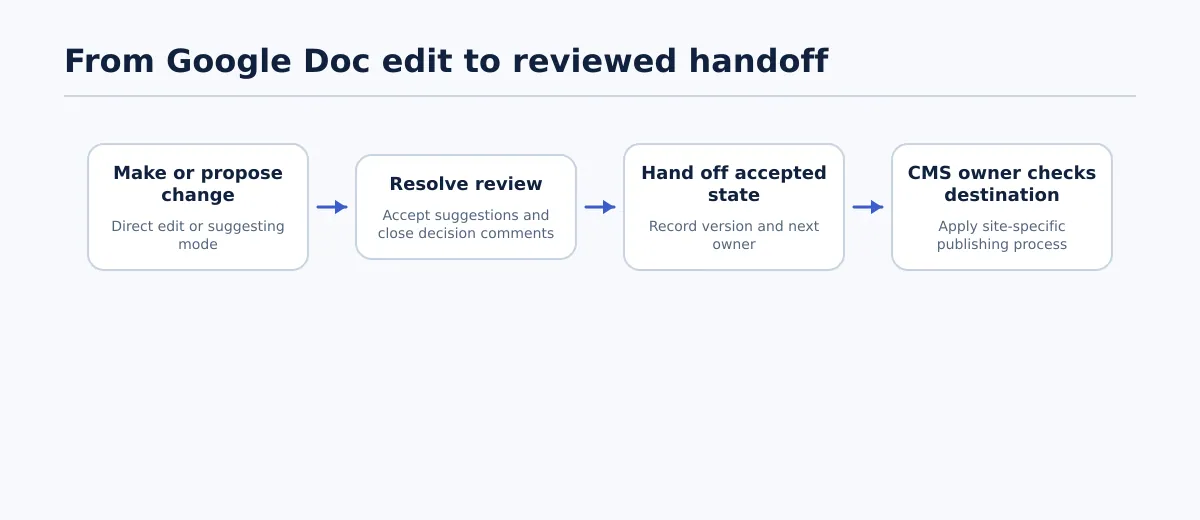 A document change moves through an explicit review step before it is handed to the CMS owner.
Google Docs is useful for shared writing and review. An editor can change text, propose an alternative, ask a question, and inspect earlier document changes. Those actions answer questions about the document itself: what changed, what was proposed, and what still needs a response.
They do not answer every agency release question. A team may still need to confirm the client account, the intended WordPress destination, required fields, and the person responsible for the next step. Treat those as workflow decisions outside the basic act of editing.
Consider this example:
- The SEO lead approves the title Emergency Plumbing Checklist for Homeowners.
- An editor changes it to Plumbing Emergency Checklist: What to Do First while correcting the introduction.
- The document now contains a different title from the one previously reviewed.
The editor has made a legitimate document change, but the team still needs to decide whether the revised title requires another review. That decision should be visible rather than inferred from the document’s latest save.
A useful boundary is:
Editing changes the working document. Review determines whether the change is accepted. Publishing preparation begins only after the responsible team has confirmed the accepted state.
The rest of this article focuses on making that boundary practical for agencies. For the broader approved-source-to-WordPress process, see WordPress Publishing Automation: A Controlled Workflow for Agency Content Teams.
Start with the essential Google Docs editing actions
Before applying agency rules, every editor should know how to perform the core actions consistently. The exact controls can vary by account or interface, so use the document’s current editing, suggesting, comment, and version-history controls.
Make a direct edit
Use a direct edit when you are authorized to change the working text without waiting for another person to accept the change.
- Open the correct Google Docs file and confirm that it is the client document named in the assignment.
- Click in the relevant paragraph, heading, list, or field.
- Add, remove, or replace the text.
- Check the surrounding sentence or section so the change does not create a grammar, formatting, or meaning problem.
- Record the change in the task or document header if it affects a reviewed heading, link, CTA, claim, or publishing field.
For example, correcting a spelling error in a draft can usually be a direct edit. Changing a heading from “How to Choose a Boiler” to “Boiler Installation Cost Guide” changes the subject emphasis and should use a review path instead.
Suggest a substantive change
Use suggesting mode when the proposed wording or structure needs another person’s acceptance.
- Open the document and locate the text to change.
- Switch the document from ordinary editing to Suggesting using the document’s mode control.
- Type, delete, or replace the text as you would during an edit.
- Review the proposed change before submitting it.
- Add a short comment when the reason is not obvious, such as a change to search intent, claim scope, internal linking, or CTA language.
- Name the reviewer responsible for accepting or rejecting the suggestion in the task record or comment.
The proposed wording remains distinguishable from the accepted document text until the reviewer makes a decision. Do not treat the presence of a suggestion as a completed revision. After acceptance, reread the affected section and check whether the approval state must change.
Create and assign a comment
Use a comment for a question, missing input, decision request, or explanation—not as a hidden place to store an instruction that nobody owns.
- Select the relevant words or place the cursor at the relevant location.
- Use the document’s Add comment control.
- Write one specific question or decision request. For example: “Should this CTA point to the service page or the consultation page?”
- Add an owner in the comment or task record using a clear format such as Owner: Account lead; due: 14 May.
- Include the expected answer when useful: “Confirm one URL” is easier to close than “Thoughts?”
- Resolve the comment only after the owner has answered and the document reflects the decision.
If your team uses a comment-assignment feature, assign it to the named person there as well. If not, the owner-and-due-date format still gives the team an observable handoff.
Review a document-change record
Use version history when you need to identify or compare an earlier state of the file.
- Open the correct document.
- Open the document’s Version history controls and choose the option to view the history.
- Select the relevant dated or named version.
- Compare the title, headings, links, and other affected sections with the current text.
- Record the revision date or version label in the review record if that is the state being approved.
- Return to the current version before continuing work.
Version history helps answer “which text was present at that point?” It does not answer “who has authorized this text for release?” Keep those as separate questions. The basic editing actions described above are also covered in the supplied Google Docs editing guide and Google Docs collaboration guide.
Make the Google Doc the controlled editing workspace
A shared document becomes difficult to manage when editors must reconstruct its context from email, chat, and separate client notes. Set up the file so the next person can identify the assignment and current owner without guessing.
Add this header near the top of each client document:
Client and site: [client name and exact website]
Content owner: [name or role]
Current editor: [name or role]
SEO reviewer: [name or role]
Review state: [Draft / In review / Changes requested / Ready for approval]
Source document: [URL]
Target URL or content ID: [value, if applicable]
Intended content type: [post, page, or other type]
Due date: [date]
Planned release date: [date and timezone, if applicable]
Next action: [specific action and owner]
Use the header for editing and review context, not as a substitute for every CMS field. A client site may have its own requirements for categories, author, custom fields, SEO metadata, images, or scheduling.
Before editing begins, apply this pass criterion:
- The correct client and document are identified.
- One current editor is named.
- The requested change has a clear owner.
- The review state and next action are filled in.
- The destination or content ID is known when the document is tied to an existing publishing assignment.
If one of these is missing, stop at setup and resolve the missing information. The purpose is not bureaucracy; it is to prevent two people from editing different copies or waiting on an unnamed reviewer.
Choose editing, suggesting, or commenting deliberately
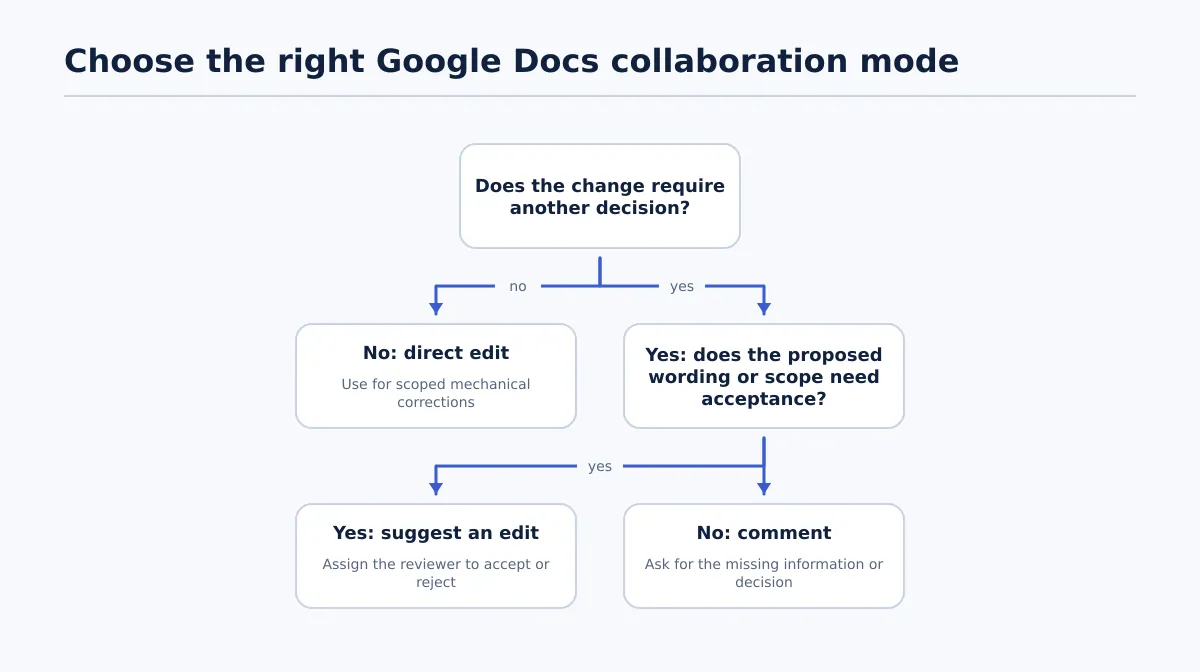 Choose the collaboration mode according to whether the change is authorized, needs acceptance, or needs a decision.
The mode should reflect the level of authority behind the change. Use this decision table at assignment time:
| Mode | Appropriate change | Owner | Completion condition |
|---|---|---|---|
| Direct edit | A scoped correction already authorized by the brief, editor, or reviewer, such as spelling, punctuation, or agreed formatting | Assigned editor | The change is made and any affected section is checked |
| Suggesting mode | A change to wording, heading, structure, claim, link, or CTA that another role must accept | Editor or SEO reviewer | The named reviewer accepts or rejects it, and the result is checked |
| Comment | A missing decision, unclear instruction, missing asset, or question about scope | Person who identifies the issue | The named owner answers it and the comment is resolved |
A simple decision rule is:
- If the change is already authorized and mechanical, edit directly.
- If the change changes meaning or needs acceptance, suggest it.
- If you do not have enough information to choose or make the change, comment and assign the decision.
Do not use suggesting mode for every comma or use direct editing for a change in client positioning merely because you can access the file. The mode is a signal to the next reviewer about how much decision-making remains.
Edit content with clear ownership and review boundaries
A role-based edit should move through one owner at a time. That does not prevent collaboration; it prevents overlapping instructions from becoming an untraceable rewrite.
Use this procedure for a substantive request:
- Describe the change. Identify the section, desired outcome, and reason. “Improve the introduction” is vague; “clarify that the service covers emergency repairs, not planned installations” is actionable.
- Assign one editor. That person makes the edit or coordinates the response.
- Select the mode. Apply the direct-edit, suggestion, or comment rule.
- Preserve context. Add a comment or task note when the change affects search intent, factual scope, internal links, client positioning, or the CTA.
- Name the reviewer. State whether the editor, SEO lead, account lead, subject-matter reviewer, or client must respond.
- Update the review state. A material change should not leave the document labeled as ready for approval without rechecking that state.
Worked example: heading, link, and CTA changes
Suppose an editor is asked to update an approved article:
- The H2 changes from a general topic to a cost-focused topic.
- An internal link moves to a different service page.
- The CTA changes from “download the guide” to “book a consultation.”
Treat these as one scoped change request with three affected elements. The editor uses suggesting mode, comments with the reason for the heading and CTA changes, and names the SEO lead and account lead as reviewers. The link is checked after the suggestion is accepted. If the account lead has not confirmed the CTA, the comment remains open and the document stays in review rather than being treated as complete.
This procedure keeps the editing task narrow: make the requested change, preserve its context, and route the decision to the right role. The full CMS handoff can follow after the document review is complete.
Close comments and verify the accepted document state
A review is not complete merely because the page looks tidy. Close the specific evidence trail that explains what happened to proposed changes and open questions.
Use these completion criteria:
- Every suggestion has been accepted or rejected by the named reviewer.
- Accepted suggestions are present in the current text.
- Rejected suggestions have not been copied into the document accidentally.
- No unresolved comment contains a content, SEO, client, link, asset, or scope decision.
- The current title, headings, links, and CTA have been reread after substantive edits.
- The reviewer has recorded the document as ready for the next stage.
- The review record identifies the relevant version date or label.
When a question arises, use version history to compare the current text with the state that was previously reviewed. For example, if a client says the approved CTA was different, inspect the relevant version, identify when the change occurred, and route the correction to the responsible owner.
Do not use an old version as the new source merely because it is easier to identify. If you restore or copy from an earlier state, record why, identify the resulting current version, and repeat the affected review. The change record explains the document’s evolution; the review record explains which state the team is using.
Apply a focused approval check before CMS preparation
Once the editing and collaboration work is complete, perform a short handoff check before the document enters a CMS workflow. This article’s editing boundary ends here; destination-specific field QA and release decisions belong to the publishing process.
Mark the document Ready for CMS preparation only when:
- The current editor has completed the assigned changes.
- The relevant SEO, account, subject-matter, or client reviewer has responded.
- All accepted suggestions are in the text.
- All decision comments are answered and resolved.
- The title, search intent, scope, links, and CTA match the accepted brief.
- The source URL and review date or version label are recorded.
- The next publishing owner and destination are identified.
Mark it Return for edit when a correction is needed. Mark it Blocked when an owner, answer, asset, destination, or required instruction is missing. Do not move a blocked document into CMS preparation just to keep the queue moving.
This is a handoff check, not a repeat of the complete WordPress QA process. Before a publisher creates a CMS draft, the team should still verify the destination-specific fields and release status described in the publishing SOP for that client site.
Check the fields after the document review is complete
Document editing cannot confirm every value that exists only in the destination CMS. Keep this second-stage checklist concise and site-specific:
| Area | Check after document review | Pass condition |
|---|---|---|
| Destination | Client site, environment, and content type | They match the handoff record |
| Identity | Existing content ID or new-post instruction | The publisher knows whether to create or revise |
| Content | Title, body structure, links, and images | The CMS item matches the accepted source |
| Metadata | Slug, excerpt, SEO fields, canonical, or other required values | Applicable fields are populated according to the site profile |
| Taxonomy | Categories, tags, and custom taxonomy | Values follow that client’s rules |
| Presentation | Featured image, captions, alt text, embeds, and formatting | Required assets render as expected |
| Timing | Author, date, timezone, and schedule | Values match the release instruction |
Not every client site requires every row. The pass condition is that all requirements for the selected destination are checked by the assigned CMS owner. If a missing field requires an editorial decision, return to the document owner instead of inventing a value during transfer.
For practical guidance on comparing publishing tools and handoff methods, see 4 Best Wordable Alternatives for Publishing Google Docs to WordPress (2026). Choose a transfer method that preserves the review boundary rather than assuming document access equals release authorization.
Choose a reviewable CMS status and record the result
After the document has passed its editing review and the CMS owner has completed destination checks, choose the least irreversible status that fits the evidence:
- Draft: use when CMS QA, stakeholder review, field completion, or destination confirmation remains.
- Scheduled: use when approval, CMS QA, destination, and release timing are complete, with an owner assigned to check the scheduled result.
- Published: use only when the release owner has confirmed that all required checks pass and immediate publication is authorized.
- Blocked or held: use when a required decision, asset, destination, or technical check is unresolved.
Record the outcome in the team’s release record, not only in a chat message. At minimum, capture the source document URL, reviewed version or date, destination, CMS status, owner, and resulting URL or identifier when available. For scheduled content, record the scheduled state first and append the observed result later.
A document edit is complete when the editing and review record is clear. A CMS release is complete when the publishing owner can show which source was used, which destination received it, what status resulted, and what follow-up is required. Keep those records connected but do not collapse them into one “saved” state.
Reusable checklist: edit a Google document for client publishing
Use this checklist in an agency SOP. Each item is observable and can be marked complete by a named role.
Prepare
- [ ] Correct client, document, and destination are identified.
- [ ] Content owner, current editor, reviewer, and next-action owner are named.
- [ ] Review state is set to Draft, In review, or Changes requested.
- [ ] Requested change identifies the affected section and desired outcome.
Edit
- [ ] Direct edit, suggesting mode, or comment matches the change type.
- [ ] Direct edits stay within the authorized scope.
- [ ] Substantive suggestions include a reviewer.
- [ ] Comments state one decision or question and name an owner.
- [ ] New claims, links, assets, or missing instructions are assigned rather than guessed.
Review
- [ ] Suggestions are accepted or rejected.
- [ ] Accepted suggestions appear in the current text.
- [ ] Decision comments are answered and resolved.
- [ ] Title, headings, links, CTA, and affected sections are reread.
- [ ] Relevant version date or label is recorded.
Handoff
- [ ] Review state is updated to Ready for CMS preparation.
- [ ] Source URL and accepted review state are recorded.
- [ ] Destination, content type, and next publishing owner are confirmed.
- [ ] Missing information is marked Return for edit or Blocked.
CMS check
- [ ] Required destination fields are identified from the client site profile.
- [ ] Title, slug, body structure, links, images, taxonomy, metadata, and schedule are checked where applicable.
- [ ] The CMS item is compared with the accepted document.
- [ ] CMS QA result is recorded as approved, return for fix, or blocked.
Release
- [ ] Draft, scheduled, published, or blocked status matches the remaining decisions.
- [ ] Release owner has authorized or completed the action.
- [ ] CMS URL or identifier is recorded when available.
- [ ] Status, date or timestamp, exceptions, and next actions are recorded.
Make Google Docs editing repeatable across accounts
The practical way to edit a Google document in an agency is to separate four activities: change the text, signal the type of review needed, close the document-level review, and hand the accepted state to the publishing owner.
Standardize the header, ownership rule, edit-mode decision table, comment format, version check, and handoff checklist for each client. Then editors can work quickly without making the publisher reconstruct why a heading, link, or CTA changed.
When your team is ready to formalize the next stage, review Tenwrite’s controlled WordPress publishing workflow. Use it to connect an accepted Google Docs state with destination QA and a controlled CMS outcome—without treating the act of editing as permission to publish.