
A DOC to HTML converter changes a Word document into an HTML representation, but that is only the format-conversion step. Before the content reaches WordPress, Blogger, or another CMS, someone still needs to verify the structure, assets, links, formatting, and publishing fields in the intended destination.
That distinction matters for editors and content teams working from client documents. An HTML file that opens in a browser may still need cleanup before it can become a reliable CMS draft. This guide explains how to convert a DOC file to HTML, choose the right route for the publishing destination, and review the result before publication.
Choose the publishing destination before converting the document
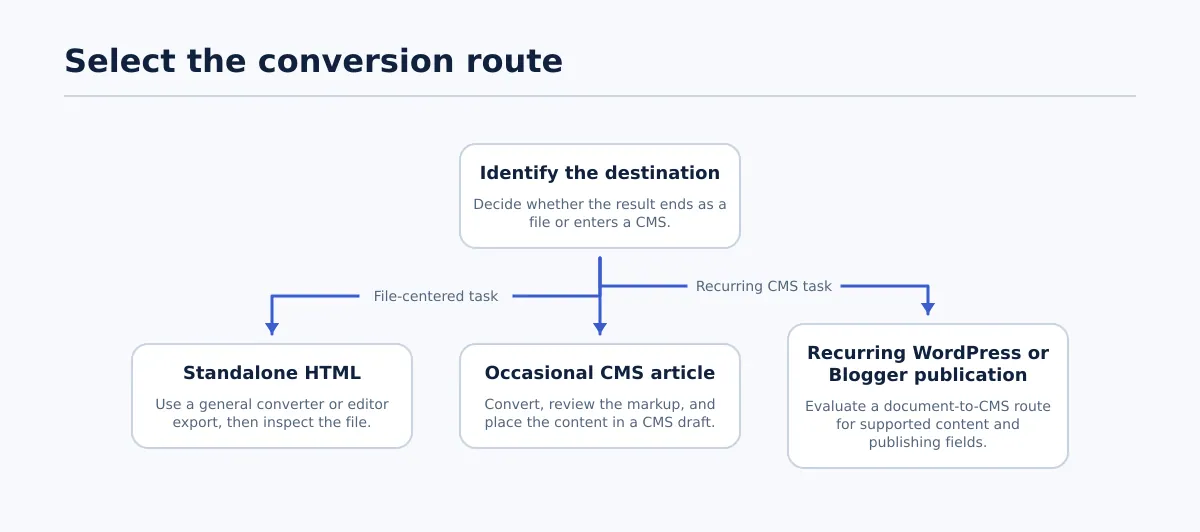 Choose the route according to whether the task ends with a file or continues into recurring CMS publication.
The best conversion method depends on what you need to do with the result. A standalone HTML file, a CMS article, and a recurring document-to-CMS publishing process have different requirements.
| Use case | Source | Destination | Suitable route | Expected result |
|---|---|---|---|---|
| One-off static page or prototype | DOC or DOCX | File system or web server | General DOC-to-HTML converter or editor export | An HTML file, possibly with separate image assets |
| Occasional article | DOC or DOCX | WordPress, Blogger, or another CMS | Convert, inspect, then paste or import into a draft | Reviewed body content; CMS fields entered separately |
| Repeated publishing from a maintained document | Supported document source | WordPress or Blogger | Document-to-CMS publishing route | Supported content and publishing fields transferred into a destination draft for review |
| Text-first technical content | DOC or DOCX | Markdown-based system | Convert or rewrite for Markdown | Portable text that still needs destination-specific formatting and metadata |
Use a general converter when the task is primarily file conversion and a person can inspect the output. Use an editor export when it fits the source application and still produces a file you can review. If the real task is repeatedly turning an approved document into WordPress or Blogger content, evaluate a document-to-CMS route instead of treating every publication as a new file-conversion job.
For the WordPress-specific next step, see SEO with Tenwrite: Publish Google Docs to WordPress. It covers the publishing route and SEO fields that sit beyond the document body.
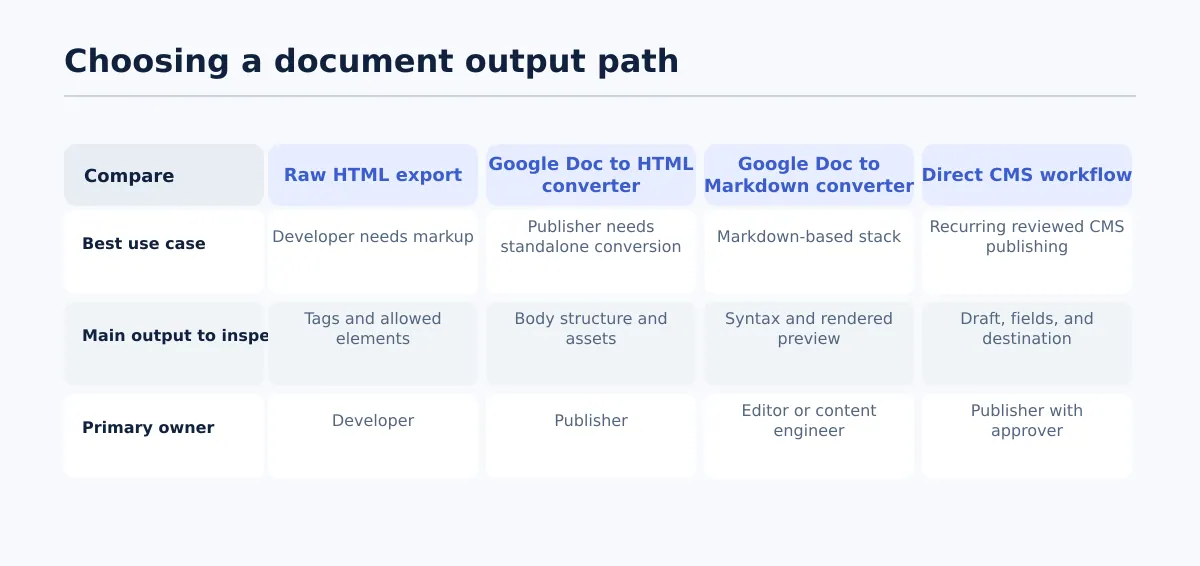
Do not choose a route merely because it offers a download button. Decide where the content will be reviewed, which fields must accompany it, and whether the team needs a file or a CMS draft.
What a DOC to HTML converter does—and what it does not do
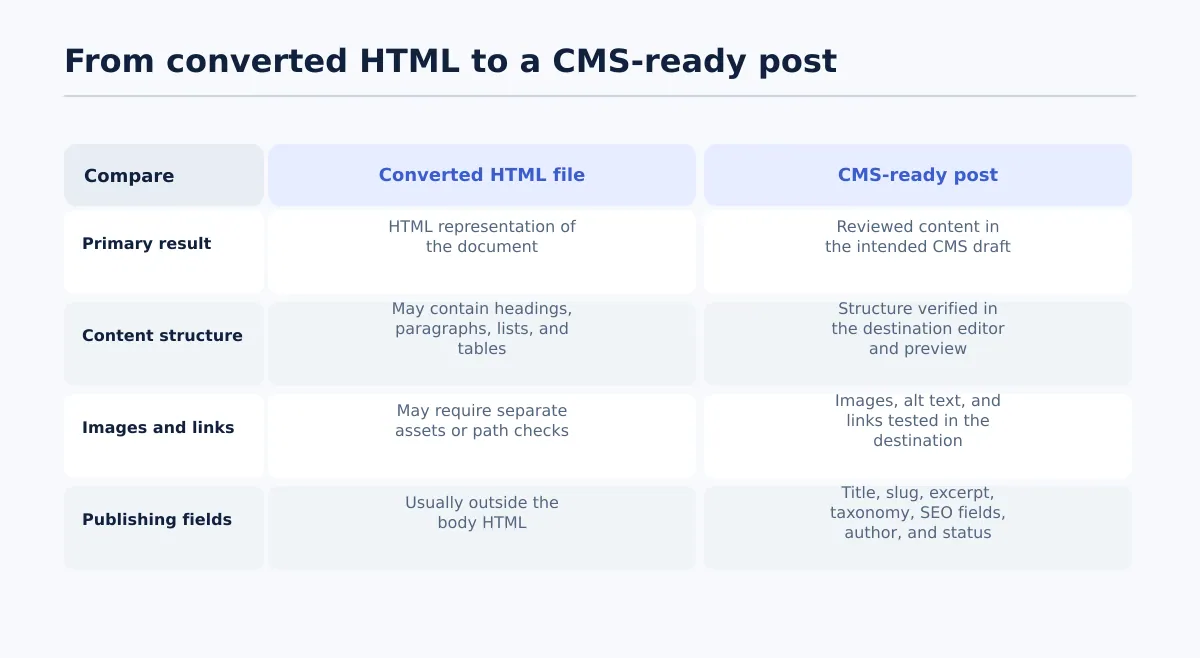 A converted HTML file is an intermediate output; CMS readiness also requires content, asset, and destination-field checks.
A DOC to HTML converter processes a Word document and produces HTML that represents some or all of the document’s content. Depending on the source file and the conversion service, the output can include elements such as paragraphs, headings, lists, links, tables, and image references. The exact result varies with the document’s structure and with the features supported by the selected converter.
The output should therefore be treated as an intermediate artifact, not as an automatic publishing package. Conversion answers one question: can the document be represented as HTML? Publishing requires additional questions:
- Are the headings represented by the correct HTML elements?
- Did lists remain lists rather than becoming ordinary paragraphs with typed numbers or bullets?
- Do links point to the intended destinations?
- Are images present, associated with the right content, and supplied with useful alt text?
- Will tables and formatting work in the destination theme or editor?
- Which title, slug, excerpt, taxonomy, SEO fields, author, and status belong to the CMS entry?
A browser preview is useful, but it does not answer all of these questions. The file may render acceptably while its markup contains unnecessary styles, empty elements, fixed dimensions, or asset paths that will not work after import. The CMS may also transform pasted HTML differently from a standalone browser.
The practical boundary is straightforward: the converter produces a representation of the document; the publishing review determines whether that representation is suitable for the intended site. If the source is a Google Doc rather than a DOC file, this guide to getting HTML from a Google Doc for a WordPress handoff covers the adjacent extraction method.
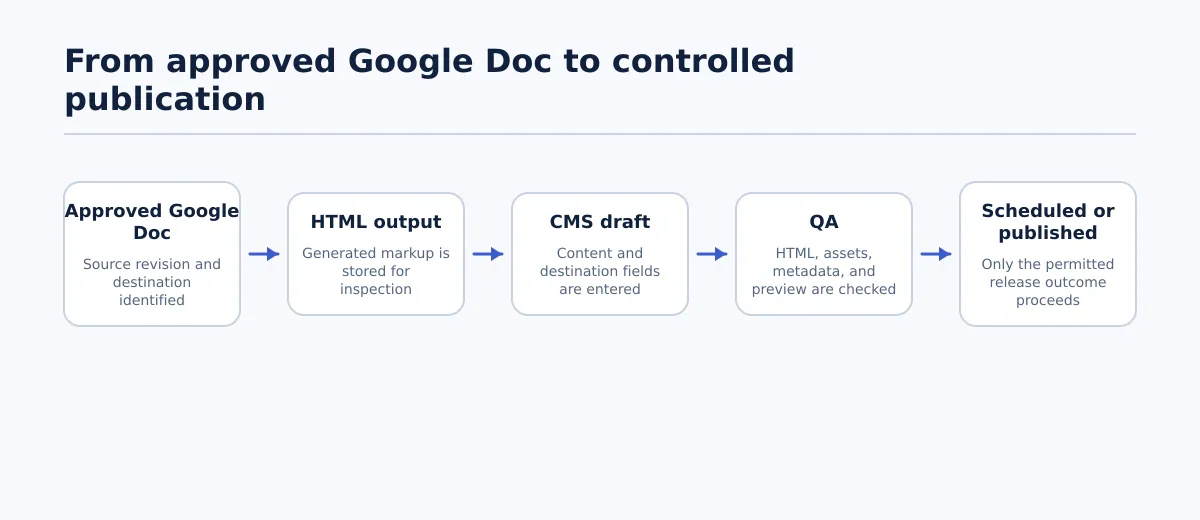
Prepare the Word document before conversion
Source cleanup usually takes less time than repairing a confusing export. A document with a clear semantic hierarchy gives the conversion process better information than one that uses visual formatting to imitate structure.
Before converting, complete this pass:
- Apply actual heading styles. Use the document’s heading levels instead of making section headings bold or enlarging the font manually. Keep the hierarchy logical and avoid using a heading only to create visual emphasis.
- Use real paragraphs and lists. Remove blank paragraphs used to create vertical space. Convert manually numbered lines into numbered lists and manually entered bullets into bulleted lists.
- Review links. Replace bare URLs and vague text such as “click here” with descriptive linked text. Open important links and confirm that their destinations are current.
- Simplify layout-dependent formatting. Remove tabs, repeated spaces, text boxes, decorative columns, and other layout techniques that may have no useful HTML equivalent.
- Review tables. Keep tables that communicate data, but remove tables used only for positioning. Confirm that column headings are understandable and consider how the table will fit on a narrow screen.
- Inventory images. Note every image that must remain, its intended position, and its required alt text. A filename or nearby paragraph is not a substitute for meaningful alternative text.
- Separate CMS information from article copy. Record the proposed excerpt, slug, categories, tags, SEO title, meta description, featured image, author, and publication timing outside the body text so they can be entered deliberately later.
- Remove unresolved editorial material. Delete comments, tracked changes, internal notes, and instructions that should not appear in the published article.
As a quick test, review the document with consistent formatting rather than relying on font size and spacing. If you cannot identify the hierarchy, list structure, or intended image placement in the source, the exported HTML will be harder to validate.
Convert a DOC file to HTML: the basic process
Common DOC-to-HTML converter pages use a similar sequence: select a document, choose the output format, start the conversion, and download the result. The exact controls, file limits, account requirements, and retention terms are specific to the service you choose.
- Confirm the source revision. Use the approved DOC or DOCX file. Do not convert an unidentified local copy when the source may have changed.
- Select the file and review the service conditions. Check the tool’s current limits, privacy information, account requirements, pricing, and batch options before uploading client material.
- Choose HTML as the output. Confirm that you are requesting HTML rather than PDF, plain text, or another document format.
- Start the conversion. Note whether the result is one HTML file or an HTML file accompanied by an asset folder.
- Download and retain related assets together. Keep the HTML and image files in the same working location until all references have been checked.
- Open the output in a browser. Confirm that the file opens, the visible order is sensible, images appear where expected, and links can be followed.
- Inspect the source markup. Use an HTML-capable editor or code view to review elements, attributes, links, image paths, empty tags, and styles.
- Place the body into a CMS draft. Paste or import the content into the intended WordPress, Blogger, or other CMS editor rather than approving the standalone file alone.
- Resolve failures and repeat the relevant checks. Fix the DOC source or clean the exported HTML, then review the corrected result in the destination.
The browser review and markup review serve different purposes. The browser exposes visible layout and missing-asset problems. Markup inspection exposes structural elements, paths, empty markup, and styles that may not be obvious in the rendered page.
Check whether the HTML is actually web-ready
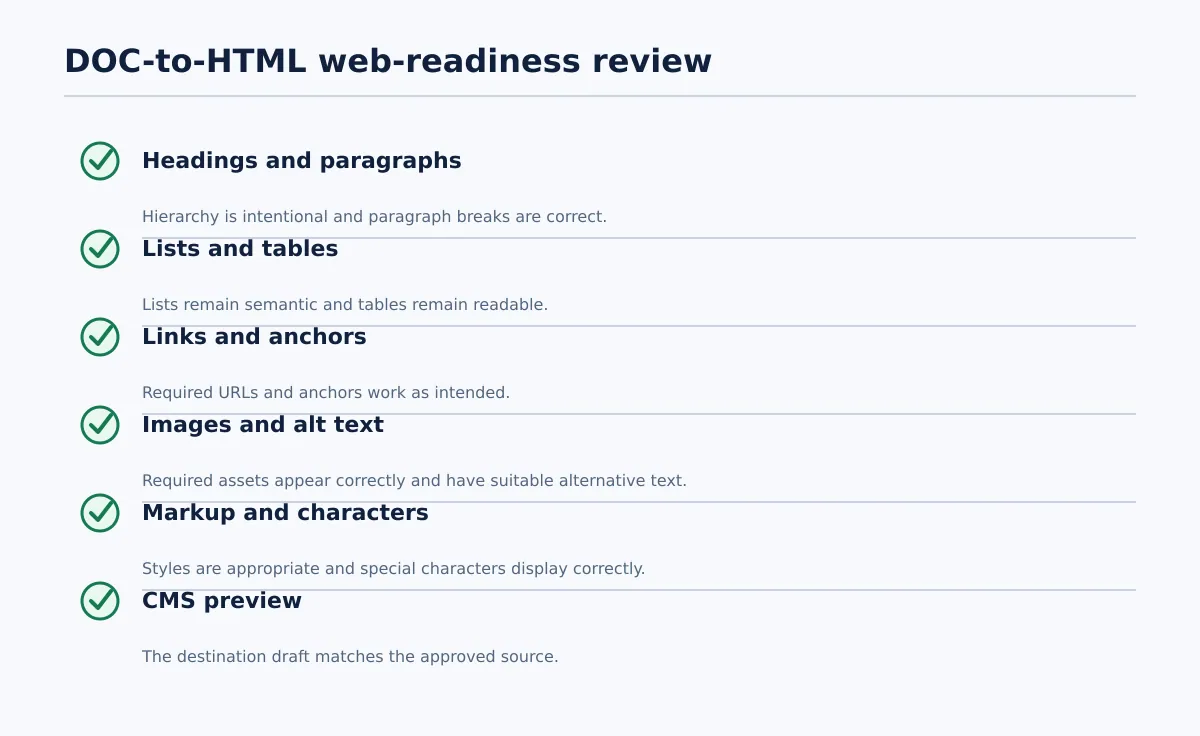 Approve the export only after the HTML and its CMS preview satisfy the relevant checks.
Use a pass/revise review against both the approved document and the destination’s behavior. Record each result instead of treating the entire file as approved because it opened successfully.
| Area | Pass condition | Revise when |
|---|---|---|
| Heading hierarchy | Headings form an intentional sequence and distinguish sections from ordinary emphasis | A heading became a bold paragraph, levels are illogical, or headings were used for decoration |
| Paragraphs | Paragraphs remain distinct and readable | Lines merged unexpectedly, text disappeared, or blank elements create misleading gaps |
| Lists | Ordered and unordered lists use the correct structure and nesting | Numbers or bullets are typed into ordinary paragraphs |
| Links and anchors | Required links have the intended URLs, descriptive text, and working targets | A URL is broken, changed, relative when it should be absolute, or missing a required anchor |
| Images | Required images appear in the right position and have suitable alt text in the destination | An image is missing, duplicated, disconnected from its asset, or labelled with an unhelpful filename |
| Tables | Data is readable in the CMS editor and preview, including at narrow widths | Columns overflow, headings are unclear, or a layout table was carried into the article |
| Markup and styles | The destination supports the elements, and styles do not create avoidable conflicts | The export contains excessive inline styles, empty spans, fixed dimensions, or unsupported elements |
| Characters | Punctuation, symbols, and non-Latin characters display correctly | Replacement characters, escaped text, or altered punctuation appear |
| CMS preview | The draft matches the approved source in the actual editor and preview | The standalone file looks correct but the CMS changes spacing, images, embeds, or other content |
A required broken link or missing image is a revise result even if the rest of the page looks correct. The next action is specific: repair the source and reconvert when the document structure is wrong, or clean the HTML when the conversion introduced a limited markup problem. Then repeat the affected check in the CMS draft.
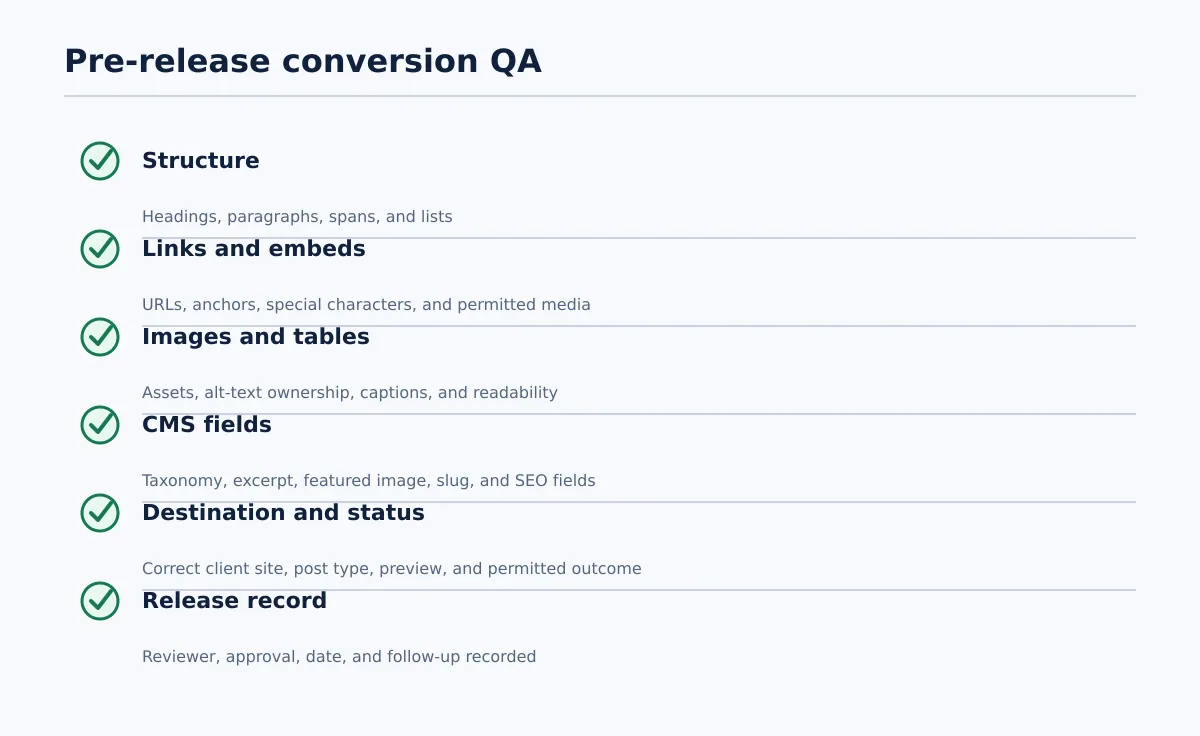
Do not approve based on the browser file alone. The receiving editor, theme, plugins, media handling, and content settings can change how imported or pasted markup behaves.
Handle images, links, and formatting problems after export
The most useful troubleshooting starts with the element that failed rather than with a general rewrite of the entire file.
| Element | Likely issue | Verification step | Next action |
|---|---|---|---|
| Images | The HTML points to a local path, separate asset, or unsupported representation | Inspect the CMS draft and confirm the media reference resolves | Upload or replace the image through the CMS, then add and verify alt text |
| Image dimensions | Fixed width or height causes clipping or overflow | Preview the draft at desktop and narrow viewport widths | Remove layout-dependent dimensions or use the destination’s responsive image controls |
| Links | A relative path, anchor, or tracking parameter changed during conversion | Follow internal and external links from the draft | Correct the URL and retest it in the destination |
| Headings | Visual styling became an ordinary paragraph | Inspect the element in the editor or HTML view | Reapply the intended heading level in the source or CMS |
| Tables | Fixed columns do not fit the content area | Check the table on desktop and mobile | Simplify it, use native CMS table controls, or restructure the information |
| Embedded media | The converter or CMS does not support the original object or embed | Check whether the draft contains a permitted working embed | Reinsert it with the destination’s supported block or embed method |
| Inline formatting | Word-specific styles create noisy or conflicting markup | Search the HTML for repeated style attributes and empty spans | Remove unnecessary formatting and let the CMS stylesheet control presentation |
Do not preserve every word-processing instruction simply because it appears in the source. If the content depends on a particular layout, rebuild it with the CMS’s native blocks or styles where possible. That generally gives the destination a clearer structure to maintain.
Images need both an asset check and a content check. Confirm that the correct file is associated with the correct passage, that the CMS has a usable media record, and that alt text describes the image’s purpose. Test complex tables and pasted elements on desktop and mobile before the draft is released.
Add CMS-specific publishing details that HTML does not carry on its own
The HTML body contains the article content and its inline structure. A WordPress or Blogger post also has destination fields that determine how the entry is identified, organized, displayed, searched, and released.
| CMS field | Review question |
|---|---|
| Title | Is this the approved CMS title, rather than an internal document heading? |
| URL slug | Does the URL use the site’s approved format and wording? |
| Excerpt | Is a separate summary required for archive pages, feeds, or the theme? |
| Featured image | Has the designated featured image been set separately from images in the body? |
| Categories | Does the post use the correct destination taxonomy? |
| Tags | Do the tags match the site’s established vocabulary? |
| SEO title and meta description | Are the search fields complete and aligned with the brief? |
| Author | Is the correct CMS author selected? |
| Status | Should the entry remain a draft, be scheduled, or be published? |
| Publication timing | Are the date, time, and time zone correct? |
Review these values in the CMS draft before publication. A page can contain valid HTML and still be incomplete because its slug, taxonomy, author, status, or SEO fields are wrong. These fields should be mapped from the content brief or site record rather than inferred casually from the document body.
When a document-to-CMS publishing workflow is a better fit
Downloading an HTML file works well for a file-centered task. It becomes less efficient when the same approved document is repeatedly turned into WordPress or Blogger content and editors have to re-enter the same information for every post.
A document-to-CMS route is worth evaluating when:
- The maintained source is a supported document, such as an approved Google Doc.
- WordPress or Blogger is the regular destination.
- Formatting, links, and images need to move with the content where supported.
- Categories, tags, excerpts, and SEO metadata are recurring parts of the publishing package.
- The destination draft will still receive a final content and presentation review.
Tenwrite’s supplied capabilities support moving Google Docs content to WordPress and Blogger while preserving supported formatting, links, images, categories, tags, excerpts, and SEO metadata. Those are transfer areas to test against each site’s requirements, not a guarantee that every document feature or destination rule will transfer unchanged.
For recurring WordPress or Blogger work, the practical question is whether the approved document can remain the maintained source while supported publishing details move into a draft for review. If so, evaluate the document-to-CMS route against a representative article, including its images, links, taxonomy, excerpt, and SEO fields. If the task only requires a standalone HTML artifact, a general DOC-to-HTML converter may be the simpler choice.
DOC-to-HTML conversion questions
What does a DOC to HTML converter produce?
It produces an HTML representation of a DOC file. Depending on the document and converter, that representation may include text structure, links, lists, tables, and references to images. It is not automatically a complete CMS post, and complex formatting or embedded content may need review.
How do I convert a DOC file to HTML?
Select the correct DOC or DOCX revision, choose HTML as the output, run the conversion, download the result, open it in a browser, inspect the markup, and test the content in the destination CMS draft. Correct the source or exported HTML if any check fails.
What should I prepare in a Word document before converting it?
Use real heading styles, actual lists, descriptive link text, normal paragraph breaks, and straightforward tables. Review images and alt text, remove layout-only spacing, and keep the excerpt, slug, taxonomy, SEO information, author, and publication timing available for separate CMS review.
How can I tell whether exported HTML is ready for WordPress or another CMS?
Inspect both the markup and the actual CMS preview. Headings, paragraphs, lists, links, images, tables, characters, and styles should behave as intended. Required CMS fields should also be complete. A browser preview by itself is not enough because the destination may transform markup or handle assets differently.
Which document elements commonly need review after conversion?
Images, links, heading levels, lists, tables, complex formatting, embedded media, special characters, and inline styles commonly require attention. Compare each element with the source and test it in the destination instead of assuming that visual similarity means structural equivalence.
What publishing fields are separate from the HTML body?
Common fields include the title, URL slug, excerpt, featured image, categories, tags, SEO title, meta description, author, status, and publication timing. The exact fields depend on the CMS and site configuration.
Can I convert DOC to HTML for free, without installing software, or in batches?
Those are tool-specific conditions. Check the selected service’s current file limits, account requirements, pricing, privacy terms, device support, and batch behavior before uploading a document. None of those options proves that the resulting HTML is ready for publication.
Will conversion preserve all of my document content?
Not necessarily. Straightforward text structure may transfer more predictably than complex layout, specialized styling, embedded media, or features without a direct HTML equivalent. Compare the result with the source and test it in the destination before approving it.
When is a document-to-CMS workflow more appropriate than downloading an HTML file?
Consider it when a team repeatedly publishes an approved maintained document to WordPress or Blogger and needs supported content and publishing fields to move into a draft. Keep the final CMS review because transfer support does not remove destination-specific checks.
A DOC-to-HTML converter handles the format change. The publishing decision comes afterward: verify the HTML, assets, and CMS fields in the destination. Teams with recurring WordPress or Blogger publishing work can evaluate whether their approved document should remain the source while supported publishing details move into the destination for review.