
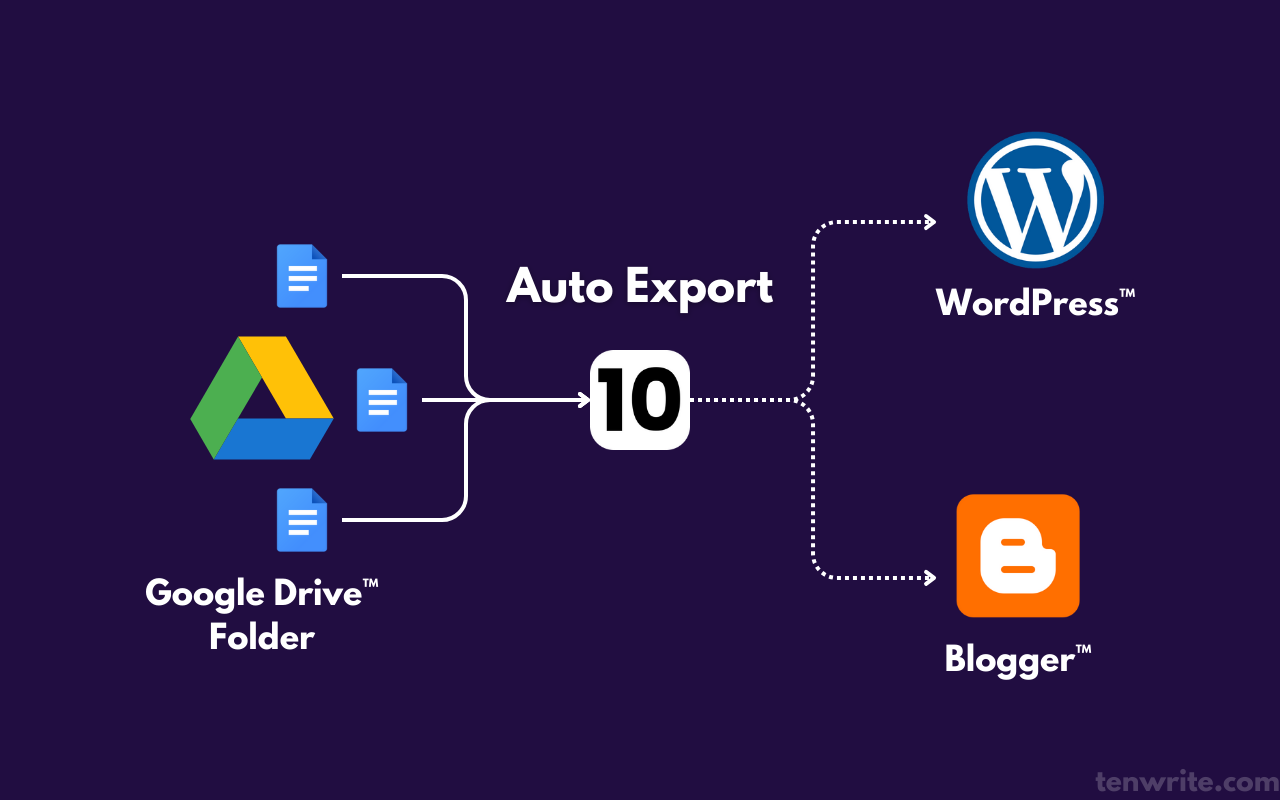
Google Drive and WordPress can be connected for different jobs: displaying a file, accessing media, or turning document content into a WordPress post. Those outcomes are not interchangeable. Before connecting accounts, decide what WordPress should receive—and how your team will confirm that the resulting draft matches the approved document.
A connection can move or display content; it cannot decide which of several edited copies has approval to publish. Treat setup and editorial sign-off as separate checks, and test the chosen route with an unpublished draft before using it for live work.
Choose the connection that matches your publishing task
Start with the result your team needs. An embedded file remains a Drive-hosted resource; a media connection makes selected files available for use in WordPress; a content-transfer workflow aims to put document contents into an editable WordPress post. A connector designed for one job may not support the others.
| Your task | Expected WordPress result | Editorial approval still needed? |
|---|---|---|
| Display a PDF | A page or post presents a Drive-hosted PDF, subject to the chosen method and file-access settings. | Yes. Approve the document and check that visitors who should see it can access it. |
| Access Drive media | Selected Drive files can be accessed or used through a media workflow. | Yes. Confirm that the correct assets and permissions are used. |
| Publish document content | The document’s contents are transferred or converted into an editable WordPress post or draft, if the chosen method supports that output. | Yes. Review the WordPress version, including any changes made during transfer. |
If your goal is to publish article content, use a route that produces a reviewable WordPress post—not an embed that merely displays a document. These guides cover related routes for [publishing Google Docs to WordPress]
publishing Google Docs to WordPress
and [publishing Google Docs to Blogger]
publishing Google Docs to Blogger
. For a wider decision about how a Google Doc should appear on a site, see How to Publish a Google Doc: Web Page, Embed, or WordPress Post?.
If you are comparing tools, first write down the required output and review steps. The [4 Best Wordable Alternatives for Publishing Google Docs to WordPress (2026)]
4 Best Wordable Alternatives for Publishing Google Docs to WordPress (2026)
may help with that tool-selection question; it does not replace checking whether a particular connection supports your intended workflow.
Connect Drive and WordPress using the method you chose
Connection details vary by plugin, integration service, or other method. There is no universal set of buttons or credentials that applies to every Google Drive-to-WordPress connection. Use the current setup instructions for the method you selected, and do not assume that a procedure for a media-library connector also applies to document publishing.
Work through these stages:
- Confirm the prerequisites. Identify the WordPress site and account that will receive the content, the Google account that can access the intended Drive files, and the specific output your chosen method supports. If the method requires a plugin, integration plan, or administrator access, confirm that before starting.
- Authorize the accounts through the selected method. Follow its current instructions to grant the required Google Drive and WordPress access. Check which Google account is being authorized, especially if your browser is signed in to more than one. Grant only the access the method requires; do not make a private working document public as a general workaround for an authorization problem.
- Select the source and destination. Choose the intended file, folder, or other supported source and the correct WordPress site. If the workflow supports a post status or destination choice, select the review state your team expects rather than assuming content will arrive as a draft.
- Check that the connection is usable. Use a permitted test action or file selection to confirm that the authorized account can reach the intended source and that the selected site is the destination. Authorization alone does not show that the connection produces the result you need.
Some methods require Google Cloud configuration or API credentials; others use a different authorization process. Treat credentials as method-dependent. Do not create a Google Cloud project, enable an API, or enter credentials just because a guide for another connector includes those steps. Verify the requirements and current interface labels in the documentation for your chosen method before proceeding.
Test one document in an unpublished WordPress draft
A successful account connection is not the same as a successful publishing handoff. Before using the workflow for live content, test one non-sensitive sample through the method you chose. Use a document with a heading, a link, an image, and a short list so the review covers more than plain paragraphs.
Check the result in WordPress, using the chosen method’s supported controls:
- Destination: Is the content on the intended WordPress site and in the expected post or page area?
- Output: Did the method display a file, make media available, or create editable post content—the result you intended?
- Completeness: Are the heading, link, image, and list present and understandable? Open the link and check that the image is the expected one.
- Release state: Confirm in WordPress that the test remains unpublished. Do not infer its status from the transfer method or from a notification alone.
Record any missing or changed elements and adjust the method or the team’s cleanup steps before expanding the workflow. A test confirms only the route and sample you checked; it does not establish that all files will transfer identically. For a more detailed review of the document-to-WordPress handoff, see Google Docs and WordPress: A Practical Draft-to-Publish Handoff.
Resolve conflicting Drive and WordPress versions before publishing
When copies disagree, use the documented approval decision—not the latest modification time—to identify what may be published. A duplicate file can contain useful edits without being approved, and an editor may have made a necessary correction directly in WordPress. Record the difference and have the designated decision owner resolve it before release.
Consider this hypothetical example:
| Version | What it contains | Approval status | Decision |
|---|---|---|---|
| Approved Drive document | The version reviewed by the client; it says the service is available in three regions. | Approval is recorded for this revision. | Treat as the canonical source unless the decision owner approves a change. |
| Later Drive duplicate | A copied file with a newer timestamp; it says the service is available in four regions. No approval is recorded for that change. | Unapproved change. | Do not choose it solely because it is newer. Ask the decision owner to verify the claim and approve or reject the edit. |
| WordPress draft | Contains the approved three-region wording, plus an editor’s correction to a broken link. | The link correction has not yet been reconciled with the source record. | Keep the draft unpublished while the correction is reviewed and recorded. |
In this example, the decision owner confirms that the three-region wording remains correct and approves the link correction. The duplicate’s unapproved wording is rejected. The team records the approved source revision and accepted link change, updates or verifies the WordPress draft, and holds publication until the comparison is complete. The example is a recommended editorial procedure, not a feature of a Drive or WordPress connector.
For each disagreement, record the source URL or file identifier, the approval reference for the proposed canonical revision, the conflicting passage or edit, who owns the decision, and what change was accepted or rejected. If no one can confirm approval, keep the post on hold. A timestamp can help locate a revision, but it is not evidence of sign-off.
Reconcile the approved source with the WordPress draft
After the decision owner resolves conflicts, compare the approved source against the actual WordPress draft that will be published. Do this manually unless your chosen method provides a check you have independently confirmed; do not assume that a transfer synchronizes later edits or resolves conflicts automatically.
Use this record for each post:
Canonical Drive source link or file ID:
Approved revision or approval reference:
WordPress site and draft ID:
Decision owner / reviewer:
Check date:
Resolved differences and accepted changes:
Compare the title, section order, changed passages, links, images, and captions. For each difference, decide whether it is an approved WordPress-specific adjustment, an accepted correction, or an unresolved mismatch. Record approved differences in the reconciliation record so another reviewer can understand why the draft is not identical word for word.
Pass: The draft matches the approved source on all content that must carry through, and every intentional difference is recorded with an approval or decision reference. The draft is still in the expected unpublished state until its release is authorized.
Hold: A material passage differs without a decision, an expected link or asset is missing or incorrect, the reviewer cannot identify the approved revision, or the WordPress status is not the one the team intended. Resolve the issue and repeat the comparison before publishing or scheduling.
Troubleshoot access problems and repeat checks after edits
Separate connection failures from content discrepancies. If the source cannot be reached, troubleshoot authorization and file access. If it can be reached but the WordPress result differs, check the selected source and destination, then return to the editorial comparison; reconnecting alone will not establish which version is approved.
| Symptom | Checks to make before retrying |
|---|---|
| Authorization fails | Confirm the Google account currently authorized is the one with access to the source. Check that the WordPress account and connection method have the access their setup requires. Reauthorize only through the method’s documented process. |
| A file is unavailable | Verify the selected file or folder and its sharing permissions for the authorized account. Keep private working files private; ask the file owner or administrator to grant appropriate access rather than changing the document to public access by default. |
| WordPress shows unexpected content | Confirm the source file or revision and destination site. Compare the result with the approved source and note what is missing or different. Treat it as an editorial discrepancy until reviewed, not proof that the latest copy should win. |
| A source or draft changes after approval | Record what changed and who made the edit. Obtain renewed approval when the change affects approved content, then repeat the source-to-draft comparison and update the reconciliation record. |
After any access or content change, repeat the relevant checks: confirm the account and permissions, reselect the intended source and destination if needed, inspect the draft, verify its unpublished status, and reopen approval for any changed material. Do not assume that either Drive or WordPress updated the other side automatically.
For agencies placing these checks into a wider release process, [Content Publishing Automation for Agencies: Build a Controlled Workflow From Approval to Release]
Content Publishing Automation for Agencies: Build a Controlled Workflow From Approval to Release
provides related workflow context. To evaluate a Google Drive-to-WordPress publishing route, start with one representative document, keep the test unpublished, and complete the reconciliation record before scaling the workflow. [Tenwrite]
is relevant to teams evaluating document publishing to WordPress or Blogger; confirm that any selected workflow fits your required approval and review steps.