
Getting HTML code from a Google Doc is easy to describe as a conversion task. In an agency publishing workflow, however, the code is only one handoff artifact. The team also needs to know which document version was approved, where the content is going, which fields belong in the destination CMS, and who can release the final draft.
Raw HTML is appropriate when a receiving system explicitly requires markup, such as an HTML email process, custom application, developer handoff, or rich-text editor with an HTML input. A WordPress article, by contrast, may require a reviewed CMS draft with taxonomy, images, an excerpt, SEO fields, and a permitted publication state. Treating both requests as “copy the code and paste it” creates avoidable risk.
This guide shows how to choose the right Google Docs-to-HTML path, prepare an approved source, obtain and verify the HTML artifact, and validate the result before publication. The process is designed for agency owners, editors, SEO leads, and content operations teams moving approved content across client sites.
Define the publishing outcome before extracting HTML
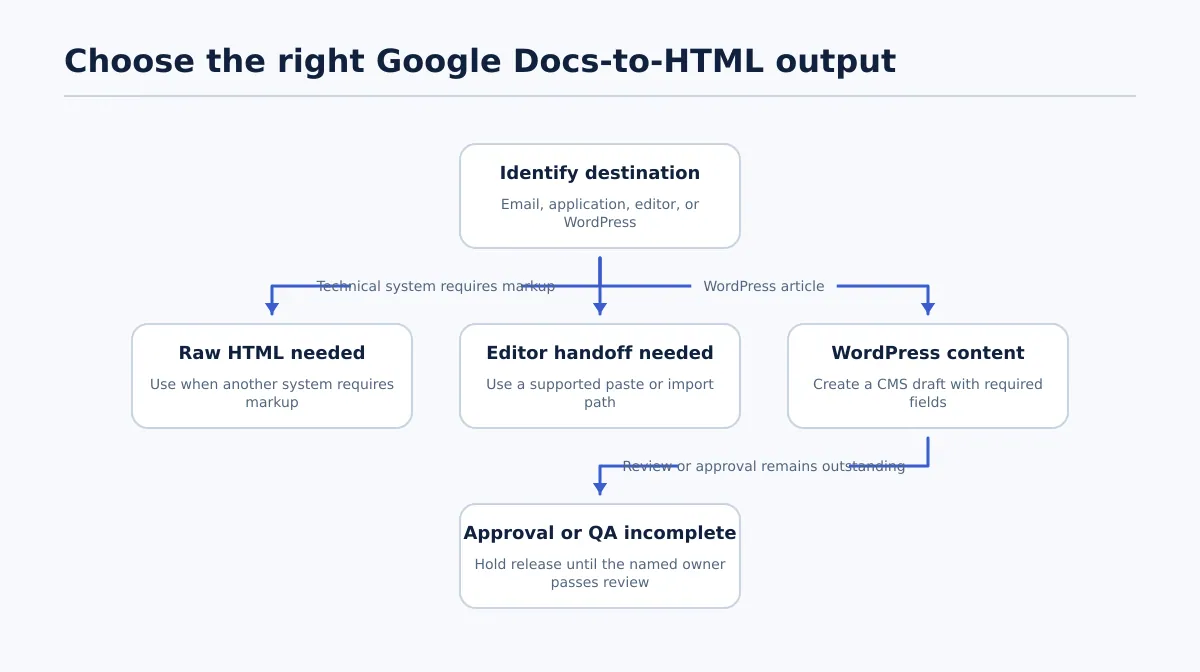 Select the output based on the destination, required fields, and remaining review work.
Start with a more precise question than “How can I get HTML code from a Google Doc?” Ask: What does the destination require, and what decision must the team make after conversion?
Raw HTML is the right output when another system needs markup as an input or intermediate artifact. For example, an email or application workflow may require HTML that is then adapted and tested against that system’s rules. A developer may need markup for a custom component. A rich-text editor may accept pasted content or imported HTML but still transform unsupported elements.
For a WordPress article, HTML may be useful as the body-content handoff, but it does not represent the entire publishing package. The destination may also require a title, slug, author, featured image, categories, tags, excerpt, SEO title, meta description, links, and a permitted publication state. If client approval or CMS QA is incomplete, the correct output is a draft or controlled handoff rather than immediate publication.
| Destination or use case | Appropriate output | Primary owner | Main release risk |
|---|---|---|---|
| HTML email or mail automation | HTML adapted to the email system and tested there | Email or development owner | Markup, styles, links, or images may behave differently in email clients |
| Custom application or developer handoff | Reviewed HTML artifact with implementation notes where required | Developer or technical owner | The markup may not meet the application’s component or security requirements |
| Rich-text editor | Content pasted or imported through the editor’s supported path | Editor or implementation owner | Unsupported formatting, tables, or image behavior may change during paste |
| WordPress article still under review | CMS draft or controlled import with source and approval record | Publisher or CMS QA owner | A converted body may be mistaken for permission to publish |
| Approved WordPress release | CMS draft that passes content, field, rendering, and release checks | Release owner | Body content may be correct while metadata, taxonomy, URL, or schedule is wrong |
For a broader source-control framework, see the Google Docs Publishing Control workflow. Keep approval and release controls separate from the conversion technique.
Choose the right Google Docs-to-HTML path for the destination
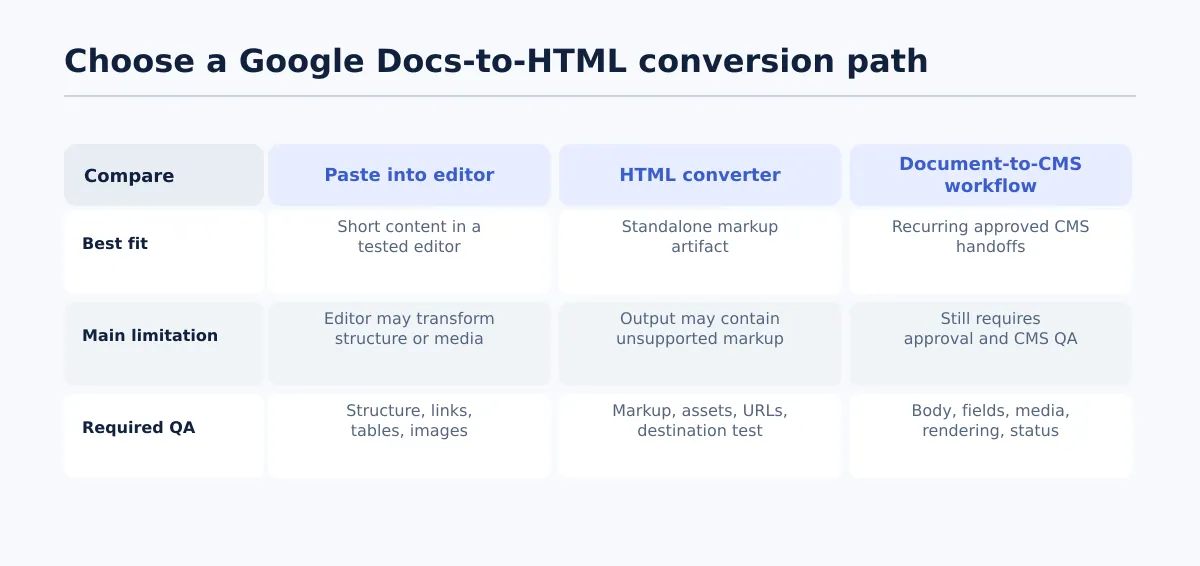 Choose the conversion path according to the destination, required content elements, and review state.
The best path depends on the destination’s capabilities, the document elements that must survive, and whether the team needs raw markup or a complete CMS item. Test the selected path against the actual destination before adopting it for recurring client work.
| Method | Appropriate when | Main limitations | Required QA before handoff |
|---|---|---|---|
| Copy and paste into an editor | The article is short and uses supported paragraphs, headings, lists, and links | The editor may transform structure, formatting, tables, or images during paste | Inspect heading levels, list structure, links, tables, images, and the editor’s HTML or rendered output |
| Google Docs-to-HTML converter | A team needs a separate HTML artifact for inspection, technical handoff, or manual CMS entry | Output may include styles or elements that the destination does not support; fields outside the body remain separate | Open the HTML, inspect the markup and rendered result, check assets and URLs, then test the destination-specific insertion path |
| Document-to-CMS workflow | The agency repeatedly moves approved Google Docs into WordPress or another supported CMS | The workflow still requires source approval, draft QA, field mapping, and release ownership | Compare the CMS draft with the approved source and verify body content, media, taxonomy, metadata, rendering, and status |
Use the paste path only after a representative test confirms that the destination editor produces acceptable structure. Use a converter when the receiving owner specifically needs markup, not simply because HTML sounds more technical. Use a connected CMS workflow when recurring handoffs require document, destination, fields, draft state, and review records to remain connected.
If the content is going to WordPress and the review is not complete, create or update a draft. Do not select an immediate-publication path merely because the conversion succeeded. The Google Doc to HTML Converter guide covers the adjacent conversion decision, while this guide focuses on the controls around the handoff.
Prepare the approved Google Doc as the conversion source
The source document must be identifiable and authorized before anyone extracts or converts it. Do not rely on a filename such as “final” when several revisions or similarly named documents exist.
Assign a document owner who confirms that the content is complete and that review items are closed or explicitly marked non-blocking. Record the approved version using a version label, version-history timestamp, or another identifier that the team can check later.
Use this pre-conversion checklist:
- [ ] Client and destination site are identified.
- [ ] Document owner is named.
- [ ] Content type and intended CMS item are recorded.
- [ ] Approval status is explicitly set to Approved source or the team’s equivalent.
- [ ] Approver and approval timestamp are recorded.
- [ ] Relevant version date, label, or revision identifier is recorded.
- [ ] Target URL, slug, or existing post identifier is recorded when applicable.
- [ ] Intended publication state is recorded: draft, scheduled, held, or another permitted state.
- [ ] Decision comments are resolved.
- [ ] Suggestions are accepted or rejected according to the review process.
- [ ] No unresolved note changes the title, body, link, image, metadata, or release instruction.
- [ ] Required assets and publishing fields are available.
A compact approval record might look like this:
| Field | Example value |
|---|---|
| Client/site | Client A / example.com |
| Source document | Google Docs URL |
| Source status | Approved source |
| Approved version | Version dated 2026-08-12 14:30 UTC |
| Approver | Client content lead |
| Destination | WordPress post, existing ID if applicable |
| Intended state | Draft pending CMS QA |
| Publisher | Assigned content operations owner |
If any field is unknown, stop before conversion or mark the handoff as blocked. The publisher should not infer approval from the document’s appearance or from the absence of visible comments.
How to get HTML code from a Google Doc and keep it traceable
If you need a standalone raw-HTML artifact, use a repeatable export route rather than copying formatted text and assuming that it is code.
- Confirm the approved source. Open the Google Doc identified in the handoff record. Check its title, destination, approval status, and recorded version or timestamp.
- Export the document as a web page. In Google Docs, use the document download option for a web page where that option is available. The download produces a compressed package rather than a code snippet.
- Unzip the package into a versioned working folder. Keep the HTML file and its associated assets together. Name the folder with the client, content identifier, and source version; for example,
client-a-post-104-approved-2026-08-12. - Retrieve the HTML file. Open the extracted
.htmlfile in a text or code editor. The file itself is the raw-HTML artifact. Do not treat the browser’s rendered page as the artifact because it shows the result, not the markup. - Verify that markup was obtained. Confirm that the file contains HTML elements such as headings, paragraphs, lists, links, tables, and image references. If the file contains only visible text or a rich-text paste, the extraction has not produced a standalone HTML handoff.
- Open the file in a browser as a second check. Compare the rendered output with the approved Google Doc. This catches missing assets or visibly broken structure, but it does not replace inspection of the markup.
- Attach the artifact to the release task. Store the HTML file, asset folder, or approved CMS draft reference with the source document and handoff record.
- Record the method and timestamp. Note that the output was exported as a web page, along with the export time and person who performed it.
- Assign a reviewer. The person who obtains the file does not automatically approve its use in WordPress.
A converter can be used instead when the team has approved one for the destination. In that case, retrieve the converter’s actual HTML output, save it with the same source-version identifier, and verify that it opens as markup rather than as a rich-text editor state. A CMS workflow may skip a standalone file, but it should still produce a traceable draft or transfer record.
The extracted file is an intermediate artifact. It proves that a conversion or export occurred; it does not prove that the content, structure, assets, metadata, or CMS rendering are correct.
Validate the HTML before placing it in WordPress
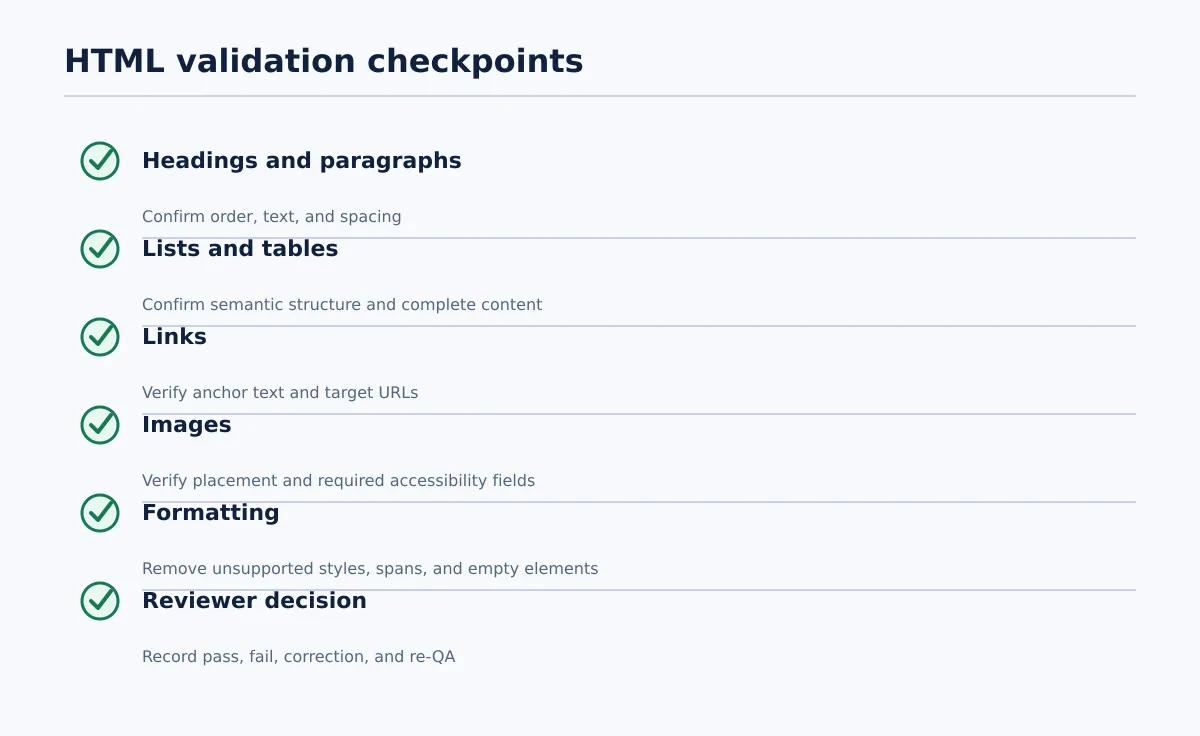 Validate structure, links, media, and unwanted formatting before CMS entry.
Review the intermediate HTML against the approved Google Doc section by section. A rendered page can look close to the source while still containing the wrong heading hierarchy, a broken URL, missing media, or unsupported markup.
| Area | Pass condition | Fail condition | Corrective action |
|---|---|---|---|
| Headings | Heading text is present and levels follow the approved structure | A heading is missing, out of order, or represented as a styled paragraph | Correct the source or HTML, then recheck the surrounding hierarchy |
| Paragraphs | Paragraph breaks match the source and do not create accidental spacing | Text is merged, split, duplicated, or surrounded by unexplained empty blocks | Compare the affected section and regenerate or correct the output |
| Lists | Ordered and unordered lists retain their items and nesting | List items become paragraphs, numbering resets, or nesting is lost | Rebuild the list using the destination’s supported structure |
| Links | Anchor text and target URL match the approved source | URL is missing, outdated, malformed, or attached to the wrong text | Verify the target and route any change through the approved process |
| Tables | Required rows, columns, headers, and cell content are present | Cells are missing, merged incorrectly, or the table does not render properly | Rework the table or use an approved WordPress component |
| Inline formatting | Required emphasis supports the intended meaning and appearance | Excessive spans, inherited styles, or visual formatting changes the meaning | Remove unsupported styling or correct the source formatting |
| Images | Every required image appears in the correct location with required fields | Image is missing, duplicated, misplaced, or lacks required accessibility information | Reattach or replace the asset and complete the destination fields |
| Unwanted markup | HTML contains only formatting the destination needs | Output contains unexplained spans, inline styles, empty elements, or editor artifacts | Clean or regenerate the affected output and test again |
For a simple structural test, compare a source section such as:
Heading: Required fields
List: Client, destination, approver
Table: Field | Owner | Status
Then verify three things in the HTML: the heading is an actual heading at the intended level, the three values are list items, and the table retains its three columns and header row. If any of those checks fails, return the output for correction before adding it to WordPress.
Also inspect content that a visual scan can miss:
- URLs behind linked text, including internal links and required external destinations.
- Image references, captions, alt text, and other fields required by the destination.
- Elements that the WordPress editor may strip, transform, or render inconsistently.
- Empty paragraphs, duplicated headings, pasted comments, editorial notes, and document artifacts.
- Tables or images that look correct in the source but require a different WordPress component.
If a correction changes approved wording, a link decision, an image, or a metadata value, route it to the responsible owner and update the source or handoff record. Do not make an unrecorded editorial change in the HTML file.
Run destination QA on the CMS draft
After the HTML or converted content enters WordPress, review the actual draft. The CMS draft is the release environment: it shows how the content renders and whether fields outside the body are complete.
Assign a named owner and record completion status for each group:
| QA area | Owner | Completion status | Pass condition |
|---|---|---|---|
| Body and structure | CMS QA owner | Not started / Pass / Fail | Approved content is present, ordered correctly, and renders as intended |
| Links and media | CMS QA or media owner | Not started / Pass / Fail | Links resolve to approved targets and images appear with required fields |
| Taxonomy and fields | SEO or publishing owner | Not started / Pass / Fail | Categories, tags, excerpt, author, slug, and custom fields match site requirements |
| SEO metadata | SEO owner | Not started / Pass / Fail | SEO title, meta description, canonical, and other required fields are complete |
| Responsive rendering | CMS QA owner | Not started / Pass / Fail | Desktop and mobile views do not reveal missing, clipped, or unusable content |
| Release settings | Release owner | Not started / Pass / Fail | Status, schedule, timezone, and publication permissions are correct |
At minimum, inspect the post type, title, slug, target URL, heading order, paragraphs, lists, tables, inline formatting, internal and external links, body images, featured image where applicable, captions, accessibility information, categories, tags, excerpt, author, SEO metadata, desktop and mobile rendering, and publication status.
A draft passes only when the assigned reviewer records a pass decision and all required fields are complete. If a field or rendering check fails, use a changes-requested or held state instead of treating the draft as implicitly approved. See the controlled content workflow for agencies for a broader process around draft review and release.
Handle exceptions: late edits, broken output, and missing approval
Exceptions should change the release state and create an owned next action.
A late edit appears after conversion
Stop condition: The Google Doc no longer matches the version recorded in the conversion task.
The document owner classifies the edit as editorial, SEO, factual, legal, media, or release-related. Return the source to review, identify the new approved version, record the new approver and timestamp, and reconvert if the change affects the output. The CMS reviewer repeats the relevant HTML and draft checks. Do not patch the CMS draft while leaving the source record unchanged.
The output breaks in the CMS
Stop condition: Required content, links, images, formatting, or fields are missing or render incorrectly.
The CMS QA owner records the failed area and assigns correction to the publisher, editor, media owner, or technical owner. Correct the source or use an approved destination-specific structure, then reconvert or update the draft through the documented path. Recheck the affected section and update the exception note.
Approval cannot be verified
Stop condition: No named approver, approval timestamp, approved version, or clear destination is available.
Hold the conversion or CMS release. The account or content owner must obtain verifiable approval and complete the handoff record. A publisher should not infer approval from a filename, an isolated message, or the absence of visible comments.
In every case, record the original state, exception, responsible owner, corrective action, new QA result, and resulting release decision.
Use a release record for multi-client publishing workflows
A release record separates “HTML was generated” from “the client-site handoff was completed.” Use one record for each content item and destination, even when several items are processed in a batch.
Capture these fields:
- Client and site.
- Google Doc URL.
- Document owner.
- Approved version, revision label, or timestamp.
- Approval status and approver.
- Destination CMS and content type.
- Target URL, slug, or existing post ID when applicable.
- Conversion method and timestamp.
- HTML artifact location or CMS draft URL/ID.
- Publisher and CMS QA owner.
- QA status for body, links, images, fields, metadata, and rendering.
- Categories, tags, excerpt, SEO metadata, and other destination-specific requirements.
- Intended publication state, scheduled timestamp, and timezone when applicable.
- Release approver and final decision.
- Exception notes, corrections, and re-QA results.
- Published timestamp or final CMS identifier after release.
The handoff is complete only when the approved source, converted output, CMS draft, QA result, and release decision can be connected through the record. That gives an agency a repeatable way to investigate a late edit, reproduce a failed handoff, or confirm which version reached a client site.
If your team manages recurring Google Docs-to-WordPress handoffs, evaluate a workflow that keeps conversion, CMS draft review, metadata, and release checks connected. The right solution depends on your destinations and approval model, but the operating requirement is consistent: convert an identified source, validate the result, and release only after a named owner records the pass decision.