
A Google Doc is a useful editorial workspace, but it is not automatically a publish-ready HTML document. The handoff from writing to publishing can introduce flattened headings, empty paragraphs, broken links, missing images, unwanted inline styles, and tables that behave differently in the destination CMS.
For an agency, the reliable approach is to treat Google Doc to HTML conversion as a controlled publishing stage. First decide whether HTML conversion is necessary. Then standardize the source document, choose a route that fits the handoff, review the exported markup, and verify the result in the client’s publishing environment.
This process helps writers, editors, publishing operators, and approvers understand what they own—and gives the team clear reasons to return, revise, or approve a document.
When a Google Doc should become HTML—and when it should not
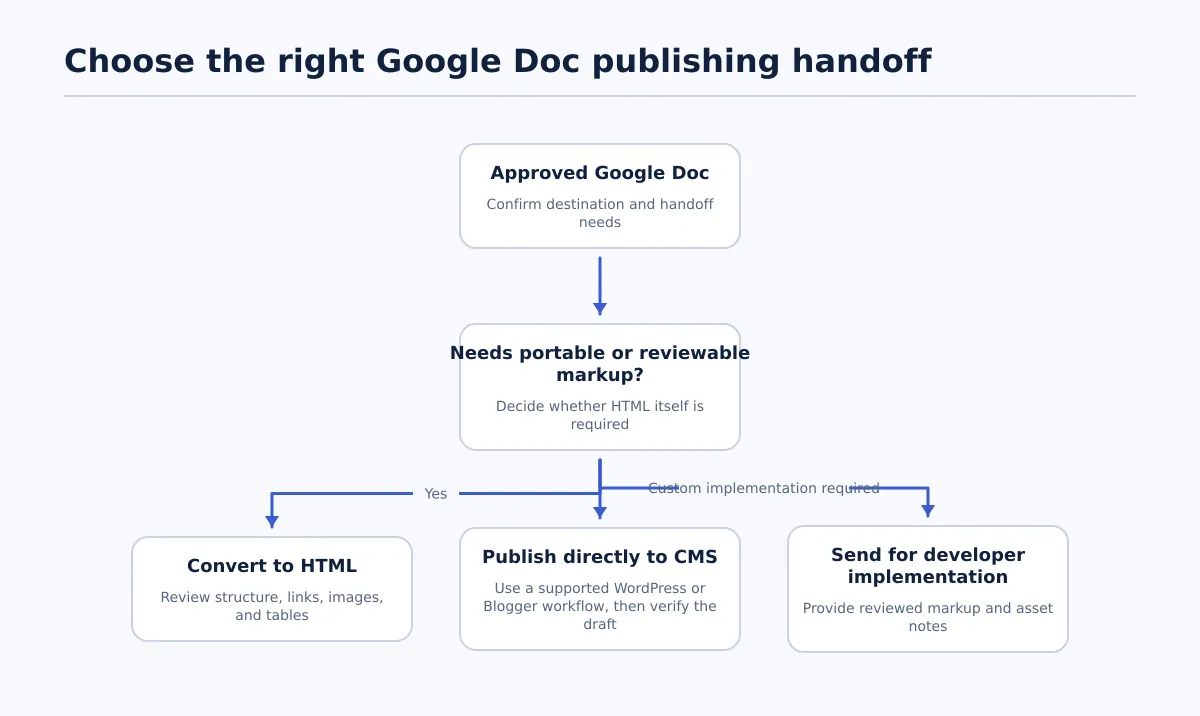 Choose the handoff route based on destination, markup needs, and review requirements.
Converting a Google Doc to HTML means turning the document’s content and formatting into web markup such as headings, paragraphs, lists, links, images, and tables. The output may be pasted into a CMS, reviewed by a developer, stored in a repository, or sent to another publishing system.
Conversion is useful when the next person needs to inspect or implement the markup directly. It is not the same as inserting HTML into Google Docs. Inserting HTML into a document is about bringing web content into an editorial workspace; converting a Google Doc to HTML is about taking approved editorial content out for web publishing.
Do not make conversion the default. Choose the handoff based on the destination and the required level of control:
| Scenario | Recommended route | Decision owner | Required pass condition |
|---|---|---|---|
| A developer needs semantic markup for a custom site | Convert to HTML and send the file or markup with asset notes | Content operations lead | Headings, links, images, and tables are clearly represented and reviewed |
| Content is moving into a non-CMS destination that accepts markup | Convert to HTML | Publishing operator | The receiving system accepts the selected HTML elements |
| The team needs to inspect markup before implementation | Convert to HTML, then run an HTML review | Editor or technical reviewer | Known cleanup issues are resolved or documented |
| Approved content is going directly to WordPress or Blogger through a supported workflow | Publish directly from Google Docs, then verify the CMS result | Publishing operator | The source, destination, field mapping, and approval state are recorded |
| The destination has strict theme, block, plugin, or metadata requirements | Use the route that preserves the required CMS fields, with a draft-stage review | CMS owner or publishing lead | The destination draft passes the client’s publishing checklist |
A direct Google Docs-to-CMS workflow can be more appropriate when the team wants to transfer supported formatting, links, images, categories, tags, excerpts, or SEO metadata as part of one publishing handoff. Tenwrite, for example, supports Google Docs publishing workflows for WordPress and Blogger. The result still needs destination QA; a successful transfer is not the same as an approved post.
Use Google Docs Publishing Tools when the next step is publishing approved content to WordPress rather than delivering standalone HTML.
Prepare the Google Doc for clean conversion
The quality of the HTML depends partly on the discipline of the source document. A conversion tool can interpret document structure, but it cannot reliably infer whether a bold line is a heading, whether a blank line is intentional, or whether an image is approved for reuse.
Before export, the editor should standardize the document rather than leaving cleanup to the publishing operator.
Pre-export checklist
- Heading hierarchy: Use actual heading styles. Start with the document title or page title, then use heading levels in a logical sequence. Do not use bold, larger text, or repeated blank lines to imitate headings.
- Paragraphs: Keep one idea or paragraph in each paragraph block. Remove layout-only empty paragraphs and repeated spaces used to push content down the page.
- Lists: Use Google Docs’ numbered and bulleted list controls. Do not type hyphens, bullets, or numbers manually when the content is intended to become a web list.
- Links: Use descriptive anchor text such as “review the publishing checklist,” not “click here.” Open each link and confirm that it points to the intended destination.
- Images: Place each image near the text that explains it. Confirm that the asset is approved, that the team knows its source and ownership, and that alt-text guidance is available for the CMS handoff.
- Tables: Mark tables that need responsive, mobile, or accessibility review. A table that looks acceptable in a document may need a different implementation in WordPress or Blogger.
- Comments and suggestions: Resolve or remove internal comments, suggested text, and editorial notes that must not enter the published content.
- Formatting: Remove decorative fonts, colors, and manual alignment unless the destination specifically requires them.
- Document boundaries: Identify the title, body, excerpt, metadata notes, asset instructions, and internal-only material so that the converter does not treat all visible text as page content.
The source document passes when another editor can understand its structure from the heading outline, paragraphs, lists, and links without relying on font size, color, spacing, or visual placement. If the structure is unclear in the document outline, it will usually be unclear in the exported HTML too.
For a WordPress-specific preparation and formatting workflow, retain [wordpress:826] as the source reference for the publishing team.
Choose a conversion route based on the publishing handoff
There are three practical routes: built-in export, a converter-based workflow, and manual HTML cleanup. Each can be appropriate, but none should be treated as universally clean or production-ready without review.
| Route | Who performs the work | HTML review required | Likely cleanup burden | Best-fit handoff |
|---|---|---|---|---|
| Built-in Google Docs export | Editor or publishing operator | Yes, especially for images, lists, and destination-specific markup | Variable; depends on document complexity and destination | Occasional transfer where the team can inspect and repair the output |
| Converter-based workflow | Publishing operator or automation owner | Yes; review the converter’s supported elements and output | Often lower for standardized documents, but still document-dependent | Recurring agency workflows that need a repeatable transfer step |
| Manual markup cleanup | Technical editor or developer | Yes; the reviewer is also shaping the implementation | Highest labor and highest control | Custom sites, strict semantic requirements, or exceptional documents |
| Direct Google Docs-to-CMS publishing | Publishing operator using a supported integration | Yes, in the CMS draft and preview | Moves much of the transfer work into the workflow, but does not remove QA | Approved WordPress or Blogger content with known field mappings |
The route should be recorded in the handoff record. A useful field set is document_url, destination_site, conversion_route, asset_status, reviewer, approval_status, and exception_notes.
For example, an agency may use a converter for a developer handoff but choose direct publishing for a recurring WordPress article type. That is not an inconsistency: the two routes have different owners and different acceptance criteria.
Run an HTML quality check before CMS handoff
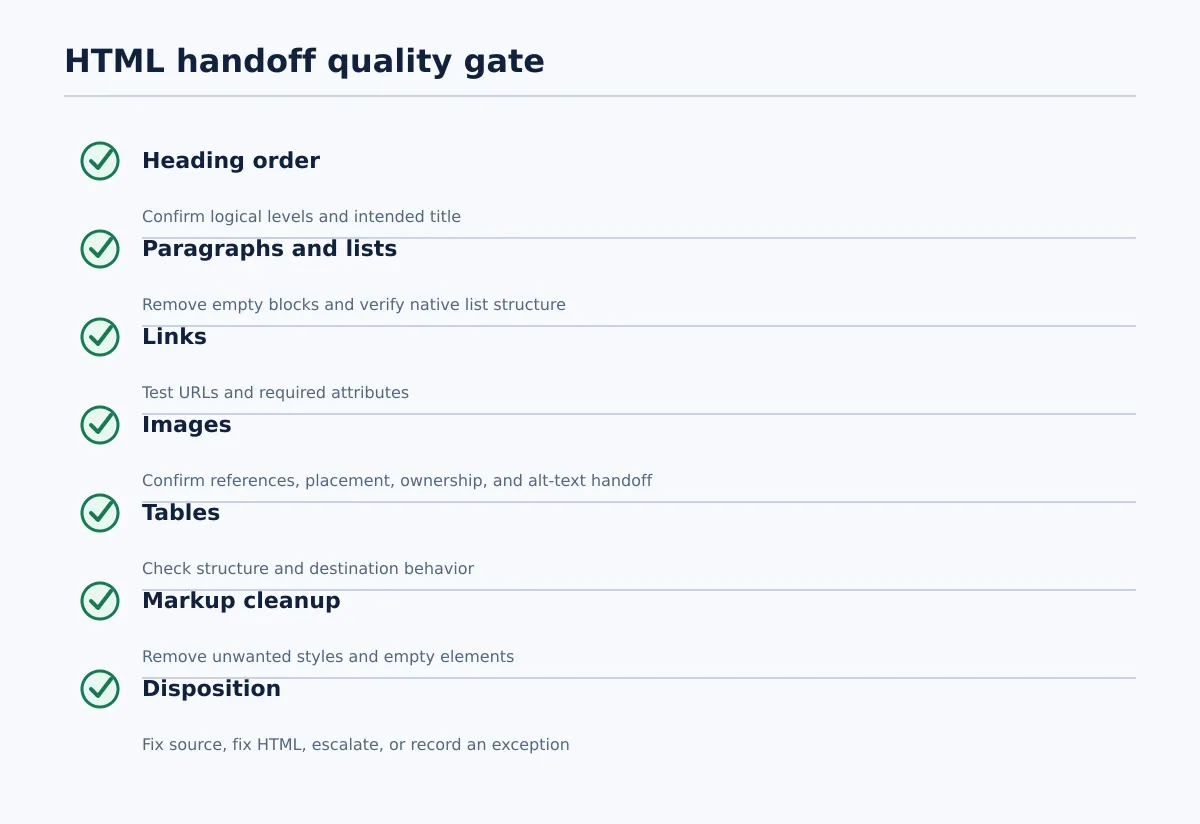 Review structure first, then assets and destination-specific markup.
Review the exported HTML in a controlled copy before sending it to the client site. The reviewer should inspect in a fixed order so that structural problems are found before cosmetic cleanup.
1. Confirm the heading order
Check that the page has one intended main title and that section headings follow a logical hierarchy. A heading that jumps from level two to level four may be technically renderable but still signals a source or implementation problem.
- Fix in the Google Doc when a heading was created with visual formatting or the hierarchy is editorially wrong.
- Fix in HTML when the source structure is clear but the export changed a heading element.
- Escalate to the CMS or development owner when the destination applies its own heading structure or template elements.
2. Inspect paragraphs and lists
Look for empty paragraphs, repeated line breaks, typed bullets, and numbered steps that became ordinary text. A list passes when each item is represented as a list item and the list starts and ends at the intended boundaries.
Correct the source when the document used manual symbols or spacing. Correct the HTML when the converter introduced unnecessary wrappers or split one list into several lists without an editorial reason.
3. Check links and link attributes
Compare every link with the source document. Confirm the URL, anchor text, and any required behavior such as target or rel attributes according to the client’s policy. Do not assume that a link that looks correct in the document has the same URL in the export.
A broken or redirected link should be recorded with its exact source location. The editor owns an incorrect destination; the HTML reviewer owns a malformed anchor; the CMS or development owner owns a site policy that changes link behavior.
4. Review images and alt-text handoff
Confirm that every intended image appears once, has a usable reference, and is associated with the correct surrounding content. A source document may contain an image that the HTML references but the CMS cannot access or manage.
The content team owns asset approval and source information. The publishing operator owns uploading or mapping the asset in the CMS. The reviewer confirms that the resulting image reference and alt-text field are present before approval.
5. Examine tables
Check column order, header treatment, empty cells, and whether the destination can render the table on smaller screens. If the table is only being used to align text in the document, it may need to become ordinary paragraphs or lists instead.
6. Remove unwanted markup
Inspect for excessive inline styles, empty elements, repeated spans, pasted content from another website, and comments or notes that should remain internal. Do not strip markup blindly: remove presentation noise while preserving meaningful emphasis, links, lists, and structure.
7. Record the disposition
Every issue should receive one outcome: fixed in source, fixed in HTML, escalated to CMS/development, or accepted as an approved exception. This prevents the same defect from being silently repaired at different stages by different people.
Test links, images, and page structure in the publishing environment
Clean-looking HTML can still render incorrectly after it enters WordPress or Blogger. The CMS editor, theme, block system, plugins, image handling, and metadata fields can all affect the final result. Conversion does not control those layers.
Use a draft or staging review before publication:
- Confirm the destination site and post type.
- Compare the CMS title, body, headings, lists, links, and tables with the approved source.
- Preview the content on desktop and mobile layouts required by the client.
- Open priority internal and external links from the preview.
- Confirm that images display, are positioned correctly, and have the expected alt-text handoff.
- Check the slug, excerpt, category, tags, and SEO metadata where the workflow supports those fields.
- Record the reviewer, review time, approval status, exceptions, and draft or live URL.
A post passes this stage only when the rendered content and required publishing fields match the approved handoff. If the body is correct but a theme changes spacing or a plugin changes link behavior, assign the issue to the CMS owner rather than rewriting the source document.
Troubleshoot common Google Doc-to-HTML conversion failures
Start by isolating the smallest affected section. Correct one issue, rerun the relevant check, and avoid making broad changes to a client workflow until the cause is known.
| Symptom | Likely source | Owner | Corrective action |
|---|---|---|---|
| Headings are flattened into bold paragraphs | The source used visual formatting instead of heading styles | Editor | Apply real heading styles in the Google Doc, reconvert, and recheck the outline |
| Extra spacing or blank lines appear | Layout-only empty paragraphs or repeated returns in the source | Editor first; HTML reviewer for export artifacts | Remove empty paragraphs in the source; remove remaining empty elements in HTML only when their removal does not change meaning |
| Bullets or numbered steps render as ordinary text | Symbols or numbers were typed manually | Editor | Replace typed symbols with native list controls and reconvert |
| A list is split or nested incorrectly | The export misread list boundaries or mixed list types | HTML reviewer | Compare against the source; repair the markup when the intended structure is unambiguous, otherwise return the source for cleanup |
| Images are missing or relocated | The image reference is inaccessible, the asset was not transferred, or placement was ambiguous | Publishing operator and asset owner | Confirm ownership and asset status, upload or remap the image in the CMS, and return to the editor if placement is unclear |
| Links are broken or point to the wrong page | The source URL was wrong, the anchor was malformed, or pasted content carried an unwanted URL | Editor for destination; HTML reviewer for markup | Test the URL, correct the source or anchor, and retest in the destination preview |
| Pasted content contains unwanted styles or spans | Content came from another formatted source or the route preserved inline presentation markup | HTML reviewer | Strip unnecessary presentation markup while preserving semantic elements; update source standards if the same paste recurs |
| A table does not render as intended | The CMS theme or editor handles tables differently from Google Docs | CMS or development owner | Simplify the table, rebuild it using the destination’s supported structure, or escalate if responsive behavior is required |
| Content appears correct in the editor but not in preview | Theme, plugin, block, or CMS rendering behavior changed the result | CMS owner | Compare editor and preview, identify the responsible destination layer, and document the site-specific exception |
The key distinction is ownership. Do not ask the HTML reviewer to repair an editorially ambiguous document, and do not ask the writer to diagnose a theme or plugin conflict.
Create a repeatable agency handoff checklist
Pilot this procedure on one recurring client content type before applying it across every account. A small pilot exposes site-specific rules, unsupported elements, and unclear approval states without turning the whole agency workflow into an experiment.
Writer
- [ ] Uses heading styles, native lists, descriptive links, and intentional paragraphs.
- [ ] Places approved images near the relevant content.
- [ ] Resolves or clearly labels comments and suggestions.
- [ ] Completes the document URL and asset status fields.
Editor
- [ ] Confirms the source passes the pre-export checklist.
- [ ] Confirms the destination site and intended publishing route.
- [ ] Verifies links, table purpose, image ownership, and metadata notes.
- [ ] Records the conversion route and any exceptions.
Publishing operator
- [ ] Converts the document or starts the direct CMS handoff.
- [ ] Reviews the exported HTML or CMS draft before submission.
- [ ] Maps images, taxonomy, excerpt, slug, and supported SEO fields according to the client profile.
- [ ] Tests the draft preview and records the draft or live URL.
Final approver
- [ ] Confirms the rendered page matches the approved content.
- [ ] Checks required links, images, headings, lists, metadata, and client-specific elements.
- [ ] Records
Approved,Revise, orEscalaterather than leaving an ambiguous status. - [ ] Names the owner for every unresolved exception.
Required handoff record
Keep these fields with the content item:
- Document URL
- Destination site and post type
- Conversion route
- Asset status and ownership notes
- HTML reviewer
- CMS publishing operator
- Final approver
- Approval status
- Exception notes
- Draft or live URL
The workflow is ready to expand when another team member can follow the record from approved Google Doc to verified CMS result without guessing which route was used or who owns the next decision.
If direct publishing is the better fit for a recurring WordPress or Blogger content type, evaluate a Google Docs-to-CMS workflow alongside this checklist before standardizing it across accounts. If a developer needs portable markup, keep the HTML route and its QA gate. The right process is the one that makes the destination, ownership, and pass conditions explicit.