
WordPress - Manage Sites
WordPress > My Sites is your home base for everything site-related — see what you have connected, check their health, and take quick actions without digging through menus.
Opening My Sites
Section titled “Opening My Sites”- Log in to the Tenwrite Web Dashboard.
- Click WordPress > My Sites in the sidebar.
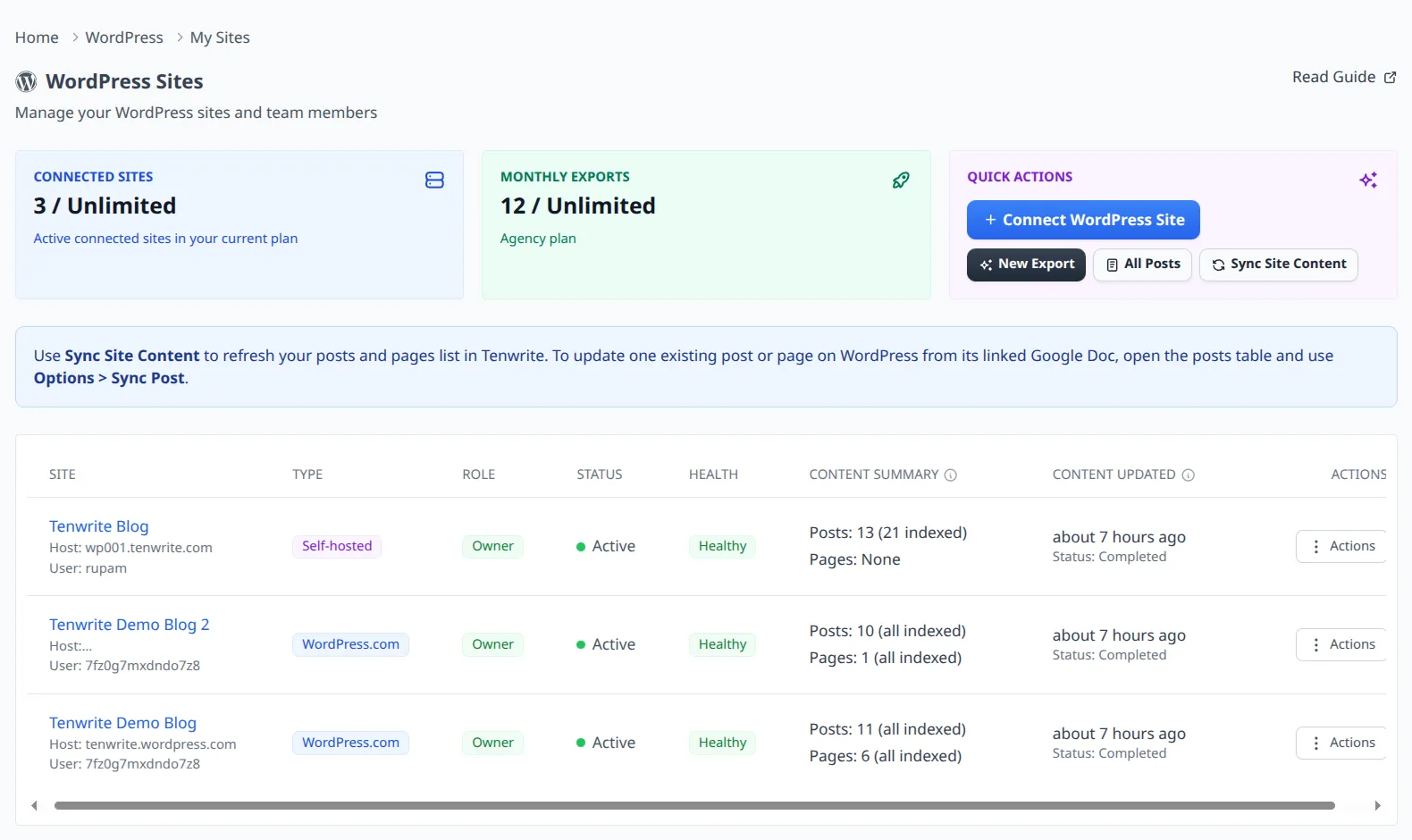
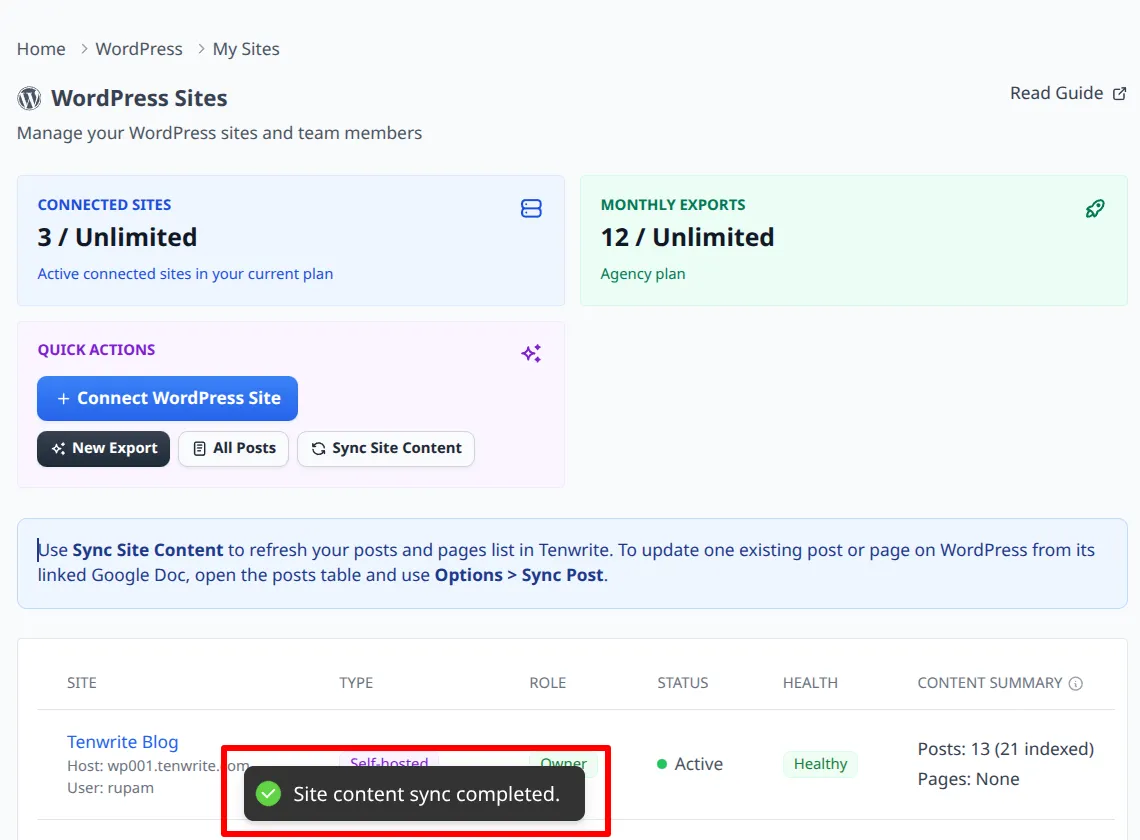
At the top of the page, three overview cards give you a quick snapshot:
- Connected Sites — how many sites you have active, and how many your plan allows.
- Monthly Exports — your export usage for the current billing period.
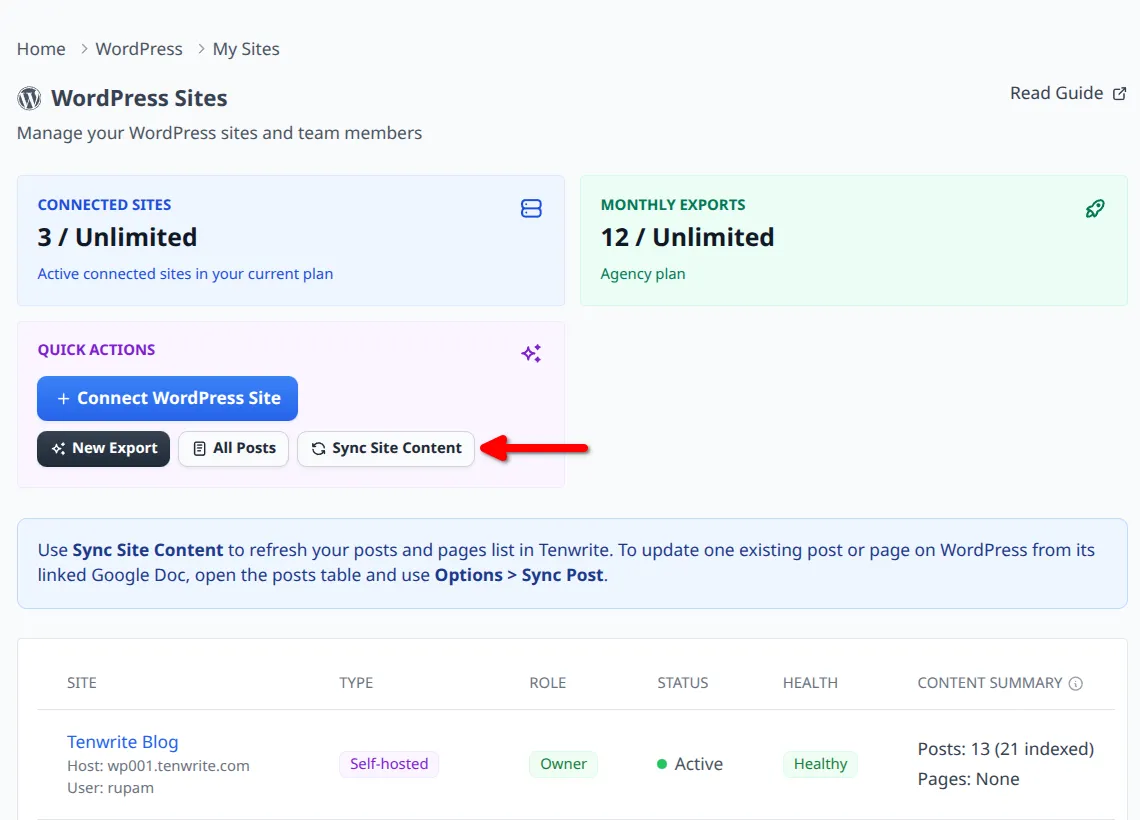
- Quick Actions — shortcuts to connect a new site, start an export, browse all posts, or sync content.
Below the cards, the sites table lists every connected WordPress site with its type, your access level, connection status, content summary, and when it was last synced.
Keeping Your Content in Sync
Section titled “Keeping Your Content in Sync”Tenwrite keeps an index of your WordPress posts and pages so that My Posts loads instantly — no waiting on live calls to each site every time you open the page. The index updates automatically twice a day.
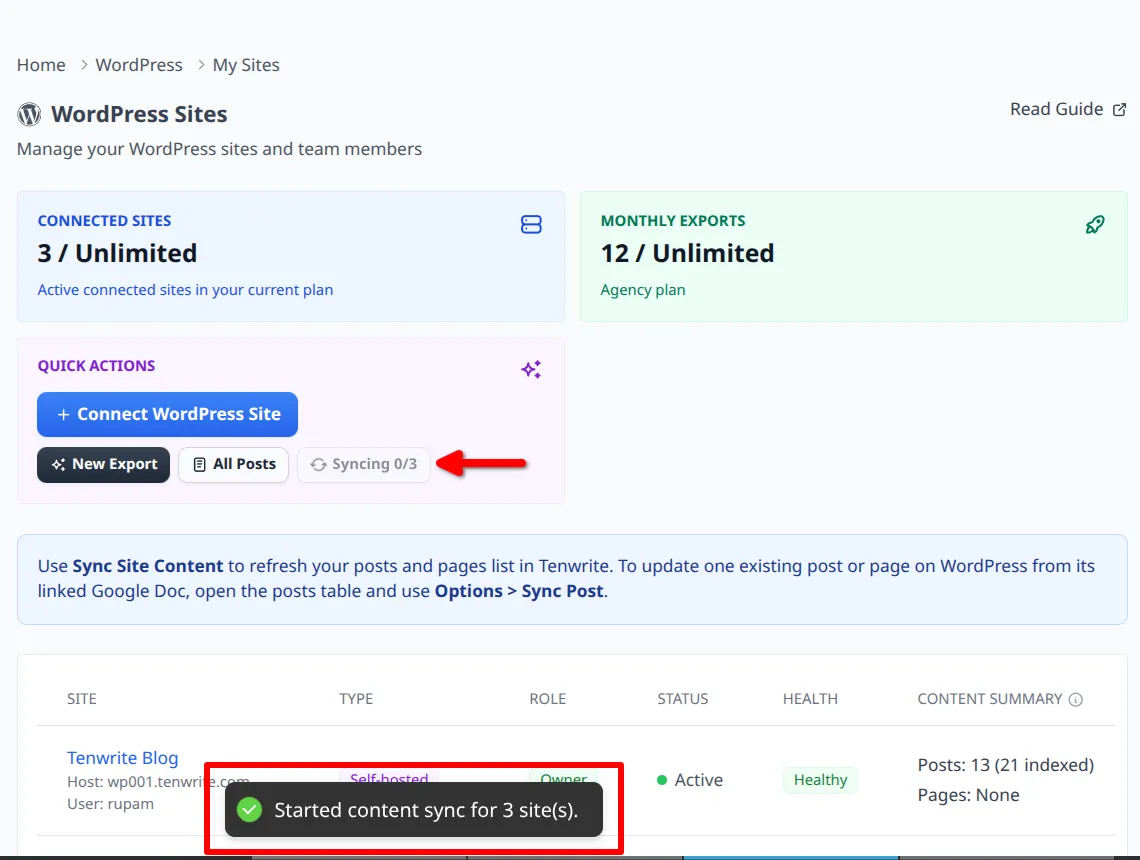
If you’ve just published or edited something in WordPress and want to see it reflected in Tenwrite right away, use Sync Site Content. For the full flow, see Sync Site Content.
You can trigger a sync from:
- the Quick Actions card on My Sites
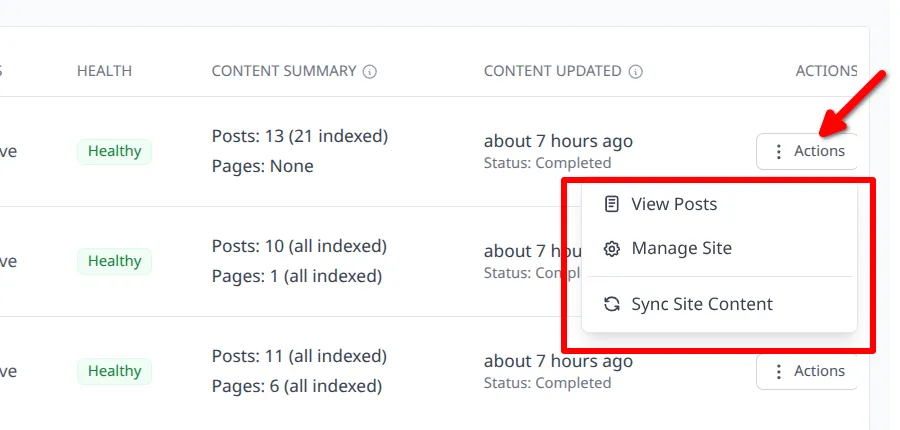
- any site’s Actions menu in the table
- the header on the My Posts page
What’s the difference between Sync Site Content and Sync Post?
Section titled “What’s the difference between Sync Site Content and Sync Post?”These two actions do different things and it’s worth knowing which one to reach for:
| Action | What it does |
|---|---|
| Sync Site Content | Pulls the latest posts and pages from WordPress into Tenwrite’s index. Use this when you want My Posts to reflect changes made directly in WordPress. |
| Sync Post | Re-exports a single linked Google Doc into its existing WordPress post or page. Use this when your Google Doc is the source of truth and you want to push updates to WordPress. |
Actions Per Site
Section titled “Actions Per Site”In the sites table, open a site’s Actions menu to:
- View Posts — jump to My Posts filtered for that site.
- Manage Site — open the site detail page.
- Sync Site Content — sync just that specific site.
Site Details
Section titled “Site Details”Click any row in the sites table to open that site’s detail page.
For the full single-site view, including connection details, owner vs member access, subscription-sharing notice, and remove-site flow, see Manage a WordPress Site.
Related Guides
Section titled “Related Guides”Tenwrite is an independent product not affiliated with or endorsed by Google LLC, Blogger, or WordPress Foundation. Google Docs, Gmail, Google Workspace are trademarks of Google LLC. WordPress is a trademark of the WordPress Foundation.