
WordPress - Manage Posts
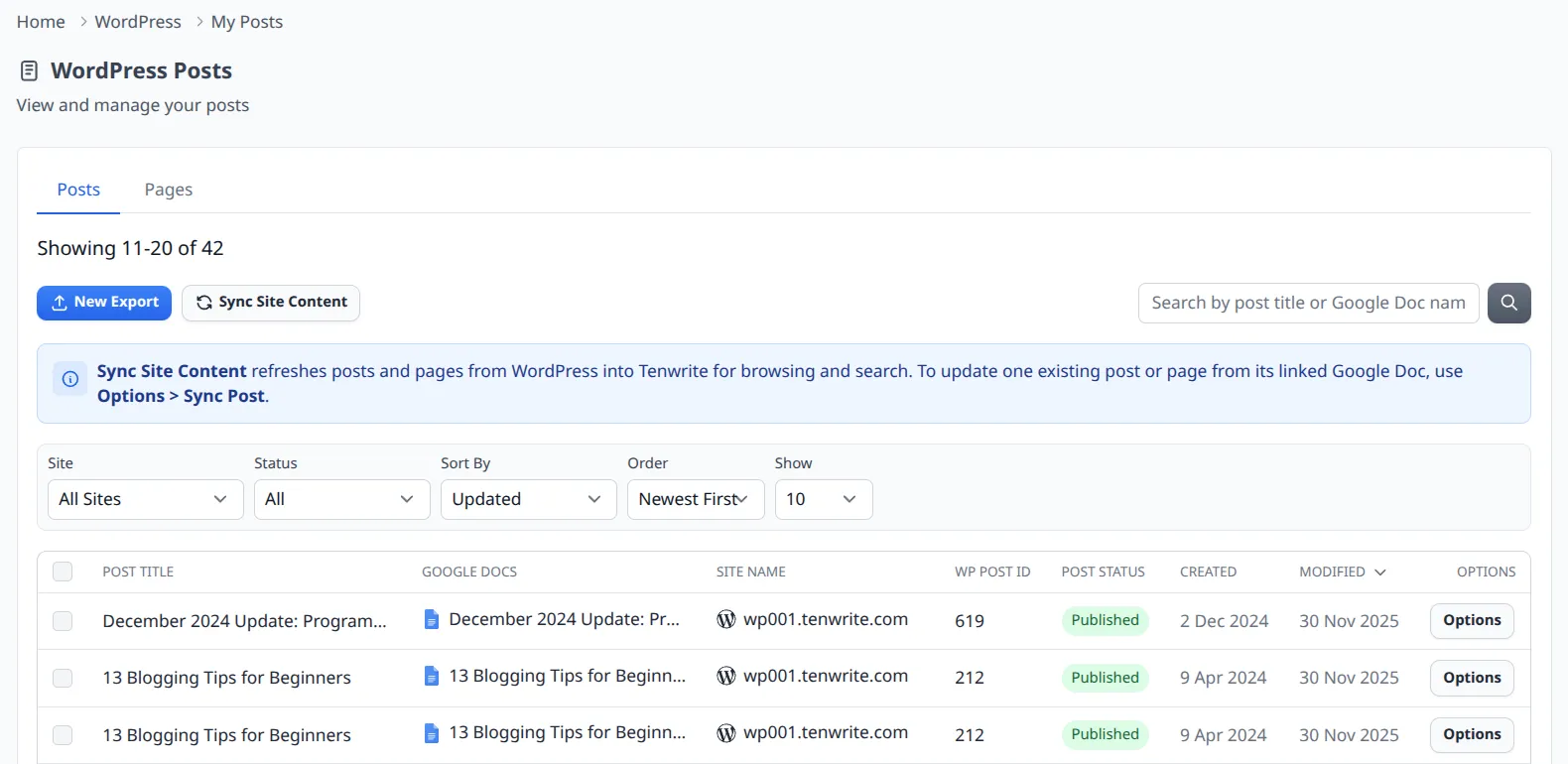
WordPress > My Posts gives you a single, combined view of all posts and pages across every WordPress site connected to your Tenwrite account.
If you manage more than one WordPress site, you know how tedious it can be to log in to each one separately just to see what’s published or find a specific post. My Posts pulls everything into one table — searchable, filterable, and sortable across all your sites at once.
And because the table loads from Tenwrite’s content index rather than making live calls to each site on every page load, it’s fast — even if you have dozens of posts across multiple sites.
Opening My Posts
Section titled “Opening My Posts”- Log in to the Tenwrite Web Dashboard.
- Click WordPress > Posts in the sidebar.
Switching Between Posts and Pages
Section titled “Switching Between Posts and Pages”Use the Posts and Pages tabs at the top of the table to switch content type. Tenwrite shows Posts by default.
Filtering and Sorting
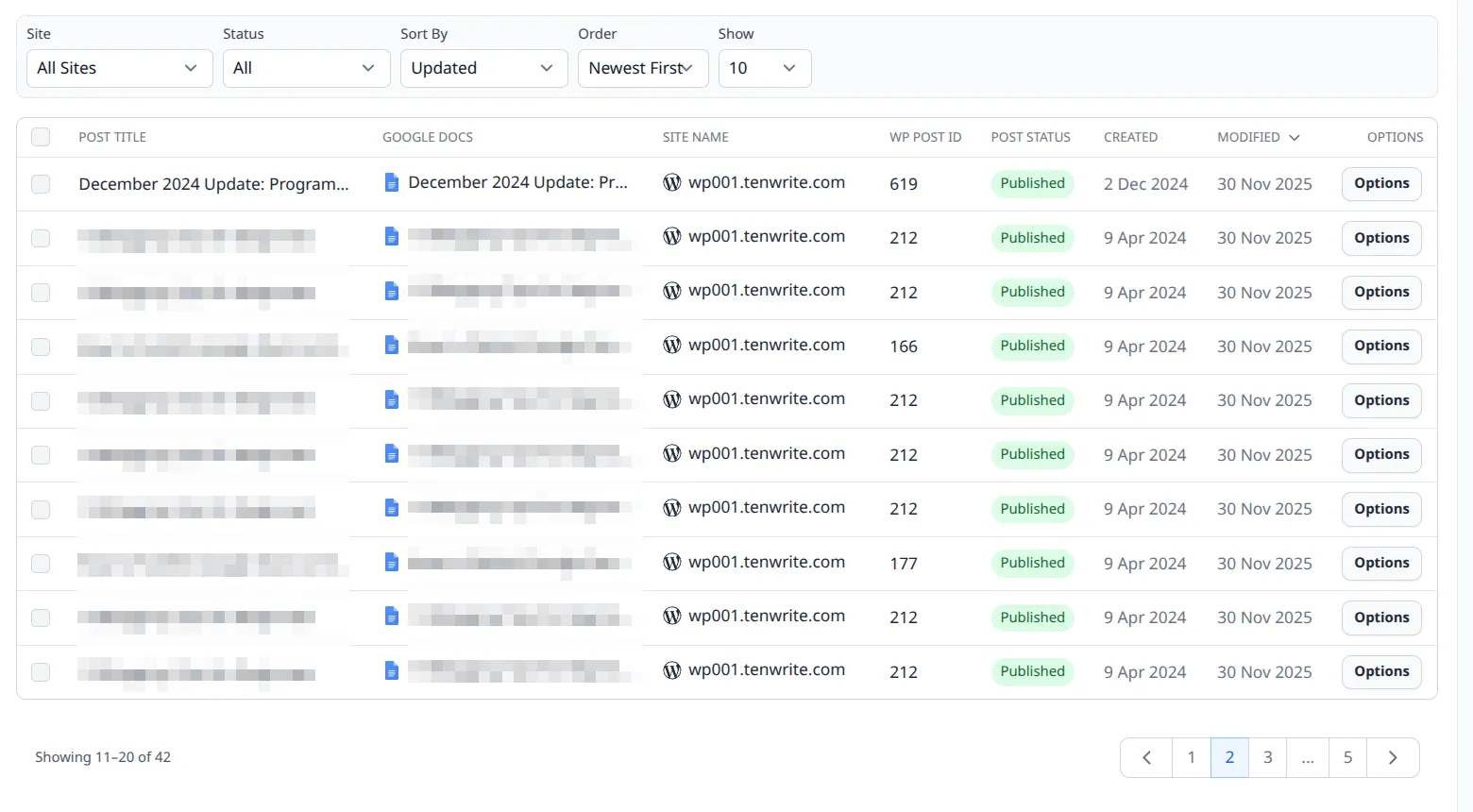
Section titled “Filtering and Sorting”The toolbar above the table gives you several ways to narrow down what you’re looking at:
- Site — show content from one connected site, or all sites together.
- Status — filter by
publish,draft,future,pending, orprivate. - Search — find by post title or linked Google Doc name.
- Sort By — sort by ID, Created, Updated, Title, or Status.
- Order — newest first or oldest first.
- Show — choose 10, 25, or 50 rows per page.
What Each Row Shows
Section titled “What Each Row Shows”Each row in the table gives you the key details at a glance:
- Post or page title
- Linked Google Doc (if any)
- Site name
- WordPress post ID
- Current status
- Created and last-modified dates
Taking Action on Posts
Section titled “Taking Action on Posts”Quick actions per post
Section titled “Quick actions per post”Each row has an Options menu. Open it to act on that specific post or page.
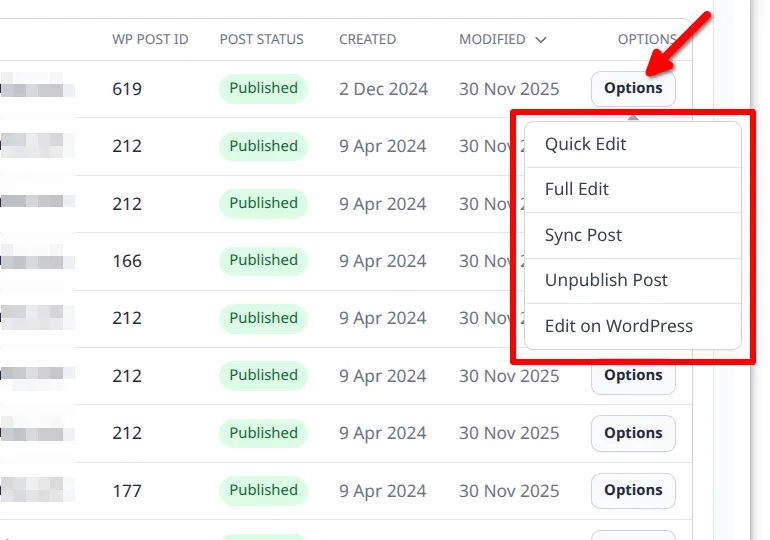
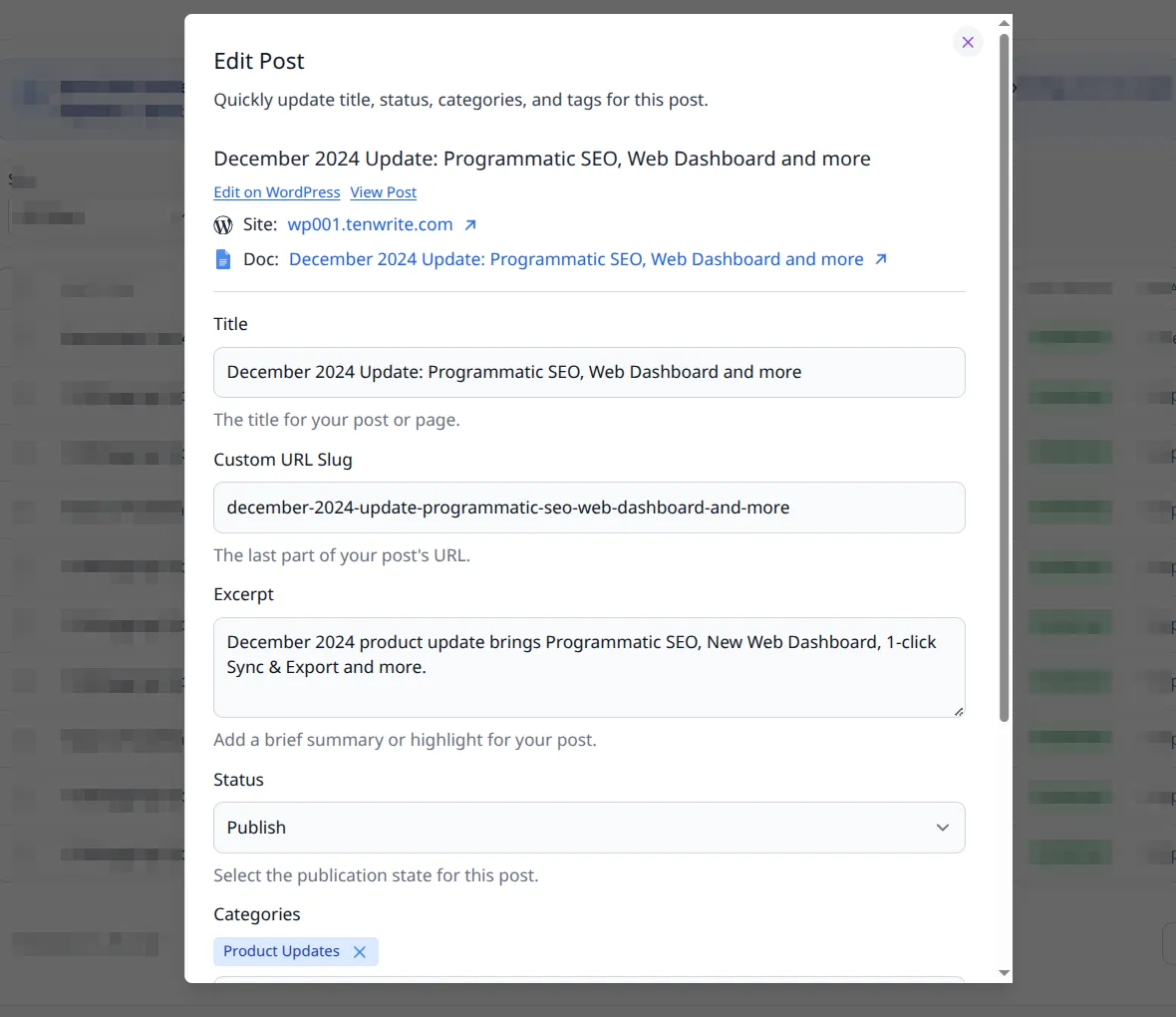
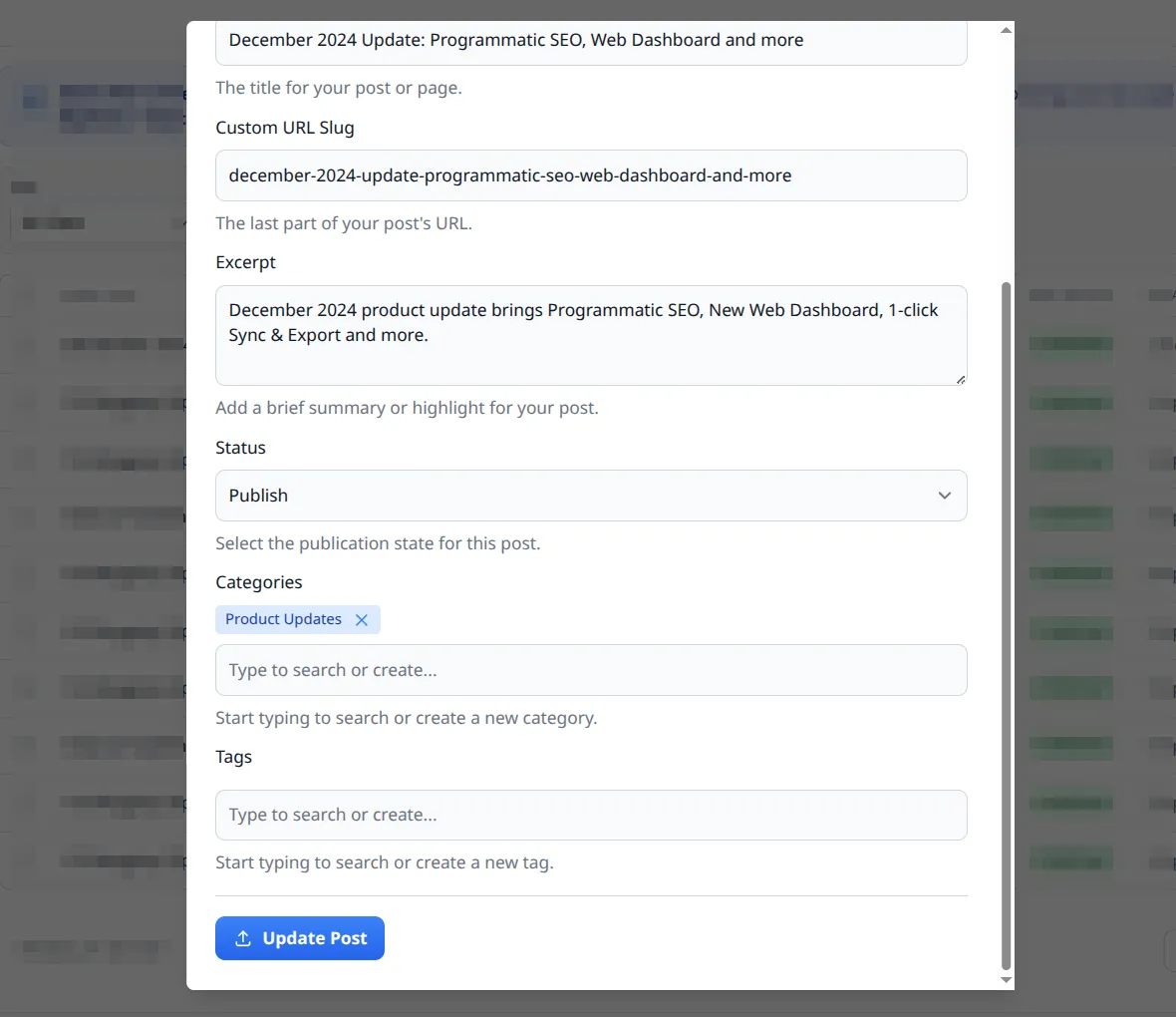
Quick Edit
Section titled “Quick Edit”Opens a small editing panel inline — no page navigation needed. Use it for fast metadata updates like:
- Title
- Slug
- Categories and tags
- Status
Full Edit
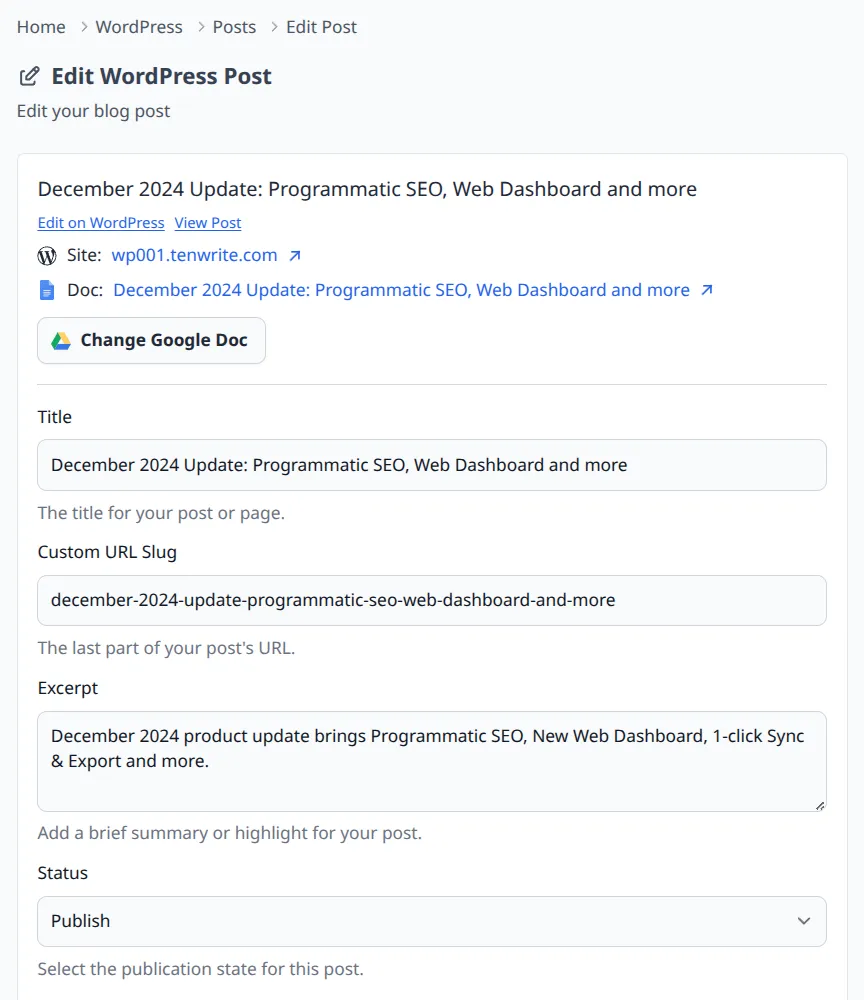
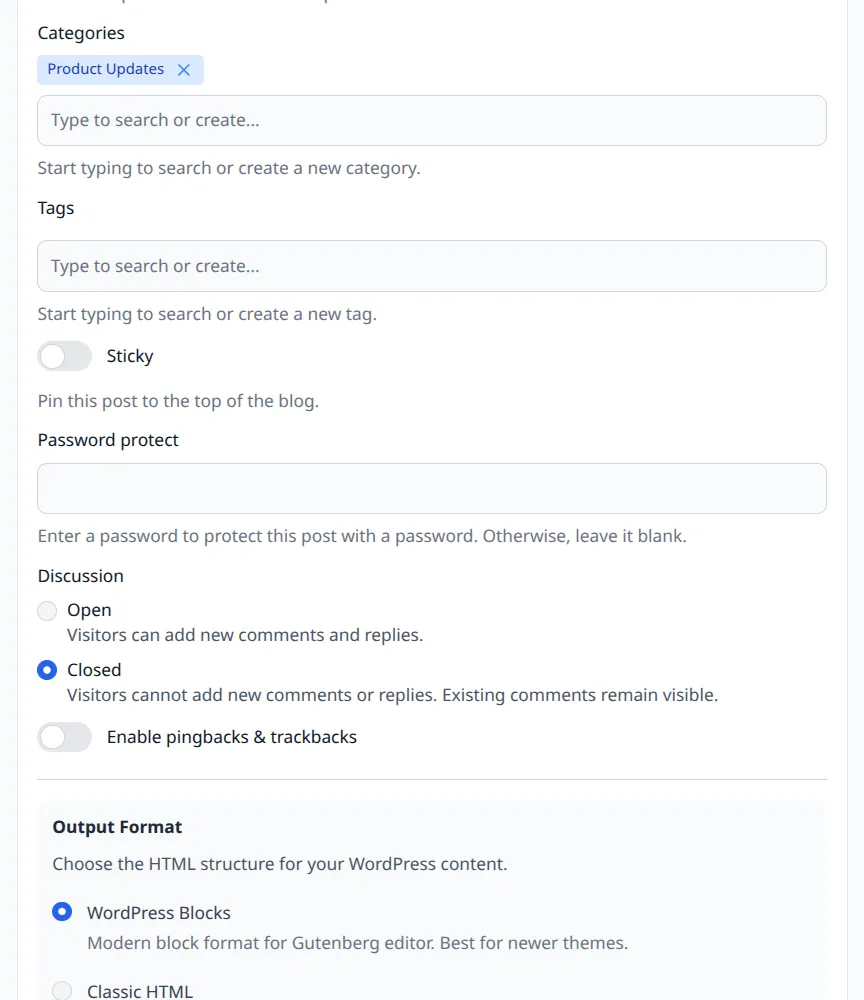
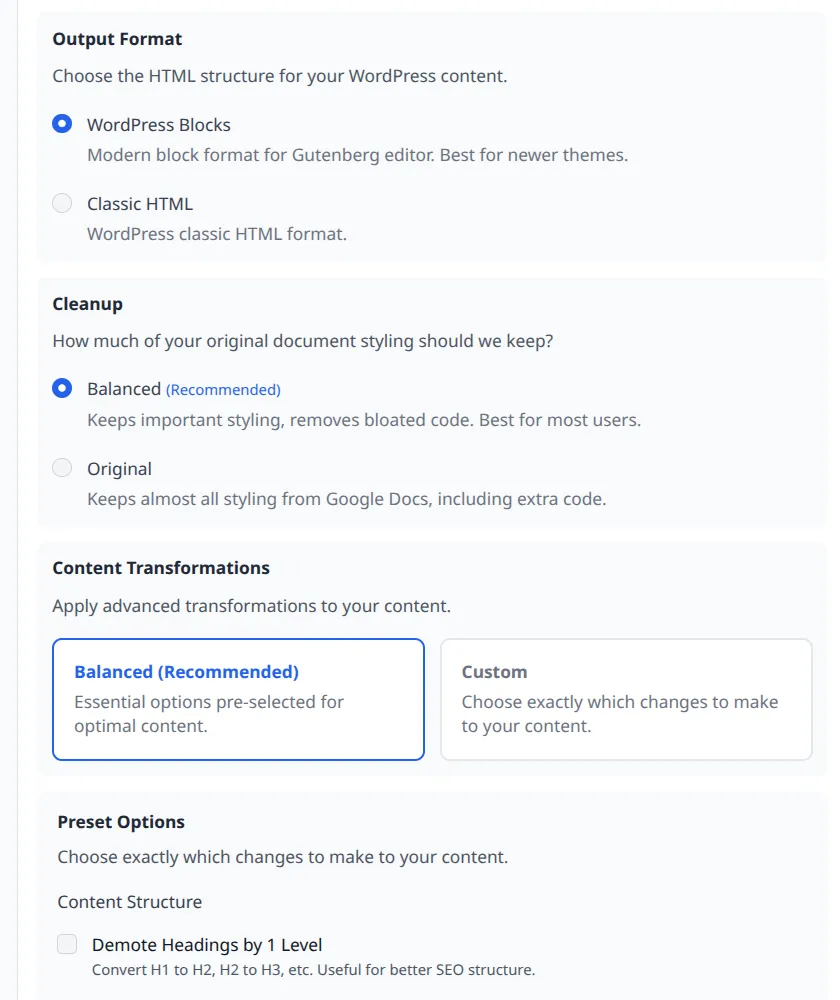
Section titled “Full Edit”Opens the full Tenwrite editing screen for that post. Choose this when you want to make more substantial changes to the content or post settings. For the full screen and field breakdown, see Edit a WordPress Post or Page.
If your self-hosted WordPress site has the Tenwrite plugin installed, Full Edit can also show supported SEO fields such as SEO title, meta description, focus keyword, canonical URL, noindex, and nofollow.
If any of those SEO fields are already set in the linked Google Doc’s frontmatter, Tenwrite treats them as frontmatter-controlled and locks them in Full Edit. To change those values, update or remove them in the Google Doc, then run Sync Post.
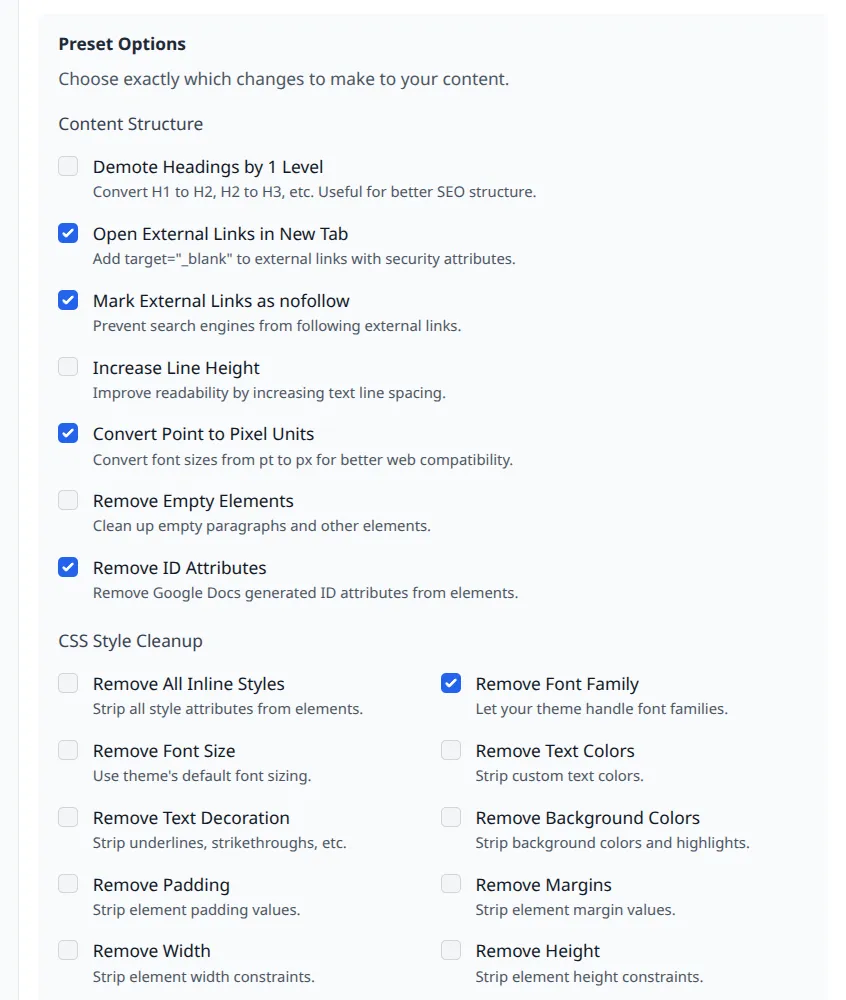
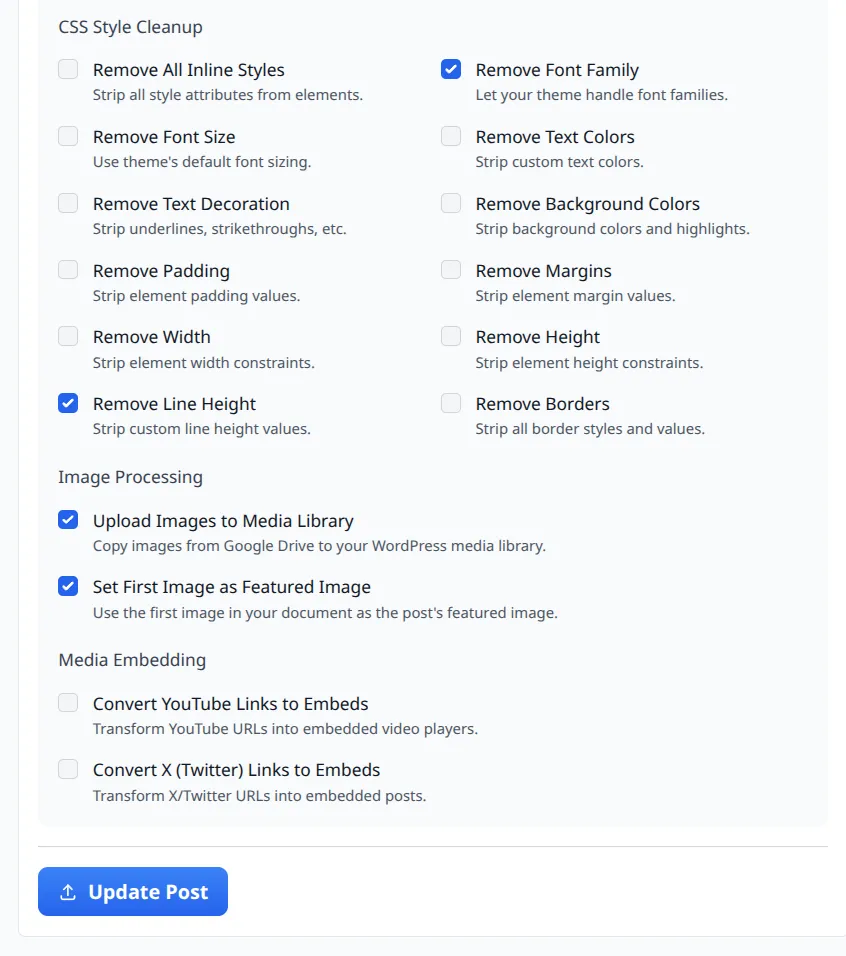
Sync Post
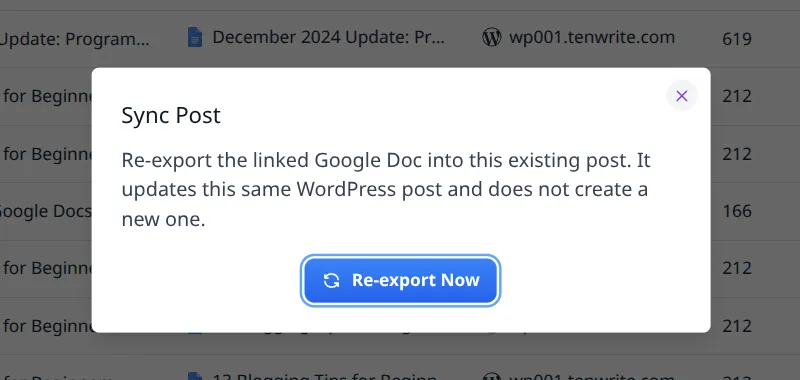
Section titled “Sync Post”If the row is linked to a Google Doc, Sync Post re-exports that document into the existing WordPress post. This is useful when your Google Doc is the source of truth and you want to push the latest version to WordPress. For the full flow, see Sync Post.
This is also the action to use after changing frontmatter-controlled SEO values in the Google Doc.
Publish / Unpublish
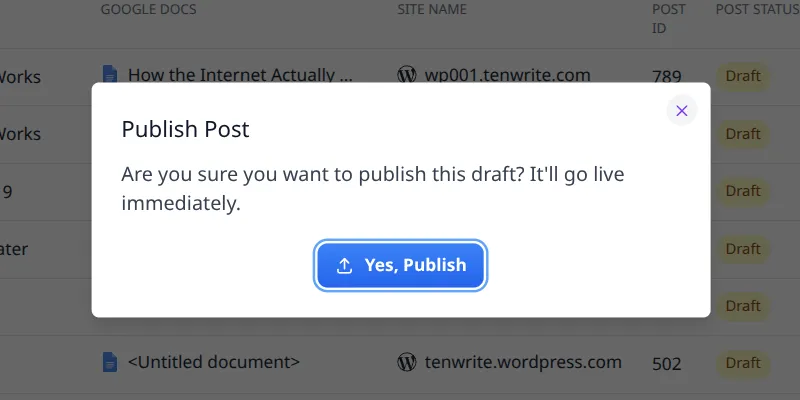
Section titled “Publish / Unpublish”Depending on the current status, the Options menu includes:
- Publish Post/Page — for
draftorpendingitems. - Unpublish Post/Page — for
publishorfutureitems.
Edit on WordPress
Section titled “Edit on WordPress”If a WordPress editor link is available, this takes you directly to that post’s edit screen in WordPress.
Bulk actions
Section titled “Bulk actions”Need to publish or unpublish several posts at once? Select them using the checkboxes on the left side of the table, then use the bulk action buttons that appear.
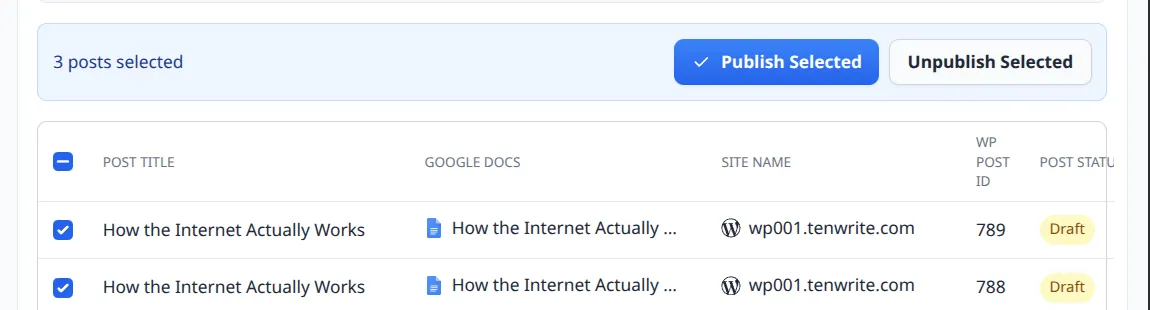
- Publish — works on
draftandpendingitems. - Unpublish — works on
publishandfutureitems.
If some selected rows aren’t eligible for the action (e.g., already published when you choose Publish), Tenwrite skips those and processes the rest.
Keeping the Table Up to Date
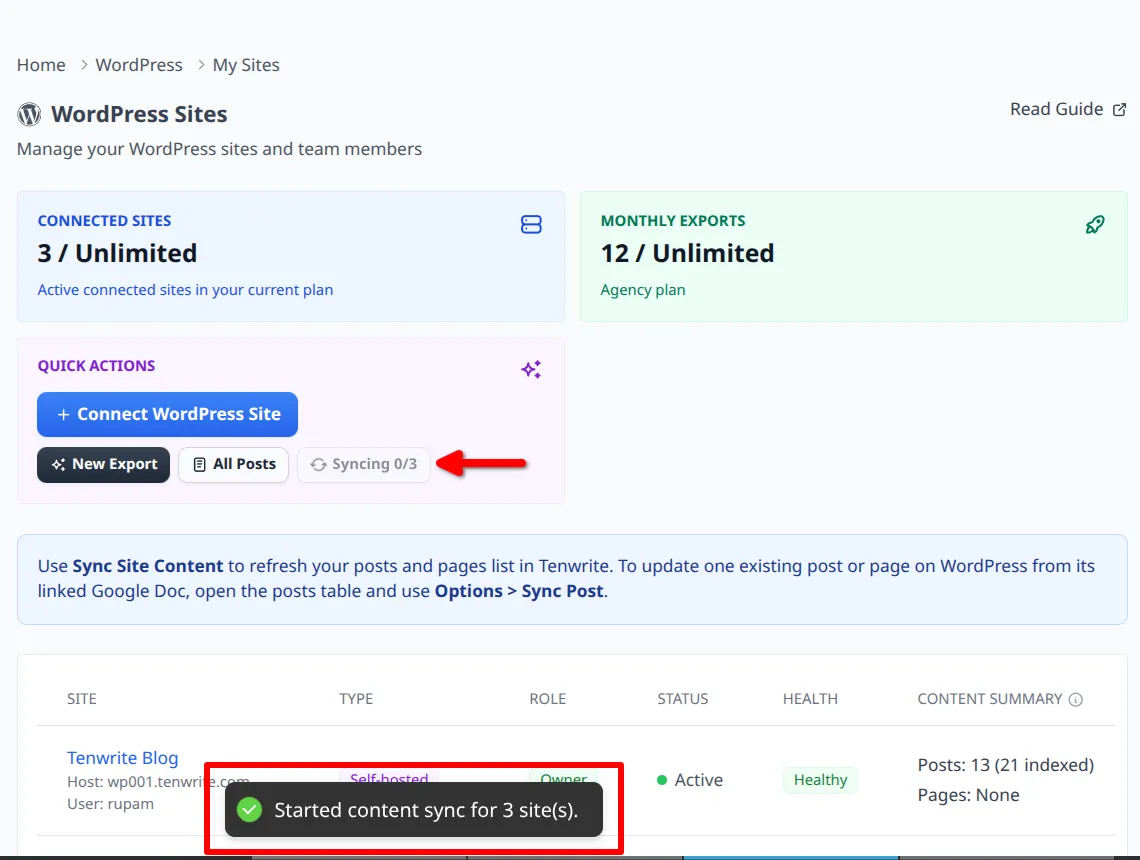
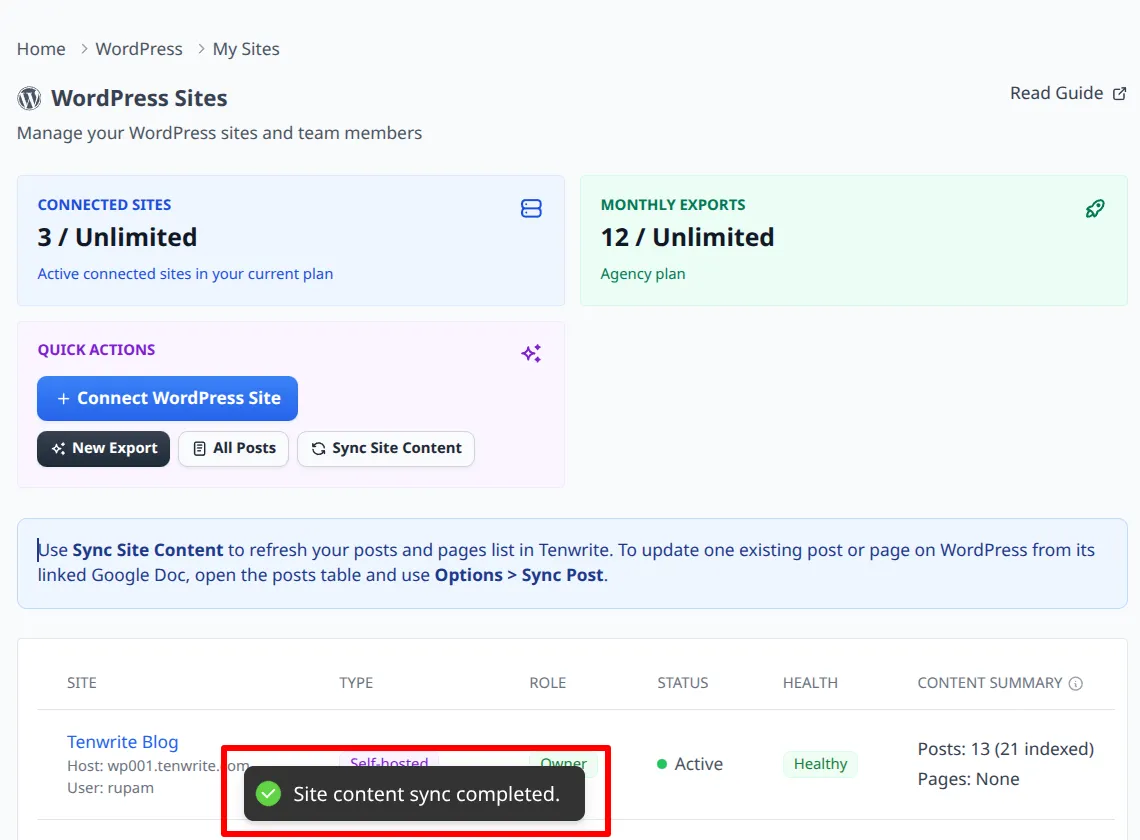
Section titled “Keeping the Table Up to Date”The table is powered by Tenwrite’s content index, which syncs automatically twice a day. If you’ve made changes directly in WordPress and want them reflected in the table right away, use Sync Site Content.
You can trigger it from:
- the header area of the My Posts page
- the Quick Actions card on My Sites
- any site row’s Actions menu in My Sites
Once sync starts, you’ll see a progress indicator. The table updates as each site finishes syncing.
Related Guides
Section titled “Related Guides”Tenwrite is an independent product not affiliated with or endorsed by Google LLC, Blogger, or WordPress Foundation. Google Docs, Gmail, Google Workspace are trademarks of Google LLC. WordPress is a trademark of the WordPress Foundation.