
SEO Tracker for WordPress and Blogger
Publishing a post is the start. SEO Tracker helps you see what happens next: are people seeing it in Google Search, clicking through, and finding it more often over time?
Connect Google Search Console once, then check your published posts and pages from the Tenwrite web dashboard. You can view trends for a site, compare periods, and open an individual post for a closer look.
This guide works for WordPress and Blogger. The screenshots show WordPress; the connection steps and search performance controls work the same way for Blogger.
Prefer a quick video? Watch the SEO Tracker walkthrough to see how to connect Search Console and read your results, then follow the steps below for your own site.
Before You Start
Section titled “Before You Start”You need:
- A WordPress site or Blogger blog connected to Tenwrite.
- A paid Tenwrite plan for the site owner, including Starter, Pro, Agency, and paid lifetime or legacy plans. Invited site members can view the tracker; the owner manages the connection and refreshes.
- A Google account with access to your site’s Google Search Console. Search Console is Google’s tool for seeing how your site appears in search results.
If your site is not in Search Console yet, follow Google’s guide to adding and verifying a site. Then return to Tenwrite to connect it.
1. Open SEO Tracker
Section titled “1. Open SEO Tracker”Open the Tenwrite web dashboard, expand WordPress or Blogger, and choose SEO Tracker. If you have several sites, select the one you want to track.
When Search Console is not connected, the tracker points you to the settings page where you can set it up.
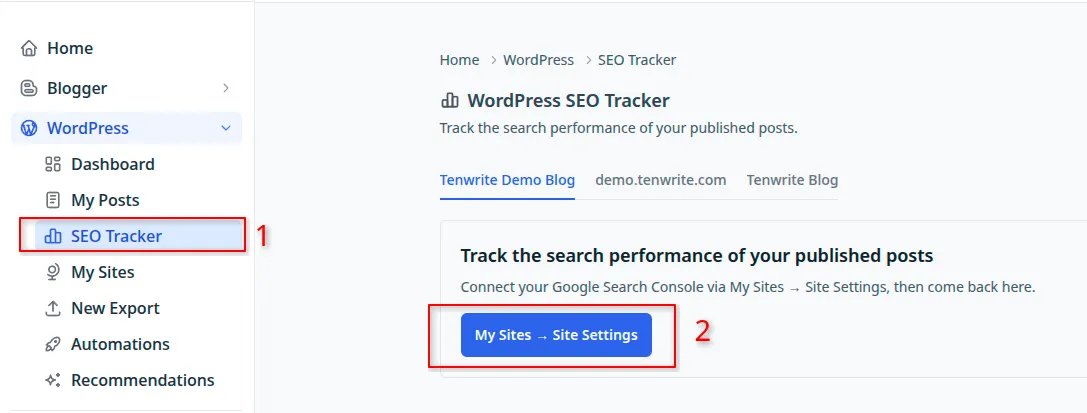
Your starting point: open the tracker, then follow the connection link.
- SEO Tracker — opens the search performance workspace for WordPress or Blogger.
- My Sites → Site Settings — takes the site owner to the selected site’s settings. If you are a site member, ask the owner to complete the connection.
2. Connect Your Google Account
Section titled “2. Connect Your Google Account”In Site Settings, find Google Search Console and click Connect Google. Sign in with the Google account that can access this site’s Search Console data, then complete Google’s permission screen.
You can also reach this page through My Sites by opening the site’s settings.
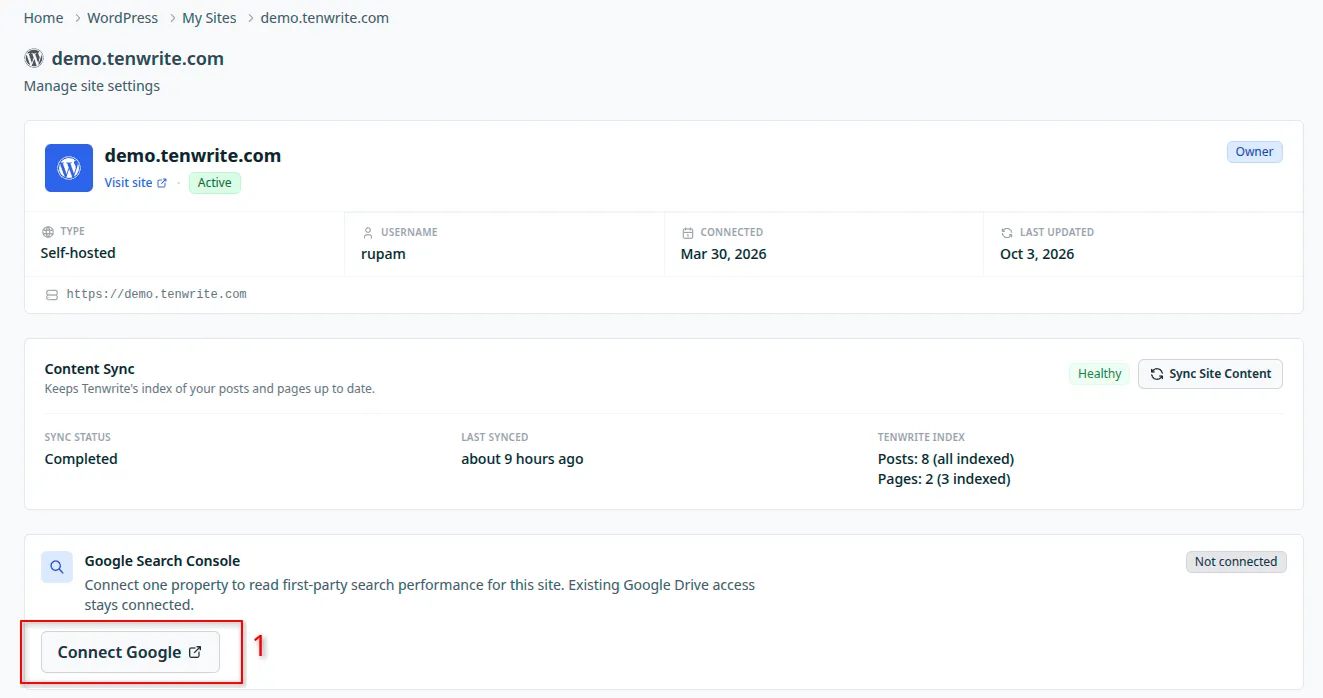
Connect the Google account that has access to the site you want to measure.
- Connect Google — links Search Console access to Tenwrite. Connecting it does not replace your existing Google Drive connection.
The Content Sync section above it serves a different purpose: Sync Site Content loads the latest posts and pages from your site into Tenwrite. Use it if you have published or edited content directly in WordPress or Blogger. See Sync Site Content for more help.
3. Choose the Site and Save the Connection
Section titled “3. Choose the Site and Save the Connection”After connecting Google, choose the Search Console property for this site. A property is simply the website, domain, or part of a website that you track in Search Console.
Next, check Content hostname. This is the web address where your posts actually appear, such as www.example.com or blog.example.com. Choose the address used by your published posts, then save.
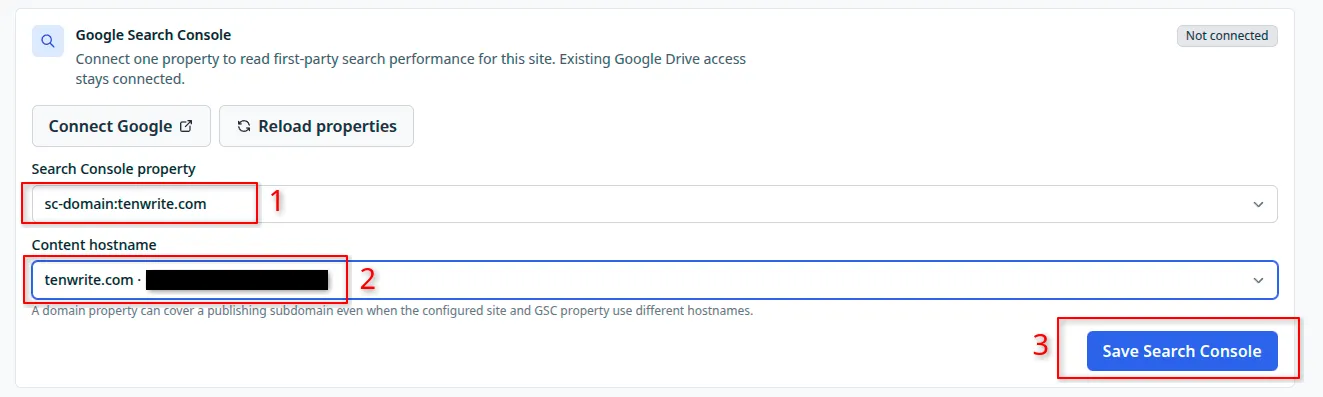
Choose the Search Console site and the address where your content is published.
- Search Console property — select the matching site. A domain entry such as
sc-domain:example.comcan include several addresses under that domain. An entry such ashttps://blog.example.com/covers that specific address. - Content hostname — choose the address for this site’s published content. For example, if your posts live at
blog.example.com, choose that address even if the property covers all ofexample.com. - Save Search Console — saves the selection so Tenwrite can start collecting search performance.
Once linked, use Site linked · View SEO Tracker to return to the tracker. The first collection may take a little time. You can leave the page and come back while it is updating.
If the property list is empty or missing your site, check the Google account you connected and use Reload properties. The account must have access to the property in Search Console.
4. Read Your Site’s Search Performance
Section titled “4. Read Your Site’s Search Performance”The overview combines performance for the published posts and pages Tenwrite has loaded from the selected site, including content created outside Tenwrite. It helps you spot changes across those items before looking at individual posts.
Choose 7, 30, or 90 finalized days. The default is 30 days. “Finalized” means Tenwrite uses older daily data rather than the latest figures that Google is still updating. Search performance refreshes automatically each day, with a three-day delay before recent dates are included.
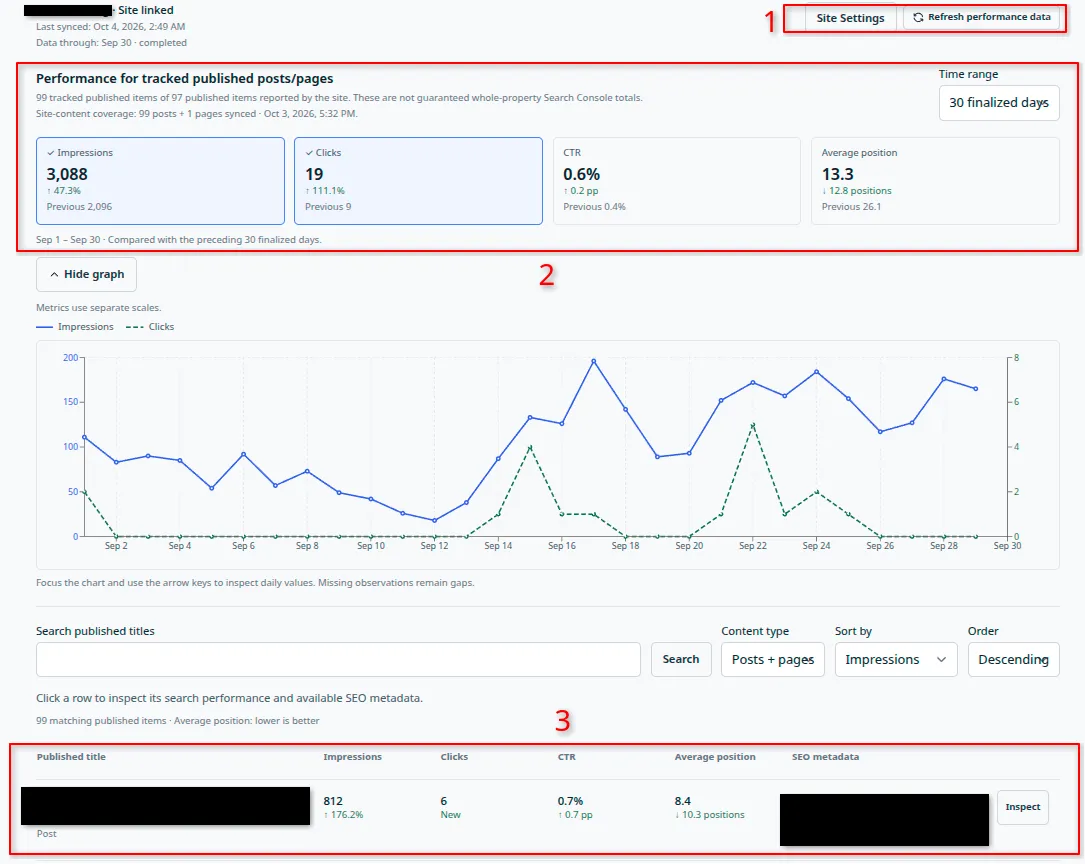
Read the site’s overview first, then use the table to find posts worth a closer look.
- Site Settings and Refresh performance data — return to the connection settings, or ask Tenwrite to check Search Console again. The owner can refresh when another refresh is not already running and the waiting period has passed.
- Totals, time range, and graph — choose a period and click the metric cards to show or hide their lines. Impressions and Clicks are selected initially. Each card also shows the previous period for comparison. Use Hide graph when you want more room for the table, and Show graph to bring it back.
- Published posts and pages — compare individual items. Click a row or Inspect to open its details. Click the published title to visit the live post instead.
Above the overview, Last synced tells you when Tenwrite last finished collecting data. Data through tells you the newest date included. These dates can be different because recent search figures take time to become available.
What the Four Numbers Mean
Section titled “What the Four Numbers Mean”- Impressions — how often your content appeared in Google Search results. This helps you see visibility even when nobody clicks yet.
- Clicks — how often someone clicked through from Google Search to your content.
- CTR — the percentage of impressions that became clicks. For example, 4 clicks from 100 impressions gives a 4% CTR.
- Average position — your content’s average place in search results. Lower is better: moving from 12 to 8 is an improvement. It is an average, not a fixed ranking for every search.
For Google’s definitions, see the Search Console performance report guide.
Understand the Graph and Comparisons
Section titled “Understand the Graph and Comparisons”Hover over the graph to see a day’s values. You can also focus the chart and use the arrow keys. The lines use separate scales, so compare each line’s changes over time rather than comparing the height of one line with another.
Changes are measured against the preceding period of the same length. For example, the latest 30 days are compared with the 30 days immediately before them.
- Impressions and clicks show percentage changes.
- CTR changes use percentage points: moving from 2% to 3% is an increase of 1 percentage point.
- Position changes show places moved, with a lower average position treated as an improvement.
Not enough history means Tenwrite cannot make a reliable comparison yet. A gap in the graph means there is no observation for that day; it is not filled in as zero.
The overview is for tracked content, so its totals may differ from the whole-site totals in Google Search Console. Check the tracked published items and Site-content coverage text to see how much of your site’s content Tenwrite has loaded.
Find a Post in the Table
Section titled “Find a Post in the Table”Search by published title, choose Posts + pages, Posts, or Pages, and use Sort by and Order to compare items. The table starts with the highest impressions first and shows 10 items per page. Use Previous and Next to move through the results.
Searching, filtering, sorting, or changing table pages leaves the site’s overall graph and totals unchanged.
On a phone, sites can appear in a dropdown and post rows appear as compact cards. The same numbers and Inspect action are available.
5. Inspect One Post or Page
Section titled “5. Inspect One Post or Page”Click a table row or Inspect to see that item’s totals, previous-period comparison, and daily history. The details use the time range you selected in the tracker.
For WordPress, the same window also shows available SEO metadata: the search title, description, and related settings Tenwrite last read from your site.
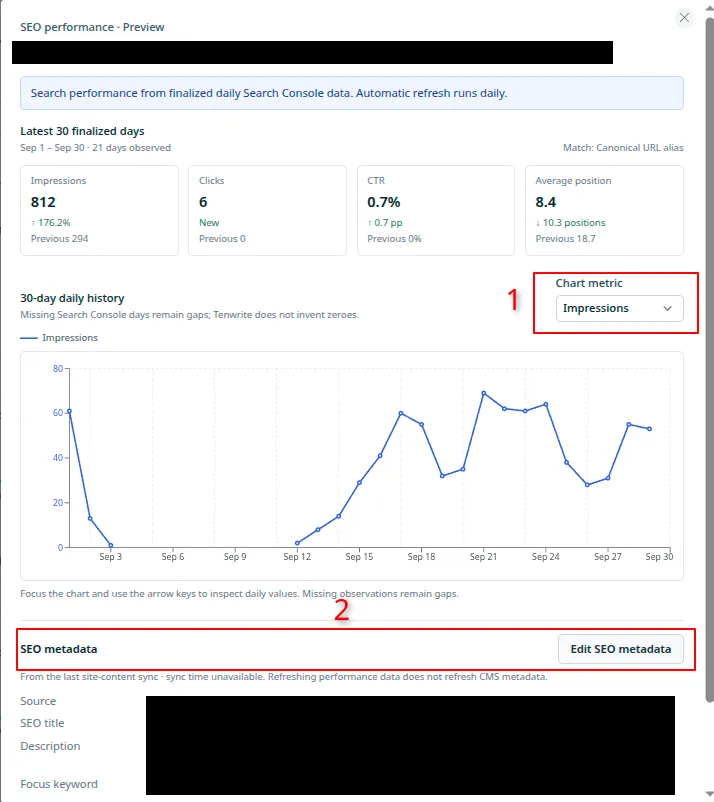
Look at one post’s trend and review the available WordPress search settings together.
- Chart metric — switch between Impressions, Clicks, CTR, and Average position to inspect one measure at a time.
- SEO metadata — review the available SEO title, description, focus keyword, preferred page address (canonical URL), and settings for search engines. Source tells you whether the values came from Tenwrite, Yoast SEO, or Rank Math. On supported self-hosted WordPress sites, Edit SEO metadata opens the existing post editor.
The metadata shown here comes from the last site-content sync. Refresh performance data updates the search numbers; Sync Site Content refreshes Tenwrite’s copy of your site content and its available SEO metadata.
If SEO values are controlled by your Google Doc’s frontmatter, update them in that document. If Tenwrite reports conflicting Yoast SEO and Rank Math values, review the settings before editing. See SEO Data Management for the supported fields and plugin setup.
Blogger has the same search performance view, but Blogger SEO metadata is not available in this window.
A Useful Way to Start
Section titled “A Useful Way to Start”Start with the 30-day view and sort by impressions. Pick a post that people are seeing, inspect its clicks and CTR, and review whether its title and description describe the page clearly. Then use the 90-day view to see whether the change is part of a longer trend.
You can also sort by clicks to find content already bringing readers from search. Look for what those posts do well before deciding which other posts to improve. Treat the tracker as evidence for your next decision; it does not automatically change your posts or promise a higher ranking.
Frequently Asked Questions
Section titled “Frequently Asked Questions”Does SEO Tracker work for WordPress and Blogger?
Section titled “Does SEO Tracker work for WordPress and Blogger?”Yes. Both have the same Search Console connection and performance view. WordPress can also show recognized SEO metadata and an edit link where supported. Blogger metadata is not shown.
Do I have to publish the content through Tenwrite?
Section titled “Do I have to publish the content through Tenwrite?”No. Published posts and pages created directly in WordPress or Blogger can be tracked once they have been loaded into Tenwrite. Run Sync Site Content if newer content is missing. Drafts and unpublished items are not included.
Why are today’s numbers missing? Will Refresh performance data show them?
Section titled “Why are today’s numbers missing? Will Refresh performance data show them?”The tracker uses daily data with a three-day delay, and updates automatically each day. Manual refresh checks for eligible data again; it does not make today’s figures appear sooner. There is no hourly or live view in SEO Tracker.
Why do I see zero, a dash, or a gap?
Section titled “Why do I see zero, a dash, or a gap?”A zero is a recorded zero for that measure. A dash or graph gap means the value is unavailable. A new post or site may have little search history. Check the selected period, property, and content hostname before drawing conclusions. An empty tracker alone does not tell you whether Google has indexed a page.
Why are my totals different from Search Console?
Section titled “Why are my totals different from Search Console?”Tenwrite adds up the tracked published posts and pages loaded from your site. Search Console can show a wider set of pages and use different report groupings. Check the dates, property, and site-content coverage when comparing them. Table filters in Tenwrite do not change the overview totals.
Why can’t I connect or refresh?
Section titled “Why can’t I connect or refresh?”Only the site owner manages the Search Console connection and manual refresh. The owner needs a paid plan, and the site must be within their current site allowance to collect new data. A refresh already in progress or the waiting period after a manual refresh can also prevent another run. Follow any connection or refresh message shown in Tenwrite.
Why is WordPress SEO metadata missing or out of date?
Section titled “Why is WordPress SEO metadata missing or out of date?”Run Sync Site Content to load the latest available values. Tenwrite needs to recognize the SEO fields on your WordPress site; check SEO Data Management for the supported setup. Refreshing Search Console performance does not refresh these fields.
Can I see keywords, countries, devices, or AI search reports here?
Section titled “Can I see keywords, countries, devices, or AI search reports here?”SEO Tracker shows the four performance measures for your tracked posts and pages. It does not provide those separate breakdowns. Use open Search Console at the bottom of the tracker to explore Google’s available reports.
Related Guides
Section titled “Related Guides”- Sync Site Content
- The Tenwrite Content Index
- SEO Data Management
- Connect WordPress Sites
- Connect Blogger Blogs
Still need help? Email support@tenwrite.com with your site address, what you expected to see, and any message shown in Tenwrite.
Tenwrite is an independent product not affiliated with or endorsed by Google LLC, Blogger, or WordPress Foundation. Google Docs, Gmail, Google Workspace are trademarks of Google LLC. WordPress is a trademark of the WordPress Foundation.