
Blogger - Drive Automation
Drive Automation watches a Google Drive folder and publishes new or updated Google Docs to your Blogger blog automatically — no exports, no forms, no manual triggers. Drop a doc in the folder and it goes live. Edit the doc and the post updates.
Use Frontmatter in your Google Docs to set the title, labels, publish status, and more on a per-document basis.
How It Works
Section titled “How It Works”Tenwrite checks your Drive folder once every hour. New Google Docs become new Blogger posts. Docs that have changed since the last run sync back to the existing post.
Only Google Docs in the folder root are picked up — files inside subfolders are ignored. By default, posts are created as Drafts. Add a Frontmatter table to your doc to set a different status.
Setting It Up
Section titled “Setting It Up”Step 1: Open the Drive tab
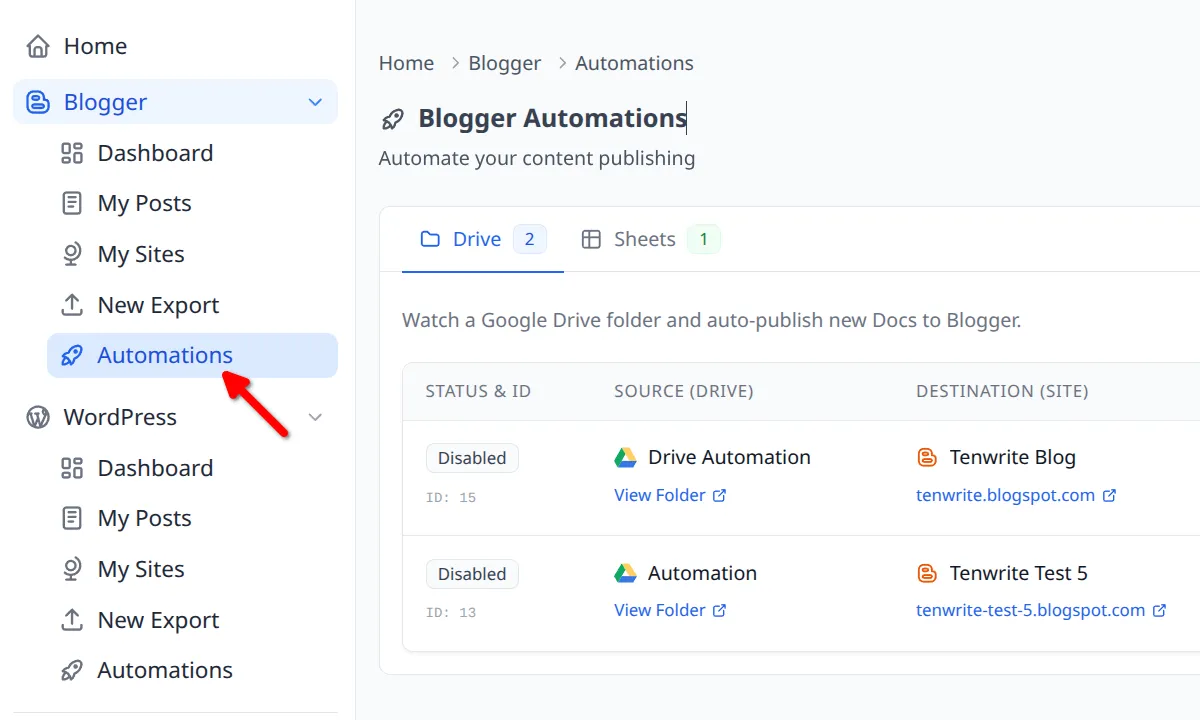
Section titled “Step 1: Open the Drive tab”Open the Tenwrite add-on or Web Dashboard, go to Blogger > Automations, and make sure you’re on the Drive tab.
Step 2: Open the Create form
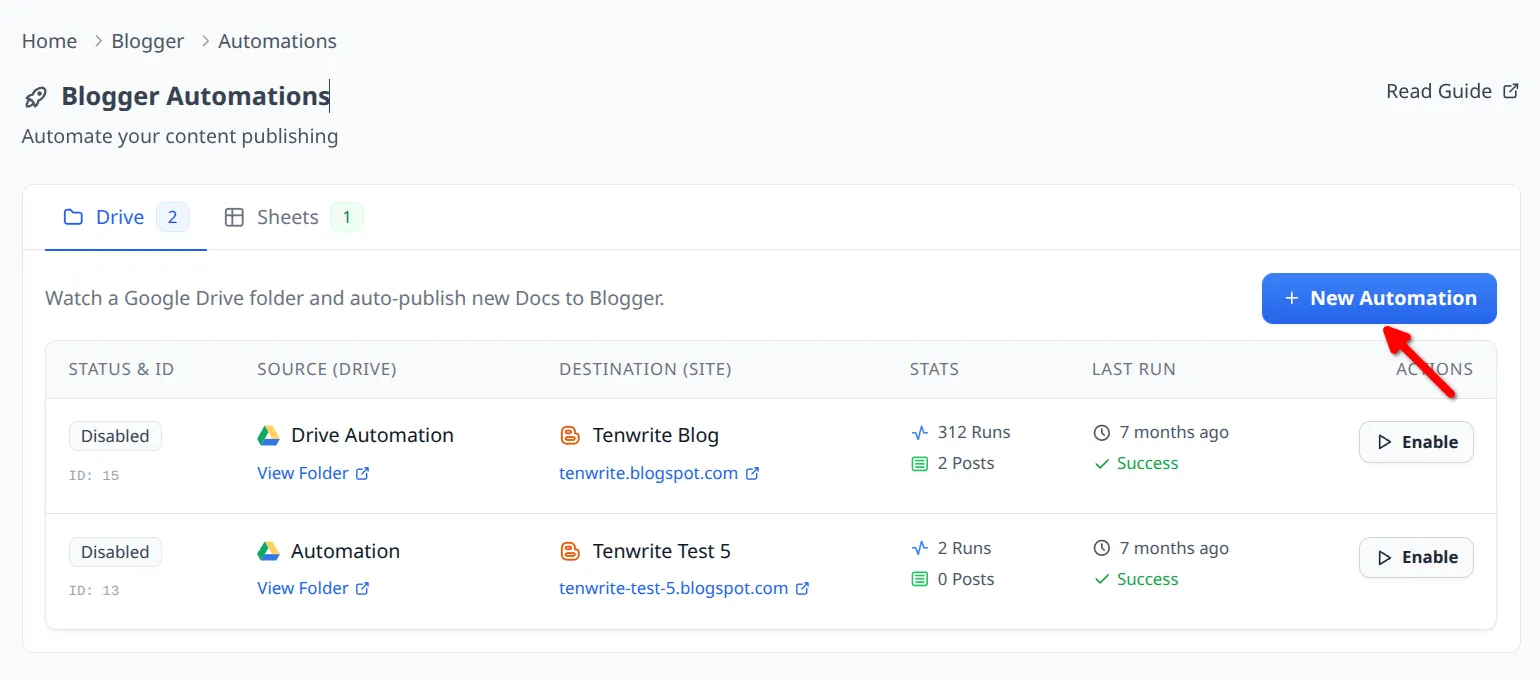
Section titled “Step 2: Open the Create form”Click New Automation (or Create Drive Automation if no automations exist yet).
Step 3: Create and share a Google Drive folder
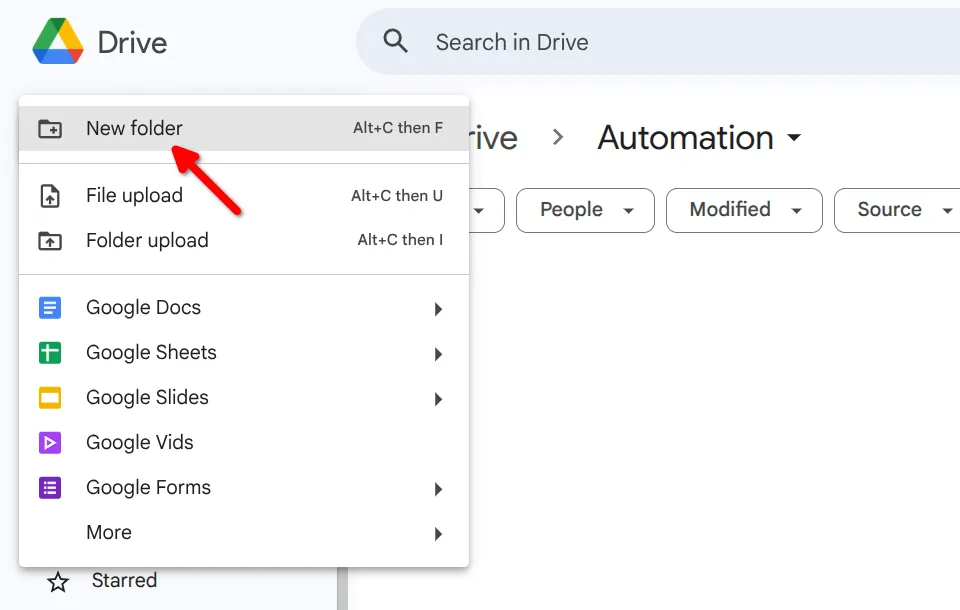
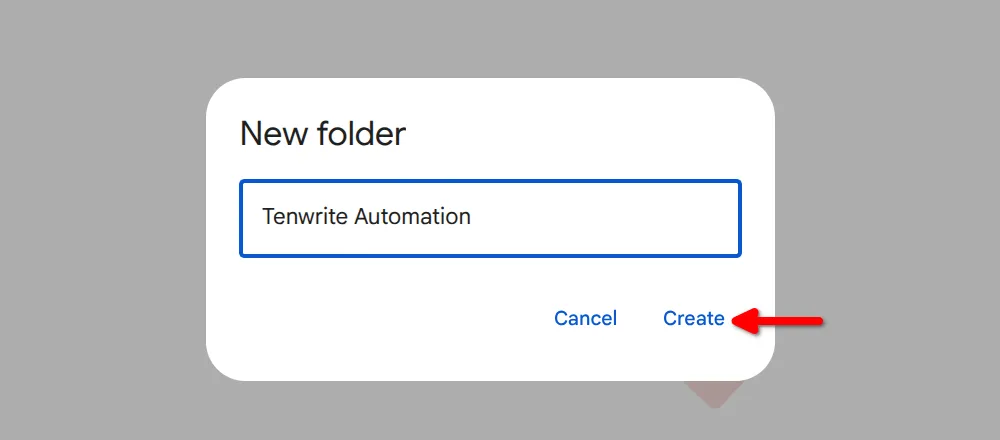
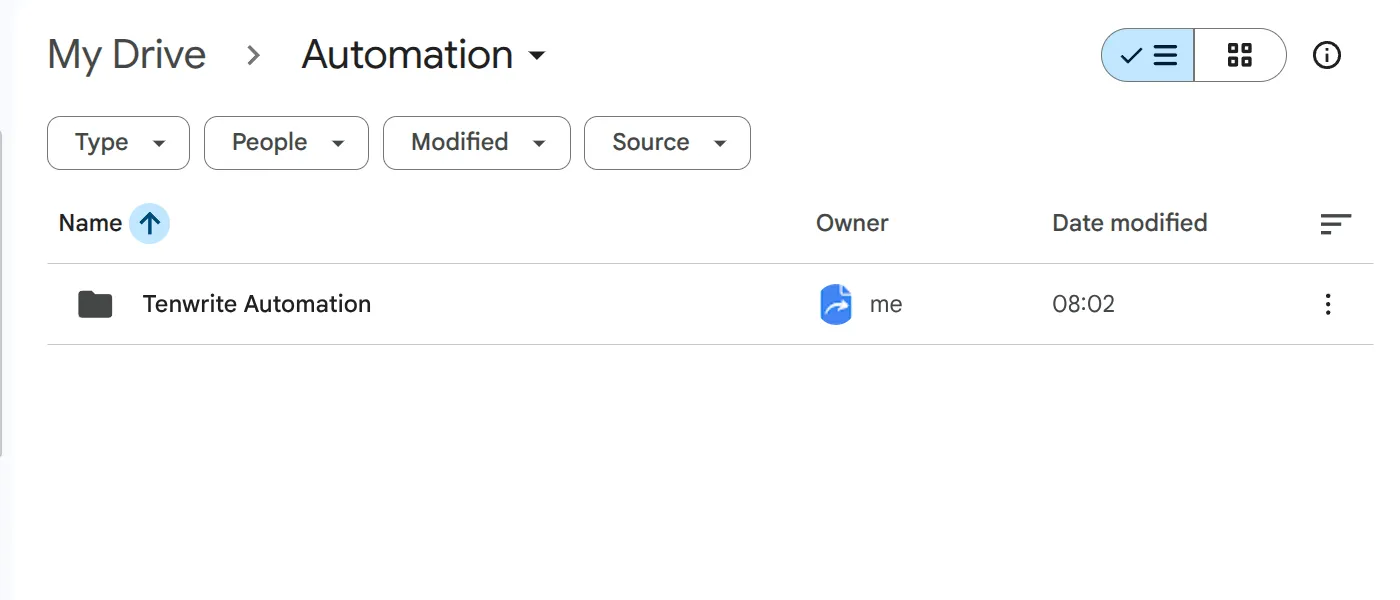
Section titled “Step 3: Create and share a Google Drive folder”You need a folder in Google Drive that Tenwrite can read. Create a new one or use an existing folder.
Create the folder:
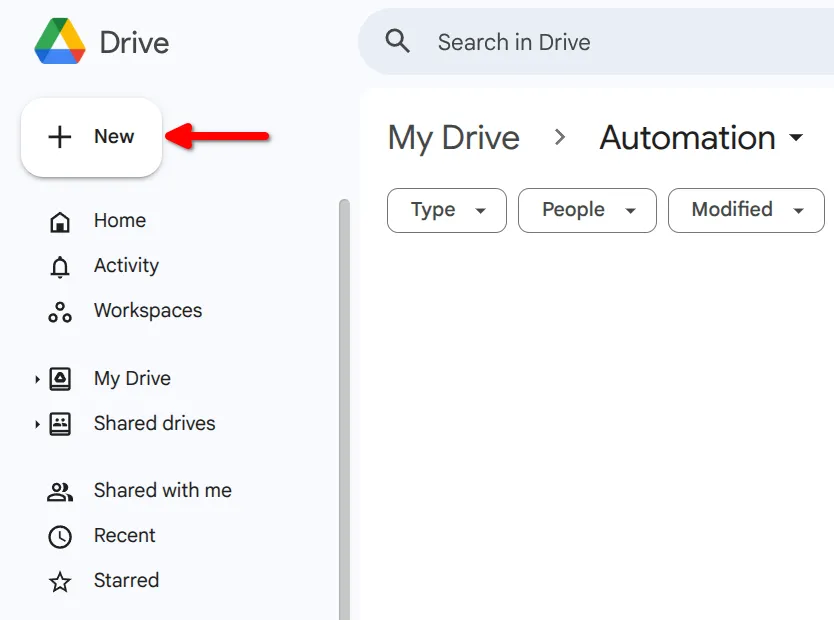
In Google Drive, click + New and select New folder.
Share it with Tenwrite:
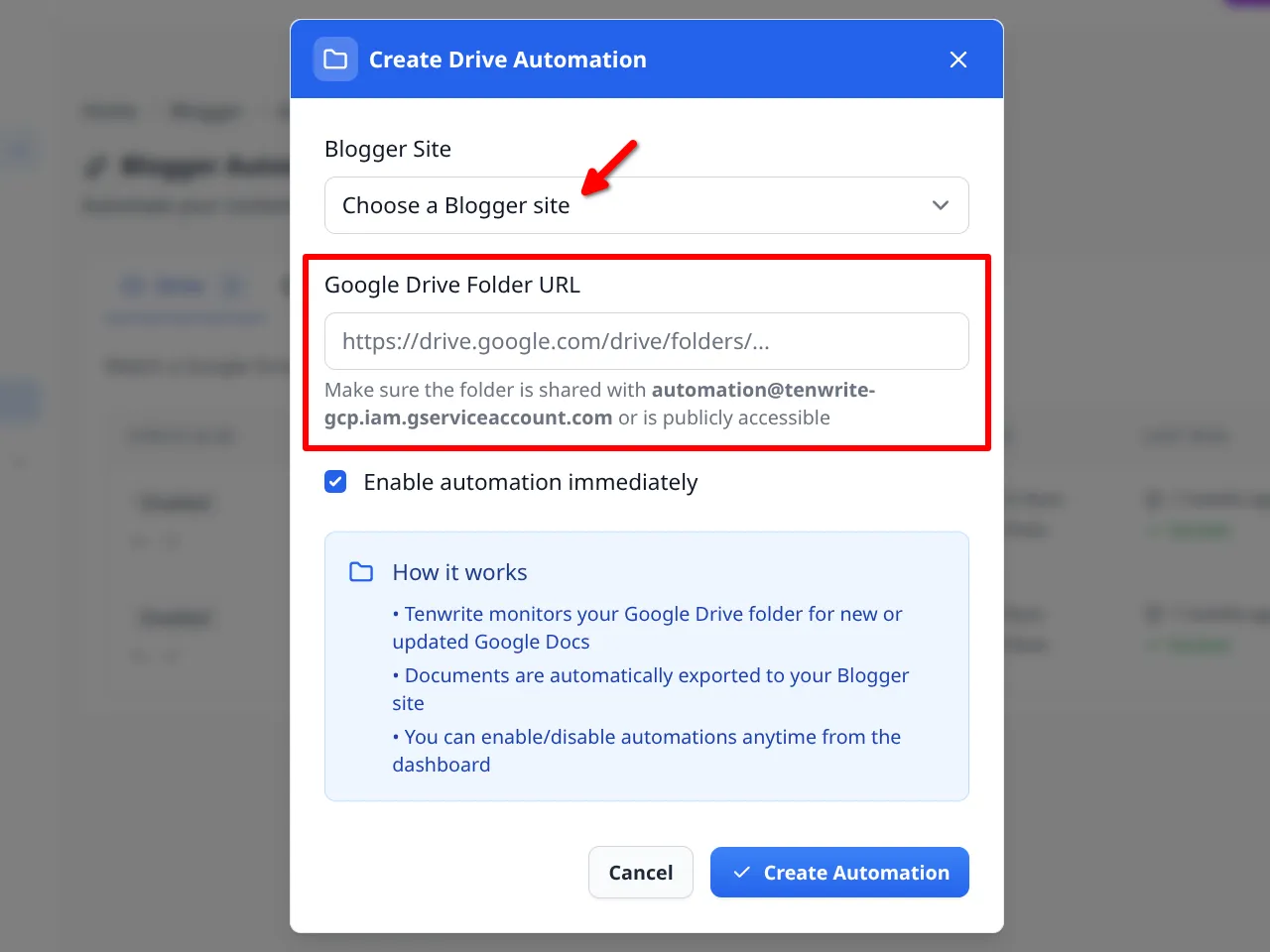
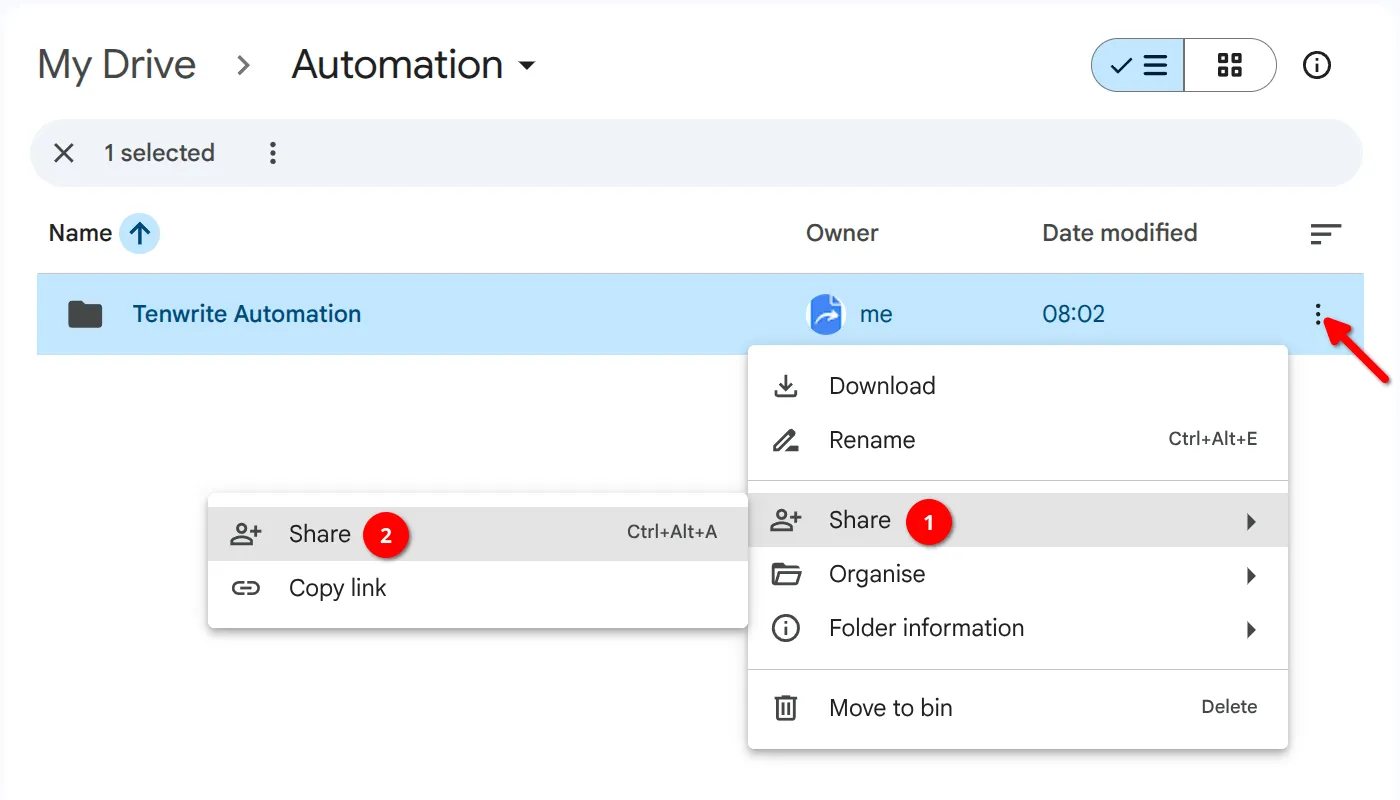
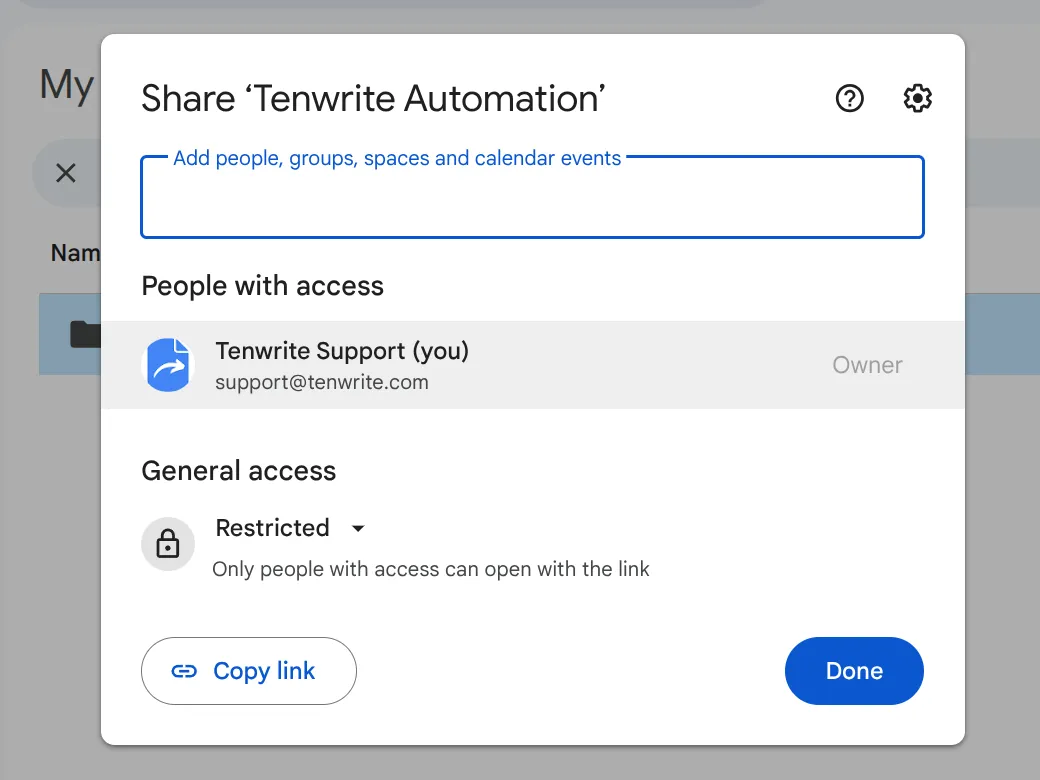
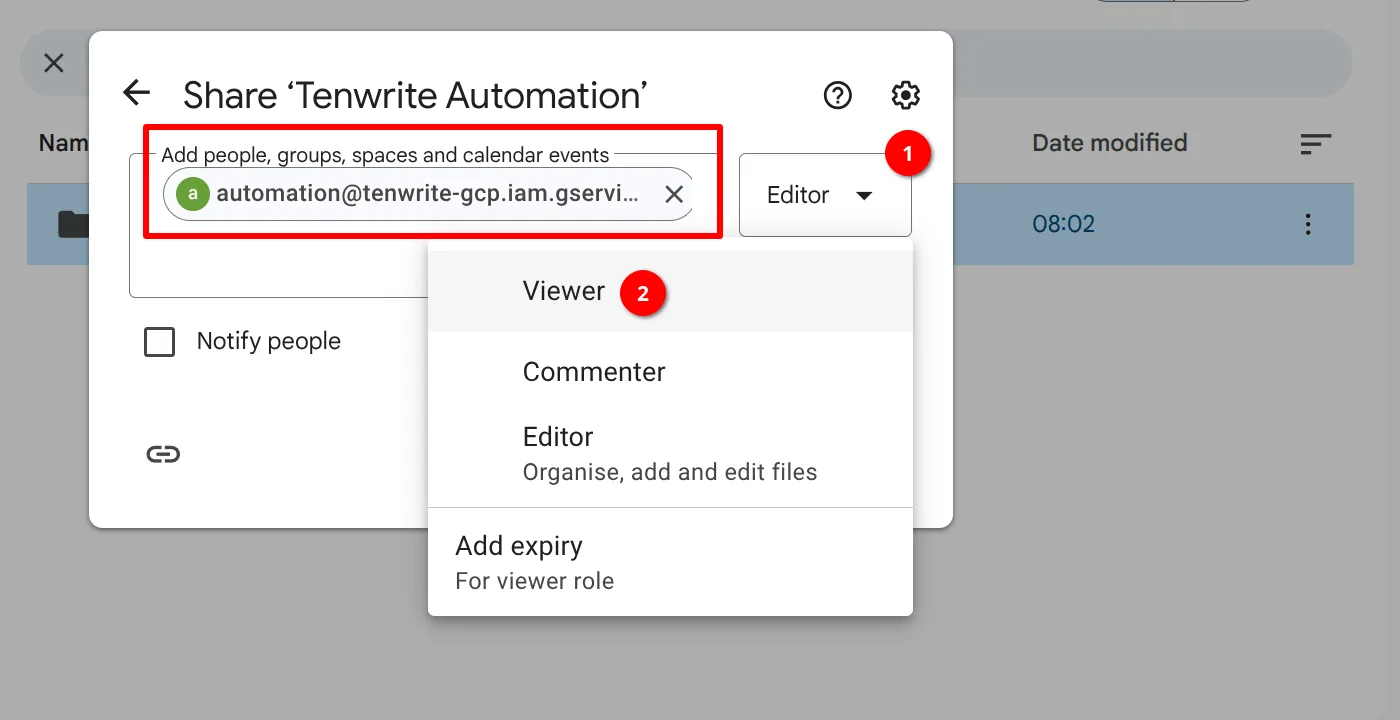
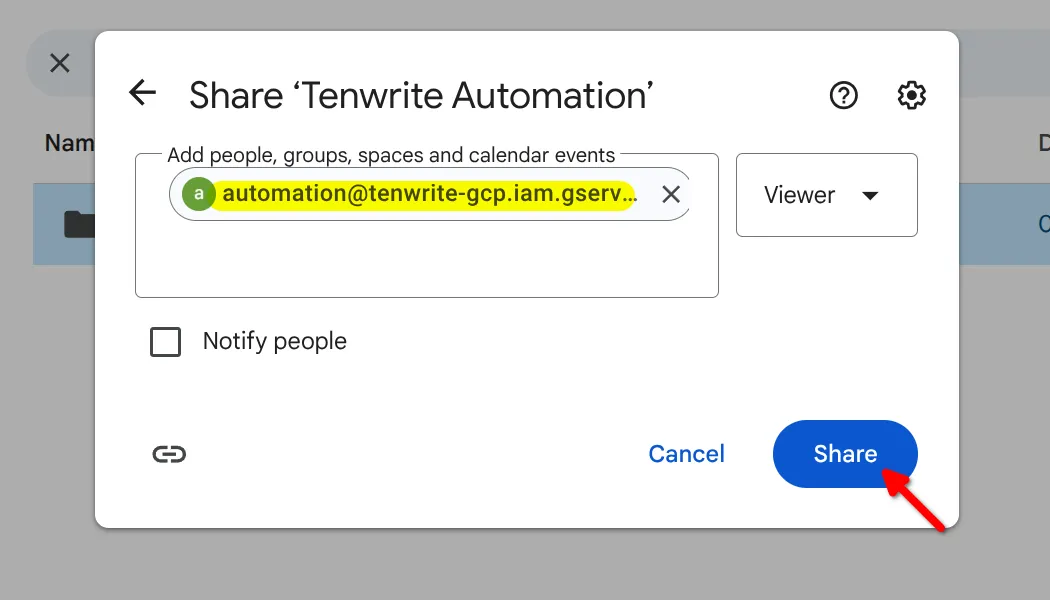
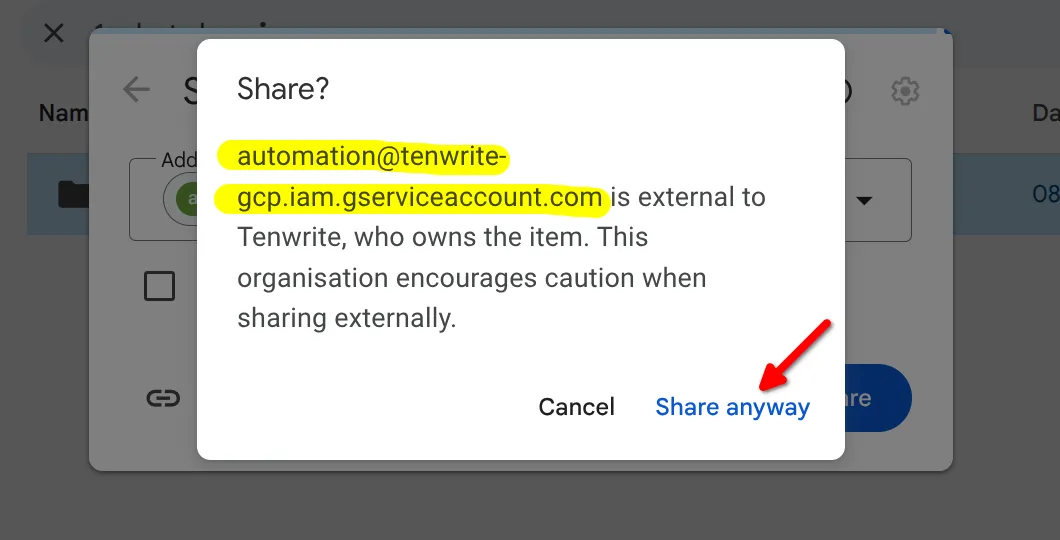
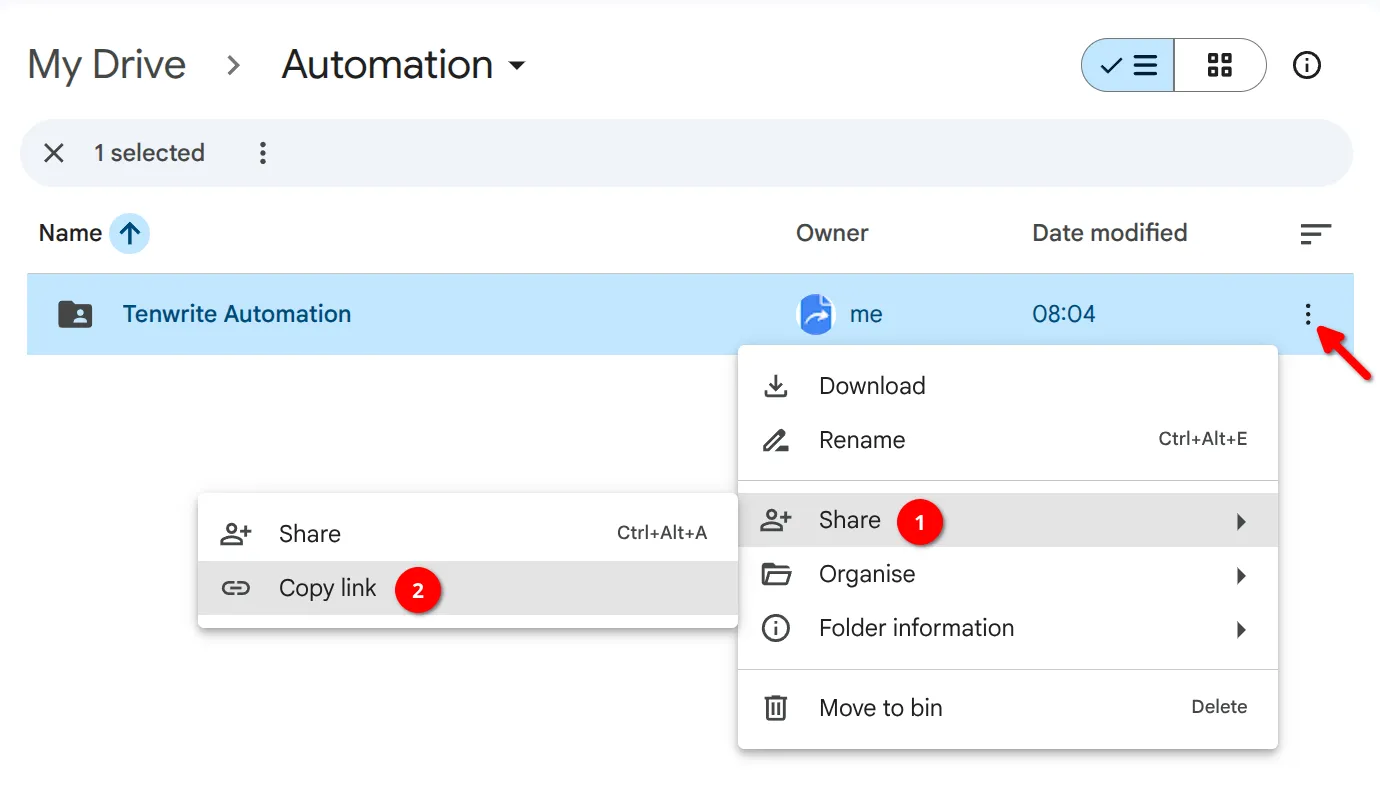
Click the three-dot menu on the folder, choose Share > Share, and enter automation@tenwrite-gcp.iam.gserviceaccount.com. Set the role to Viewer and click Share. Click Share anyway if prompted.
Copy the folder link:
Open the three-dot menu again and choose Share > Copy link. You’ll paste this into Tenwrite.
Step 4: Complete the form in Tenwrite
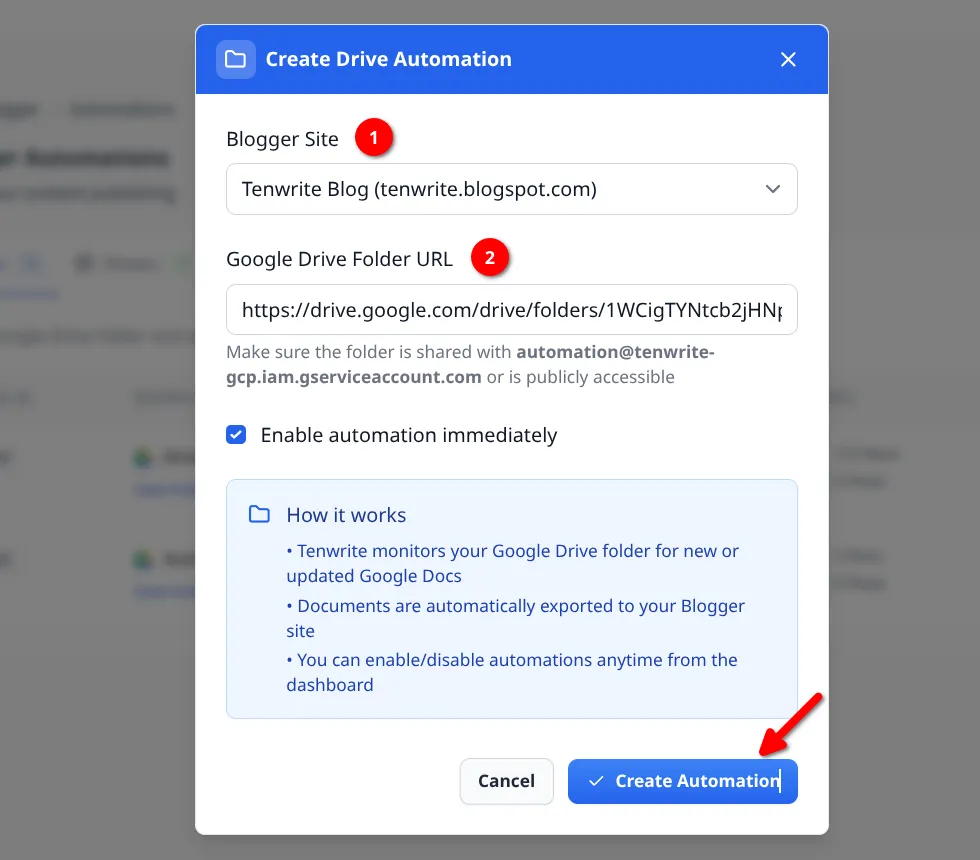
Section titled “Step 4: Complete the form in Tenwrite”Back in Tenwrite, fill in the form: choose the Blogger Blog, paste the Folder URL, and check Enable Automation to activate it right away. Then click Create Automation.
Managing Automations
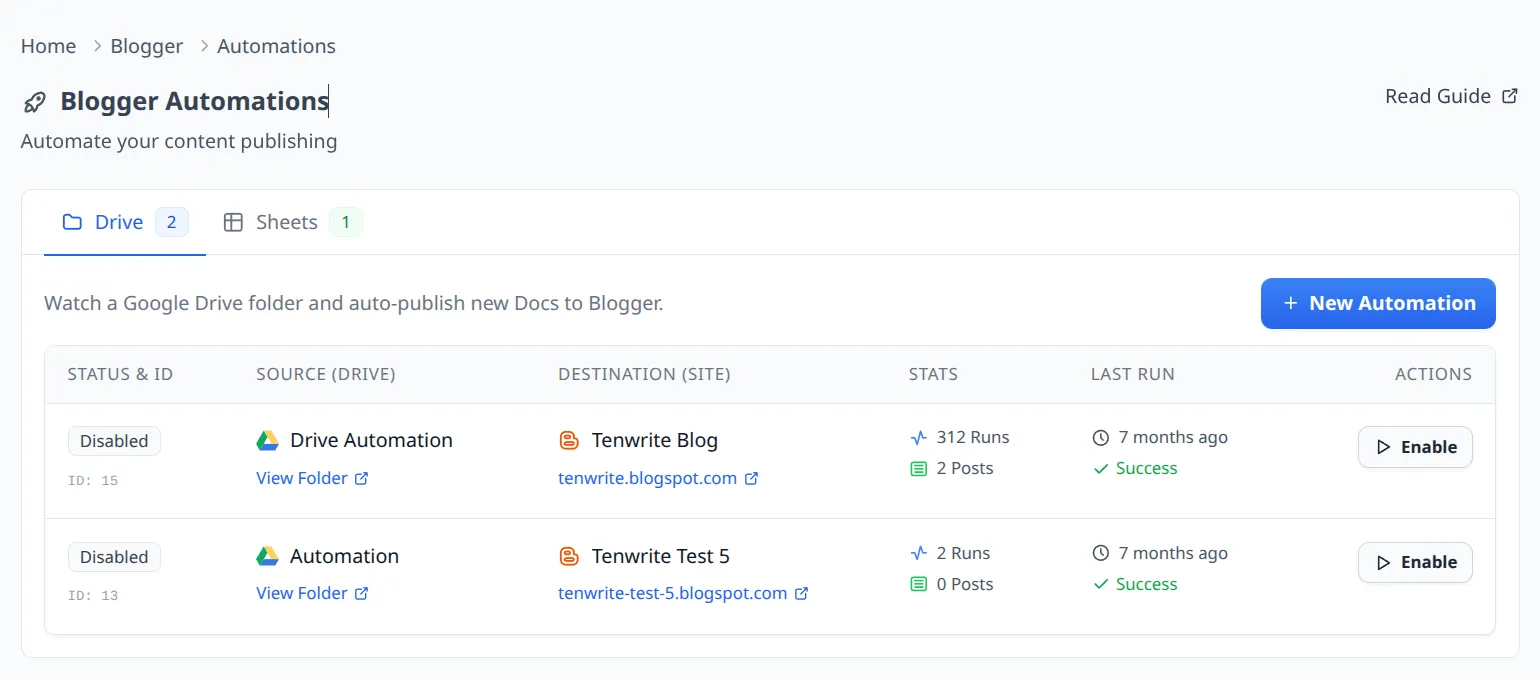
Section titled “Managing Automations”The Drive tab lists all your automations with run stats — total runs, posts created, failures — and when the automation last ran. Use the action button in each row to pause or resume.
Troubleshooting
Section titled “Troubleshooting”Automation isn’t running
Section titled “Automation isn’t running”- Confirm the folder is shared with
automation@tenwrite-gcp.iam.gserviceaccount.com. - Check that the automation is enabled in the list.
- Make sure the folder URL you entered is correct.
Documents aren’t being published
Section titled “Documents aren’t being published”- Only Google Docs are supported — Word files, PDFs, and other types are skipped.
- Files must be in the folder root, not inside subfolders.
- Confirm your Blogger blog is still connected in Tenwrite.
Posts aren’t updating after I edit a doc
Section titled “Posts aren’t updating after I edit a doc”- Edit the original Google Doc inside the shared folder — Tenwrite tracks docs by their file ID, so edits to copies elsewhere won’t be detected.
- Changes are picked up on the next hourly run.
Related Guides
Section titled “Related Guides”Need help? Contact support@tenwrite.com.
Tenwrite is an independent product not affiliated with or endorsed by Google LLC, Blogger, or WordPress Foundation. Google Docs, Gmail, Google Workspace are trademarks of Google LLC. WordPress is a trademark of the WordPress Foundation.