Blogger Publishing on Autopilot
Drop a Google Doc in a Drive folder and it publishes to Blogger automatically. Or manage hundreds of posts across multiple blogs from a single Google Sheet. No other tool for Blogger works like this.
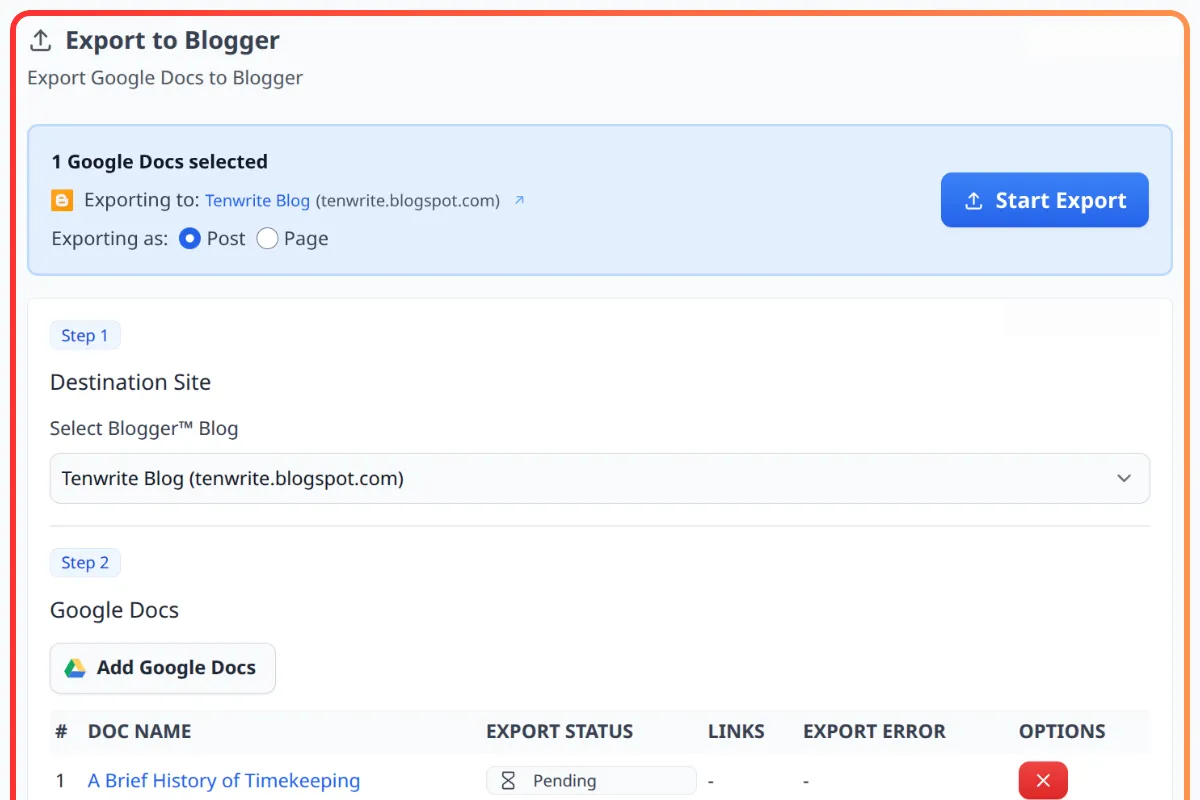
Two Ways to Automate
Choose the one that fits how you work — or use both at the same time
Drive Automation
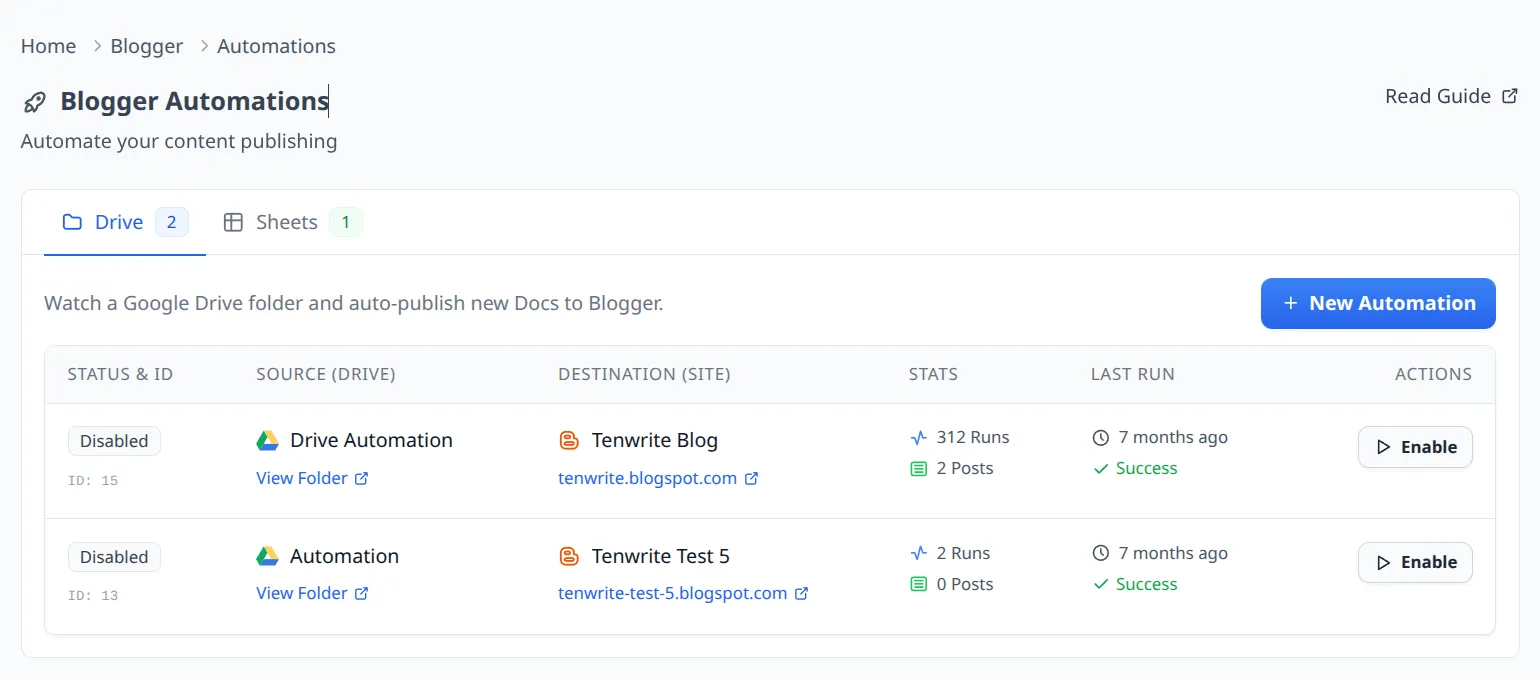
Share a Google Drive folder with Tenwrite. Every Google Doc you place in that folder gets published to your Blogger blog — automatically, every hour. Edit the doc and the live post updates too.
Best for
- Individual bloggers and content teams
- Ongoing editorial calendars
- Long-form content that gets updated over time
Sheet Automation
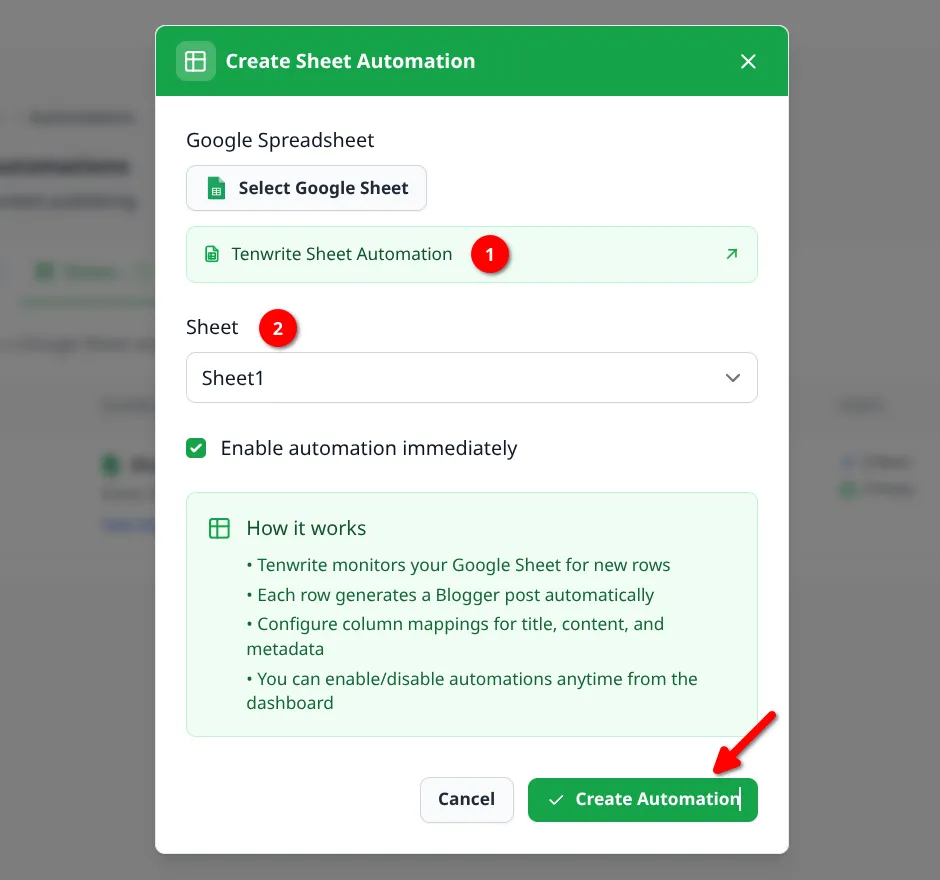
Each row in a Google Sheet becomes a Blogger post. Set the title, content, labels, status, and target blog — all in the spreadsheet. One sheet can publish to multiple different blogs simultaneously.
Best for
- Programmatic SEO at scale (pSEO)
- Multi-blog content operations
- Publishing hundreds of posts in batch
Drive Automation
Drop it in Drive.
It publishes itself.
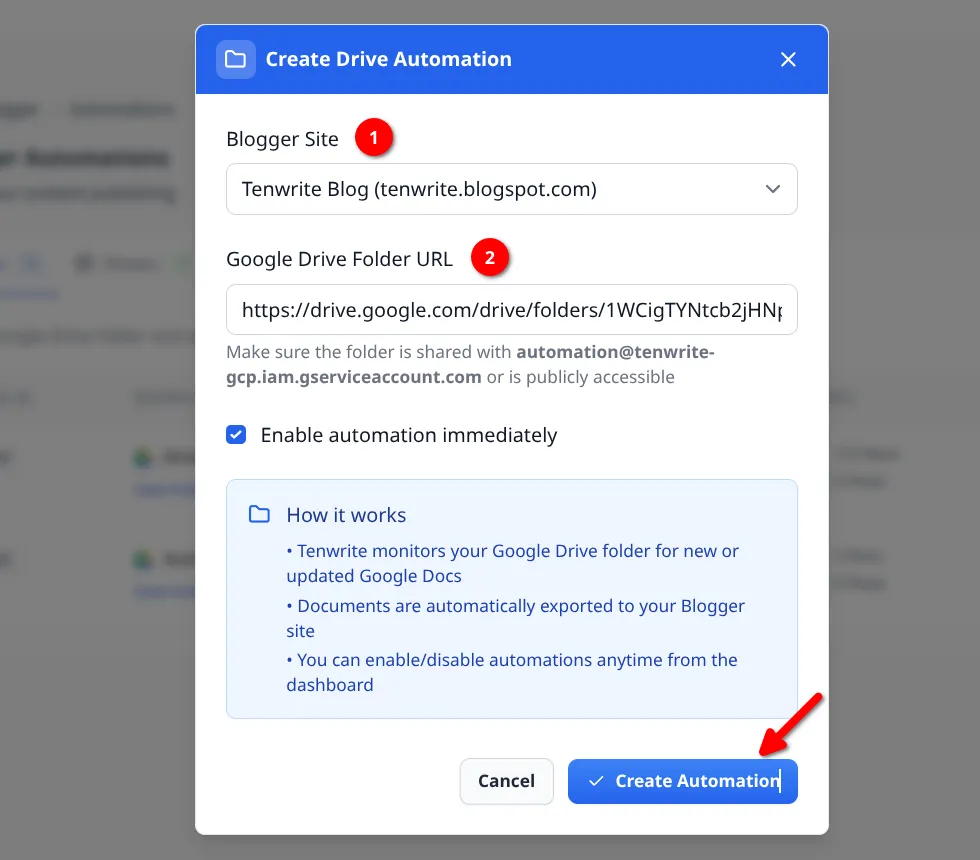
Share a single Google Drive folder with Tenwrite's service account. From that moment on, any Google Doc you add to that folder is automatically published to your target Blogger blog within the hour.
Updated the post? Edit the Google Doc. Tenwrite detects the change on the next run and syncs it back to the live Blogger post. Your source of truth lives in Google Drive — where it always has.
Create a folder in Google Drive
Any folder works — new or existing.
Share it with Tenwrite
Add automation@tenwrite-gcp.iam.gserviceaccount.com as Viewer.
Create the automation in Tenwrite
Paste the folder URL, pick your target blog, and you're done.
Drop Google Docs into the folder
Tenwrite checks every hour and publishes anything new or changed.
Set post metadata
inside the doc itself
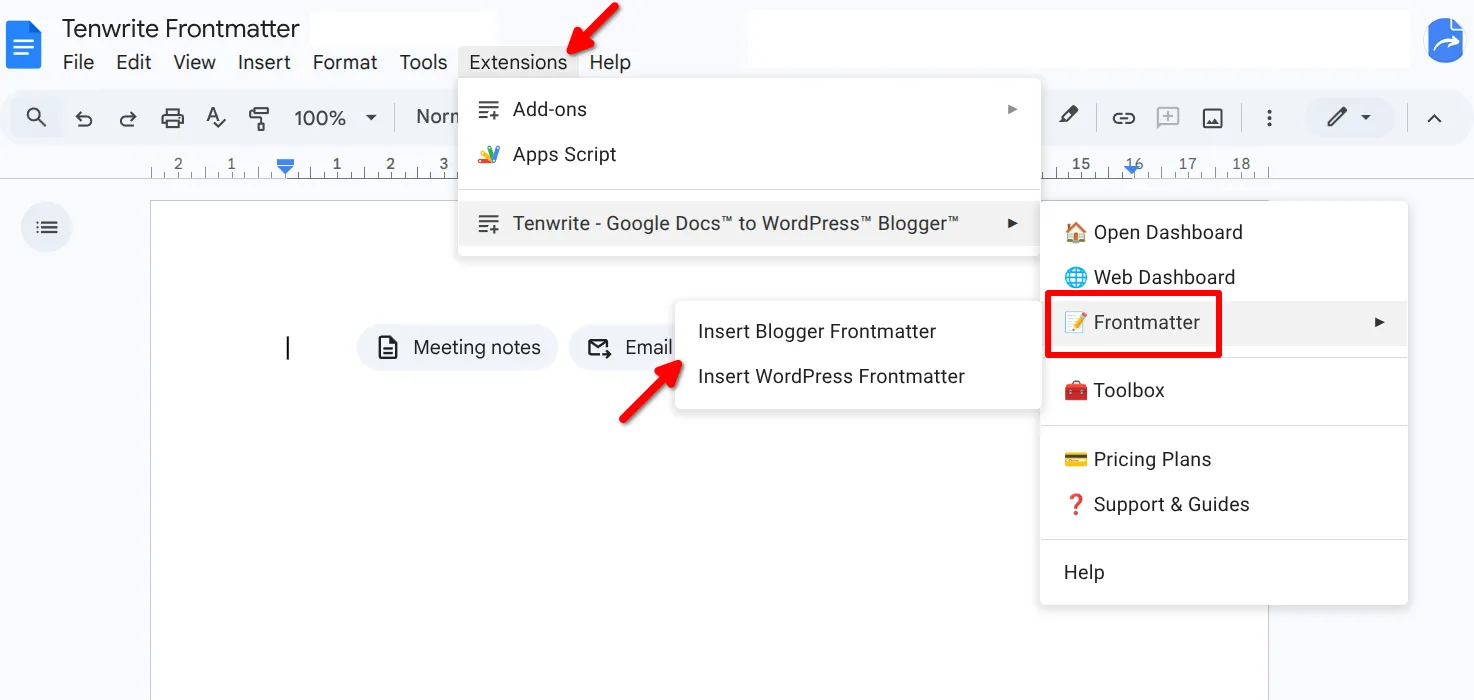
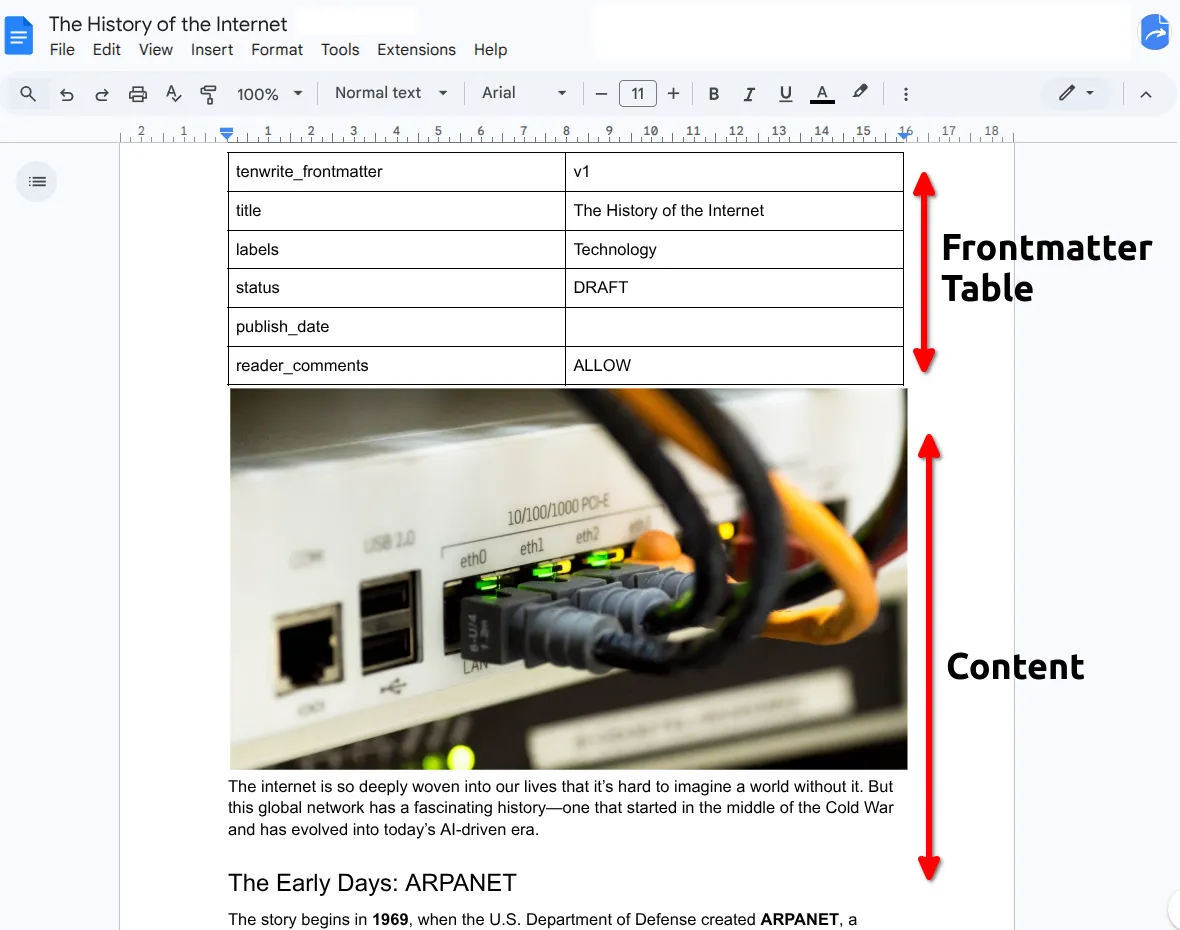
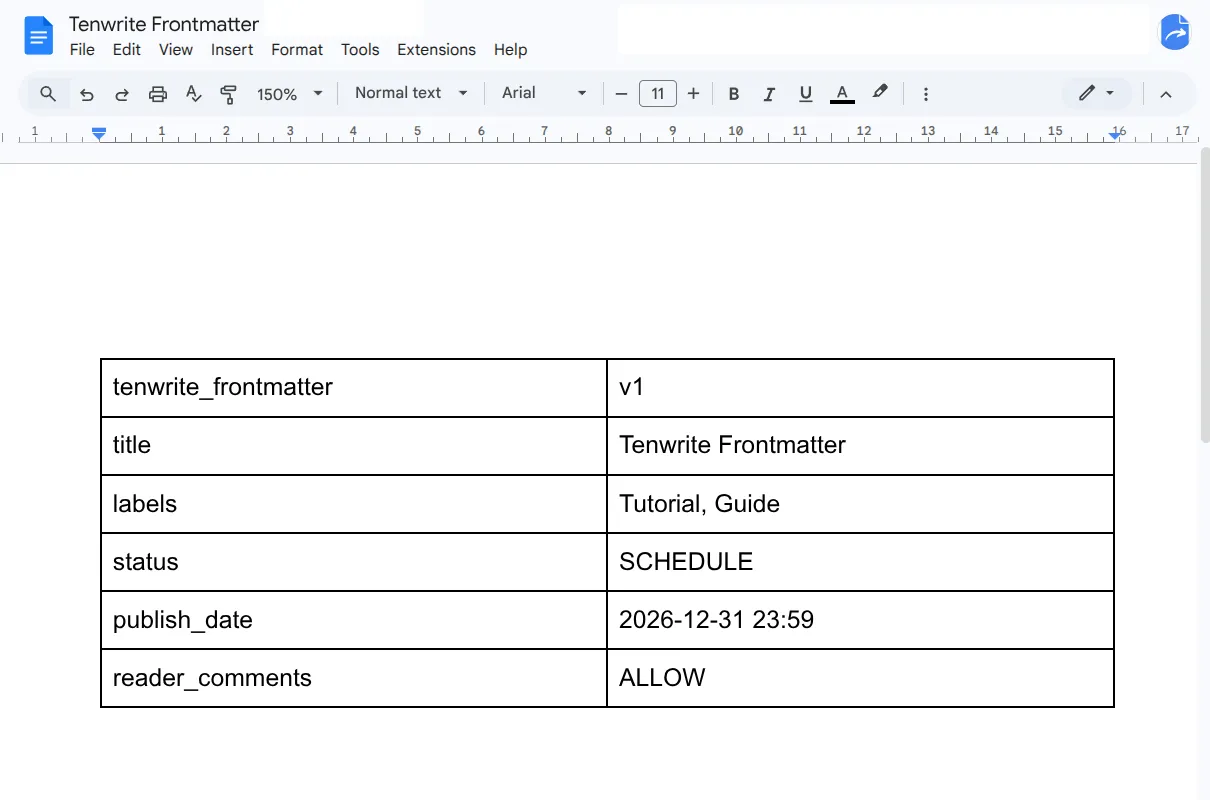
When automation runs in the background, there's no export form to fill in. Frontmatter solves this: add a simple 2-column table at the top of your Google Doc and Tenwrite reads it as post settings — title, labels, publish status, scheduled date, and more.
The table is stripped from the published content automatically. Your readers never see it. You control everything without leaving Google Docs.
Works with both automations
Frontmatter is picked up by Drive Automation and Sheet Automation alike. If a frontmatter table is present, it overrides any sheet column values too.
Sheet Automation
One spreadsheet.
Unlimited blogs.
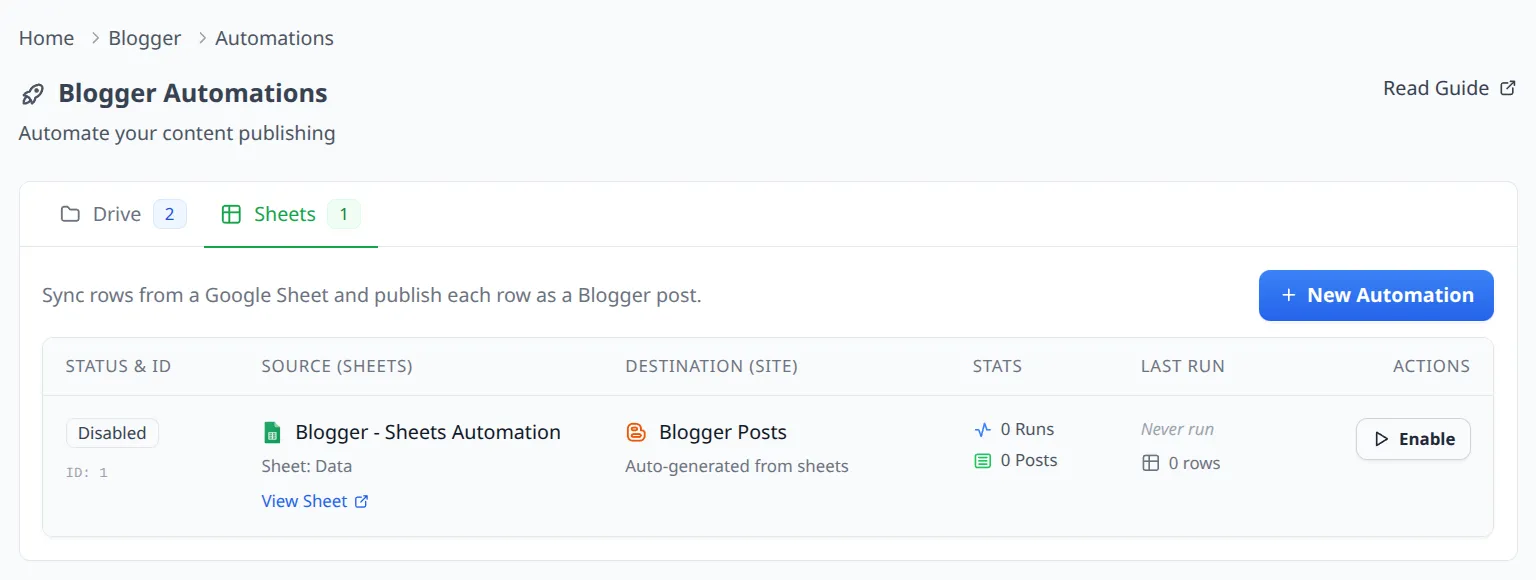
Sheet Automation turns a Google Sheet into a content control center. Each row is a post. Each row can target a different Blogger blog. Content can come from a Google Doc URL or be written directly in the sheet — Markdown supported.
This is how power users do programmatic SEO on Blogger. Populate the sheet, run the automation, and watch hundreds of posts go live across multiple blogs — without touching the Blogger dashboard once.
What a row can define
Up to 500 rows per sheet
New rows create new posts. Changed rows update the existing post. Unchanged rows are skipped — Tenwrite only processes what's new or modified.
Which automation is right for you?
Both run hourly, both support Frontmatter — the difference is in how you manage your content
| Drive Automation | Sheet Automation | |
|---|---|---|
| Content source | Google Docs in a Drive folder | Google Doc URLs or text in the sheet |
| Metadata control | Frontmatter in the doc | Sheet columns + optional Frontmatter |
| Multi-blog | One folder → one blog | One sheet → multiple blogs |
| Best scale | Tens of posts | Hundreds of posts |
| Complexity | Very simple to set up | Moderate — sheet columns to configure |
| For content type | Long-form editorial content | Templated or programmatic content |
| Runs every | Hour | Hour |
Frequently Asked Questions
Questions about automating Blogger publishing with Tenwrite
Ready to automate Blogger publishing from Google Docs?
Start free for manual exports. Upgrade to Pro for hourly automation, or Agency when you need more blogs and team seats.